
NO FLUFF. JUST THE CONFIG THAT WORKS.
You click Upgrade on a FortiGate 60F, pick the new image, and the GUI throws a scary banner: WARNING: This firmware failed signature validation. Is the image tampered with? Is the box compromised? In most 60F cases, no. This post breaks down why the firmware failed signature validation warning shows up on the 60F, how to prove the image is clean, and how to land on the latest fixed FortiOS code without tripping the warning at all.
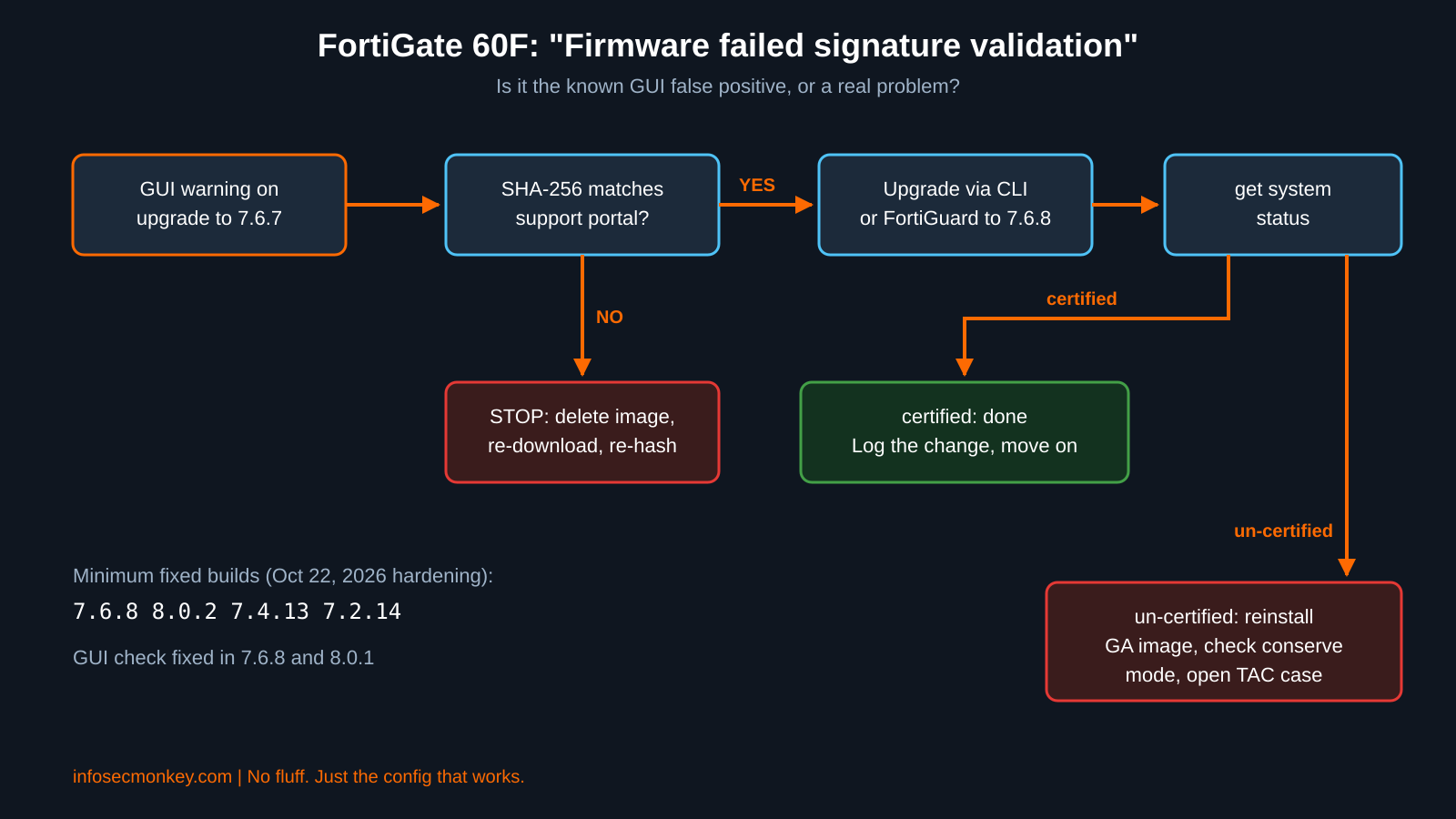
TL;DR: On a FortiGate 60F upgrading to 7.6.7 through the GUI, the signature warning is a known false alarm. Fortinet’s workaround is to upgrade through the CLI or from FortiGuard, and the GUI check is fixed in 7.6.8 and 8.0.1. Do not park on 7.6.7 either: the October 22, 2026 hardening release makes 7.6.8, 8.0.2, 7.4.13 and 7.2.14 the minimum fixed versions. The only proof that matters is get system status showing Firmware Signature: certified.
Executive Summary
| Item | Detail |
|---|---|
| Objective | Explain the FortiGate 60F firmware failed signature validation warning, verify the image is genuine, and upgrade to the current fixed FortiOS release cleanly. |
| Target audience | FortiGate administrators, MSPs and SEs running 60F/61F fleets on FortiOS 7.4, 7.6 or 8.0. |
| Outcome | A 60F on FortiOS 7.6.8 (or 8.0.2) with a certified firmware signature and a clean upgrade record. |
Why the Firmware Failed Signature Validation Warning Appears
Every FortiOS GA firmware image, AV engine file and IPS engine file is dually signed: once by the Fortinet CA and once by a third-party CA. The FortiGate checks those signatures the moment you upload the file, before it ever writes the image to flash. What happens next depends on the BIOS security level:
| Security level | Uncertified image on upload | What you see |
|---|---|---|
| 2 (High) | Blocked | This firmware image didn’t pass the signature verification / Image verification failed! |
| 1 (Low) | Allowed after a warning | This firmware failed signature validation, with a Continue button |
Fortinet’s own documentation uses the 60F as the example of a model that behaves like security level 1, which is exactly why the GUI offers a Continue button instead of hard-blocking you. Newer BIOS builds (05000100, 06000100 and later) add enhanced BIOS-level integrity checks, so always confirm what your unit reports before assuming.
The 60F bug: a false positive in the GUI
This is not new. FortiOS 7.6.1 shipped with the same symptom: the GUI warned during the upgrade, yet get system status reported Firmware Signature: certified once the box came back up. The same false alarm returned on the 60F with 7.6.7 GUI uploads. Fortinet lists it as resolved in 7.6.8 and 8.0.1, with the workaround of upgrading through the CLI or from FortiGuard.
Do not click through blindly: A false positive is still a warning about your supply chain. Verify the SHA-256 hash against the support portal before you press Continue, and confirm the certified status after boot. If the hash does not match, delete the file and download it again.
Figure 1: Signature warning decision flow
Which Version Is the Latest Fixed Code?
On October 21, 2026 Fortinet announced a coordinated security hardening update, with new FortiOS builds released October 22 and the detailed PSIRT advisories published November 10. Those builds are the minimum versions you should be on now:
| Running now | Upgrade to | Notes |
|---|---|---|
| 7.6.0 to 7.6.7 | 7.6.8 | Fixes the 60F GUI signature false positive and the October hardening issues. Best fit for most 60F fleets. |
| 8.0.0 to 8.0.1 | 8.0.2 | Minimum fixed build for the 8.0 branch. |
| 7.4.0 to 7.4.12 | 7.4.13 | Or plan the path to 7.6.8. |
| 7.2.0 to 7.2.13 | 7.2.14 | Treat as a stopgap: 7.2 is nearing end of support. |
If you are weighing 8.0 on a 60F, remember it is a 2 GB RAM platform. Agentless VPN (formerly SSL VPN web mode) is not supported on 60F series models, and 2 GB models no longer support proxy-related features. Unless you need a specific 8.0 feature, 7.6.8 is the safer landing spot. For the pre-auth issues in that PSIRT drop, also see Fortinet PSIRT countermeasures for pre-auth vulnerabilities.
Prerequisites and Architecture
Assumed knowledge: FortiOS CLI basics, TFTP, and how to reach the support portal. Have a console cable within reach in case you need the boot menu.
| Component | Value (lab) | Role |
|---|---|---|
| FortiGate 60F | Mgmt 10.0.10.1, WAN 198.18.0.2 | Device being upgraded |
| Admin workstation / TFTP | 10.0.10.50 | Hosts the image, runs hash checks |
| FortiOS target | 7.6.8 GA (or 8.0.2) | Latest fixed code |
| Support portal | support.fortinet.com | Firmware download and checksums |
| Console cable | RJ45 to USB | Recovery only |
Step-by-Step: Upgrade a 60F to the Latest Code
Step 1: Baseline the unit
Goal: Know exactly what you are running and what the BIOS enforces. Action: Run the status and flash commands and save the output to your change ticket.
get system status
diagnose sys flash listGUI verification: Dashboard, Status, System Information widget shows the current firmware version.
Step 2: Check memory headroom
Goal: Avoid a signature error that is really a memory problem. On 2 GB units, entering conserve mode during an upgrade can produce the same signature verification failure. Fortinet also documents an ips-helper memory spike on 60F and 61F during FortiGuard updates. Action:
get system performance status
diagnose hardware sysinfo conserveIf memory is already running high, schedule a reboot at the start of the window, or temporarily disable heavy features before uploading the image. See the FortiGate conserve mode thresholds guide for the exact thresholds.
Step 3: Back up the configuration
Goal: A rollback point that matches the running version. Action:
execute backup config tftp FGT60F-pre-7.6.8.conf 10.0.10.50GUI verification: Admin menu (top right), Configuration, Backup. Store the file with the current version in the name.
Step 4: Download the image and verify the hash
Goal: Prove the image is genuine before the FortiGate ever sees it. Action: On the support portal go to Support, Firmware Download, select FortiGate, then 7.6.8 and the FGT_60F image. Grab the SHA-256 value from the Firmware Image Checksums page, then hash your local copy:
# macOS
shasum -a 256 FGT_60F-v7.6.8.F-build<NNNN>-FORTINET.out
# Linux
sha256sum FGT_60F-v7.6.8.F-build<NNNN>-FORTINET.outThe two hashes must match character for character. Also check the Fortinet upgrade path tool so you do not skip a required intermediate build.
Step 5: Upgrade without the GUI upload
Goal: Skip the buggy GUI check entirely. Action: Use one of these methods.
Option A, FortiGuard (GUI): System, Firmware and Registration, select the FortiGate, Upgrade, and choose 7.6.8 from the FortiGuard list instead of uploading a file.
Option B, CLI over TFTP:
execute restore image tftp FGT_60F-v7.6.8.F-build<NNNN>-FORTINET.out 10.0.10.50Option C, CLI from USB:
execute restore image usb FGT_60F-v7.6.8.F-build<NNNN>-FORTINET.outA clean CLI upgrade prints Image verification OK! followed by Firmware upgrade in progress ... and the unit reboots. If you are on 7.6.7 and must upload through the GUI, expect the warning: confirm your hash from Step 4, click Continue, then verify in the next section.
Verification and Validation
Log back in and confirm the version, the signature, and the partition layout:
get system status
diagnose sys flash list
diagnose debug config-error-log readExpected success output from get system status:
Version: FortiGate-60F v7.6.8,build<NNNN>,<date> (GA.M)
Security Level: <n>
Firmware Signature: certifiedFirmware Signature: certifiedis the pass condition. Anything else, stop and investigate.diagnose sys flash listshows 7.6.8 as the active image and the previous release on the backup partition.diagnose debug config-error-log readreturns nothing, or only lines you understand. Any config lines that failed to convert show up here.- Run
execute update-nowand confirm FortiGuard packages update without signature errors.
Troubleshooting and Gotchas
1. Status shows Firmware Signature: un-certified
Cause: You are running an interim or special build, or the image is corrupted. Fix: If TAC did not hand you a special build, re-download the GA image, verify the hash, and reinstall it.
get system status | grep -i signature2. Upload blocked: “didn’t pass the signature verification”
Cause: Security level 2 behavior, conserve mode on a 2 GB unit, or moving to a FortiOS version that predates BIOS-level checks (for example an old 6.0 build used for config conversion). Fix: Try a different upgrade method first (FortiGuard or CLI), clear memory pressure, and only then lower the BIOS security level from the console boot menu. Restore the level as soon as the job is done.
get system status | grep -i "security level"
diagnose hardware sysinfo conserve3. Boot halts: “This firmware image is not certified! … System halted.”
Cause: The BIOS refused the image at boot. Fix: Connect the console, interrupt boot at the configuration menu prompt, and either boot the backup partition or TFTP a known-good GA image from the boot menu. Then restore your Step 3 backup if needed.
4. FortiGuard “signature is missing or invalid” alerts after the upgrade
Cause: A package update problem, not the firmware image. Messages such as idsurldb signature is missing or invalid point at FortiGuard downloads. Fix: Force an update and check the package status.
execute update-now
diagnose autoupdate versionsSources
- Fortinet Community: Warning this firmware failed signature validation (FortiOS 7.6.1)
- Fortinet Community: Error messages ‘This Firmware image didn’t pass the signature verification’ and ‘Firmware upload failed’
- FortiOS 7.6.2 Administration Guide: BIOS-level signature and file integrity checking
- FortiOS 7.2.13 Administration Guide: BIOS-level signature and file integrity checking
- Fortinet Community: Downgrade of FortiOS fails due to BIOS check
- AIcybr: Fortinet October 2026 security hardening fixed FortiOS versions
- Help Net Security: Fortinet patches critical FortiOS flaws found with AI help
- FortiOS 7.6.3 Release Notes: Special notices (60F Agentless VPN, 2 GB proxy features)
- FortiOS 7.4.4 Release Notes: Known issues (60F/61F ips-helper memory)
- FortiOS 7.6.7 Release Notes (PDF)
