
No fluff. Just the config that works.
Executive Summary
Objective: Turn tmux from “that thing I open when SSH keeps dropping” into a daily driver. This post collects the tmux tips and tricks I actually use during firewall change windows, lab builds and long-running scans, plus a handful of rare tidbits most people never stumble on.
Target audience: Network and security engineers who live in SSH sessions to FortiGates, Linux jump hosts and lab boxes, and who want sessions that survive a dropped VPN, a sleeping laptop or a closed terminal tab.
What you get:
- The tmux mental model in one diagram (server, sessions, windows, panes)
- A starter
~/.tmux.confthat fixes the annoying defaults - Tips and tricks for panes, copy mode, logging and scripting
- Real use cases: change windows, fleet fan-out, long scans, shared troubleshooting
- Rare tidbits: socket recovery, the 10 ms escape-time change, control mode, floating panes
Prerequisites and Architecture
Assumed knowledge: Basic shell use, SSH, and editing a dotfile.
Lab requirements: Any Linux or macOS host. Examples use a jump host at 10.0.10.5, lab Linux servers at 10.0.10.11 to 10.0.10.13, and a FortiGate management IP of 198.18.0.1.
Install:
# Debian / Ubuntu
sudo apt install -y tmux

# RHEL / Rocky / Fedora
sudo dnf install -y tmux

# macOS (Homebrew)
brew install tmux

# Check the version (features below note the version they need)
tmux -V
As of this writing the latest tagged release on the tmux GitHub releases page is 3.7c, and the CHANGES file on master already documents 3.8. Distro packages lag behind, so check tmux -V before you copy a config line from the internet.
The tmux object model
Figure 1: tmux object model
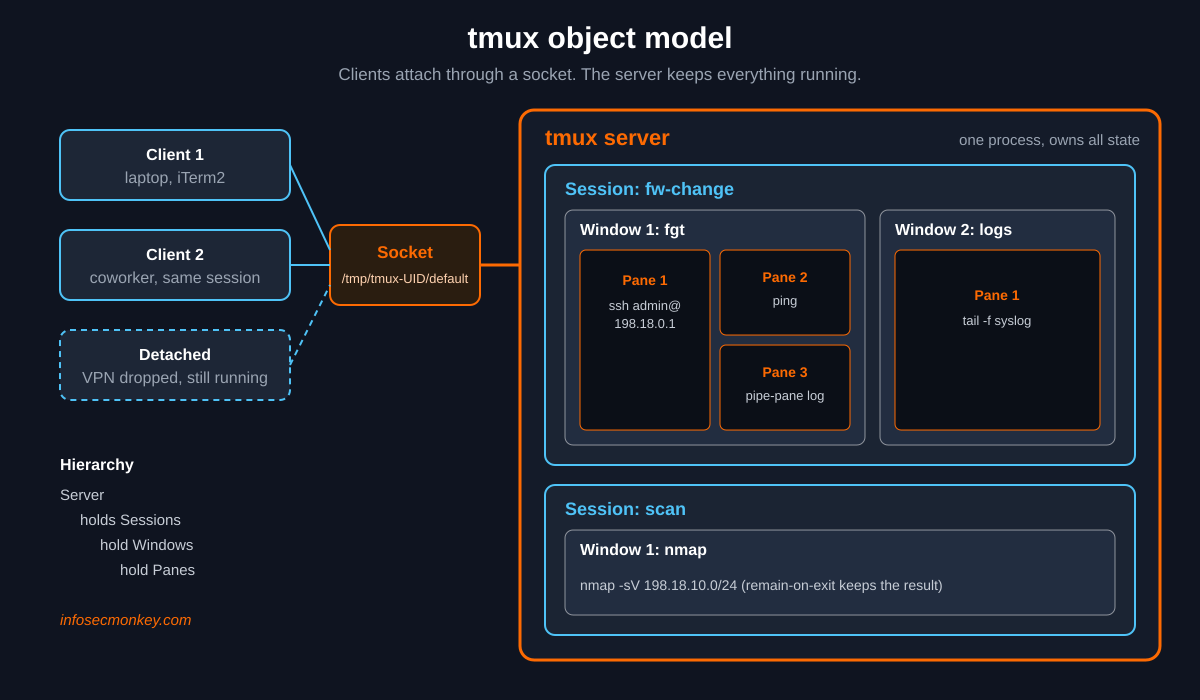
| Component | What it is | Why you care |
|---|---|---|
| Server | One background process that owns every session and every program running inside tmux | It keeps running when your terminal, laptop lid or VPN goes away |
| Client | Your terminal attached to the server | Many clients can attach to the same session at once |
| Session | A named group of windows | One session per job: fw-change, lab, scans |
| Window | A full-screen tab inside a session | One window per device or task |
| Pane | A split inside a window, each running its own shell | Side-by-side SSH sessions, logs next to configs |
| Socket | The file clients use to talk to the server, under /tmp/tmux-UID/ by default |
Lose it and you lose access, see the rare tidbits |
Everything in this model comes from the tmux Getting Started wiki: one server, clients attach to sessions, sessions hold windows, windows hold panes.
Step-by-Step: A Working Daily Setup
Step 1: Start a named session (and reattach the same way)
Goal: Never end up with sessions named 0, 1, 2 and 3 that you cannot tell apart.
Action: Use new-session -A. If the session exists, tmux attaches to it. If it does not, tmux creates it. One command, both cases.
tmux new-session -A -s fw-change
# short form
tmux new -A -s fw-change
Verification:
tmux ls
# fw-change: 1 windows (created Sat Nov 21 10:02:11 2026) (attached)
Step 2: Learn the prefix and the ten keys that matter
Goal: Get productive without memorizing the whole man page.
Action: Every tmux key starts with the prefix, Control+b by default. Press and release it, then press the key.
| Keys | Action |
|---|---|
| Control+b then d | Detach (everything keeps running) |
| Control+b then % | Split left and right |
| Control+b then “ | Split top and bottom |
| Control+b then arrow key | Move between panes |
| Control+b then z | Zoom the current pane to full screen and back |
| Control+b then c | New window |
| Control+b then , | Rename the window |
| Control+b then l | Jump to the last window you used |
| Control+b then s | Tree view of every session, window and pane |
| Control+b then [ | Copy mode (scroll back and search) |
| Control+b then : | Command prompt |
| Control+b then ? | List every key binding |
Verification: Press Control+b then ?. If a list of bindings appears, the prefix works.
Step 3: Drop in a starter config
Goal: Fix the defaults that annoy everyone in the first hour.
Action: Create ~/.tmux.conf:
# ~/.tmux.conf  (starter config, tmux 3.2 or later)

# Number windows and panes from 1 so they match the keyboard
set -g base-index 1
setw -g pane-base-index 1
set -g renumber-windows on

# More scrollback (default is 2000 lines)
set -g history-limit 50000

# Mouse: click panes, drag borders, wheel scroll (default on in 3.8)
set -g mouse on

# Vi keys in copy mode
setw -g mode-keys vi
bind -T copy-mode-vi v send -X begin-selection
bind -T copy-mode-vi y send -X copy-selection-and-cancel

# Splits that open in the current directory and use keys you can remember
bind | split-window -h -c "#{pane_current_path}"
bind - split-window -v -c "#{pane_current_path}"

# Reload this file with prefix then r
bind r source-file ~/.tmux.conf \; display "tmux.conf reloaded"

# True color for modern terminals
set -g default-terminal "tmux-256color"
set -as terminal-features ",xterm-256color:RGB"

# Fast Escape for vim and FortiOS line editing (3.5 already defaults to 10)
set -sg escape-time 10
Verification:
tmux source-file ~/.tmux.conf
tmux show -g history-limit
# history-limit 50000
Step 4: Detach, walk away, reattach
Goal: Prove the session survives without you.
Action:
tmux new -A -s lab
ping 198.18.0.1           # leave it running
# press Control+b then d to detach
exit                      # close the SSH session to the jump host entirely

# later, from any terminal
ssh admin@10.0.10.5
tmux new -A -s lab        # the ping is still counting
Verification: The ping sequence numbers keep climbing from where you left them. That is the whole point of tmux.
tmux Tips and Tricks That Save Time
Pane and window moves
- Zoom is the best key nobody uses. Control+b then z toggles the current pane to full screen. Perfect for reading a long
show full-configurationand then dropping back to the split. - Break a pane out: Control+b then ! moves the current pane into its own window.
- Pull it back:
join-pane -s :2brings window 2’s pane into the current window. - Swap panes: Control+b then { or } swaps the current pane with the previous or next one.
- Even layouts: Control+b then Space cycles through the preset layouts (even horizontal, even vertical, main horizontal, main vertical, tiled and friends). Control+b then Alt+1 and up jump straight to one, which on a Mac needs Option set to send Meta in your terminal.
select-layout tileddoes the same from the command prompt. - Mark and act: Control+b then m marks a pane, Control+b then M clears the mark. Commands such as
join-paneandswap-paneuse the marked pane as the default source.
Copy mode that does not fight you
- Control+b then [ enters copy mode. With
mode-keys vi, use/to search forward,?to search back,nandNto repeat. - Press
vto start a selection,yto copy, then Control+b then ] to paste into any pane. tmux show-bufferprints the last copy.tmux save-buffer ~/clip.txtwrites it to a file.- Over SSH, set
set -g set-clipboard onso tmux pushes copies to your local clipboard with OSC 52, provided your terminal (iTerm2, Windows Terminal, kitty) allows it.
Logging and scrollback (the change-window lifesaver)
# Toggle a live log of everything in this pane (one key toggles on and off with -o)
tmux pipe-pane -o 'cat >> ~/tmux-#S-#W.log'

# Dump the ENTIRE scrollback of this pane to a file after the fact
tmux capture-pane -pS - > ~/scrollback-$(date +%F).txt

# Bind them so you never type them again
bind P pipe-pane -o 'cat >> ~/tmux-#S-#W.log' \; display "Logging toggled"
bind C-s run "tmux capture-pane -pS - > ~/tmux-#S-#W.txt" \; \
  display "Scrollback saved"
capture-pane -S - starts at the very beginning of the history, and pipe-pane -o only opens a pipe if none exists, which is what makes the single-key toggle work. Both behaviors are documented in the OpenBSD tmux(1) manual page.
Scripting tmux from outside
tmux is fully scriptable. Anything you can do with keys you can do with tmux <command> from a shell script:
#!/usr/bin/env bash
# lab-up.sh : build a change-window workspace in one shot
S=fw-change
tmux has-session -t "$S" 2>/dev/null && exec tmux attach -t "$S"

tmux new-session -d -s "$S" -n fgt
tmux send-keys -t "$S:fgt" 'ssh admin@198.18.0.1' C-m
tmux split-window -h -t "$S:fgt"
tmux send-keys -t "$S:fgt.2" 'ping 198.18.0.1' C-m
tmux new-window -t "$S" -n logs
tmux send-keys -t "$S:logs" 'ssh admin@10.0.10.5 tail -f /var/log/syslog' C-m
tmux select-window -t "$S:fgt"
exec tmux attach -t "$S"
Useful helpers:
tmux display -p '#{session_name} #{window_index} #{pane_current_path}'prints format variables, handy in scripts.tmux wait-for -S doneandtmux wait-for donelet one pane signal another when a job finishes.tmux set-hook -g pane-died 'display "a pane exited"'runs a command on events.
Watch long jobs without babysitting them
# Highlight the window in the status bar if no output for 30 seconds
setw monitor-silence 30

# Or highlight it the moment anything prints
setw monitor-activity on
Kick off a long nmap or a firmware upload in window 3, go work in window 1, and the status bar tells you when window 3 goes quiet.
Popups for quick one-offs (3.2 or later)
# A floating shell over whatever you are doing, gone when you exit
bind g display-popup -E -w 80% -h 60% -d "#{pane_current_path}"
Use Cases
1. Firewall change windows over a flaky VPN
Run the whole change inside tmux new -A -s chg-1234. If the VPN drops mid-commit, the SSH session to the FortiGate lives on the jump host, so your config context and any running diagnose debug output keep going. Reconnect, reattach, and you are exactly where you were. Turn on pipe-pane logging at the start and you also get a timestamped record for the change ticket.
2. Fleet fan-out with synchronize-panes
for h in 10.0.10.11 10.0.10.12 10.0.10.13; do
  tmux split-window "ssh admin@$h"
done
tmux select-layout tiled
tmux setw synchronize-panes on
# everything you type now goes to every pane in the window
tmux setw synchronize-panes off
Great for checking uptime, df -h or a package version across a handful of boxes. Use it with care: the Getting Started wiki warns about it for a reason, and one reboot typed in the wrong window hits every pane.
3. Long scans and captures
Start nmap, tcpdump or termshark in a detached session and walk away:
tmux new -d -s scan 'nmap -sV -oA ~/scans/dmz 198.18.10.0/24'
tmux ls
tmux attach -t scan
Adding set -g remain-on-exit on keeps the pane open after the command finishes, so the final output is still on screen when you come back.
4. Shared troubleshooting on one box
Two engineers SSH to the same jump host as the same user and run tmux attach -t fw-change. Both see and type into the same session in real time, which is ideal for walking a junior engineer through a debug. For different users, use a dedicated socket with -S and group permissions, and on tmux 3.3 or later grant access explicitly with server-access.
5. Keeping AI coding agents and long builds alive
CLI agents, compile jobs and log tails all benefit from the same trick: start them in a named session on a remote box, detach, close the laptop, check back later.
Rare Tidbits
- tmux started life as “nscr”. Nicholas Marriott, a heavy GNU Screen user fed up with its documentation and config file, built a quick prototype called nscr, then published the first public tmux in late 2007. In the 2009 OpenBSD Journal interview with Nicholas Marriott he explains the backstory, and notes tmux shipped in the OpenBSD base system as of OpenBSD 4.6. It is ISC licensed and has been in OpenBSD base ever since.
- No serial console support, by design. Unlike GNU Screen, tmux cannot open
/dev/ttyUSB0itself, as the Wikipedia tmux article notes. For a FortiGate console cable, runcu -l /dev/ttyUSB0 -s 9600(orscreen /dev/ttyUSB0 9600) inside a tmux pane and you get the best of both. - Deleted the socket? Do not kill the server. If
/tmpgets cleaned and tmux saysno server running, your sessions may still be alive. The tmux(1) man page says sendingSIGUSR1to the server recreates the socket, as long as the parent directories still exist. Target the server only, not attached clients: on Linux,kill -USR1 $(ps -o pid=,tty= -C tmux | awk '$2=="?"{print $1}')picks the tmux process with no terminal, which is the server. - Escape-time finally got sane. For years every vim user added
set -sg escape-time 0because the default made Escape feel laggy. tmux 3.5 changed the default to 10 milliseconds, as listed in the tmux 3.5 CHANGES file. - Restart tmux fully after upgrading to 3.6 or later. An old server and a new client are not fully compatible and the client can hang. The tmux 3.6 release notes issue calls out restarting tmux entirely after upgrading. Run
tmux kill-serverafter saving your work, then start fresh. - Nested tmux: inside a tmux session that is itself inside tmux (local laptop plus remote jump host), press the prefix twice. Control+b Control+b sends the prefix to the inner session.
$TMUXtells scripts where they are. It is set inside tmux and empty outside, so[ -n "$TMUX" ] && echo insidelets a script behave differently.- Control mode powers iTerm2 integration.
tmux -CCstarts control mode with echo disabled. iTerm2 uses it to show tmux windows and panes as native tabs and splits, which ties straight into my iTerm2 guide. - Separate servers per project:
tmux -L workandtmux -L labrun completely separate servers with separate sockets, sokill-serveron one never touches the other. - Floating panes arrived in 3.7. They sit above the tiled layout like a popup but behave like a real pane. The master CHANGES file shows 3.8 adding built-in light and dark themes, a Tab-key window switcher, auto-hiding scrollbars, and making
mousedefault to on. - Pane scrollbars came in 3.6 with the
pane-scrollbarsoption, if you prefer seeing where you are in the history.
Security note: scrollback is a secrets cache
Your tmux history holds every API key, password prompt echo and token you ever pasted, up to history-limit lines per pane, for as long as the server runs. After handling secrets:
tmux clear-history          # wipe this pane's scrollback
tmux clear-history -t lab:2 # or a specific pane
And remember: anyone who can open your socket can type into your shells. Keep the default per-user socket directory permissions and do not loosen them for convenience.
Verification and Validation
tmux -V
# tmux 3.6a   (or newer)

tmux ls
# fw-change: 2 windows (created ...) (attached)

tmux show -g base-index history-limit
# base-index 1
# history-limit 50000

tmux show -sg escape-time
# escape-time 10

tmux display -p '#{session_name}:#{window_index}.#{pane_index}'
# fw-change:1.1
Success looks like: named sessions in tmux ls, your config values returned by show, and a process that survives a detach and an SSH disconnect.
Troubleshooting and Gotchas
“sessions should be nested with care, unset $TMUX to force”
You ran tmux inside tmux. Usually you meant to switch sessions, not nest one:
tmux switch-client -t lab     # move this client to another session
# or, from the keys: Control+b then s and pick it from the tree
“no server running on /tmp/tmux-1000/default”
Either no server exists, you are looking at the wrong socket, or the socket file was deleted.
pgrep -a tmux                 # is a server process alive?
ls -la /tmp/tmux-$(id -u)/    # what sockets exist?
tmux -L work ls               # did you start it with -L?
# recreate a deleted socket: signal the server (the tmux process with no tty)
kill -USR1 $(ps -o pid=,tty= -C tmux | awk '$2=="?"{print $1}')
Colors wrong, Escape slow, or the client hangs
tmux show -g default-terminal   # should be tmux-256color
tmux show -sg escape-time       # 10 or lower
tmux info | grep -i rgb         # confirm true color is detected
If the client hangs right after a package upgrade, the old server and new client disagree. Save your work, run tmux kill-server, and start again.
Sources
- tmux GitHub releases
- tmux wiki home
- tmux Getting Started wiki page
- tmux CHANGES file on master (3.7 and 3.8 changes)
- tmux 3.5 CHANGES file (escape-time default)
- OpenBSD tmux(1) manual page
- tmux 3.6 release notes and upgrade warning (GitHub issue 4699)
- OpenBSD Journal: Interview with Nicholas Marriott on tmux (2009)
- Wikipedia: tmux
- Tmux 3.6 update adds scrollbars (Linuxiac)
- iTerm2 Deep Dive