No fluff. Just the config that works.
Executive Summary
| Objective | Go past cp -r and learn the cp command options that save real time: numbered backups, no-clobber updates, path-preserving copies, copy-on-write clones, and the macOS-only flags that GNU cp does not have. |
| Target audience | Network and security engineers, sysadmins, and Mac power users who live in a terminal and copy configs, logs, VM images and evidence files every day. |
| Platforms | Linux (GNU coreutils cp) and macOS (BSD-derived /bin/cp), plus ditto and Homebrew GNU cp on the Mac. |
Everyone knows cp source dest. Fewer people know that the cp command options on Linux include a built-in undo button, a mode that rebuilds full folder paths, and a debug flag that tells you exactly how a file was copied. On a Mac, the same three letters can clone a 40 GB VM image in a blink without using extra disk space. This post covers the everyday flags fast, then spends its time on the ones nobody reads the man page for.
Prerequisites and Architecture
Assumed knowledge: basic shell navigation, file permissions, and the idea of a symbolic link. Lab requirements: any Linux box with GNU coreutils (Ubuntu, Debian, Fedora, RHEL) and a Mac running a recent macOS on an APFS volume. The single most important thing to understand is that there are two different cp programs in this post, and they do not share all of their flags.
| Component | Where you find it | What matters |
|---|---|---|
| GNU cp | Linux, /usr/bin/cp (coreutils) |
Long options like --backup, --parents, --update, --reflink, --debug |
| BSD cp (Apple) | macOS, /bin/cp |
Short options only, plus Mac-only -c (clone), -X (no xattrs), -N (no file flags) |
| ditto | macOS, /usr/bin/ditto |
Merges folders, keeps ACLs, xattrs and resource forks, creates parent folders, builds Finder-style zips |
| gcp | macOS via Homebrew coreutils | GNU cp on a Mac when you want the long options |
Which cp am I running?
GNU cp answers --version. Apple’s cp does not know long options and errors out, which is a handy one-line fingerprint for scripts that must run on both.
cp --version 2>/dev/null | head -1 || echo "BSD cp (macOS), no long options"

# Linux:  cp (GNU coreutils) 9.x
# macOS:  BSD cp (macOS), no long options
The cp Command Options Everyone Uses
A quick refresher so the rest of the post has a baseline. These work on both platforms unless noted.
| Option | What it does | Notes |
|---|---|---|
-R / -r |
Copy directories recursively | On macOS prefer -R: the man page discourages -r |
-a |
Archive: recursive, preserve attributes, do not follow symlinks | GNU: like -dR --preserve=all. macOS: equal to -RpP |
-p |
Preserve mode, ownership and timestamps | macOS -p also keeps ACLs, xattrs, resource forks and file flags |
-i |
Prompt before overwrite | Often aliased as cp -i in shell profiles |
-n |
Never overwrite | Deprecated in GNU cp, see --update=none below |
-f |
Force: remove an unopenable destination and retry | Behaves differently per platform |
-v |
Print each file as it is copied | Pairs well with long copies in tmux |
-l / -s |
Make hard links / symlinks instead of copies | Both exist on GNU and macOS cp |
-H -L -P |
Symlink handling: follow on command line / follow all / follow none | On macOS only meaningful with -R |
alias cp='cp -i'. Run \cp or command cp to bypass the alias for one command without editing your profile.Hidden GNU cp Command Options (Linux)
Step 1: Numbered backups, the built-in undo button
Goal: overwrite a config without losing the old one. Action: use --backup=numbered. Every overwrite keeps the previous file as name.~1~, name.~2~ and so on. Use -b -S for a custom suffix instead.
# keep every previous version
sudo cp --backup=numbered app.conf /etc/app/app.conf
ls /etc/app/
# app.conf  app.conf.~1~  app.conf.~2~

# single backup with a dated suffix
sudo cp -b -S ".bak-$(date +%F)" nginx.conf /etc/nginx/nginx.conf

# make numbered backups the default for this shell
export VERSION_CONTROL=numbered
Verification: ls -l /etc/app/ shows the numbered files with their original timestamps. Rolling back is a plain cp app.conf.~2~ app.conf.
Step 2: –update, the modern no-clobber
Goal: copy a tree without trashing files that already exist. Action: use the --update values. Current GNU cp marks -n as deprecated and points you to --update instead (cp(1) man page).
| Form | Behavior | Exit status on skip |
|---|---|---|
--update=all |
Replace everything (the default when no update option is given) | n/a |
--update=none |
Never replace an existing file, like -n |
Success |
--update=none-fail |
Never replace, report each skip | Failure, good for scripts and CI |
-u or --update=older |
Replace only when the destination is older than the source | Success |
cp -r --update=none      staging/ /srv/www/   # fill gaps only
cp -r --update=none-fail staging/ /srv/www/   # fail loudly if anything exists
cp -ru                   staging/ /srv/www/   # sync newer files only
Older coreutils builds may not know every value, so check cp --help | grep update on long-term-support distros before baking it into automation.
Step 3: –parents rebuilds the folder path
Goal: collect scattered files for evidence or backup while keeping their original paths. Action: --parents appends the source path under the target directory and creates the missing folders. Combine with -t so it works with find and xargs.
cd /
cp --parents etc/ssh/sshd_config etc/hosts /backup/
find /backup -type f
# /backup/etc/hosts
# /backup/etc/ssh/sshd_config

# grab last week's rotated logs, path intact, one cp per batch
find /var/log -name '*.gz' -mtime -7 -exec cp -p --parents -t /evidence {} +
Step 4: -T and -t, end the directory guessing
-T (--no-target-directory) treats the last argument as a plain destination, so cp -rT src dst copies the contents of src into dst instead of creating dst/src when dst already exists. -t DIR names the destination first, which is what makes find -exec ... {} + and xargs work cleanly.
cp -rT ~/dotfiles ~/dotfiles-old          # contents land directly in dotfiles-old
ls *.pcap | xargs cp -t /cases/2026-114/  # destination first, sources last
Step 5: –reflink and –debug, see how the copy happened
On copy-on-write filesystems such as Btrfs and XFS with reflink support, --reflink=always makes an instant clone that shares data blocks until one side changes, and fails if the filesystem cannot do it. Current GNU cp already tries a lightweight copy by default (--reflink=auto). --debug explains how each file was copied and implies -v.
cp --reflink=always vm.qcow2 vm-before-patch.qcow2   # clone or fail
cp --debug disk.img disk-copy.img
# 'disk.img' -> 'disk-copy.img'
# copy offload: yes, reflink: unsupported, sparse detection: no
The exact wording of the debug line depends on the coreutils version and filesystem, but it always tells you whether offload, reflink and hole detection kicked in. That is the fastest way to prove a backup job is really cloning and not burning disk.
Step 6: The rest of the GNU deep cuts
| Option | Use it when | Example |
|---|---|---|
--sparse=always |
Copying raw disk images full of zeros; creates holes for zero runs | cp --sparse=always disk.raw thin.raw |
--attributes-only |
Copy permissions or timestamps without touching the destination’s contents | cp --attributes-only --preserve=mode,ownership ref.conf live.conf |
--no-preserve=LIST |
Archive copy from a USB stick without bringing foreign owners along | cp -a --no-preserve=ownership /mnt/usb/proj ~/proj |
--remove-destination |
Replacing a running binary that throws ‘Text file busy’ | sudo cp --remove-destination fw-agent /usr/local/bin/ |
-x |
Copying a root filesystem without wandering into /proc, /sys or NFS mounts | sudo cp -ax / /mnt/newroot |
-al |
Instant hard-link snapshot of a tree, near-zero space | cp -al /srv/data /srv/data-snap |
--keep-directory-symlink |
Destination path contains a symlink to a directory you want followed | cp -r --keep-directory-symlink src/ dest/ |
--copy-contents |
Reading special files as regular files during recursion. Dangerous on /dev, use rarely | cp -r --copy-contents fifo-dir/ out/ |
macOS-Specific cp Command Options
Apple’s cp is BSD-derived and has no long options, but it carries several flags GNU cp never had. The man page itself lists -a, -c, -l, -N, -n, -S, -s, -v, -X and -x as non-standard (macOS cp(1)).
Step 7: cp -c, APFS clones
Goal: duplicate a huge file or project folder instantly. Action: cp -c copies with clonefile(2). The clone shares data blocks with the original, and writes to either side only affect the file being changed (clonefile(2)). If source and target are on different filesystems, or the volume cannot clone, cp falls back to a normal copy.
Figure 1: Regular copy vs. APFS clone with cp -c
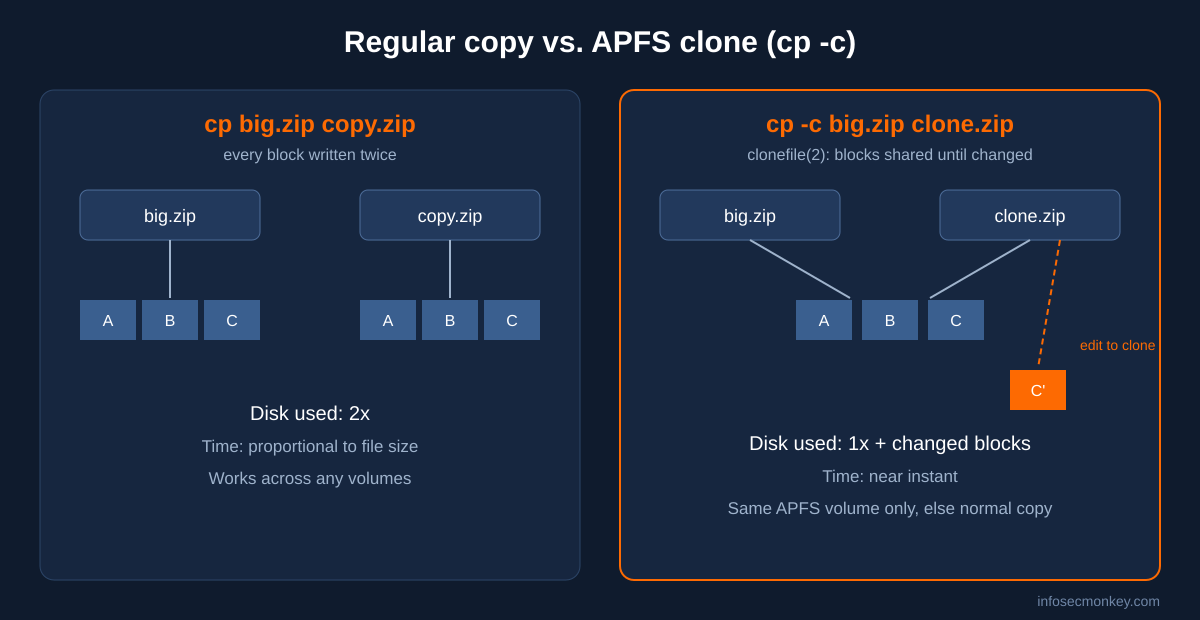
cp -c ~/VMs/Ubuntu.utm.zip ~/VMs/Ubuntu-before-upgrade.zip
cp -Rc ~/Projects/site ~/Projects/site-experiment   # clone a whole tree
df -h ~                                             # free space barely moves
GUI Verification: in Finder, Get Info on the volume or check Storage in System Settings. Available space stays put after the clone. Keep reading the gotchas: du will still report the full size.
Step 8: The trailing slash changes everything
On macOS, a source that ends in / with -R copies the directory’s contents, not the directory itself. GNU cp ignores the slash. This is the number one reason scripts behave differently on a Mac and a Linux box.
Figure 2: Trailing slash behavior, macOS vs. Linux
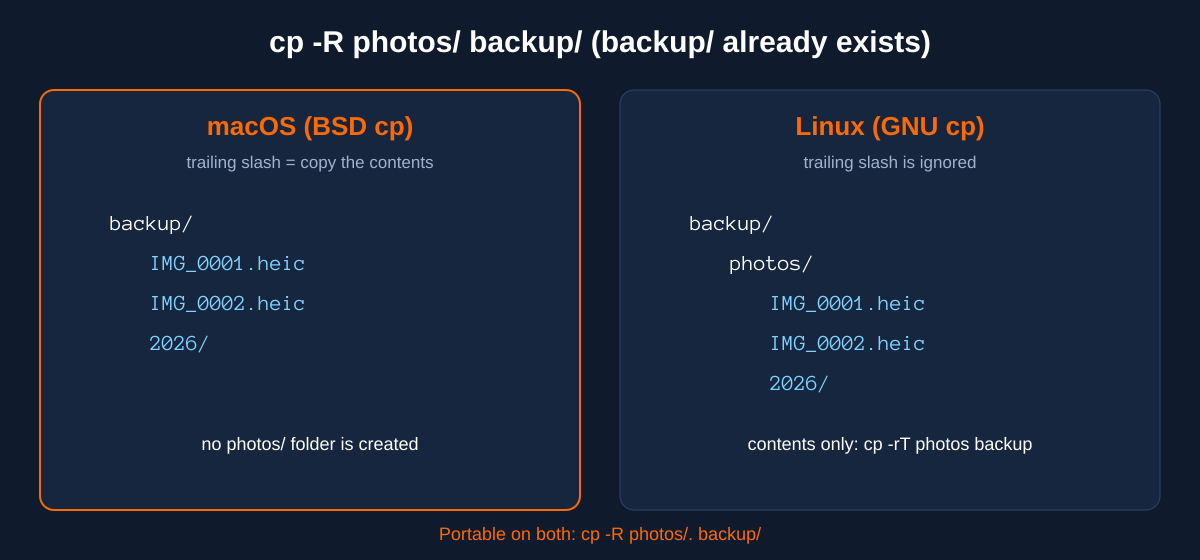
| Command (backup/ exists) | macOS result | Linux (GNU) result |
|---|---|---|
cp -R photos backup/ |
backup/photos/... |
backup/photos/... |
cp -R photos/ backup/ |
backup/... (contents only) |
backup/photos/... |
cp -rT photos backup |
Not supported | backup/... (contents only) |
Step 9: -X, and the quarantine flag that follows your copies
macOS cp copies extended attributes by default, which includes com.apple.quarantine on anything you downloaded. -X skips extended attributes and resource forks. That also stops cp from littering FAT, exFAT and many SMB shares with ._ AppleDouble files.
cp ~/Downloads/report.pdf ~/Desktop/
xattr -l ~/Desktop/report.pdf
# com.apple.quarantine: 0083;6743a1b2;Safari;

cp -X ~/Downloads/report.pdf /Volumes/USB/ # no xattrs, no ._ files-X on downloads you trust, and never as a habit for apps or installers.Step 10: -p, -N and file flags
macOS -p preserves far more than GNU -p: times, mode, owner, group, file flags, ACLs and extended attributes including resource forks. If you copy a locked file (uchg flag), the copy comes out locked too. -N with -p skips the flags. ls -lO shows flags and ls -le shows ACLs.
chflags uchg contract.pdf
cp -p  contract.pdf copy1.pdf    # copy1.pdf is locked as well
cp -pN contract.pdf copy2.pdf    # same metadata, no file flags
ls -lO copy1.pdf copy2.pdf
More Mac-only details worth knowing
-Stells macOS cp not to preserve holes in sparse files. GNU’s equivalent is--sparse=never.-n,-iand-foverride each other on macOS, so the last one on the command line wins.- With
-R, macOS cp copies hard-linked files as separate files. The man page points you to tar, cpio or pax when hard links must survive. -xstops cp from crossing mount points, handy when copying from a root that has disk images or network shares mounted.
ditto and GNU cp on a Mac
ditto is the Mac’s metadata-safe copier. It merges into an existing destination instead of nesting, keeps existing directory permissions, creates missing parent folders, and can clone files with --clone (ditto(1)). It is also how you build the same zip Finder’s Compress makes.
ditto ~/Projects/site /Volumes/Backup/site      # merge, keep ACLs and xattrs
ditto --clone ~/Projects/site ~/Projects/site2   # clone regular files
ditto --noqtn ~/Downloads/tools ~/Tools          # skip quarantine info
ditto -c -k --sequesterRsrc --keepParent MyApp.app MyApp.zip
ditto -x -k MyApp.zip ~/Desktop/
When you want the GNU long options on a Mac, install coreutils with Homebrew. The tools are prefixed with g so they do not shadow Apple’s versions. Keep /bin/cp or ditto for anything where Mac metadata matters.
brew install coreutils
gcp --version | head -1
gcp --parents -t ~/evidence etc/hosts etc/ssh/ssh_config
Verification and Validation
A copy is only done when you have proved it. These commands confirm content, metadata and clone behavior.
diff -rq src/ dest/ && echo "trees identical"
shasum -a 256 disk.img disk-copy.img        # macOS (sha256sum on Linux)
stat -c '%A %U %y %n' a.conf b.conf         # Linux: mode, owner, mtime
stat -f '%Sp %Su %Sm %N' a.conf b.conf      # macOS equivalent
xattr -l file; ls -le file; ls -lO file     # macOS xattrs, ACLs, flags
Expected success output: diff prints trees identical, both hashes match character for character, and the stat lines show the same mode and owner when you used -p or -a.
Troubleshooting and Gotchas
1. cp: illegal option — –
Symptom: a Linux one-liner fails on a Mac. Cause: BSD cp has no long options. Fix: use the short BSD equivalent, swap in gcp, or use ditto for --parents style copies. Fingerprint the platform first with the cp --version check above.
2. The copy landed one folder too deep (or not deep enough)
Diagnostic: ls dest/ shows dest/src/ when you expected the contents, or the reverse on a Mac. Fix: on macOS add or drop the trailing slash deliberately. On Linux use cp -rT src dest for contents-only. In portable scripts, copy src/. which means contents on both platforms.
cp -R src/. dest/ # contents of src into dest, macOS and Linux3. Clones and disk accounting
Symptom: du -sh says you used 80 GB after cloning a 40 GB file, or deleting the original freed nothing. Cause: clones share blocks, and du counts each file at full size. Space is only reclaimed when every file referencing the blocks is gone. Fix: trust df -h for real free space, and remember that writing to a clone can still hit ‘No space left on device’ on a full volume because new blocks are allocated on change.
4. Hard-link snapshots are not backups
Symptom: you edited a file in a cp -al snapshot and the original changed too. Cause: hard links are the same inode. Tools that replace files (most editors, rsync) break the link, but tools that write in place do not. Fix: use --reflink=always on a CoW filesystem or a real copy when the snapshot must be independent.
Quick Reference
| I want to… | Linux (GNU) | macOS (BSD) |
|---|---|---|
| Keep old versions on overwrite | cp --backup=numbered |
No equivalent, use gcp or version control |
| Never overwrite, script-friendly | cp --update=none-fail |
cp -n (check result yourself) |
| Keep the source path | cp --parents -t DIR |
ditto or gcp --parents |
| Copy contents only | cp -rT src dst |
cp -R src/ dst |
| Instant copy-on-write clone | cp --reflink=always |
cp -c or ditto --clone |
| Full metadata copy | cp -a |
cp -a or ditto |
| Skip xattrs and ._ files | cp -a --no-preserve=xattr |
cp -X |
| Explain how it copied | cp --debug |
Not available |