No fluff. Just the config that works.
Most people learn five systemctl commands (start, stop, restart, enable, status) and stop there. That covers a small slice of what the tool can do. This guide walks through the systemctl commands and switches that rarely show up in tutorials: freezing a runaway service without killing it, capping its CPU on the fly, finding which unit owns a PID, scheduling a reboot without cron, rebooting userspace only, and editing units without ever touching a vendor file.
| Objective | Use the lesser-known systemctl verbs and flags to inspect, edit, throttle, debug and reboot systemd hosts faster and more safely. |
| Target audience | Linux admins, network and security engineers who live on jump boxes, collectors and appliances, and anyone who has typed systemctl restart and hoped for the best. |
Prerequisites and Architecture
Assumed knowledge
- Comfortable in a Linux shell with sudo.
- You know what a unit is (
.service,.timer,.target,.socket).
Lab
- web01: Ubuntu Server 24.04 LTS,
10.0.10.20, running nginx. All examples run here unless noted. - web02: any systemd Linux host at
10.0.10.21, used for the remote examples. - Any modern systemd distro works. Check your version first, because several of the best options are recent.
systemctl --version | head -1
# systemd 255 (255.4-1ubuntu8)| Feature | Minimum systemd version |
|---|---|
cat, list-timers, switch-root |
209 |
edit |
218 |
revert, show --value |
230 |
clean |
243 |
freeze, thaw |
246 |
service-log-level, service-log-target |
247 |
bind, mount-image, --check-inhibitors |
248 |
list-automounts, kill --kill-whom |
252 |
soft-reboot, whoami, list-paths, --when, --kill-value |
254 |
start --verbose, kill --kill-subgroup |
258 |
Note: Ubuntu 24.04 LTS ships systemd 255, so everything up to the 254 row works there. RHEL 9 and Debian 12 ship 252, so soft-reboot, whoami, list-paths and --when are not available on those yet.
| Component | Role |
|---|---|
systemctl |
The client. Talks to the manager over D-Bus (locally, over SSH with -H, or into a container with -M). |
| systemd (PID 1) | The service manager. Owns units, jobs, dependencies and cgroups. |
| journald | Stores the log lines systemctl status shows at the bottom. |
| Unit files and drop-ins | Vendor files in /usr/lib/systemd/system, your changes in /etc/systemd/system, temporary ones in /run/systemd/system. |
| cgroup v2 | Backs resource limits (set-property) and the freezer (freeze, thaw). |
The Baseline in 30 Seconds
For completeness, the five everyone knows, plus the two shortcuts that save a line every time:
sudo systemctl start nginx.service
sudo systemctl stop nginx.service
sudo systemctl restart nginx.service
sudo systemctl reload nginx.service
systemctl status nginx.service

sudo systemctl enable --now nginx.service    # enable at boot AND start now
sudo systemctl disable --now nginx.service   # disable at boot AND stop now
Step-by-Step: Hidden systemctl Commands by Job
Step 1: Inspect a Unit Without Opening Files
Goal: see exactly what systemd loaded, which is not always what is in the file you are staring at.
Action: cat prints the unit plus every drop-in, each with its path as a comment. show dumps live properties, and --value strips the Name= prefix so the output drops straight into a script.
systemctl cat nginx.service
systemctl show nginx.service -p MainPID,NRestarts,ActiveEnterTimestamp
systemctl show nginx.service -p MainPID --value
systemctl list-dependencies --reverse nginx.service   # who pulls nginx in
systemctl whoami 4721                                  # which unit owns PID 4721
Verification:
$ systemctl show nginx.service -p MainPID,NRestarts
MainPID=4721
NRestarts=0

$ systemctl whoami 4721
nginx.service
Tip: NRestarts is the flapping detector. A service with Restart=on-failure can crash every few minutes and still show active (running) in status. A climbing NRestarts gives it away.
Step 2: Filter the Noise
Goal: get to the broken thing fast on a host with hundreds of units.
systemctl --failed                                   # same as --state=failed
systemctl list-units --type=service --state=running
systemctl --state=help                               # every valid state value
systemctl list-unit-files --state=enabled
systemctl list-timers --all                          # next and last run, all timers
systemctl list-paths                                 # active .path units (254+)
systemctl status nginx.service -n 0                  # status, no log lines
systemctl status nginx.service -n 50 -o cat          # 50 lines, message text only
Verification: systemctl list-timers --all shows NEXT, LEFT, LAST and PASSED columns. If a timer shows n/a in NEXT, it is loaded but not scheduled, which usually means it was never enabled.
Step 3: Edit Units the Safe Way
Goal: change a service without editing the vendor file that the next package update will overwrite.
Action: systemctl edit opens a drop-in, saves it to /etc/systemd/system/<unit>.d/override.conf and runs the daemon reload for you. Only put the lines you are changing in it.
sudo systemctl edit nginx.service

# In the editor:
[Service]
Restart=on-failure
RestartSec=5s
The variants worth knowing:
# hardening.conf instead of override.conf
sudo systemctl edit --drop-in=hardening nginx.service

# lives in /run, gone after reboot
sudo systemctl edit --runtime nginx.service

# full copy in /etc/systemd/system
sudo systemctl edit --full nginx.service

# pick the editor for this run
sudo SYSTEMD_EDITOR=vim systemctl edit nginx.service

# drop ALL local changes, back to the vendor file
sudo systemctl revert nginx.service
Figure 1: Where each systemctl edit command writes, and what revert removes
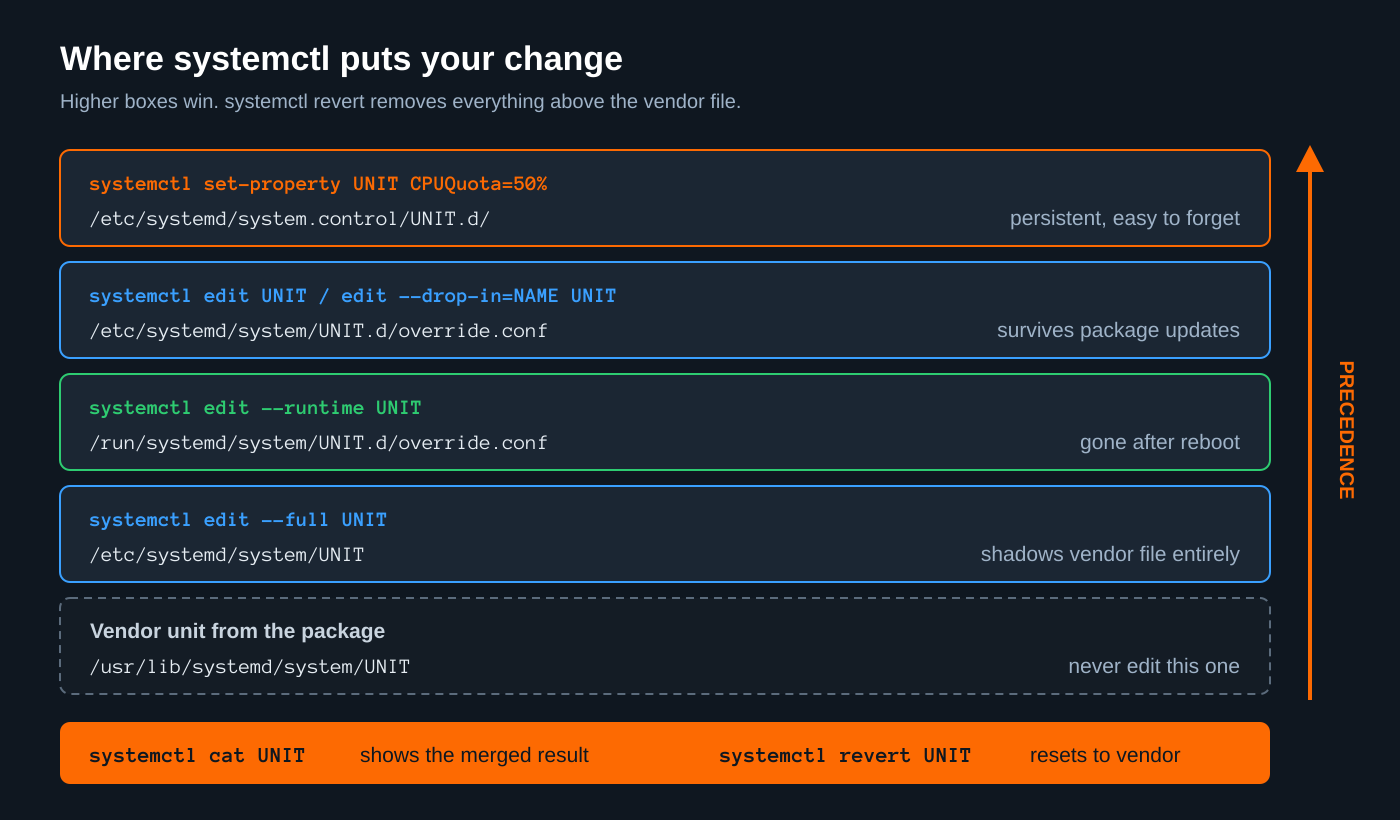
Verification: systemctl cat nginx.service now shows the vendor file followed by your drop-in, with the drop-in path printed as a comment above it. The --runtime variant is the one to reach for when you want to test a change on a production box: if it goes wrong, a reboot undoes it.
Gotcha: List-type settings such as ExecStart= append instead of replace. To override one in a drop-in, clear it first with an empty ExecStart= line, then add your new ExecStart= line below it.
Step 4: Throttle and Pause Without a Restart
Goal: stop a runaway backup or log shipper from eating the box, without killing it and losing hours of work.
Action: set-property changes cgroup limits on a running unit. Add --runtime so the change disappears at reboot. freeze suspends every process in the unit through the cgroup freezer, and thaw resumes them exactly where they stopped.
sudo systemctl set-property --runtime backup.service CPUQuota=20% MemoryHigh=1G
sudo systemctl freeze backup.service
sudo systemctl thaw backup.service
Verification:
$ systemctl show backup.service -p CPUQuotaPerSecUSec --value
200ms

$ systemctl show backup.service -p FreezerState --value
frozen
Gotcha: Without --runtime, set-property is persistent: it writes a drop-in under /etc/systemd/system.control/. That is easy to forget months later. systemctl cat shows it, and systemctl revert removes it.
Step 5: Signal Precisely
Goal: send a signal to the right process instead of every process in the unit.
Action: systemctl kill signals the whole cgroup by default. --kill-whom=main limits it to the main PID, which is what you want for a classic HUP-to-reload daemon.
sudo systemctl kill --kill-whom=main --signal=HUP nginx.service
sudo systemctl try-reload-or-restart nginx.service    # only if running
sudo systemctl --no-block restart slowapp.service     # return immediately
systemctl list-jobs                                   # watch the queued job
sudo systemctl cancel                                 # cancel pending jobs
Verification: systemctl show nginx.service -p MainPID --value returns the same PID before and after the HUP, which proves you reloaded instead of restarted.
Step 6: Debug a Service Live
Goal: get more log detail now, without editing config and restarting.
sudo systemctl service-log-level systemd-resolved.service debug
sudo systemctl service-log-level systemd-resolved.service info   # put it back

sudo systemctl log-level debug     # the manager itself (PID 1)
sudo systemctl log-level info

# 258+: live unit logs while the start runs
sudo systemctl start -v nginx.service

# wipe CacheDirectory= (unit must be stopped)
sudo systemctl clean --what=cache myapp.service
Verification: journalctl -u systemd-resolved -f gets noticeably chattier the moment the level changes. service-log-level only works on services that implement systemd’s log control interface, which in practice means systemd’s own daemons (resolved, networkd, logind and friends).
Step 7: Reboot With Intent
Goal: schedule, preview, shorten or redirect a reboot without cron, at or a trip to the console.
sudo systemctl reboot --when=+10min          # schedule it (254+)
systemctl reboot --when=show                 # what is scheduled
sudo systemctl reboot --when=cancel          # never mind

sudo systemctl soft-reboot                   # userspace only, same kernel
systemctl --dry-run reboot                   # print what would happen
sudo systemctl reboot --firmware-setup       # next boot lands in UEFI setup
systemctl reboot --boot-loader-entry=help    # list boot entries for a one-time pick
sudo systemctl reboot --boot-loader-menu=30  # force the boot menu for 30s
Verification: after --when=+10min, logged-in users get a wall message and systemctl reboot --when=show prints the scheduled time. soft-reboot is handy after a userspace-only update (glibc, systemd, OpenSSL) because it skips firmware and kernel init, but it will not load a new kernel.
While you are in lockdown mode, mask --now stops a unit and links it to /dev/null in one move, so nothing (not even a dependency) can start it until you unmask it.
sudo systemctl mask --now cups.service
sudo systemctl unmask cups.service
Step 8: Reach Other Machines and Containers
Goal: check a remote host or a container without logging in to it.
systemctl -H manny@10.0.10.21 status nginx.service
systemctl -H root@10.0.10.21 --failed
systemctl -M mycontainer list-units --type=service
Verification: output looks identical to a local run. -H tunnels over SSH, so the remote needs systemd and your SSH key. There is no sudo prompt over -H, so actions that need root need root@ or a polkit rule on the remote.
Step 9: Script It
Goal: use systemctl in health checks and automation without parsing human output.
if systemctl is-active --quiet nginx.service; then
  echo "nginx up"
fi

systemctl is-enabled --quiet nginx.service || echo "not enabled at boot"
systemctl is-system-running --wait            # waits for boot to finish
systemctl list-units --failed --plain --no-legend --no-pager | awk '{print $1}'| Exit code | Meaning (LSB mapping) |
|---|---|
| 0 | Unit is active |
| 3 | Unit is not active |
| 4 | No such unit |
Verification and Validation
Run this sequence on the lab box. Every line should return without an error, and the comments show the expected result.
systemctl --version | head -1                        # 254+ for every example
systemctl whoami $(systemctl show nginx -p MainPID --value)   # nginx.service
sudo systemctl edit --runtime nginx.service          # add [Service] RestartSec=5s
systemctl show nginx -p RestartUSec --value          # 5s
sudo systemctl revert nginx.service
systemctl show nginx -p RestartUSec --value          # back to the vendor value
sudo systemctl set-property --runtime nginx CPUQuota=50%
systemctl show nginx -p CPUQuotaPerSecUSec --value   # 500ms
systemctl reboot --when=show                         # nothing scheduled
systemctl is-system-running                          # running, or degraded
Troubleshooting and Gotchas
1. “My change did nothing”
You edited a unit file by hand and skipped the reload, or you added a second ExecStart= without clearing the first. systemctl edit reloads for you; a text editor does not.
systemctl show nginx.service -p NeedDaemonReload --value   # yes = reload needed
sudo systemctl daemon-reload
systemctl cat nginx.service                          # what is really loaded
2. “freeze fails” or limits are ignored
The freezer and most set-property resource controls need the unified cgroup v2 hierarchy. Every current major distro defaults to it, but older or tuned hosts may not.
stat -fc %T /sys/fs/cgroup # cgroup2fs = good, tmpfs = legacy v13. “I disabled it but it still starts”
disable only removes the boot-time symlinks. Another unit can still pull it in through a dependency or socket activation. Check who wants it, then mask it if it must stay down.
systemctl list-dependencies --reverse cups.service
sudo systemctl mask --now cups.service cups.socket cups.path
Cheat Sheet
| Command | What it buys you |
|---|---|
systemctl cat UNIT |
Unit plus every drop-in, with paths |
systemctl show UNIT -p X --value |
One property, script-ready |
systemctl whoami PID |
Which unit owns a process |
systemctl list-dependencies --reverse UNIT |
What pulls a unit in |
systemctl edit --runtime UNIT |
Temporary change, gone at reboot |
systemctl revert UNIT |
Throw away every local change |
systemctl set-property --runtime UNIT CPUQuota=20% |
Live CPU cap |
systemctl freeze UNIT / thaw UNIT |
Pause and resume without killing |
systemctl kill --kill-whom=main --signal=HUP UNIT |
Signal only the main PID |
systemctl service-log-level UNIT debug |
Live debug logging |
systemctl reboot --when=+10min |
Scheduled reboot, no cron |
systemctl soft-reboot |
Userspace-only reboot |
systemctl reboot --firmware-setup |
Boot straight into UEFI setup |
systemctl mask --now UNIT |
Stop it and make sure it stays down |
systemctl -H user@host ... |
Run any of the above over SSH |
Sources
- systemctl(1) manual page, freedesktop.org
- systemd.unit(5) manual page: unit load paths and drop-ins
- systemd v254 release notes: soft-reboot, list-paths, –when, –kill-value
- systemd v258 release notes: start –verbose and kill –kill-subgroup
- LWN: systemd v258 released
- InfoSecMonkey: Useful Linux Commands