
As you can probably see by the dates of my articles, I have been burning the candle at both ends building my lab. I have been with my company almost 10 years and a lot of the gear I had have long been end-of-lifed, so it was time to update. Although I can get to an Ubuntu Desktop via ProxMox, I wanted to connect to it via RDP instead so I can copy/paste commands directly into the terminal. I know I can SSH to the Desktop, but then there would be no content for this aticle 😀.
Lets update and upgrade
sudo apt update && apt upgrade
Ensure you have the latest and greatest running.
Installing XRDP
Now we are going to install the xrdp package.
sudo apt install xrdp -y
Ubuntu Desktop, auto-installs Wayland. Wayland is the default, modern display server protocol on recent Ubuntu versions (21.04+), offering improved security and performance over X11. The core package, wayland, and related libraries are pre-installed in Ubuntu’s GNOME-Shell. It acts as a compositor, with client applications managing their own rendering.
After installing the xrdp package, you will want to start it.
sudo systemctl start xrdp
The install will usually add the xrdp to the startup. If not, sudo systemctl starup xrdp.
Next we will add the xrdp user to the ssl-cert group
sudo adduser xrdp ssl-cert
Dealing with errors
When I attempted to connect with the Desktop, I could see the following error on the Desktop
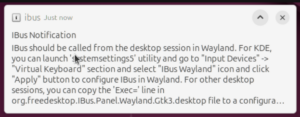
I did some searching and found a workaround. I needed to
sudo vi /etc/xrdp/startwm.sh
The startwm.sh script in xrdp is a critical configuration file, usually located in /etc/xrdp/, that launches the desktop environment (window manager) after a successful RDP login. It acts as a bridge to start sessions like GNOME, XFCE, or KDE, often defaulting to a fallback, such as xterm, if no specific session is configured.
In the startwm.sh I added two lines at the end of the file.
unset DBUS_SESSION_BUS_ADDRESS
unset XDG_RUNTIME_DIR
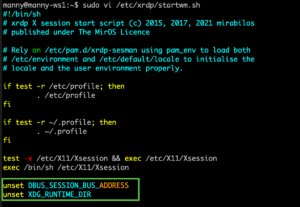
You need to restart xrdp. I still continued to have connection issues.
I disabled the Wayland in the custom.conf file to force Xorg.
sudo vi /etc/gdm3/custom.conf
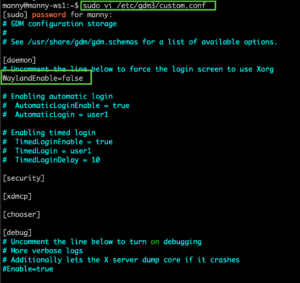
Then restarted the gdm3 sudo systemctl restart gdm3
Connecting
So after all of this, the connection worked out well.
NOTE: You need to be logged out of your session or it will not connect. If you find yourself connected and need to logit out remotely……. and you have SSH access to the Desktop…..
gnome-session-quit --logout --no-prompt
Hope this helps.