Overview
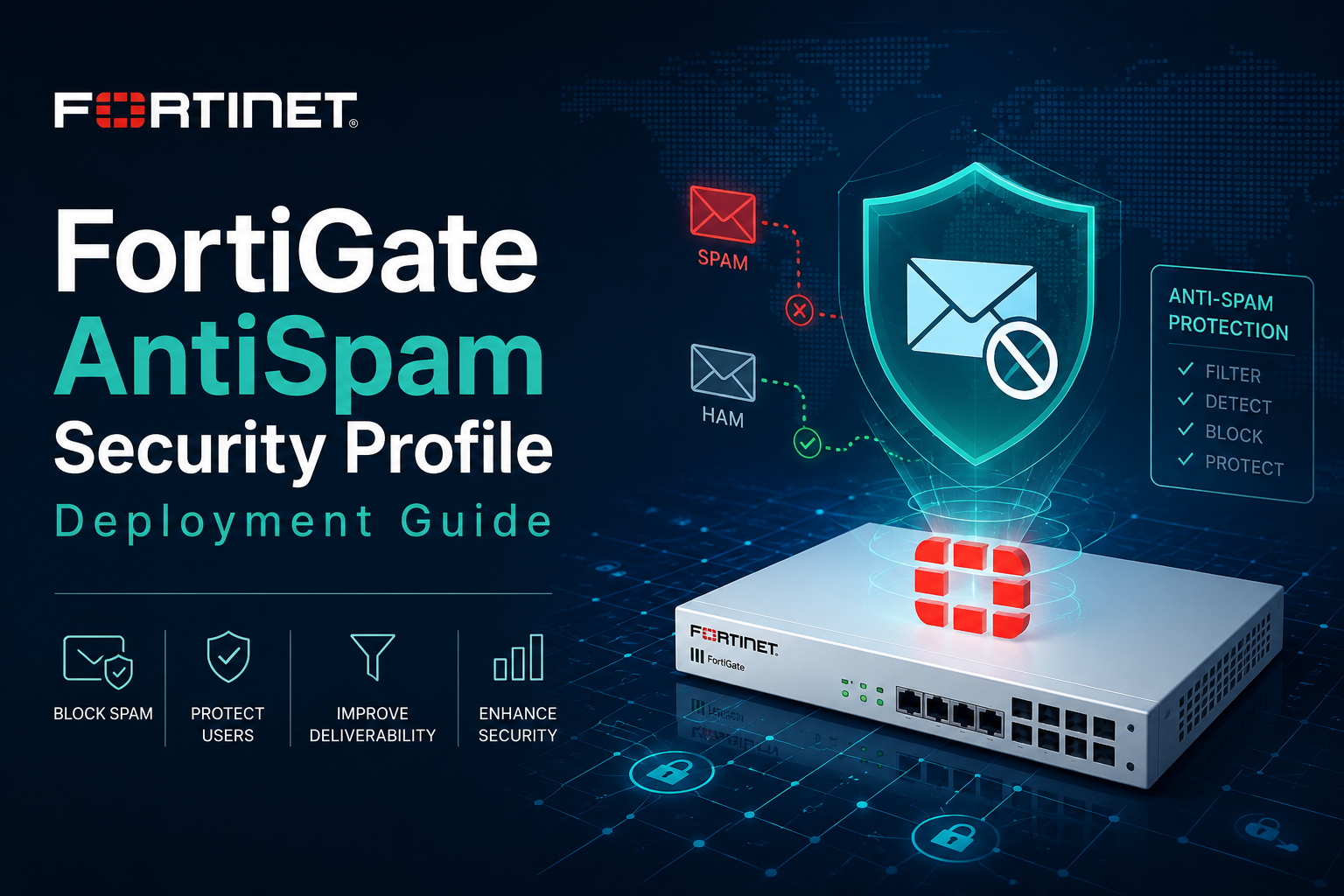
On FortiGate, AntiSpam is delivered through the Email Filter security profile, powered by the FortiGuard AntiSpam service. The FortiGate inspects SMTP, POP3, and IMAP traffic that matches a firewall policy, scores each message against local and FortiGuard-based checks, and then tags, monitors, or discards messages identified as spam.
It is important to set expectations up front. A FortiGate is a network firewall, not a dedicated mail security gateway. Its AntiSpam feature is best understood as a complementary inline filter for plaintext mail flows, not a replacement for FortiMail or a cloud mail security platform. Most modern mail is encrypted in transit (SMTPS, IMAPS, POP3S) and routes through hosted providers, which sharply limits what a FortiGate can inspect without SSL deep inspection.
This guide covers profile configuration, deployment to policy, the major limitations, the gotchas that catch people in production, and recommended best practices.
Prerequisites
Before configuring AntiSpam, confirm the following:
1. A valid FortiGuard AntiSpam subscription is active. Without it, FortiGuard-based checks (IP reputation, URL, checksum, phishing) return no verdict. Verify under System > FortiGuard or with diagnose autoupdate versions.
2. The FortiGate can reach FortiGuard servers. AntiSpam queries use UDP/53 or the anycast service depending on FortiOS version and FortiGuard settings.
3. You have decided on an inspection mode for your policy. Email Filter operates in both flow and proxy inspection modes, but proxy mode supports the full feature set and message tagging behavior.
4. You understand which mail protocols actually traverse the FortiGate in cleartext. If all mail is TLS-encrypted end to end and you are not performing deep inspection, the profile will have little to inspect.
Filter Sources
The Email Filter profile organizes spam decisions into three sources:
Local checks. The FortiGate makes the decision based on conditions it evaluates itself: local block and allow lists (by IP, email address, or domain), banned word lists, and DNS-based checks such as HELO/reverse DNS validation.
FortiGuard-based checks. The FortiGate queries the FortiGuard AntiSpam service and acts on the returned score or verdict. This includes spam IP reputation (IP address block list lookups), spam URL detection, phishing URL detection, and message body checksum matching.
Third-party checks. The FortiGate consults an external source such as a DNSBL/ORDBL (DNS block list / open relay database list) that you define.
When local and FortiGuard block/allow lists are both enabled, the local list takes priority during decision making. This precedence matters when you want to override a FortiGuard verdict for a specific trusted sender.
Configuration: GUI
1. Navigate to Security Profiles > Email Filter.
2. Click Create New (or edit the default profile).
3. Enable Enable Spam Detection and Filtering.
4. In the FortiGuard Spam Filtering section, enable the checks you want:
– IP address check (spam IP reputation lookup, the most comprehensive spam IP source)
– URL check (known spam URLs in the body)
– Detect phishing URLs in email (phishing URL detection)
– Email checksum check (known spam message checksums)
– Spam submission (adds a link to flagged mail so recipients can report misclassification back to FortiGuard)
5. Configure Local Spam Filtering as needed: enable the IP/email block and allow lists, the banned word list, and HELO DNS / return email DNS / MX DNS checks.
6. Set the action for SMTP (typically Tag) and for POP3/IMAP (Tag is the only meaningful action for these client-pull protocols).
7. Set the tag location (subject or header) and the tag format (the text prepended, for example [SPAM]).
8. Click OK to save, then bind the profile to a firewall policy.
Configuration: CLI
A representative profile enabling the common FortiGuard checks:
config emailfilter profile
edit "ISM-AntiSpam"
set spam-filtering enable
set options spamfsip spamfsurl spamfsphish spamfschksum spamfssubmit
set spam-log enable
config smtp
set action tag
set tag-type subject spaminfo
set tag-msg "[SPAM]"
set hdrip disable
set local-override disable
end
config pop3
set action tag
set tag-type subject spaminfo
set tag-msg "[SPAM]"
end
config imap
set action tag
set tag-type subject spaminfo
set tag-msg "[SPAM]"
end
next
end
Key options flags:
– spamfsip enables the FortiGuard spam IP reputation check.
– spamfsurl enables the FortiGuard spam URL check.
– spamfsphish enables FortiGuard phishing URL detection.
– spamfschksum enables the FortiGuard email checksum check.
– spamfssubmit adds the spam submission/report link to tagged messages.
To use local block and allow lists, reference an emailfilter block-allow list and attach it:
config emailfilter block-allow-list
edit 1
set name "ISM-Local-Lists"
config entries
edit 1
set type email-from
set pattern "newsletters@trusted-partner.com"
set action exempt
set status enable
next
edit 2
set type email-from
set pattern "*@known-spammer.example"
set action spam
set status enable
next
end
next
end
Then attach the list inside the profile and enable local filtering:
config emailfilter profile
edit "ISM-AntiSpam"
set external enable
set spam-bal-table 1
next
end
FortiGuard service tuning lives under system settings (cache, timeout, and expiration):
config system fortiguard
set antispam-cache enable
set antispam-cache-ttl 1800
set antispam-timeout 7
end
Deploying to a Firewall Policy
A profile does nothing until it is applied. Bind it to the policy carrying your mail traffic:
config firewall policy
edit 0
set name "Inbound-SMTP"
set srcintf "wan1"
set dstintf "internal"
set srcaddr "all"
set dstaddr "Mail-Server"
set action accept
set schedule "always"
set service "SMTP"
set utm-status enable
set emailfilter-profile "ISM-AntiSpam"
set ssl-ssh-profile "deep-inspection"
set logtraffic all
next
end
Notes on the policy:
– utm-status enable is required for any security profile to take effect.
– Scope the policy to the mail service (SMTP, POP3S, IMAP, as relevant) and to your mail server as the destination rather than applying it broadly.
– For encrypted mail flows, a deep-inspection SSL profile is required for the FortiGate to see message content. Without it, only the unencrypted SMTP envelope and IP-layer data are available.
After applying, send test traffic and verify with:
diagnose test application emailfilter 1
get test emailfilter 1
and review logs under Log & Report > Security Events (or the Email Filter log) to confirm verdicts.
Limitations
It is not a mail security gateway. The FortiGate AntiSpam profile lacks the quarantine, per-user release, message archiving, recipient policies, and advanced sandboxing of FortiMail or cloud mail security. There is no end-user quarantine or digest. Tagging is the primary outcome, and the actual disposition (move to junk, drop) is left to the downstream mail server or client rules.
Encrypted mail is mostly opaque. SMTPS, IMAPS, and POP3S require SSL deep inspection for the FortiGate to read content and run URL, checksum, and phishing checks. Deep inspection of mail is operationally heavy and often impractical against external mail servers whose certificates you do not control.
Cloud-hosted mail bypasses it entirely. If your organization uses Microsoft 365, Google Workspace, or similar, inbound mail terminates at the provider, not on a server behind your FortiGate. The AntiSpam profile never sees that traffic.
POP3 and IMAP actions are limited. Because these are client-pull protocols, the FortiGate cannot discard a message at the server. It can only tag. The discard action is meaningful for SMTP only.
Verdict freshness depends on FortiGuard. Local caching improves performance but can serve a stale verdict within the cache TTL window. The checksum check matches known spam, so genuinely novel spam may pass on first sighting.
Throughput and latency cost. AntiSpam, especially in proxy mode and with deep inspection, consumes CPU and memory and adds latency to mail delivery. On smaller or 2 GB RAM models, proxy-based inspection features may be constrained or unsupported.
No native DKIM/SPF/DMARC enforcement engine. The FortiGate AntiSpam profile is not a substitute for SPF, DKIM, and DMARC validation, which belong at the mail server or gateway.
Gotchas
The profile is inert without a policy. The single most common mistake is configuring the Email Filter profile and never binding it to a firewall policy, or binding it to a policy with utm-status disabled.
Wrong inspection mode. Some Email Filter behaviors only apply correctly in proxy mode. If you configured proxy-oriented options but the policy or VDOM is in flow mode, results will differ from expectations. Confirm the inspection mode matches the feature set you enabled.
Missing or expired FortiGuard license. If the AntiSpam subscription has lapsed, FortiGuard checks silently return no verdict and only local checks function. Always confirm license status before troubleshooting “spam is getting through.”
SSL inspection mismatch. Enabling URL, phishing, and checksum checks on encrypted mail without a deep-inspection SSL profile means those checks have nothing to inspect. People enable the checks, see no effect, and assume the feature is broken.
Tag location collides with downstream rules. If you tag in the subject line but your mail server or Outlook rules key on a header (or vice versa), spam will be flagged by the FortiGate but never sorted by the mail system. Align the tag location and format with the downstream rule that acts on it.
Local list precedence surprises. Because local lists override FortiGuard, an overly broad local allow entry (for example a whole domain) can whitelist spam that FortiGuard would otherwise catch. Keep local allow entries tight.
FortiGuard query reachability. If outbound FortiGuard query traffic is blocked or the wrong source interface is selected, queries time out and fall back to no verdict. Validate connectivity with diagnose debug rating and FortiGuard server reachability tests.
Cache TTL masking changes. After tuning, a long antispam cache TTL can make it look like your changes had no effect because cached verdicts are still being served. Clear or shorten the cache when validating.
Best Practices
1. Treat it as a layer, not the layer. Use FortiGate AntiSpam to complement a real mail security solution (FortiMail or your cloud provider’s native filtering), not to replace it. Position it where it adds value: on-premises mail flows you control.
2. Scope policies tightly. Apply the profile only on policies that actually carry inspectable mail, destined for your mail server, on the relevant mail services. Avoid attaching it to broad internet policies.
3. Start in monitor/tag mode. Begin with the action set to tag and spam-log enable, observe verdicts in logs for a baseline period, and confirm a low false-positive rate before relying on it for any blocking behavior.
4. Enable spam submission. Turning on spamfssubmit lets recipients report misclassified mail back to FortiGuard, improving accuracy over time.
5. Keep local lists lean and specific. Use exact addresses or narrow domains for allow entries, since local lists override FortiGuard. Review them periodically.
6. Align tagging with downstream action. Decide whether the mail server or the client will act on the tag, then set the tag location and format to match that rule exactly.
7. Verify FortiGuard health routinely. Confirm the AntiSpam license is active and queries are succeeding. Build the license check into your monitoring rather than discovering an expiry during an incident.
8. Tune the cache deliberately. Use a sensible cache TTL for performance, but shorten or flush it during testing so you observe current behavior.
9. Size for the load. On smaller models, validate that proxy-mode inspection and any SSL deep inspection do not push the device into conserve mode under peak mail volume.
10. Document the design. Record which protocols are inspected, the inspection mode, the SSL profile in use, the tag convention, and the downstream action so the next administrator understands the full chain.
Validation Checklist
– FortiGuard AntiSpam license active and queries succeeding.
– Email Filter profile created with the intended FortiGuard and local checks enabled.
– Inspection mode matches the enabled feature set.
– Profile bound to a firewall policy with utm-status enable.
– SSL deep-inspection profile applied where encrypted mail must be inspected.
– Tag location and format aligned with the downstream sorting rule.
– Test messages produce the expected verdicts in the Email Filter logs.
– False-positive rate observed and acceptable before any blocking is enabled.