No fluff. Just the config that works.
Objective: remove FortiManager internet exposure for a customer whose FMG answered on a public IP, and move every managed FortiGate to an internal FMG address over the existing site VPNs with no traffic impact and no lost management.
Target audience: FortiManager and FortiGate administrators, Fortinet partners and SEs who inherit an FMG that someone published to the Internet “temporarily” years ago.
The Scenario
A customer runs a single FortiManager on a public IP so remote FortiGates can reach it over the Internet. I told them it needed to come off the Internet and move inside the VPN. Their answer was that they were already secure, because they had this set:
config system global
    set fgfm-deny-unknown enable
end
It is a good setting. It is not a perimeter. This post explains the difference, then walks through the exact migration we used to hide the FMG without a single site losing traffic or management.
Why FortiManager Internet Exposure Is the Real Problem
fgfm-deny-unknown stops FortiGates whose serial numbers are not already in Device Manager from registering over FGFM (TCP/541). That is the whole job. The FGFM daemon still listens to the entire Internet, still completes the TLS handshake, and still parses traffic before it decides a device is unknown. Any bug in that code path is reachable by anyone.
| Control | What it stops | What it does not stop |
|---|---|---|
fgfm-deny-unknown enable |
Unregistered serials auto-registering over FGFM | Pre-auth bugs in fgfmd, attackers impersonating known peers, attacks on HTTPS, SSH or other services |
Custom FGFM CA (fgfm-cert-exclusive) |
Peers without a certificate from your CA | Bugs reachable before certificate checks, any service other than FGFM |
| Trusted hosts on admin accounts | Admin logins from outside approved subnets | Unauthenticated bugs in the GUI or daemons |
| Removing Internet reachability | Every Internet-originated attack on every FMG service | Attacks from inside the VPN (handled by policy and patching) |
History backs this up. During FortiJump (CVE-2024-47575), Fortinet listed fgfm-deny-unknown as a workaround, but only on certain builds, and CERT-EU noted the certificate-based workaround holds only if the attacker cannot get a certificate signed by your CA through another channel (CERT-EU Security Advisory 2024-113: Critical 0-day in Fortinet FortiManager). Bishop Fox found the FGFM client accepts the Fortinet factory certificate shipped on every FortiGate VM (Bishop Fox: A Brief Look at FortiJump (FortiManager CVE-2024-47575)), so a cert that FGFM will talk to is not hard to come by.
The pattern keeps repeating in 2026. CVE-2026-106171 is an OS command injection in fgfmd where the attacker impersonates a FortiManager cluster node (Wiz: CVE-2026-106171, FortiManager fgfmd OS command injection), which has nothing to do with unknown device registration. FG-IR-26-098 is an unauthenticated stack overflow in the fgtupdates service (Fortinet PSIRT FG-IR-26-098: Buffer overflow via fgtupdates service), and FG-IR-26-090 is an MFA bypass in the GUI (Tenable: FortiManager MFA Bypass in GUI (FG-IR-26-090, CVE-2026-22572)). fgfm-deny-unknown touches none of those.
Prerequisites and Architecture
Assumed knowledge: FortiManager Device Manager and CLI scripts, FortiGate IPsec site-to-site VPNs, phase 2 selectors and local-out traffic.
Lab and environment: one FortiManager, one hub FortiGate in front of it terminating the site VPNs, and remote FortiGates already managed by FMG over the Internet. Lab addressing uses 198.18.0.0/15 for public IPs and 10.0.0.0/16 for internal networks.
| Component | Role | Lab value |
|---|---|---|
| FortiManager public IP | Current FGFM address (to be removed) | 198.18.10.10 |
| FortiManager inside IP | New FGFM address, reachable only over VPN | 10.0.100.10/24 on port2 |
| Hub FortiGate (HQ-FGT) | Terminates site VPNs, gateway for FMG inside subnet | 10.0.100.1 |
| Branch FortiGate (BR01-FGT) | Managed device, pilot site | LAN gateway 10.0.21.1 |
| Site summary route | Return path from FMG to all branch LANs | 10.0.0.0/16 via 10.0.100.1 |
Figure 1: Before and after: FGFM moves from the public IP to the inside IP over the site VPNs
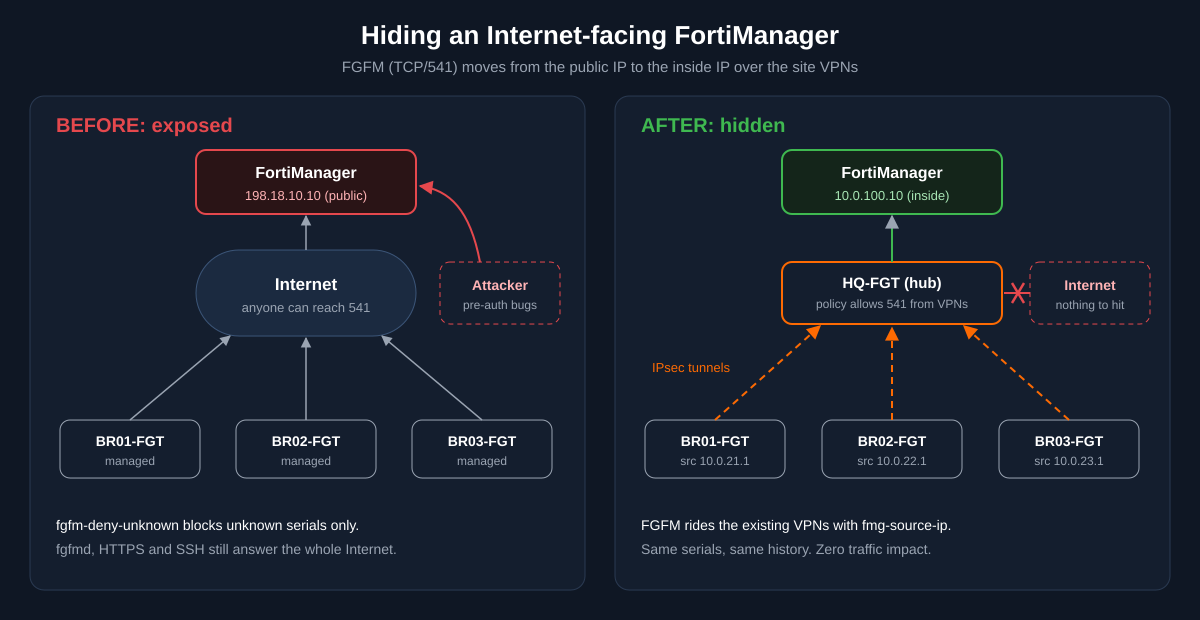
What does not change: firewall policy, routing for user traffic, and the VPN tunnels themselves. FortiGates forward traffic with or without an FMG connection, so even a dropped management tunnel has zero production impact.
Step-by-Step: The Zero-Downtime Migration
The trick is ordering. FMG answers on both addresses during the migration, each FortiGate is moved while its existing tunnel is still up, and the public address is the very last thing removed.
Step 1: Take a Clean Rollback Point
Goal: a labeled restore point on FMG and on every device before anything changes.
Action: back up FMG off-box, then Retrieve Config on every managed device with a revision comment like pre-FMG re-IP. Clear any Modified or Out of Sync devices first, so the migration does not get mixed up with pending changes. Record each FortiGate’s current central-management block:
show system central-managementGUI verification: Device Manager shows every device Connection Up and Synchronized, and each device’s Revision History shows the new labeled revision.
Step 2: Dual-Home FortiManager
Goal: FMG answers FGFM on the inside IP while the public IP keeps every device connected.
Action: add the inside interface with FGFM access, and a route so return traffic to the branches leaves through the hub instead of the Internet default route.
config system interface
    edit "port2"
        set ip 10.0.100.10 255.255.255.0
        set allowaccess ping https ssh fgfm
    next
end
config system route
    edit 0
        set device "port2"
        set dst 10.0.0.0 255.255.0.0
        set gateway 10.0.100.1
    next
end
On the hub FortiGate, allow TCP/541 and ICMP from the site VPN interfaces to 10.0.100.10. Add TCP/443 only from admin subnets that need the GUI. If FMG is also a FortiGuard override server or log collector for the branches, allow those services too.
GUI verification: all devices still show Connection Up on the public IP. Nothing on the FortiGates has changed yet.
Step 3: Prove the Path From a Pilot Site
Goal: confirm FGFM traffic from the branch actually enters the tunnel before you point management at it.
Action: FGFM is local-out traffic. By default the FortiGate sources it from the egress interface, which usually falls outside the phase 2 selectors. Test from an IP inside them:
execute ping-options source 10.0.21.1
execute ping 10.0.100.10
execute telnet 10.0.100.10 541
GUI verification: none yet. If the ping fails, fix selectors or routing now. Do not move on until this works.
Step 4: Push the New FMG Address Over the Old Tunnel
Goal: the FortiGate rebuilds its management tunnel to the inside IP by itself, with FMG still reachable the whole time.
Action: in FortiManager, create a CLI script and set Run script on to Remote FortiGate Directly (via CLI). Do not run it against the device database.
config system central-management
    set fmg "10.0.100.10"
    set fmg-source-ip 10.0.21.1
end
The device drops the tunnel to 198.18.10.10 and comes back on 10.0.100.10, typically within a minute or two. User traffic never notices.
GUI verification: the device flashes Connection Down, then Connection Up with its new connecting IP.
Step 5: Retrieve Config, Then Batch the Rest
Goal: keep FMG’s device database in step with the box, then repeat for every site.
Action: run Retrieve Config on the device right after it reconnects. If the database keeps the old fmg value, a later install can push the public IP back and cut the tunnel again. Then repeat Steps 3 to 5 in batches of 5 to 10 sites, with critical sites last. Since fmg-source-ip differs per site, use one script per device or an FMG metadata variable for the source IP.
If FMG also serves FortiGuard updates or ratings, the server list points at the public IP too. Update it in the same script:
config system central-management
    config server-list
        edit 1
            set server-address 10.0.100.10
        next
    end
end
GUI verification: every device is Connection Up on its inside source IP and Synchronized.
Step 6: Remove the Public IP and Harden
Goal: FMG is unreachable from the Internet on every port.
Action: wait at least 24 hours after the last batch and confirm nothing still connects to 198.18.10.10. Remove the inbound NAT or VIP on the edge first, since that is quick to reverse, then strip the public IP or its allowaccess from FMG. Keep fgfm-deny-unknown enable, set trusted hosts and MFA on admin accounts, disable services you do not use, and patch FMG in a separate change.
Because the box was exposed, run a compromise check against Fortinet PSIRT indicators: unknown devices in the device list, unexpected files under /tmp, and odd outbound connections from FMG.
GUI verification: all devices remain Connection Up after the public path is gone.
Verification and Validation
On each migrated FortiGate:
show system central-management
diagnose fdsm central-mgmt-status
Expected success output:
config system central-management
    set type fortimanager
    set fmg "10.0.100.10"
    set fmg-source-ip 10.0.21.1
end- Device Manager: Connection Up, Synchronized, same device entry, ADOM and policy package as before
- Revision History: the
pre-FMG re-IPrevision followed by one new revision, no new device chain - A test install (a harmless address object) succeeds over the new path
- An external scan of 198.18.10.10 shows TCP/541, 443 and 22 closed after Step 6
Will FMG see the device as new? No. FortiManager tracks devices by serial number, not IP. The reconnecting FortiGate matches its existing entry, keeps its revision history and policy package, and fgfm-deny-unknown does not block it because the serial is already registered.
Troubleshooting and Gotchas
FGFM Never Enters the Tunnel
Symptom: the pilot device drops and never comes back after Step 4. Cause: local-out FGFM is sourced from the WAN interface and does not match the phase 2 selectors. Fix: set fmg-source-ip to an IP inside the selectors and confirm a route to 10.0.100.10 via the tunnel. Watch it live:
diagnose sniffer packet any 'host 10.0.100.10 and port 541' 4 10FMG Answers Out the Wrong Door
Symptom: the hub sees SYNs arrive, but the FGFM tunnel never establishes. Cause: FMG sends replies to branch subnets out its default route to the Internet. Fix: add the static route from Step 2 for the branch summary via the hub’s inside IP.
The Old Address Comes Back, or History Disappears
Symptom: a site that migrated fine drops days later after a policy install. Cause: the device database still held fmg "198.18.10.10". Fix: Retrieve Config after every reconnect. And never delete and re-add a device to fix a connection: deleting it throws away its revision history.
Rollback is per device and takes minutes while the public IP is still active: through out-of-band access, set fmg back to 198.18.10.10, unset fmg-source-ip, and the device reconnects on the old path.
Sources
- CERT-EU Security Advisory 2024-113: Critical 0-day in Fortinet FortiManager
- Bishop Fox: A Brief Look at FortiJump (FortiManager CVE-2024-47575)
- Rapid7 Analysis: CVE-2024-47575
- Wiz: CVE-2026-106171, FortiManager fgfmd OS command injection
- Fortinet PSIRT FG-IR-26-098: Buffer overflow via fgtupdates service
- Tenable: FortiManager MFA Bypass in GUI (FG-IR-26-090, CVE-2026-22572)
- InfoSecMonkey: Fortinet PSIRT Countermeasures: Pre-Auth Bugs Trusted Hosts Won’t Stop