No fluff. Just the config that works.
Executive Summary
A customer runs Chromebooks that connect to the corporate network and launch Parallels RAS desktops. Users never authenticate to AD or SAML on the Chromebook itself. They only sign in inside the Windows desktop that Parallels delivers. The FortiGates already pull users and group memberships from FortiAuthenticator (FAC), so the question is simple: can you run the FSSO Mobility Agent on the VDI image so every user is identified when their traffic egresses the FortiGate?
Yes, with one deciding condition: does each user get a dedicated VM with its own IP, or do users share a session host? Parallels RAS delivers desktops both ways, and the answer picks the agent. Dedicated VDI VMs get the FSSO Mobility Agent baked into the golden image. Shared RDSH hosts need the FSSO TS Agent instead, because one IP cannot represent many users.
| Objective | Put AD user and group identity on FortiGate policies for traffic from Parallels RAS desktops launched from Chromebooks. |
| Target audience | Fortinet SEs and network or security admins running FortiAuthenticator FSSO with FortiGate, and VDI admins who own the golden image. |
| Outcome | Group-based firewall policy, logging and reporting by user for every VDI session, with a clear plan for the Chromebook traffic the agent cannot see. |
Prerequisites and Architecture
Assumed knowledge
- FortiGate firewall policy and FSSO user groups.
- FortiAuthenticator remote LDAP servers and Fortinet SSO basics. If FAC is not syncing AD yet, start with FortiAuthenticator Active Directory LDAP sync.
- Building and sealing a Windows golden image in Parallels RAS.
Lab requirements
- FortiAuthenticator with FSSO configured, a remote LDAP server pointed at AD, and the Mobility Agent add-on license. More than five concurrent agents needs the license, and every reported IP counts as one SSO session.
- FortiGate on FortiOS 7.x with a route to FAC.
- Parallels RAS with Windows desktops that are domain-joined (or Entra ID joined, see Step 3). The agent installs on a non-domain-joined machine but does not run properly there.
- Reliable NTP on FAC, the desktops and the domain controllers. Clock drift makes FAC discard logins.
Components
| Component | Role | Lab address |
|---|---|---|
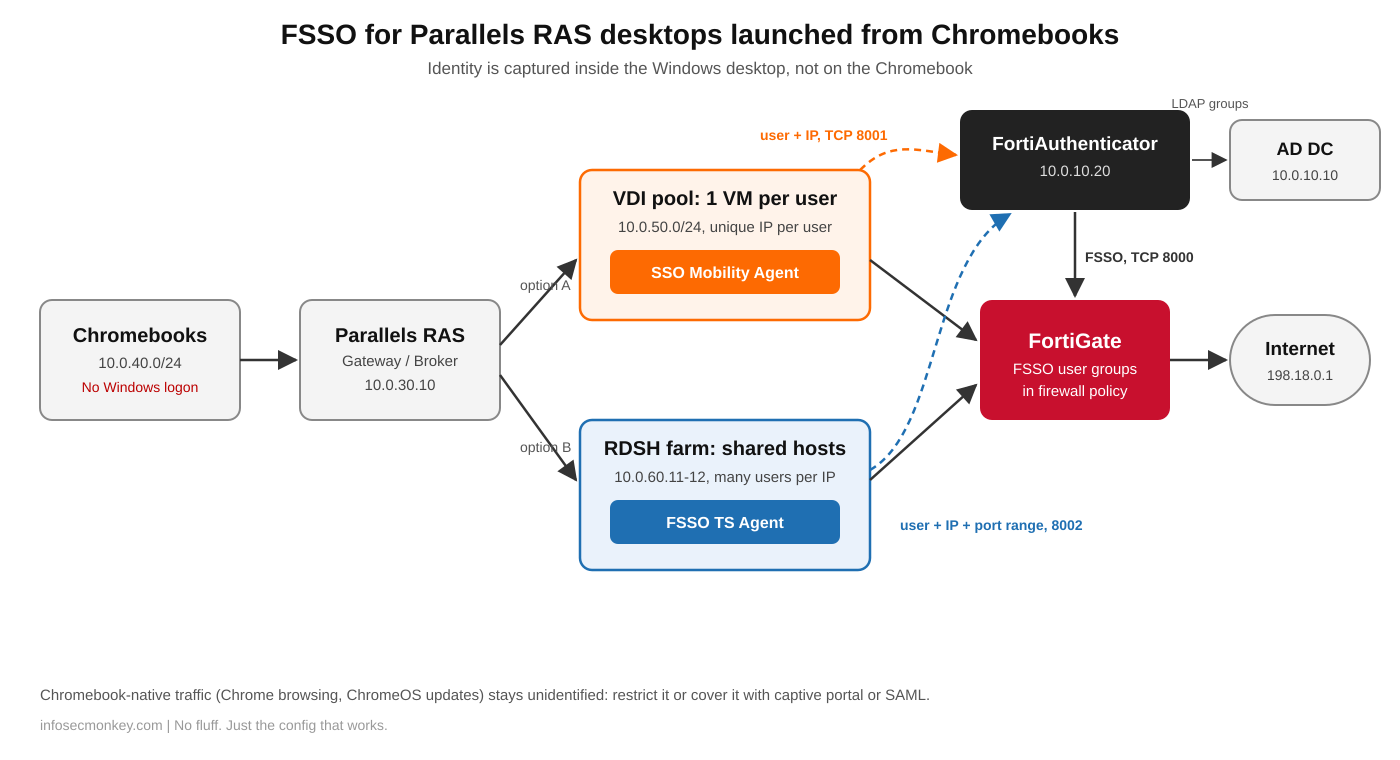
| Chromebooks | Thin client, no Windows logon | 10.0.40.0/24 |
| Parallels RAS Secure Gateway / Broker | Brokers desktop sessions | 10.0.30.10 |
| VDI desktop pool (option A) | One Windows VM per user, FSSO Mobility Agent | 10.0.50.0/24 |
| RDSH farm (option B) | Shared session hosts, FSSO TS Agent | 10.0.60.11-12 |
| Active Directory DC | Users and groups | 10.0.10.10 |
| FortiAuthenticator | FSSO collector, LDAP group lookup | 10.0.10.20 |
| FortiGate | Identity-based egress policy | WAN 198.18.0.1 |
Figure 1: Where identity is captured: inside the RAS desktop, not on the Chromebook
Step-by-Step: Deploy the FSSO Mobility Agent on VDI
Step 1: Identify the Parallels RAS delivery model
Goal: Decide between the FSSO Mobility Agent and the FSSO TS Agent before touching any image.
Action: Log in to a desktop as a test user and list the interactive sessions on that Windows machine. Ask the VDI team whether the pool is persistent or non-persistent.
C:\> quser
 USERNAME     SESSIONNAME   ID  STATE   IDLE TIME  LOGON TIME
>jsmith rdp-tcp#0 2 Active . 11/20/2026 8:02 AM| What quser shows | Delivery model | Agent |
|---|---|---|
| One user, every time | VDI pool, one VM per user | FSSO Mobility Agent in the golden image |
| Several users on one host | RDSH published desktops | FSSO TS Agent on each session host |
| Both, depending on the user | Mixed farm | Mobility Agent on VDI images, TS Agent on RDSH hosts |
GUI Verification: In the Parallels RAS Console, the site lists RD Session Hosts and VDI pools separately. Note which one each published desktop uses.
Step 2: Enable the Mobility Agent service on FortiAuthenticator
Goal: Have FAC listen for logon events from the agents and map users to AD groups.
Action: Go to Fortinet SSO > Settings > Methods and turn on the FortiClient SSO Mobility Agent service. Keep TCP 8001 unless it collides with another service on the same device. Set a preshared key, and avoid double quotes and semicolons in it because the Windows installer treats them as reserved. Confirm the remote LDAP server for the domain is healthy so FAC can resolve group membership.
Fortinet SSO > Settings > Methods
  FortiClient SSO Mobility Agent Service : Enabled
  Listening port                         : 8001
  Secret key                             : <preshared-key>
  Keep-alive interval / timeout          : defaults
Fortinet SSO > Settings > Log Config
  Log level                              : Debug (during rollout only)
GUI Verification: Monitor > SSO > SSO Sessions is empty for now. After Step 3 it lists VDI logins with the source shown as Mobility Agent.
Step 3: Install the agent in the golden image
Goal: Every VM cloned from the image reports its logged-in user and IP to FAC, with no per-VM work.
Action: Unpack the standalone FortiClientSSOSetup package from the FortiClient section of the Fortinet support download site and install it silently on the golden image with the FAC address, port and key. The agent has no GUI and no per-machine enrollment, so it survives cloning in persistent and non-persistent pools.
PS C:\Install> msiexec /i FortiClientSSO.msi /qn `
  SSOSERVER="10.0.10.20" SSOPORT="8001" `
  SSOPSK="<preshared-key>" /L*v C:\Windows\Temp\ssoma-install.log
For a FAC HA pair or load-balancing cluster, list both nodes: SSOSERVER='10.0.10.20:8001,10.0.10.21:8001'. Every node must use the same key.
Check the result before sealing the image:
PS C:\> Get-ItemProperty "HKLM:\SOFTWARE\Fortinet\FortiClient\FA_SSOMA" |
>>   Select-Object serveraddress, enabled, installed

serveraddress    enabled installed
-------------    ------- ---------
10.0.10.20:8001        1         1

PS C:\> Get-Service -DisplayName "*Mobility*" | Select-Object Status, DisplayName

 Status DisplayName
 ------ -----------
Running Fortinet Mobility Agent Service Scheduler
If the desktops are Entra ID joined instead of on-prem AD joined, tell the agent to send Entra ID identity. FAC then needs an OAuth server entry for the tenant plus the Tenant ID and domain under SSO Methods.
PS C:\> New-ItemProperty -Path "HKLM:\SOFTWARE\Fortinet\FortiClient\FA_SSOMA" `
  -Name prefer_azure -PropertyType DWord -Value 1 -Force
GUI Verification: Seal the image, publish the pool, and log in from a Chromebook. Within a few seconds of the Windows logon, FAC Monitor > SSO > SSO Sessions shows the user, the VM IP from 10.0.50.0/24, and Mobility Agent as the source.
Step 4: Point the FortiGate at FortiAuthenticator
Goal: The FortiGate receives user-to-IP mappings and AD groups from FAC and uses them in policy.
Action: Add FAC as an FSSO agent connector (FAC listens on TCP 8000 for FortiGates), build an FSSO user group from the AD group, and reference it in the egress policy for the VDI subnet.
config user fsso
    edit "FAC-FSSO"
        set server "10.0.10.20"
        set password <fsso-secret>
    next
end
config user group
    edit "VDI-Finance"
        set group-type fsso-service
        set member "CN=FINANCE,OU=GROUPS,DC=LAB,DC=LOCAL"
    next
end
config firewall policy
    edit 0
        set name "VDI-Finance-Out"
        set srcintf "vdi"
        set dstintf "wan1"
        set action accept
        set srcaddr "VDI-Pool-10.0.50.0"
        set dstaddr "all"
        set schedule "always"
        set service "ALL"
        set groups "VDI-Finance"
        set nat enable
    next
end
GUI Verification: Security Fabric > External Connectors shows FAC-FSSO as connected. User & Authentication > User Groups lets you pick the AD groups FAC is forwarding.
Step 5: Option B, RDSH hosts get the FSSO TS Agent
Goal: Identify many users that share one session host IP.
Action: Skip the Mobility Agent on RD Session Hosts. Install the FSSO TS Agent on each host and point it at FAC on TCP 8002. The TS Agent hands each user session its own source port range, so the FortiGate matches user by IP plus port. Enable DC/TS agent clients under Fortinet SSO > Settings > Methods on FAC.
C:\Install> msiexec /i TSAgent_Setup_5.0.xxxx.msi /qn ^
  COLLECTORAGENTLIST="10.0.10.20:8002" PORTPOOLRANGES="20000-39999" ^
  PORTNUMPERALLOC="200" MAXPORTRANGESPERSESSION="2" ^
  SSLMODE="1" PSK="<ts-preshared-key>" /log C:\Windows\Temp\tsagent.log
Fortinet documents the TS Agent for Citrix, VMware Horizon and Windows Terminal Server. Parallels RAS RDSH sits on Windows RDS underneath, so it should behave the same, but prove it in a lab before you promise it to the customer.
GUI Verification: FAC SSO Sessions shows the RDSH host IP several times, once per user, each with a different port range.
Step 6: Clean up the identity data
Goal: Keep infrastructure logons and stale sessions from overwriting real users.
Action: Use FAC IP filtering to exclude the RAS gateway, broker, template and image-build VMs. Add service accounts (scanner, backup, RAS service users) to the ignored users list. Keep FAC SSO timeouts sensible for non-persistent pools where VMs are destroyed and DHCP hands the same IP to the next user.
GUI Verification: After a pool refresh, FAC SSO Sessions shows only real users, with no RAS service account holding a desktop IP.
Step 7: Close the Chromebook gap
Goal: Decide what happens to traffic the Chromebook sends on its own.
Action: The agent only identifies traffic leaving the Windows desktop. Local Chrome browsing, ChromeOS updates and Android apps still show up as an unknown 10.0.40.0/24 address. Either restrict the Chromebook segment to the RAS gateway and required update endpoints, or authenticate it separately with FortiGate captive portal or SAML.
config firewall policy
    edit 0
        set name "Chromebook-to-RAS"
        set srcintf "chromebook"
        set dstintf "servers"
        set action accept
        set srcaddr "Chromebook-10.0.40.0"
        set dstaddr "RAS-Gateway-10.0.30.10"
        set schedule "always"
        set service "HTTPS"
    next
end
GUI Verification: Forward traffic logs from 10.0.40.0/24 only show sessions to the RAS gateway and the update endpoints you allowed.
Verification and Validation
Log in to two VDI desktops from two Chromebooks with users in different AD groups, browse from each, then check the FortiGate.
FGT # diagnose debug authd fsso server-status
Server Name          Connection Status        Version              Address
-----------          -----------------        -------              -------
FAC-FSSO             connected                FortiAuthenticator   10.0.10.20

FGT # diagnose debug authd fsso list
----FSSO logons----
IP: 10.0.50.21  User: JSMITH  Groups: CN=FINANCE,OU=GROUPS,DC=LAB,DC=LOCAL
IP: 10.0.50.22  User: MLOPEZ  Groups: CN=SALES,OU=GROUPS,DC=LAB,DC=LOCAL
Total number of logons listed: 2, filtered: 0
----end of FSSO logons----- Success: each VDI IP maps to exactly one user, and the groups match AD.
- Forward traffic log: the User and Group columns are filled for VDI sessions, and the session hits VDI-Finance-Out, not a catch-all policy.
- FAC: Monitor > SSO > SSO Sessions shows Mobility Agent as the source. Option B sessions come from the TS Agent with port ranges.
- Logoff test: sign out of a VDI desktop and confirm the mapping drops from
diagnose debug authd fsso listinstead of sitting there until a timeout.
Troubleshooting and Gotchas
1. No sessions ever reach FortiAuthenticator
Usually a key mismatch, a blocked port, clock drift or a machine that is not domain-joined. Check reachability from the desktop, then read the FAC FSSO agent debug at https://10.0.10.20/debug/fsso-agent/. An “expired cache item” message means NTP is off. Re-enter the key on both sides if in doubt, and confirm FAC can reach LDAP for the user’s domain. Also check that the SSO session and FortiClient license limits on FAC have not been reached.
PS C:\> Test-NetConnection 10.0.10.20 -Port 8001 | Select-Object TcpTestSucceeded

TcpTestSucceeded
----------------
            True
2. Users show up as the wrong person
If two users keep swapping identities on the same IP, that desktop is a shared RDSH host and the Mobility Agent is the wrong tool: the last user to log on owns the IP. Run quser on the host to confirm, then move those hosts to the TS Agent (Step 5). On non-persistent pools, the same symptom can come from a recycled VM whose old mapping never cleared. Tighten timeouts and confirm logoff reporting.
3. RDSH users drop out of their groups mid-shift
The TS Agent reports new sessions and their port ranges, but it does not keep telling FAC that a long-running session is still alive. FAC’s expiry timer can remove the login while the user is still working, and a user who only reconnects to a disconnected session does not generate a new login. Raise the expiry for TS Agent sessions above your longest shift, and have affected users sign out and back in.
FGT # diagnose debug authd fsso list | grep 10.0.60.11
FGT # diagnose firewall auth list
Sources
- Technical Guide: A detailed guide to FSSO Mobility Agent (Fortinet Community)
- Technical Tip: How to install a standalone Windows FSSO Mobility Agent (Fortinet Community)
- Technical Tip: FSSO TS-Agent deployment via CLI (Fortinet Community)
- Technical Tip: How to set up TS Agent configuration (Fortinet Community)
- Technical Tip: Terminal server sessions missing in FortiAuthenticator (Fortinet Community)
- FortiAuthenticator 6.5.3 Release Notes: Fortinet agent support
- FortiGate 7.2 Administration Guide: FSSO agents
InfoSecMonkey | No fluff. Just the config that works.