
If you've spent any time configuring user authentication on... Full Story
By Manny Fernandez
October 6, 2026
IOS Focus Mode: Enabling, Configuring or Disabling it.
Executive Summary
Objective: Understand every path that activates a Focus on an iPhone, configure Focus so it only silences what you want silenced, and (if you are done with it) shut it down so it never comes back on its own.
Target audience: Anyone who has missed a call, an MFA push, or an on-call page because a crescent moon icon showed up uninvited.
Why it matters: Focus is not one switch. It is a set of modes (Do Not Disturb, Sleep, Driving, Work, Personal, and more), each with its own triggers. Turning off the active Focus in Control Center does nothing about the trigger that enabled it. That is why it “keeps coming back.”
Menu paths below are written against iOS 26. iOS 17 and 18 are nearly identical; a label may differ slightly.
Prerequisites
| Item | Detail |
|---|---|
| Device | iPhone on iOS 17 or later |
| Access | Device passcode, signed in to your Apple Account |
| Also check | iPad, Mac, and Apple Watch on the same Apple Account |
| Time | About 10 minutes for the full shutdown |
Part 1: How Focus Gets Enabled So Easily
There are ten common triggers. Most people only know about the first one.
| # | Trigger | What happens |
|---|---|---|
| 1 | Control Center | One tap on the Focus tile (crescent moon) turns on the last used Focus. Easy to hit by accident. |
| 2 | Lock Screen | Long press the Focus label on the Lock Screen and pick one. |
| 3 | Linked Lock Screen | A Lock Screen can be bound to a Focus. Swipe to that wallpaper and the Focus turns on with it. |
| 4 | Schedules | Time, location, or app based automations under “Set a Schedule.” |
| 5 | Smart Activation | iOS decides on its own, based on location, app usage, and past behavior. |
| 6 | Sleep schedule | The Sleep Focus follows the sleep schedule set in the Health app, including Wind Down. |
| 7 | Driving | Activates automatically on motion detection, car Bluetooth, or CarPlay. |
| 8 | Share Across Devices | A Focus turned on from your Mac, iPad, or Apple Watch turns on here too. |
| 9 | Action button | On models with an Action button, a long press can be mapped to a Focus. |
| 10 | Shortcuts and Siri | Personal automations in Shortcuts can set a Focus. So can “Hey Siri, turn on Do Not Disturb.” |
Honorable mentions: starting a workout on Apple Watch can turn on the Fitness Focus, and connecting a game controller can turn on the Gaming Focus.
Part 2: How to Configure a Focus Properly
If you want to keep Focus, configure it so nothing important gets dropped.
Step 1: Open the Focus
Goal: Get to the settings for a single mode.
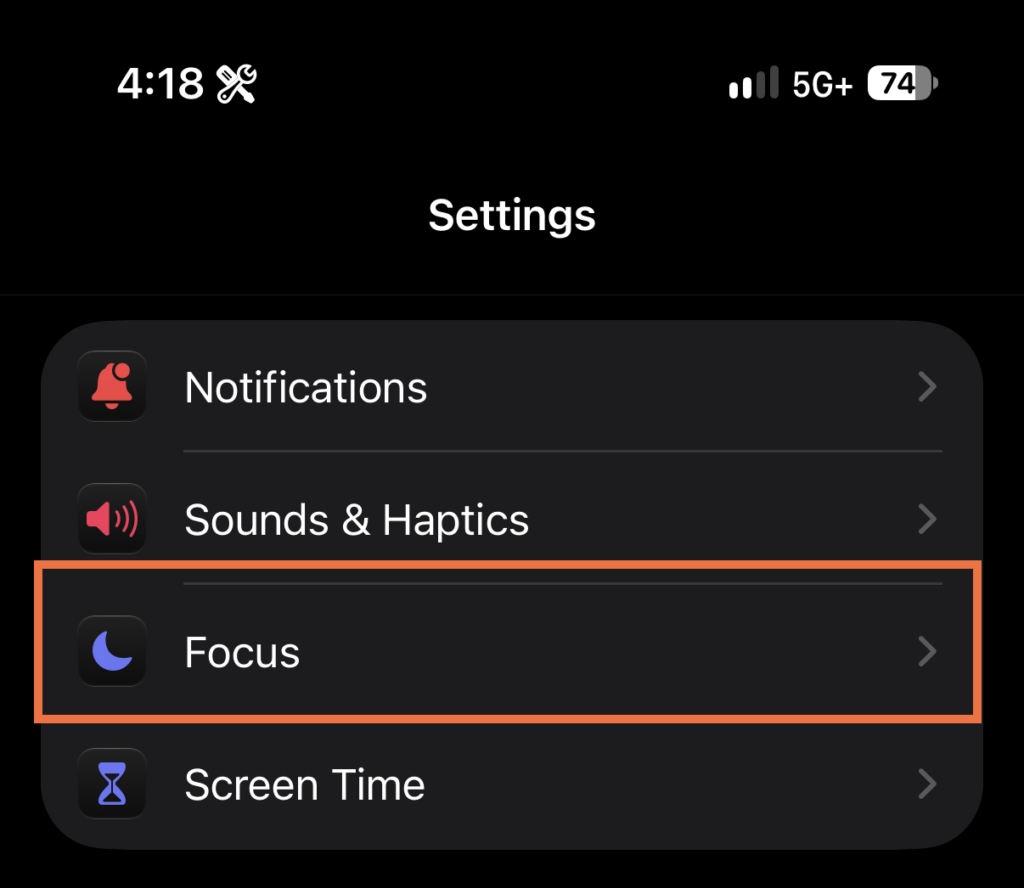
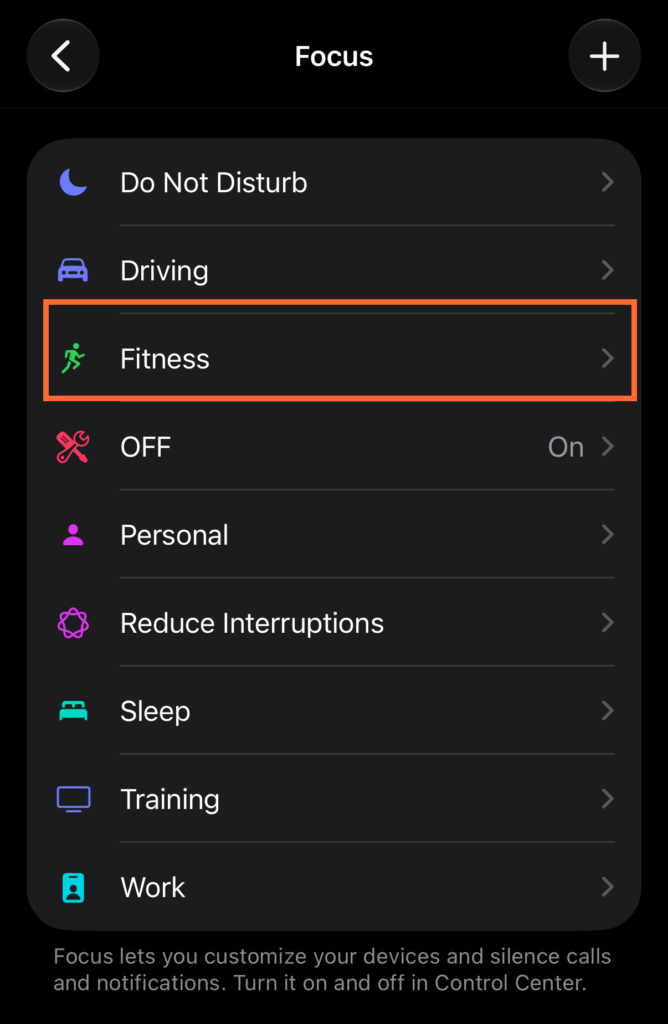
Action: Settings > Focus, then tap the Focus (for example, Do Not Disturb or Work). Tap + to create a custom one.
Step 2: Set who and what can break through
Goal: Build the allow list.
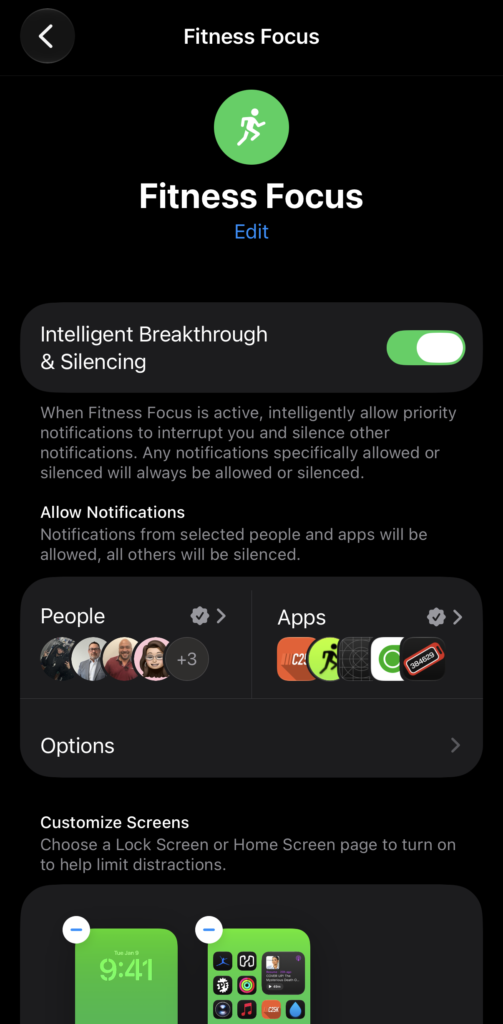
- People: choose “Allow Notifications From” and add contacts. Set “Allow Calls From” (Everybody, Allowed People Only, Favorites, Contacts Only). Enable “Allow Repeated Calls” so a second call within three minutes rings through.
- Apps: choose “Allow Notifications From” and add the apps that must always alert. Add your authenticator, paging, and banking apps here.
- Time Sensitive Notifications: leave on if you want apps flagged as time sensitive to break through.
Step 3: Set the Options
Goal: Control how silenced notifications behave.
- Show On Lock Screen: silenced notifications still appear on the Lock Screen instead of only in Notification Center.
- Dim Lock Screen: darkens the Lock Screen while the Focus is on.
- Hide Notification Badges: removes red badges from Home Screen apps that are not on the allow list.
- Silence Notifications: Always, or only While Locked.
Step 4: Customize Screens
Goal: Tie a Lock Screen, Home Screen pages, or Watch face to the Focus.
Action: Under Customize Screens, pick the screens. Remember trigger 3 above: once a Lock Screen is linked, switching to it activates the Focus.
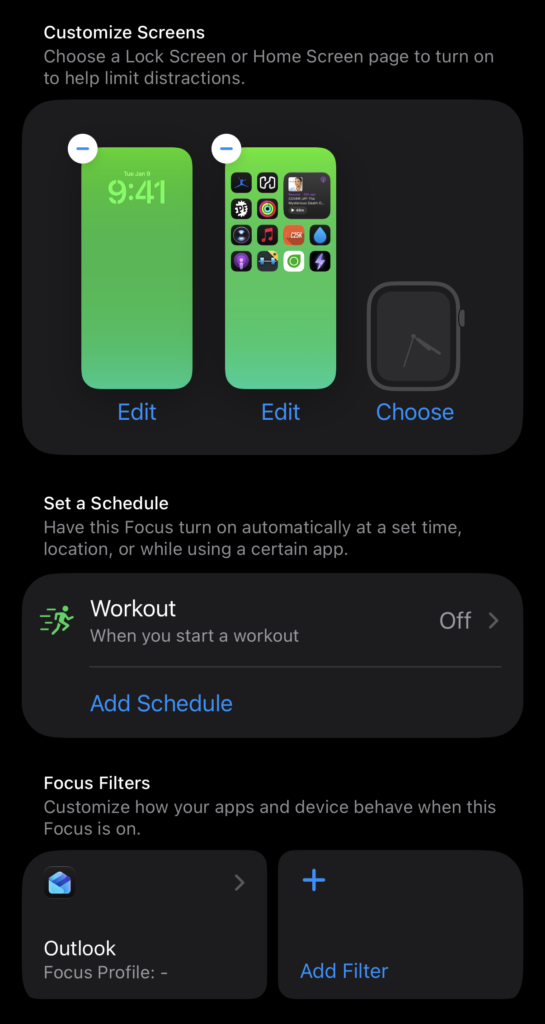
Step 5: Set a Schedule (or do not)
Goal: Decide if the Focus should ever start on its own.
Action: Under Set a Schedule, tap Add Schedule for Time, Location, or App. Leave Smart Activation off unless you trust iOS to guess correctly.
Step 6: Focus Filters
Goal: Limit what apps show while the Focus is on.
Action: Under Focus Filters, add filters for Calendar, Mail, Messages, Safari tab groups, or system settings such as Low Power Mode and Dark Mode.
Step 7: Focus Status
Goal: Control who sees “has notifications silenced.”
Action: Settings > Focus > Focus Status. Toggle sharing per Focus. This is a small privacy leak: it tells the other party you are reachable but not looking.
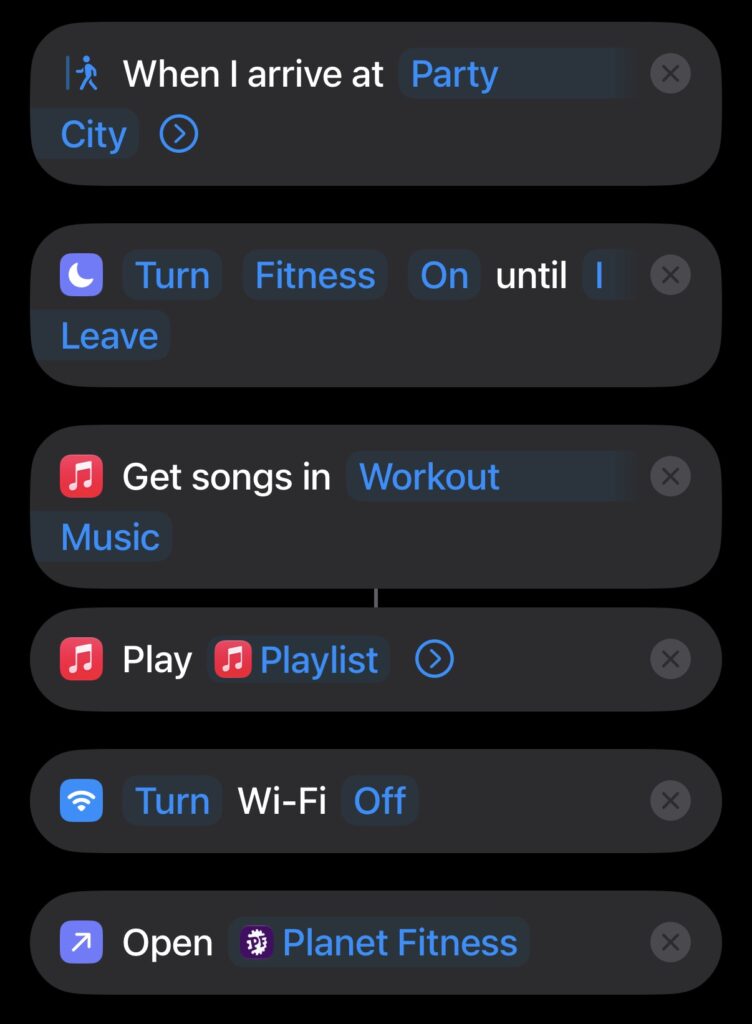
This particular focus triggers based on GPS coordinates. When I arrive at the gym, there is a corresponding Automation Script that runs (Party City is further from the street I drive down. It will turn the focus “Fitness” on until I leave. When I leave and drive down the street, it changes back to whatever the Focus was before.
Part 3: How to Turn Focus Completely Off
Order matters. Stop the active Focus first, then remove every trigger, then remove the modes.
Step 1: Turn off the active Focus
Open Control Center and tap the highlighted Focus tile so it reads “Focus” with nothing selected. Or long press the Focus label on the Lock Screen and tap the active Focus.
Step 2: Stop cross device sync
Settings > Focus > Share Across Devices to off. Do the same on Mac (System Settings > Focus) and iPad. Until this is off, another device can re-enable Focus on the phone.
Step 3: Remove every schedule and Smart Activation
For each Focus listed under Settings > Focus:
- Tap the Focus.
- Under Set a Schedule, tap each schedule and choose Delete Schedule (or Delete Automation).
- Tap Smart Activation and turn it off.
Step 4: Disarm Driving
Settings > Focus > Driving > While Driving
- Set Activate to Manually.
- Turn off Activate With CarPlay.
Step 5: Disarm Sleep
The Sleep Focus is driven from the Health app, not only from Settings.
Health > Browse > Sleep > Full Schedule & Options
- Turn off Use Schedule for Sleep Focus, or
- Turn off Sleep Schedule entirely if you do not use it.
Step 6: Unlink Lock Screens
Long press the Lock Screen. On each wallpaper that shows a Focus name at the bottom, tap it and deselect the Focus.
Step 7: Remove the manual triggers
- Action button:
Settings > Action Button, swipe away from Focus to another action. - Control Center: open Control Center, long press an empty area, and remove the Focus control so it cannot be tapped by accident.
- Shortcuts:
Shortcuts > Automation, delete any automation that contains a “Set Focus” action.
Step 8: Delete the Focus modes
Settings > Focus, tap a Focus, scroll to the bottom, tap Delete Focus, and confirm. Repeat for every mode. Do Not Disturb cannot be deleted, which is why Steps 2 through 7 matter: with no triggers left, it stays off unless you turn it on.
Step 9: Check the Apple Watch
In the Watch app on iPhone: General > Focus, turn off Mirror my iPhone if you want the Watch independent. Under Workout, turn off the Fitness Focus option if starting a workout keeps silencing the phone.
Verification
| Check | Expected result |
|---|---|
| Status bar and Lock Screen | No crescent moon, bed, car, or other Focus icon |
| Control Center | Focus tile (if still present) shows no active mode |
| Settings > Focus | Only Do Not Disturb remains, with no schedules and Smart Activation off |
| Test call and test text from a second phone | Both ring and alert with the phone locked |
| Next morning and next drive | No Focus icon appears on its own |
Troubleshooting and Gotchas
Focus still turns on at night. The Sleep schedule in Health is still active, or a Do Not Disturb time schedule was missed. Recheck Part 3, Steps 3 and 5.
Focus turns on when you sit down at your Mac. Share Across Devices is still on at one end. Turn it off on every device, not only the iPhone.
Notifications are still quiet with Focus off. That is not Focus. Check the Ring/Silent setting, Settings > Notifications > Scheduled Summary, and the per app notification settings. On iOS 18.1 and later with Apple Intelligence, also check for the Reduce Interruptions Focus and delete it.
One contact is still silenced. Check Messages > conversation > contact name > Hide Alerts, and Settings > Apps > Phone > Silence Unknown Callers.
Bottom Line
Focus has one off switch and about ten on switches. Turning it off for good means removing the on switches: sync, schedules, Smart Activation, Driving, Sleep, linked Lock Screens, and the manual shortcuts. Ten minutes, once, and the moon stays gone.
Recent posts
-

-

DNS is one of those technologies that quietly underpins... Full Story
-

BGP issues on FortiGate firewalls usually trace back to... Full Story
-

Every time your laptop talks to your router, a... Full Story
-

If you've spent any time configuring NAT on a... Full Story
-

If you have spent any time configuring firewall policies... Full Story
-

High availability on FortiGate is one of those features... Full Story
-

If you've configured SD-WAN on a FortiGate, you've almost... Full Story
-

FortiLink is the management protocol that turns a FortiSwitch... Full Story
-

FortiSwitches are pretty rock solid from Mean Time Between... Full Story
-

This is a quicky tip. Have you ever gone... Full Story
-

DNS is one of those quiet pieces of internet... Full Story
-

This article is an updated version of the previous... Full Story
-

You will add ns2 as a secondary (slave) BIND9... Full Story
-

In the process of deploying my lab, I needed... Full Story
-

RFC 8805, used to be known as Self-Correcting IP... Full Story
-

Years back, I wrote an article about certificate pinning. ... Full Story
-

FortiGates have the ability to send alerts to Microsoft... Full Story
-

In this post, I am going to walk through... Full Story
-

Troubleshooting VoIP on a FortiGate can feel like trying... Full Story
-

Prior to FortiOS 7.0, there were three commands to... Full Story
-

In this post, I am going to go over... Full Story
-

What we are going to do: We are going... Full Story
-

Choosing between FGCP (FortiGate Clustering Protocol) and FGSP (FortiGate... Full Story
-

Creating a VLAN on macOS (The "Pro" Move) A... Full Story
-

This blog post explores the logic behind how macOS... Full Story
-

Pretty Fly for a Wi-Fi Tell My Wi-Fi Love... Full Story
-

Part of my daily gig is creating BoMs (Bill-of-Materials)... Full Story
-

ICMP introduces several security risks, but careful filtering, rate... Full Story
-

The command diag debug application dhcps -1 enables full... Full Story
-

In the world of FortiOS, execute tac report is... Full Story
-

LLDP; What is it The Link Layer Discovery Protocol... Full Story
-

What it actually does When you run diagnose fdsm... Full Story
-

Monkey Bites are bite-sized, high-impact security insights designed for... Full Story
-

I have run macOS in macOS with Parallels but... Full Story
-

Don't be confused with my other FortiNAC posts where... Full Story
-

This is the third session in a multi-part article... Full Story
-

Today I was configuring key-based authentication on a FortiGate... Full Story
-

Netcat, often called the "Swiss Army knife" of networking,... Full Story
-

At its core, IEEE 802.1X is a network layer... Full Story
-

In case you did not see the previous FortiNAC... Full Story
-

This is our 5th session where we are going... Full Story
-

Now that we have Wireshark installed and somewhat configured,... Full Story
-

The Philosophy of Packet Analysis Troubleshooting isn't about looking... Full Story
-

ICAP Configuration on FortiGate, Palo Alto and Cisco: How... Full Story
-

Blockchain Explained for Beginners: How It Works, Minus the... Full Story
-

No fluff. Just the config that works. The /31... Full Story