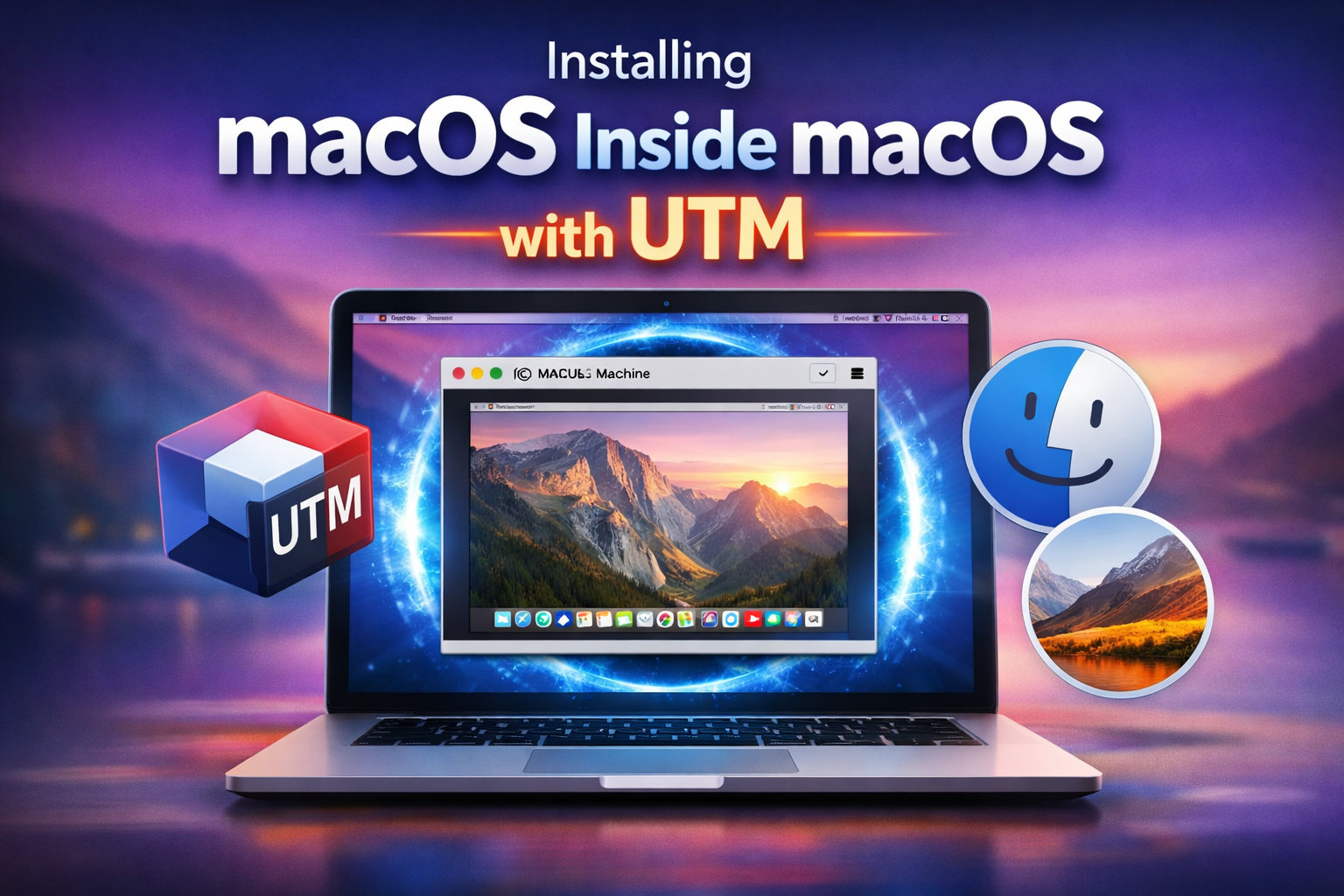
I have run macOS in macOS with Parallels but a friend and colleague (Jason Kline) told me about UTM. Lets get started. Lets grab the install file. Lets go to the UTM website. I wanted to create an environment where I can use it to record videos. This way I do not have to mess with a large display and trying to reduce do post production changes. I remember running Hackintosh back in the day when I was running Fedora as my main desktop and VirtualBox as my hypervisor.
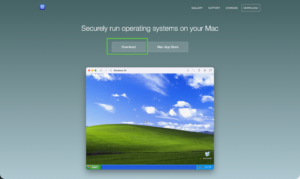
Hit the Download button.
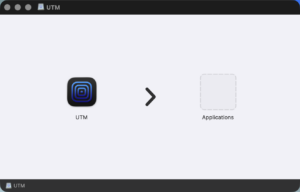
Drag the UTM icon onto the Applications square.

If you double click on the Application shortcut, you should see UTM installed.
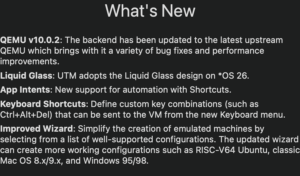
You should see this screen and hit Continue.
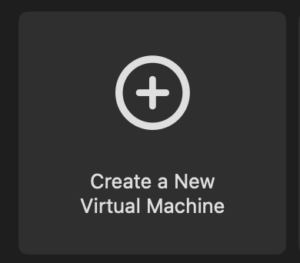
Lets go ahead and Create a New Virtual Machine
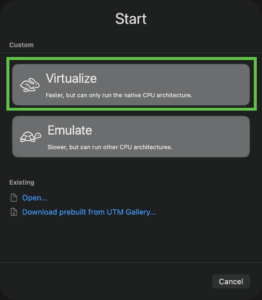
You can either Virtualize or Emulate
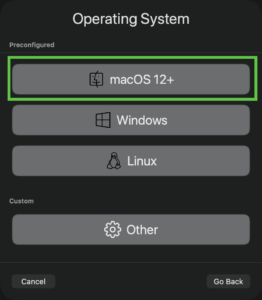
You can also install from a Gallery
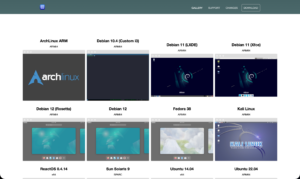
Lets move on…..
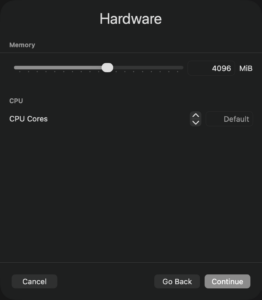
You can define the memory to be used. I did the default 4GB.
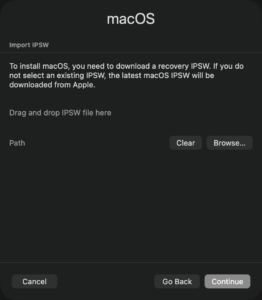
Next is the installation media. Unless you have the image, UTM will download it for you. I will download.
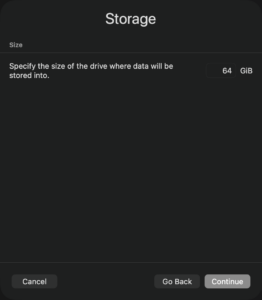
Since this is a test environment, I am good with 64GB of Disk Space
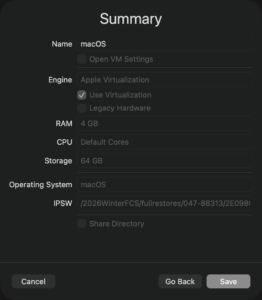
Review the summary and hit save.
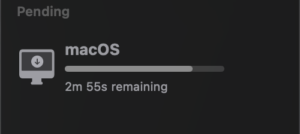
Start the VM and wait for the download.
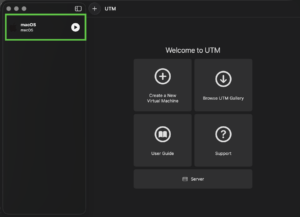
Once you have finished the download, you can hit the play button.
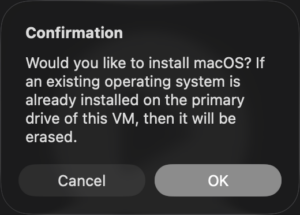
Hit OK.

Wait til the Installation finishes. Run through the basic macOS installation. You can use your same AppleID if you want.
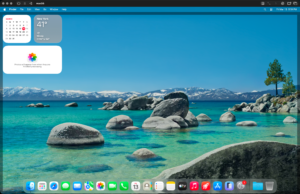
Boom 💥. You are ready to go.