No fluff. Just the config that works.
Executive Summary
This is a practitioner Burp Suite install guide that takes you from download to your first modified request. You will install Burp Suite Community Edition on Windows, macOS or Linux, confirm the proxy listener, trust the Burp CA certificate, scope a lab target, and work through the four tools you will use every day: Proxy, Repeater, Intruder and Decoder.
Objective: a working Burp Suite install that intercepts HTTP and HTTPS from a browser and from CLI tools, pointed at a lab target you are allowed to test.
Target audience: network and security engineers, blue teamers who want to understand what web attackers see, and anyone starting the PortSwigger Web Security Academy.
Current state, November 2026: the latest release is 2026.11.2 (18 Nov 2026). Since 2026.4 PortSwigger ships one combined installer for Community and Professional, and you choose the edition during setup. Older edition-specific installer names no longer exist, so update any download scripts. See the Burp Suite downloads page and the 2026.4 release notes.
Authorization first: Burp can damage targets. Only test systems you own or have written permission to test. PortSwigger says the same in the Burp Suite documentation.
Prerequisites and Architecture
Assumed knowledge
- HTTP basics: methods, headers, status codes, cookies
- What TLS interception means and why a trusted CA makes it work
- Comfort with a terminal (bash, zsh or PowerShell)
Lab requirements
- A workstation with 8 GB of RAM or more (Burp is a Java app and keeps history in memory)
- Firefox, if you want an external browser (Burp ships its own Chromium browser too)
- A lab target: OWASP Juice Shop in Docker on a Linux VM at
10.0.10.50 - Optional:
curlandopensslfor the CLI verification steps
| Component | Address / Port | Role |
|---|---|---|
| Tester workstation | 10.0.10.20 | Runs Burp Suite and the browser |
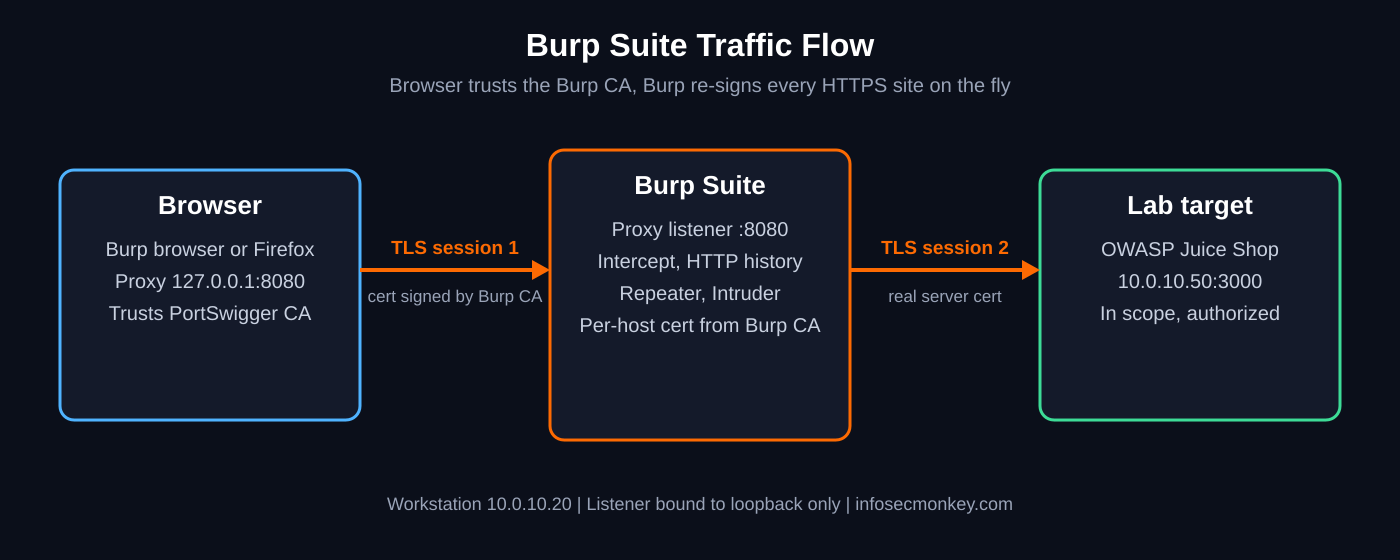
| Burp proxy listener | 127.0.0.1:8080 | Default listener, loopback only |
| Burp CA | Generated on first launch | Signs a per-host certificate for HTTPS sites you visit |
| Lab target (Juice Shop) | 10.0.10.50:3000 | Intentionally vulnerable app, legal to attack |
| Public HTTPS test site | example.com | Confirms HTTPS interception works |
Figure 1: Burp sits between the browser and the target and terminates TLS with its own CA
Community vs Professional
Community is free and covers manual testing. Professional adds the automated parts. From the Community vs Professional comparison:
| Feature | Community | Professional |
|---|---|---|
| HTTP(S) and WebSockets proxy, HTTP history | Yes | Yes |
| Repeater, Decoder, Sequencer, Comparer | Yes | Yes |
| Intruder | Demo, throttled | Full speed |
| Burp Scanner (automated crawl and audit) | No | Yes |
| Burp Collaborator (out-of-band testing) | No | Yes |
| Save projects to disk | No, temporary projects only | Yes |
Almost every Web Security Academy lab works in Community. The exceptions need Collaborator, and brute-force labs are slower because of Intruder throttling, per PortSwigger support on the forum.
Step-by-Step Burp Suite Install and Setup
Step 1: Download and verify the installer
Goal: get the right build for your CPU and prove it was not tampered with.
Action: open the downloads page. Builds exist for Windows x64 and ARM, macOS Apple silicon and Intel, Linux x64 and ARM, plus a plain JAR for custom Java installs. The page lists a SHA-256 for each file. Check your architecture first, then hash the download.
# Linux: which installer do I need?
uname -m          # x86_64 = Linux x64, aarch64 = Linux ARM

# Linux
sha256sum ~/Downloads/<burp-installer>.sh

# macOS
shasum -a 256 ~/Downloads/<burp-installer>.dmg
# Windows
Get-FileHash $env:USERPROFILE\Downloads\<burp-installer>.exe -Algorithm SHA256GUI Verification: the hash printed in your terminal matches the SHA-256 shown next to that file on the downloads page, character for character.
Step 2: Install for your platform
Goal: Burp installed with its bundled Java runtime, Community selected.
Action, Windows: run the .exe, accept the defaults, and pick Community Edition when the installer asks for an edition.
Action, macOS: open the .dmg, drag the app to Applications, then pick the edition on first run. Homebrew also works, but the burp-suite cask can trail the official release by a few versions.
brew install --cask burp-suite
brew upgrade --cask burp-suite    # later, to update
Action, Linux: make the shell installer executable and run it as your user (not root) so the install lands in your home folder.
cd ~/Downloads
chmod +x <burp-installer>.sh
./<burp-installer>.sh
# Unpacking JRE ...
# Starting Installer ...   (wizard opens, choose Community Edition)
Action, Kali: Burp is already packaged. The Kali burpsuite package launches from the menu or the terminal.
sudo apt update
sudo apt install -y burpsuite
burpsuite --version
GUI Verification: Burp launches, shows the startup wizard, and the window title says Burp Suite Community Edition with the version you downloaded.
Step 3: First launch and the proxy listener
Goal: confirm Burp is listening on the loopback interface.
Action: at the startup wizard choose Temporary project in memory, then Use Burp defaults, then Start Burp. Go to Settings > Tools > Proxy. By default Burp creates one listener on port 8080 of the loopback interface, per the proxy listener docs.
# Linux
ss -ltnp | grep 8080

# macOS
lsof -nP -iTCP:8080 -sTCP:LISTEN
GUI Verification: the Proxy listeners table shows 127.0.0.1:8080 with Running ticked. If it is not ticked, use Restore defaults from the panel menu.
Keep the listener on 127.0.0.1. If you bind it to all interfaces or a non-loopback interface, other machines on the network can use your proxy, as the Proxy settings docs warn.
Step 4: Stand up a legal target
Goal: something you are allowed to break. OWASP Juice Shop is built for exactly this.
Action: on the Linux lab VM at 10.0.10.50:
docker run -d --name juice-shop --restart unless-stopped \
  -p 3000:3000 bkimminich/juice-shop

curl -s -o /dev/null -w "%{http_code}\n" http://10.0.10.50:3000/
GUI Verification: the curl prints 200, and http://10.0.10.50:3000 loads the shop in a browser.
Step 5: Point a browser at Burp and trust the CA
Goal: browser traffic, including HTTPS, flows through Burp without certificate warnings.
Action, the easy path: go to Proxy > Intercept and click Open browser. Burp’s Chromium is already proxied and already trusts the Burp CA. For most work, stop here, as the browser setup docs recommend.
Action, Firefox: use a dedicated Firefox profile for testing. In Settings > Network Settings, pick Manual proxy configuration, set HTTP proxy 127.0.0.1 port 8080, and tick Also use this proxy for HTTPS. Then, with Burp running, browse to http://burpsuite, click CA Certificate, and import the file under Settings > Privacy and Security > Certificates > View Certificates > Authorities > Import, ticking Trust this CA to identify websites. The steps match the Firefox CA guide.
You can grab and inspect the same certificate from the terminal. This proves the listener works before you touch the browser:
curl -s -x http://127.0.0.1:8080 http://burpsuite/cert -o burp-ca.der
openssl x509 -inform der -in burp-ca.der -noout -subject -enddate
openssl x509 -inform der -in burp-ca.der -out burp-ca.pem   # PEM for CLI tools
GUI Verification: an HTTPS site loads in Firefox with no warning, the padlock shows the certificate issued by PortSwigger CA, and the request appears in Proxy > HTTP history.
The Burp CA is unique to your install, and anyone who steals its private key can impersonate any site to your browser. PortSwigger notes you may not want to install it on a machine where untrusted people can read local data (why the CA matters). Use a separate browser profile and remove the CA when the engagement ends.
Step 6: Set the target scope
Goal: keep history clean and keep Burp from touching anything outside the engagement.
Action: go to Target > Scope, click Add, and enter http://10.0.10.50:3000. When Burp asks whether to stop sending out-of-scope items to history, answer Yes. In Proxy > HTTP history, open the filter bar and tick Show only in-scope items.
GUI Verification: browsing other sites no longer adds rows to HTTP history, while Juice Shop requests still do. Target > Site map shows the 10.0.10.50 tree in bold.
Step 7: Intercept and change a live request
Goal: see the raw request and edit it before it leaves.
Action: in Proxy > Intercept, turn Intercept on. In the Juice Shop login form, enter any email and password and submit. Burp holds the request:
POST /rest/user/login HTTP/1.1
Host: 10.0.10.50:3000
Content-Type: application/json

{"email":"test@lab.local","password":"<password>"}
Change the email value, click Forward, then turn Intercept off so normal browsing is not blocked. Drop discards a request instead of sending it.
GUI Verification: the response in HTTP history reflects your edited value, not what you typed in the form.
Step 8: Repeater, your main workbench
Goal: resend one request as many times as you like, changing one thing at a time.
Action: in HTTP history, right-click the login request and choose Send to Repeater (Control+R, or Command+R on macOS). In the Repeater tab, change the password, click Send, and compare status codes and response bodies. Try a single quote in the email field and watch how the error changes.
GUI Verification: each Send produces a new response in the right pane, and the arrows next to Send let you step back through earlier attempts.
Step 9: Intruder for small, targeted fuzzing
Goal: swap a list of values into one position and spot the outlier.
Action: right-click the request, Send to Intruder (Control+I, or Command+I on macOS). Highlight the password value and click Add §. Keep the default single-position attack. Under Payloads, paste a short list of 10 to 20 values and click Start attack. Sort the results by Status code or Length; the one that differs is the one to look at.
In Community, Intruder is throttled on purpose. Keep lists short, or split a big list into chunks. For volume work you want Professional, or a dedicated CLI tool.
GUI Verification: the attack window fills with one row per payload, each with status code, length and response time.
Step 10: Decoder and Comparer
Goal: read encoded tokens and diff responses without leaving Burp.
Action: copy the JWT from a successful Juice Shop login response into Decoder and choose Decode as > Base64 on each dot-separated part to read the header and claims. To diff two responses, right-click each in HTTP history and Send to Comparer, then click Words.
GUI Verification: the JWT payload shows readable JSON claims, and Comparer highlights only the bytes that differ.
Bonus: proxy CLI tools through Burp
Burp is not just for browsers. Anything that honors a proxy can be inspected, which is great for API clients and scripts.
# One-off request
curl -sI -x http://127.0.0.1:8080 --cacert burp-ca.pem https://example.com

# Whole shell session
export HTTP_PROXY=http://127.0.0.1:8080 HTTPS_PROXY=http://127.0.0.1:8080
export CURL_CA_BUNDLE=$PWD/burp-ca.pem REQUESTS_CA_BUNDLE=$PWD/burp-ca.pem
python3 -c "import requests; print(requests.get('https://example.com').status_code)"

# Clean up when done
unset HTTP_PROXY HTTPS_PROXY CURL_CA_BUNDLE REQUESTS_CA_BUNDLE
Verification and Validation
Run these with Burp open. Each one has an expected success output.
# 1. Listener answers and serves its welcome page
curl -s -x http://127.0.0.1:8080 http://burpsuite/ \
  | grep -o "Welcome to Burp Suite[^<]*"
Expected: one line starting with Welcome to Burp Suite, followed by your edition name.
# 2. The CA is Burp's
openssl x509 -in burp-ca.pem -noout -issuer
issuer=C = PortSwigger, ST = PortSwigger, L = PortSwigger, O = PortSwigger,
OU = PortSwigger CA, CN = PortSwigger CA# 3. HTTPS through Burp with the CA trusted
curl -sI -x http://127.0.0.1:8080 --cacert burp-ca.pem https://example.com | head -3HTTP/1.1 200 Connection established
HTTP/2 200In the GUI: requests from steps 7 to 10 appear in Proxy > HTTP history, the target shows in Target > Site map, and the Event log on the Dashboard has no proxy errors.
Troubleshooting and Gotchas
1. Listener will not start: port 8080 is taken
Symptom: Running will not tick, and http://burpsuite does not load. Something else (a dev server, another proxy, Jenkins) owns 8080.
sudo lsof -nP -iTCP:8080 -sTCP:LISTEN # macOS / LinuxGet-NetTCPConnection -LocalPort 8080 -State Listen |
Select-Object LocalAddress, OwningProcessFix: stop the other process, or edit the listener to a free port such as 8081 and update the browser to match. PortSwigger covers the same steps in proxy troubleshooting.
2. Firefox skips Burp for localhost
Symptom: everything shows up in Burp except an app on localhost or 127.0.0.1. Firefox never proxies loopback by default (see Mozilla bug 1535581).
Fix: in about:config, set network.proxy.allow_hijacking_localhost to true in your testing profile, or browse to the app by its LAN address (for example http://10.0.10.20:3000) instead of localhost. Burp’s own browser does not have this problem.
3. HTTPS warnings after reinstalling or on a second machine
Symptom: “Software is preventing Firefox from safely connecting” or curl: (60) SSL certificate problem. Each Burp install has its own CA, so the one your browser trusts no longer matches.
curl -s -x http://127.0.0.1:8080 http://burpsuite/cert -o burp-ca.der
openssl x509 -inform der -in burp-ca.der -noout -fingerprint -sha256
Fix: delete the old PortSwigger CA from the browser’s Authorities list, import the new one, and restart the browser. Firefox keeps its own certificate store, so trusting the CA in the OS keychain does not help Firefox.
4. Linux installer dies with “Invalid argument”
Symptom: jre/bin/java: Invalid argument right after “Unpacking JRE”. You ran the x64 installer on an ARM box (common on Apple silicon VMs and Raspberry Pi). Fix: check uname -m and download the Linux ARM build.
Cleanup
- Remove the PortSwigger CA from every browser or trust store you added it to
- Set the browser proxy back to No proxy or System proxy
- Unset proxy environment variables in any shell you exported them in
- Stop the lab target:
docker rm -f juice-shop
Keeping Burp updated matters too: recent builds such as 2026.10 ship Chromium security updates for the embedded browser. Check the latest Community release before each engagement.
Sources
- PortSwigger: Burp Suite downloads (latest version, platforms, combined installer)
- PortSwigger: Burp Suite Community Edition latest release
- PortSwigger: Professional / Community 2026.4 release notes (combined installer)
- PortSwigger: Professional / Community 2026.10 release notes
- PortSwigger: Burp Suite Community Edition vs Professional
- PortSwigger docs: Check that Burp’s proxy listener is active
- PortSwigger docs: Burp Proxy settings (listeners and binding)
- PortSwigger docs: Configuring an external browser
- PortSwigger docs: Installing Burp’s CA certificate in Firefox
- PortSwigger docs: Why install Burp’s CA certificate
- PortSwigger docs: Proxy troubleshooting
- PortSwigger: Burp Suite documentation home (authorization warning)
- PortSwigger forum: Community Edition and Web Security Academy labs
- Homebrew: burp-suite cask
- Kali Linux tools: burpsuite package
- Mozilla Bugzilla 1535581: localhost not proxied without allow_hijacking_localhost