No fluff. Just the config that works.
Executive Summary
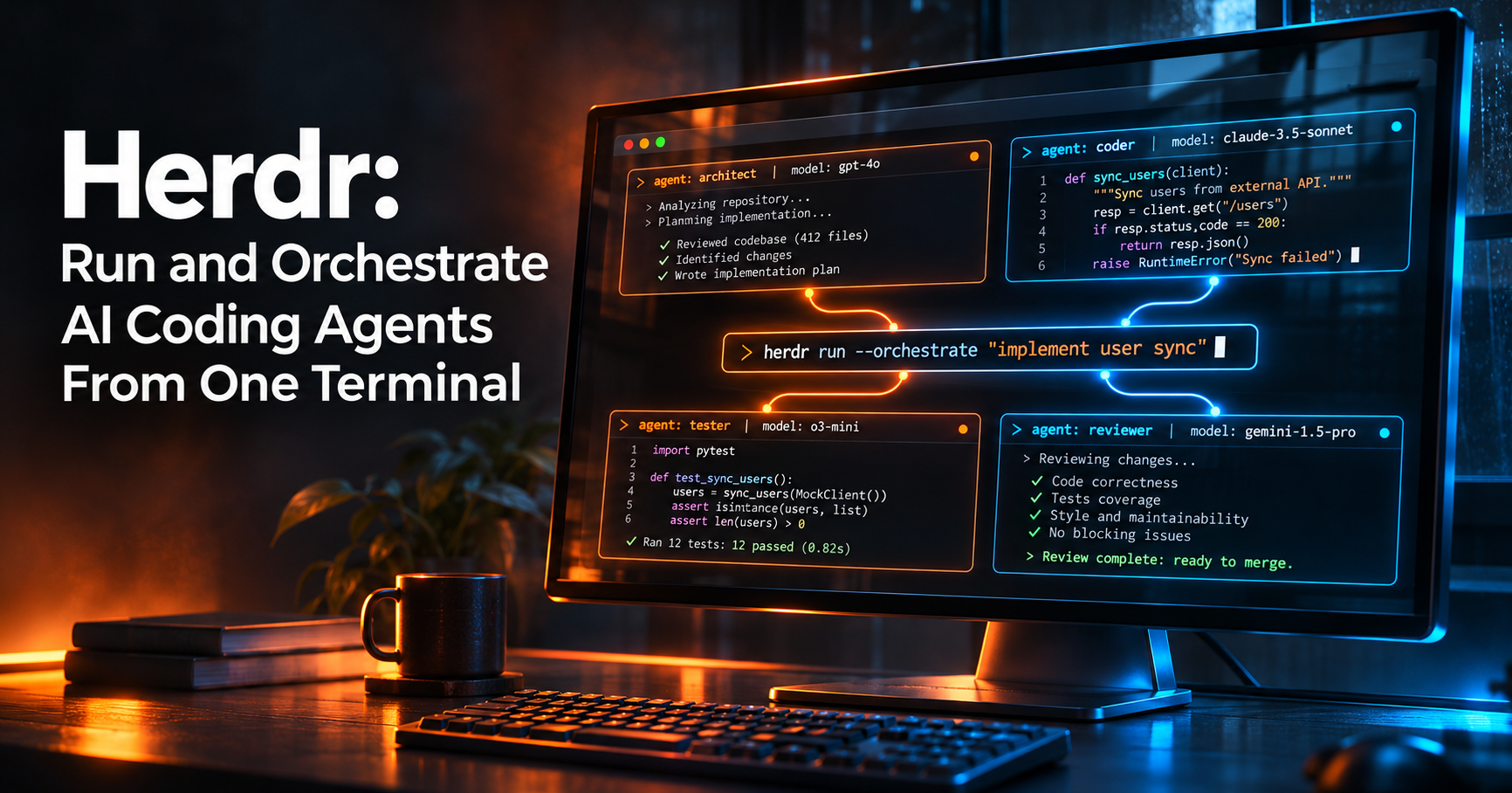
If you run more than one AI coding agent at a time, you already know the pain: six terminal tabs, no idea which agent is waiting on a permission prompt, and a lot of tab cycling just to check. Herdr fixes that. It is a terminal-native multiplexer built for AI coding agents: think tmux, rebuilt so it knows which of your agents are working, blocked, or done. This guide sets up herdr for AI coding agents like Claude Code and Codex, then goes further and lets one agent drive the others through the herdr CLI.
Objective: install herdr, wire up the Claude Code and Codex integrations, install the herdr agent skill, and build a working multi-agent workflow: parallel agents in Git worktrees, a coordinator agent that spins up a reviewer, and sessions that survive a closed laptop.
Target audience: engineers who already use Claude Code, Codex, OpenCode or a similar CLI agent and want to run several of them without losing track. If you have used tmux, you will feel at home in about five minutes.
Prerequisites and Architecture
Assumed knowledge: basic shell, Git branches, and at least one CLI coding agent installed and logged in.
Lab requirements:
- macOS, Linux, or Windows (my lab: a Mac Studio running macOS, plus an Ubuntu box at 10.0.10.20 for the remote section)
- Your existing terminal: Ghostty, iTerm2, kitty, WezTerm, Alacritty, even tmux. Herdr runs inside it, it does not replace it.
- Claude Code (
claude) and optionally Codex (codex), both already authenticated - Node.js with
npxfor the agent skill install jqfor the scripting examples- A Git repo to work in. I use
~/code/netauditthroughout.
| Component | Role | Where it lives |
|---|---|---|
| herdr server | Owns the terminals. Keeps running after you detach or lose SSH. | Background process on the machine doing the work |
| herdr client | The TUI you see: sidebar, workspaces, tabs, panes | Inside your existing terminal |
| Workspaces, tabs, panes | Project context, groups, and real terminal panes. IDs look like w1, w1:t1, w1:p2 |
herdr server |
| Agent detection | Reads the foreground process and terminal output to show working, blocked, done, idle |
herdr server |
| Integrations | Hooks or plugins per agent that report session identity (and, for some agents, state) | ~/.claude, ~/.codex, ~/.config/opencode |
| herdr CLI and socket API | Lets you, a script, or an agent create panes, run commands, read output, and wait on other agents | herdr binary |
| Agent skill | Teaches your agent how to use the herdr CLI safely | Your agent’s skills directory |
| Config | Keys, sidebar, notifications, worktree path | ~/.config/herdr/config.toml |
Figure 1: Herdr architecture: one persistent server, workspaces of agent panes, and a coordinator agent driving sibling panes through the herdr CLI
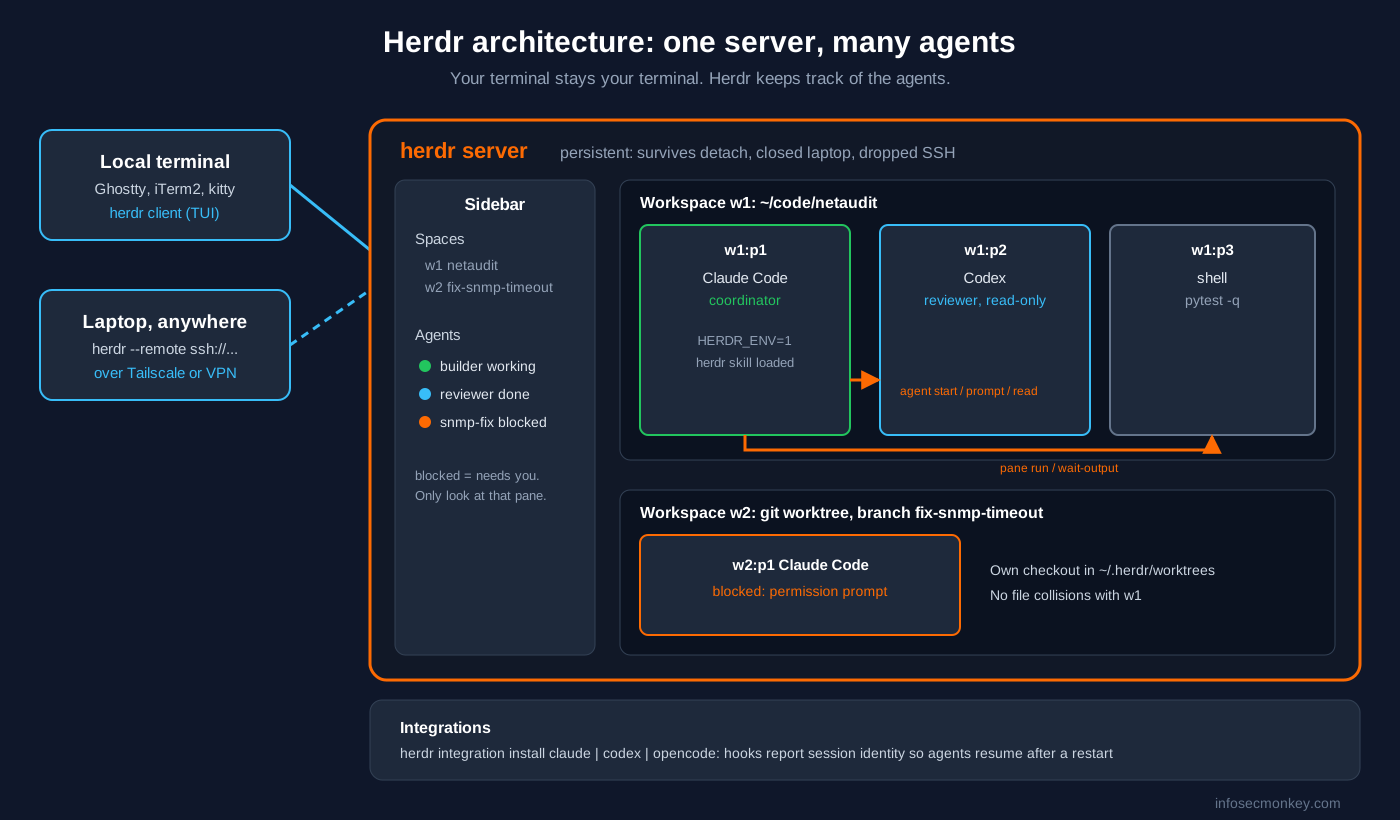
Herdr is open source (Apache-2.0) and ships as a single Rust binary. In late October 2026 the project also announced a native desktop app built on a new runtime called herdr-core. This guide sticks to the terminal app, which is what most people mean when they say herdr.
Step-by-Step: Set Up Herdr for AI Coding Agents
Step 1: Install herdr
Goal: get the herdr binary on your path.
Action: pick one install method for your platform.
# macOS or Linux, official installer
curl -fsSL https://herdr.dev/install.sh | sh

# or Homebrew
brew install herdr

# or mise
mise use -g herdr
On Windows, run this in PowerShell:
powershell -ExecutionPolicy Bypass -c "irm https://herdr.dev/install.ps1 | iex"Then confirm the install and turn on shell completion:
herdr --version
source <(herdr completion zsh)
Verification: herdr --version prints a version number. Add the completion line to ~/.zshrc if you want it permanently. Later, herdr update keeps you current.
sh is exactly what you would yell at a customer for. If that bothers you (it should), use Homebrew or grab the prebuilt binary from the GitHub releases page and check it first.Step 2: Start herdr and learn the keys
Goal: open your first workspace and get comfortable moving around.
Action: start herdr where the work lives.
cd ~/code/netaudit
herdr
The default prefix is Control+B, same as tmux. Press the prefix, release it, then press the action key. Mouse click, drag, and split work too.
| Action | Keys |
|---|---|
| Split right | Control+B, then v |
| Split down | Control+B, then - |
| New tab | Control+B, then c |
| Next or previous tab | Control+B, then n or p |
| Workspace navigation | Control+B, then w |
| Zoom the current pane | Control+B, then z |
| Detach (agents keep running) | Control+B, then q |
| Show all bindings | Control+B, then ? |
Verification: split right with Control+B then v, and you should see two panes plus the sidebar on the left listing your workspace and an agents list below it.
prefix under [keys] in ~/.config/herdr/config.toml (Step 8).Step 3: Install the Claude Code and Codex integrations
Goal: let herdr track which session each agent is in, so it can resume them after a server restart.
Action: install the integration for each agent you use.
herdr integration install claude
herdr integration install codex
herdr integration status
What this actually touches on disk:
| Agent | What it writes | Config dir |
|---|---|---|
| Claude Code | hooks/herdr-agent-state.sh, plus herdr hook entries in settings.json |
~/.claude, or CLAUDE_CONFIG_DIR if set |
| Codex | herdr-agent-state.sh, updates hooks.json, sets [features] hooks = true in config.toml |
~/.codex, or CODEX_HOME if set |
| OpenCode | A plugin under ~/.config/opencode/plugins/ that reports lifecycle state |
~/.config/opencode |
For Claude Code and Codex the integration reports session identity, and herdr still reads agent state from the screen. OpenCode, Pi, Kimi, Kilo and a few others report state directly. Herdr also supports Copilot, Cursor, Devin, Droid, Grok, Qwen and more: run herdr integration install <name> for each.
Verification: herdr integration status lists the integrations as installed, and the hook file exists:
ls ~/.claude/hooks/herdr-agent-state.sh
grep -c herdr ~/.claude/settings.jsonStep 4: Install the herdr agent skill
Goal: teach Claude Code how to use herdr itself: split panes, run commands, read output, and wait on other agents.
Action: install the skill globally, then launch Claude Code from inside a herdr pane.
npx skills add herdrdev/herdr --skill herdr -gIf you already have herdr, herdr --skill prints the copy bundled with your binary, which you can paste into your agent’s instructions instead.
Now start your agent inside herdr:
echo $HERDR_ENV
claude
Verification: echo $HERDR_ENV prints 1 inside a herdr pane. That variable is the switch: the skill tells the agent to use the herdr CLI only when HERDR_ENV=1, and to stop and report if it is not set. Launch claude from a plain terminal and the skill stays out of the way.
Step 5: Run parallel agents in Git worktrees
Goal: give each agent its own checkout so two agents never edit the same files.
Action: create a worktree per task. Herdr creates the branch, the checkout, and a workspace for it.
herdr worktree create --cwd ~/code/netaudit --branch fix-snmp-timeout --no-focus
herdr worktree create --cwd ~/code/netaudit --branch add-csv-export --no-focus
herdr workspace list
Jump into each new workspace with Control+B then w, and start an agent in each:
claude "Fix the SNMP walk timeout in collectors/snmp.py. Add a test."Worktree checkouts land in ~/.herdr/worktrees by default. Change that with [worktrees] directory in the config.
Verification: the agents list in the sidebar shows both agents, each with its state. When one hits a permission prompt it flips to blocked, and that is the only pane you need to look at.
When the work is merged, clean up:
herdr worktree remove --workspace <workspace-id>Step 6: Let one agent drive another
Goal: have a coordinator agent spin up a reviewer in a sibling pane, prompt it, wait for the answer, and read it back. This is where herdr stops being a nicer tmux and becomes a control plane for agents.
Action (the easy way): with the skill installed, just ask Claude Code from inside herdr:
Split a pane to the right without taking focus, start a Codex agent named
reviewer in it, ask it to review the current diff read-only, wait for it to
finish, then summarize its findings for me.
Action (the scripted way): the same thing as a shell script you can run yourself or drop into a Makefile.
split=$(herdr pane split --current --direction right --cwd "$PWD" --no-focus)
review_pane=$(printf '%s\n' "$split" | jq -r '.result.pane.pane_id')
herdr agent start reviewer --kind codex --pane "$review_pane"
herdr agent prompt reviewer "Review the current diff. Read-only. Report actionable findings." --wait --timeout 120000
herdr agent read reviewer --source recent-unwrapped --lines 120
The building blocks you will use most:
| Command | What it does |
|---|---|
herdr agent list |
Every agent herdr knows about, with state |
herdr agent start <name> --kind <agent> --pane <id> |
Start an agent in an idle shell pane and give it a name |
herdr agent prompt <name> "..." --wait |
Send a prompt and block until the agent finishes |
herdr agent wait <name> --until blocked |
Wait for a lifecycle state |
herdr agent read <name> --lines 120 |
Read the agent’s recent output |
herdr pane run <id> "cmd" |
Run a command in another pane |
herdr pane wait-output <id> --regex "..." |
Wait for output, like a test result or a server banner |
Pane and agent IDs come back as JSON. Read them from the output instead of guessing, which is what the jq line above does. Timeouts are in milliseconds.
Verification: a new pane appears on the right, the sidebar shows reviewer going from working to done, and herdr agent read reviewer returns its review.
Step 7: Wait on tests instead of polling
Goal: have an agent (or you) run the test suite in a side pane and continue only when it passes or fails.
Action:
herdr pane run w1:p3 "pytest -q"
herdr pane wait-output w1:p3 --regex "passed|failed" --timeout 120000
herdr pane read w1:p3 --source recent-unwrapped --lines 40
Rule of thumb: use agent wait for agent lifecycle and pane wait-output for servers and test output.
Verification: wait-output returns as soon as pytest prints its summary line, and pane read shows the result.
Step 8: Detach, persist, and go remote
Goal: close the laptop and keep the agents working. Then reach them from anywhere.
Action: detach with Control+B then q. Run herdr again and you are back in the same session, same panes. After a full restart, herdr restores the saved layout and can resume supported agent sessions through the integrations, but the original processes do not survive a reboot.
To run agents on a server and drive them from your laptop:
herdr --remote ssh://manny@10.0.10.20
herdr machine add workbox --label "Build box"
herdr machine list --json
With --remote, your local terminal becomes the client of the remote herdr server, so pasting images into your agents still works, which plain SSH plus tmux breaks. I run mine over Tailscale so nothing listens on the internet.
Finally, tune notifications and keys in ~/.config/herdr/config.toml:
[keys]
prefix = "ctrl+b"

[ui.toast]
delivery = "herdr"
delay_seconds = 1

[ui.toast.herdr]
position = "bottom-right"

[worktrees]
directory = "~/.herdr/worktrees"
Apply changes without restarting:
herdr server reload-configVerification: detach, close the terminal window, open a new one, run herdr, and your agents are exactly where you left them.
Guardrails Before You Hand Agents a Control Plane
The agent-to-agent feature is the best part of herdr and also the part to think about. My rules:
- Agents in the same checkout share files. Keep reviewers read-only, and give writers their own worktree (Step 5).
pane runruns as you. Anything an agent sends to another pane executes with your user’s rights. Your agents’ own permission modes still matter, so do not run everything in a skip-all-approvals mode just because herdr makes it easy to fan out.- Keep the remote server private. Use SSH keys and a private network (Tailscale, WireGuard, or your FortiGate VPN). Do not expose SSH to the internet for this.
- Read the hooks. The integrations edit
~/.claude/settings.jsonand Codex’shooks.json. Know what is in there. - Use
HERDR_ENVas the safety switch. The skill refuses to drive panes when the agent is not inside herdr, which is the behavior you want.
Verification and Validation
Run these after setup. Each one should succeed.
herdr --version                     # prints the installed version
herdr status                        # server is running
herdr integration status            # claude and codex show as installed
echo $HERDR_ENV                     # 1, inside a herdr pane
herdr agent list                    # your agents, each with a state
herdr agent explain reviewer --verbose   # why herdr thinks reviewer is in its state
Expected success looks like this (abbreviated, exact formatting varies by version):
$ herdr agent list
reviewer   codex    w1:p2   done
builder    claude   w1:p1   working
snmp-fix   claude   w2:p1   blocked
The sidebar is the real test: start two agents, trigger a permission prompt in one, and confirm only that one shows blocked.
Troubleshooting and Gotchas
1. herdr integration install claude fails
Symptom: the install errors out about the config directory.
Cause: the integration writes into ~/.claude (or CLAUDE_CONFIG_DIR) and the directory must already exist. On a fresh machine where Claude Code has never run, it does not.
Fix:
ls -d ~/.claude           # missing? start claude once, then exit
echo $CLAUDE_CONFIG_DIR   # if set, the integration uses this path instead
herdr integration install claude
The same applies to Codex with ~/.codex and CODEX_HOME.
2. An agent shows the wrong state, or unknown
Symptom: an agent is clearly waiting on you, but the sidebar says working or unknown.
Cause: for Claude Code and Codex, state comes from screen detection: the foreground process plus output patterns. A wrapper script, an alias that launches through another process, or an unusual prompt can confuse it.
Fix:
herdr pane process-info --current     # what herdr sees as the foreground process
herdr agent explain <pane-or-agent>   # how it decided the state
HERDR_LOG=herdr=debug herdr           # debug logging
Logs live in ~/.config/herdr/ as herdr.log, herdr-client.log, and herdr-server.log. Launch the agent binary directly instead of through a wrapper and check again.
3. agent start fails, or the agent refuses to use herdr
Symptom: herdr agent start errors, or Claude Code says it is not in a herdr-managed pane.
Cause: agent start needs an idle shell pane, not one already running something. And the skill only engages when HERDR_ENV=1, which is set only for processes started inside a herdr pane.
Fix: split a fresh pane (herdr pane split --current --direction right --no-focus) and target that pane ID. For the skill, quit the agent, confirm echo $HERDR_ENV prints 1 in the pane, and relaunch claude from there.