No fluff. Just the config that works.
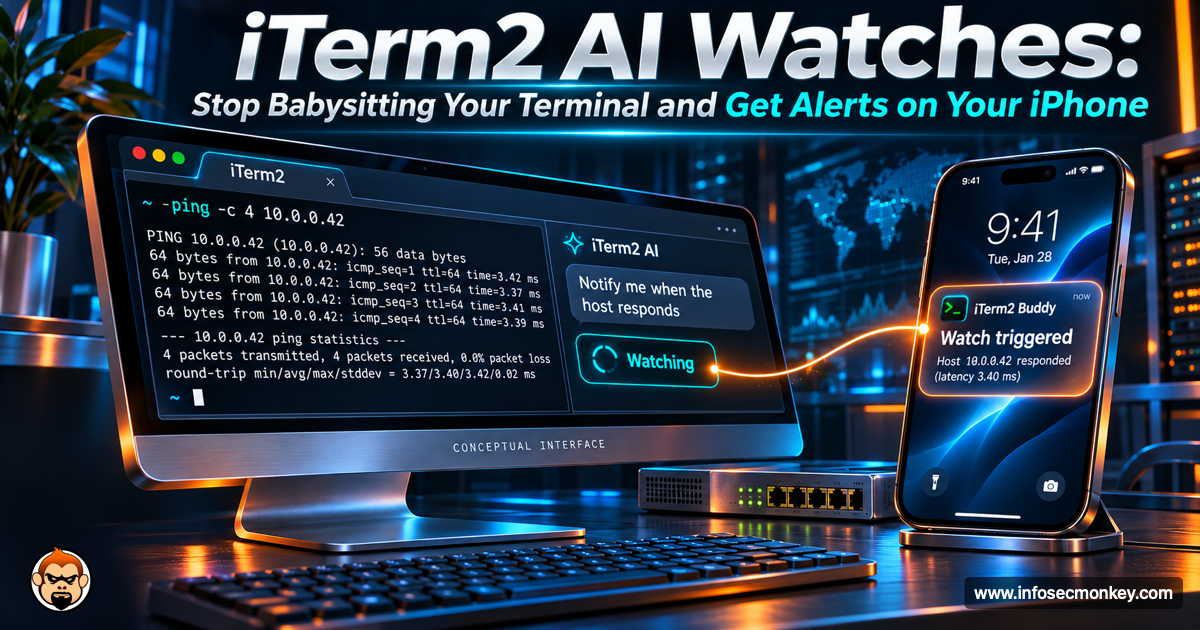
You kick off a FortiGate firmware upgrade, a full-port Nmap sweep, or a reboot, and then you sit there watching a ping scroll. iTerm2 3.7 fixed that with iTerm2 AI Watches: you tell a linked AI chat, in plain English, what state you are waiting for, and it tells you when the session gets there. Pair the iTerm2 Buddy app and that alert lands on your iPhone, even when you have walked away from the Mac.
Executive Summary
| Item | Detail |
|---|---|
| Objective | Configure iTerm2 AI Watches on a linked AI chat, write conditions that actually fire, and push watch alerts to an iPhone with iTerm2 Buddy. |
| Target audience | Network and security engineers on macOS who run long jobs in iTerm2: upgrades, reboots, packet captures, scans, builds. |
| Time to complete | About 20 minutes, most of it pairing the phone. |
| Outcome | A watch that says “replies from 10.0.1.1 are back” on your phone instead of you refreshing a terminal. |
What iTerm2 AI Watches Are (and How They Differ From Triggers)
According to the iTerm2 AI Chat documentation, a chat that is linked to a session can watch that session for you instead of polling it. You ask the AI to tell you when the session reaches some state. The watch returns immediately, and later the AI reads the screen in the background and decides whether the condition has been met.
iTerm2 users already know Triggers, which fire on a regular expression. Watches are not a replacement, they cover the cases a regex handles badly.
| Triggers | AI Watches | |
|---|---|---|
| Condition | Regular expression | Plain English, e.g. “the upgrade finished and a login prompt is back” |
| Who evaluates it | iTerm2, locally | The AI model, reading the screen in the background |
| Cost | Free | Model tokens (use a cheap model for background work) |
| Handles fuzzy states | No, you need the exact string | Yes, including “or if it fails” branches |
| Phone push | Through iTerm2 alerts | Directly, when iTerm2 Buddy is paired |
| Best for | Known strings you see every day | One-off jobs where you only know what done looks like |
Prerequisites and Architecture
Assumed knowledge
- Comfortable in iTerm2 on macOS (profiles, panes, the Settings window).
- An API key for an AI provider, or a local model you already run (Ollama works, covered in the companion post on iTerm2 orchestration chats and local models).
- Basic SSH to a firewall or Linux host.
Lab requirements
- iTerm2 3.7 or later. iTerm2 Buddy arrived in 3.7.0, and AgentsRoom notes 3.7.6 requires macOS 13 or newer.
- The iTerm2 AI Plugin, an optional component that gives iTerm2 the network path for AI requests.
- An iPhone or iPad with iTerm2 Buddy, plus the iTerm2 Companion Plugin on the Mac.
- An administrator password on the Mac (needed to allow companion pairing).
- Lab targets: FortiGate management at 10.0.1.1, TFTP server at 10.0.1.50, test host on the transit side at 198.18.0.10.
Component table
| Component | Role | Where it runs |
|---|---|---|
| iTerm2 3.7+ | Terminal, AI Chat, watch scheduler | Mac |
| iTermAI.app (AI Plugin) | Only network path for AI requests | /Applications on the Mac |
| AI provider or local model | Reads the screen and decides when the watch condition is met | Cloud API or LAN host |
| iTerm2 Companion Plugin | Only network path to the companion relay | Mac |
| Companion relay | Splices Mac and phone WebSockets, sees ciphertext only | Cloudflare Worker |
| iTerm2 Buddy | Receives watch pushes, live view, alerts | iPhone or iPad |
Figure 1: How an AI Watch fires and reaches your phone
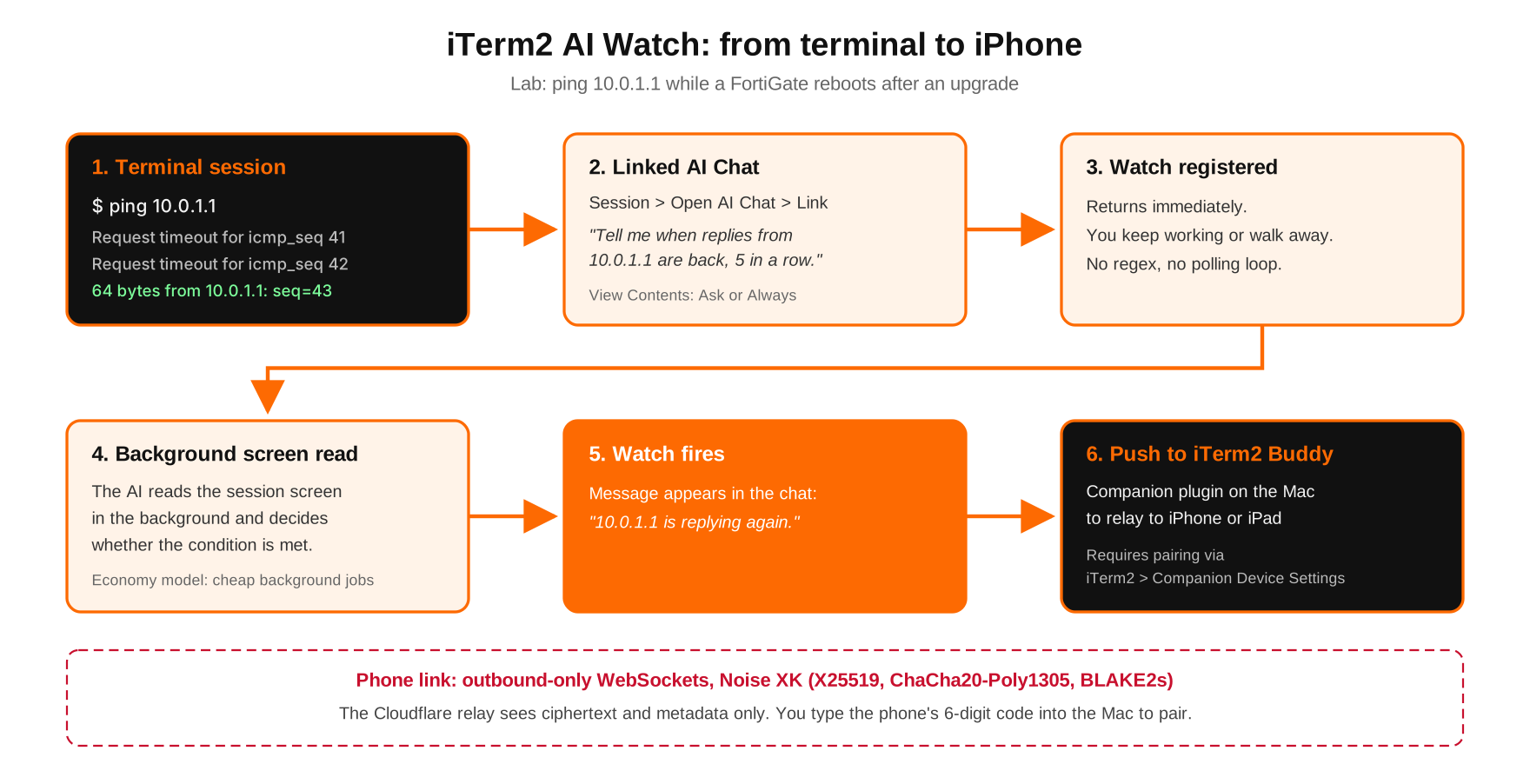
iTerm2 AI Watch flow from a linked terminal session to the AI model and an encrypted push to iTerm2 Buddy on iPhone
Step-by-Step Implementation
Step 1: Install the AI Plugin and enable AI
Goal: Give iTerm2 a deliberate, separate path to talk to a model.
Action: The AI Plugin page explains the design choice: the plugin exists as a separate component so there is no way to accidentally send terminal data over the network. Install it, then open Settings > General > AI, confirm the plugin shows as installed and working, tick Enable generative AI features, and pick a default provider and model. The provider and model chosen here are only the defaults for new chats.
# Install the AI Plugin with Homebrew (or download it from iterm2.com)
brew install --cask itermai

# Confirm it landed where iTerm2 looks for it
ls -d /Applications/iTermAI.app
GUI Verification: The Plugin section in Settings > General > AI reads “Plugin installed and working” with a green check.
Step 2: Mark an economy model for background work
Goal: Keep frequent background jobs off your most expensive model.
Action: In the manual model editor, mark one model as economy (the leaf icon). The AI Chat docs say iTerm2 uses it for cheap, frequent background jobs such as command-safety checks and screen-idle detection. The editor also has presets for OpenAI-compatible providers like Ollama and OpenRouter, custom HTTP headers, and a Test Connection button.
Name:      <cheap-model-name>
URL:       https://<provider-api-host>/v1/chat/completions
API key:   <your-api-key>
Economy:   leaf icon ON
Test:      Test Connection -> success
GUI Verification: Test Connection succeeds and the leaf icon shows next to the model in the list.
Step 3: Link a chat to the session and set permissions
Goal: Watches only exist on chats linked to a session, so link first.
Action: Click into the pane that will run the job and choose Session > Open AI Chat. When iTerm2 offers Link or Enable Orchestration, pick Link. If you want the chat beside the session instead of in a separate window, use View > Show Inline Chat. Then open the info button menu in the chat toolbar and set permissions. Selecting an item rotates it through Never, Ask and Always.
| Permission | Setting for a watch | Why |
|---|---|---|
| View Contents | Ask or Always | The watch works by reading the screen. Always attaches the visible screen to every message. |
| Check Terminal State | Ask | Exposes current directory, last command, exit status and SSH host. Useful, not required. |
| Run Commands | Never | A watch only observes. Nothing to execute. |
| Control Terminal | Never | Keystrokes, erasing the command line and restarting the session are not needed to watch. |
| Write to the File System | Never | Not needed. |
GUI Verification: The chat shows the linked session, and with Inline Chat on, a panel appears along the right margin of that pane.
Step 4: Start the long-running job
Goal: Put something on screen worth watching. Three lab examples:
Example A, reboot after a FortiGate upgrade. Start the upgrade from the console, then run a ping from the Mac so the watch has something to read while the box reboots:
FGT # execute restore image tftp <firmware-image>.out 10.0.1.50

# Separate iTerm2 pane on the Mac
ping 10.0.1.1
Example B, wait for the first TCP reset in a capture:
FGT # diagnose sniffer packet any 'host 198.18.0.10 and tcp[13] & 4 != 0' 4Example C, a long scan that you want to know about when it finishes:
sudo nmap -sV -p- 10.0.1.0/24 -oA lab-scanStep 5: Create the watch in plain English
Goal: Describe the finished state, and the failure state, in words the model can verify from the screen.
Action: Type the condition into the linked chat. The watch returns immediately, so you can keep using the chat or close the laptop lid on the conversation.
Tell me when replies from 10.0.1.1 have come back for at least 5 pings
in a row. Also tell me if there are still timeouts after 10 minutes.

Notify me as soon as the first packet with the RST flag shows up in
this capture.

Let me know when nmap prints "Nmap done" and the shell prompt is back.; echo JOB-COMPLETE, and watch for the marker.GUI Verification: The AI confirms the watch in the chat. The docs show conditions can be as loose as “emacs has exited and a shell prompt is showing.”
Step 6: Pair iTerm2 Buddy so watches reach your phone
Goal: Get the watch alert on your iPhone. The AI Chat docs state that if you have paired the companion app, a watch can push a notification to your phone when it fires.
Action: The companion app page lists the pairing flow. Condensed:
- Install iTerm2 Buddy from the iOS App Store.
- On the Mac, choose iTerm2 > Companion Device Settings…
- Click Download Plugin, download and extract the iTerm2 Companion plugin, and confirm it shows as installed.
- Turn on Allow companion device pairing (this asks for an administrator password).
- Click Show QR Code and authenticate with Touch ID or your password.
- In iTerm2 Buddy, tap Scan and point the camera at the QR code.
- Type the 6-digit code shown on the phone into iTerm2 on the Mac.
GUI Verification: The phone appears as paired in Companion Device Settings. Per AgentsRoom’s breakdown of the 3.7 integration, Buddy also shows a live view of a session and receives iTerm2 alerts as push notifications, so you get more than watches out of the pairing.
How the Phone Link Is Secured
Pushing terminal content to a phone is a reasonable thing for a security engineer to be nervous about. The companion relay design document is worth reading in full. The short version:
- Both the Mac and the phone connect outbound to a Cloudflare Worker relay, so nothing needs an inbound firewall rule.
- Every connection runs the Noise XK pattern with X25519, ChaCha20-Poly1305 and BLAKE2s. The relay only sees ciphertext and cannot impersonate either side.
- The QR code pins the Mac’s public key and expires after two minutes of inactivity.
- The phone shows a 6-digit short authentication string and you type it into the Mac. The Mac never displays its own code, so copying digits does not defeat the check.
- Rooms unused for 30 days are reaped automatically, and a reaped or compromised pairing has to be re-paired.
| The relay and Cloudflare can see | The relay cannot see |
|---|---|
| IP addresses while connected | Message content and session data |
| Room pseudonym, traffic volume and timing | Static keys and roomSecret |
| App Attest key IDs and the public verifier | The pairing ID |
com.googlecode.iterm2.iTermCompanion. No plugin, no path to the relay.Verification and Validation
Test 1, success path. Run a fake job and set a watch for the marker:
sleep 45; echo "JOB-COMPLETE"Watch text: “Tell me when JOB-COMPLETE prints.” Expected: the chat reports the condition shortly after the line appears, and iTerm2 Buddy shows a push notification on the phone.
Test 2, failure path. Ping an address with nothing behind it:
ping -c 20 198.18.0.250Watch text: “Tell me if you see 5 timeouts in a row.” Expected: macOS prints Request timeout for icmp_seq lines and the watch fires after the fifth.
Test 3, plugins present:
ls -d /Applications/iTermAI.app
# Companion status: iTerm2 > Companion Device Settings... shows the plugin
# installed and your phone listed as paired
Troubleshooting and Gotchas
1. The watch never fires
Symptom: the job finished long ago and the chat is silent.
- The chat is unlinked. Unlinked chats have no access to your sessions. Fix it from the info menu with Link Terminal Session.
- View Contents is set to Never, so the model is never offered the screen. Set it to Ask or Always.
- The evidence scrolled away or the app took over the screen (
clear, a full-screen pager, a TUI). Keep the final state on screen, or append; echo JOB-COMPLETEand watch for that.
2. The watch fires but nothing arrives on the phone
- Companion plugin missing or pairing disabled. Check iTerm2 > Companion Device Settings…
- iOS notifications for iTerm2 Buddy are off. Check Settings > Notifications > iTerm2 Buddy on the phone.
- The network blocks outbound HTTPS to the relay. The relay design lists networks that block it as a non-goal, so test from another network or hotspot.
- The pairing sat unused for 30 days and was reaped. Re-pair from Companion Device Settings.
3. You just sent a secret to your AI provider
Setting View Contents to Always attaches the visible screen to every message. If an API key, a pre-shared key, or a show full-configuration dump is on screen, it goes to whichever model the chat uses. Use Ask on sessions that show secrets, use a local model for sensitive work, and clear secrets from screen and history before you link a chat.
# Clear the visible screen and scrollback in iTerm2: Command + K

# zsh: commands that start with a space are not saved to history
setopt HIST_IGNORE_SPACE
 export API_KEY='<your-api-key>'
For the full cleanup routine, see our post on clearing bash and zsh history.
Sources
- iTerm2 AI Chat documentation (watches, permissions, economy model)
- iTerm2 Companion App: iTerm2 Buddy pairing and security
- iTerm2 Companion Plugin
- iTerm2 Companion Relay design document
- iTerm2 AI Plugin
- AgentsRoom: iTerm2’s Claude Code integration and what it does
InfoSecMonkey | No fluff. Just the config that works.