No fluff. Just the config that works.
Executive Summary
Every API key you paste into a terminal has a good chance of ending up in your Bash and Zsh history file, in plain text, sitting in your home directory for months. This post shows how to clear Bash and Zsh history the right way (memory and file, not just one of them), how to surgically delete a single leaked line, and how to set up your shell so secrets never get recorded in the first place.
Objective: wipe or edit shell history reliably on Linux and macOS, then run sessions where you enter API keys, tokens and passwords without leaving them in history, scrollback, or the process list.
Target audience: network and security engineers, SEs, and admins who live in a terminal and regularly paste FortiGate API tokens, cloud keys, or vendor portal passwords into it.
Prerequisites and Architecture
Assumed knowledge: basic shell use, editing ~/.bashrc or ~/.zshrc, and knowing which shell you run (echo $SHELL).
Lab used for this post:
| Component | Version / Value | Role |
|---|---|---|
| Ubuntu Server 24.04 LTS | Bash 5.2 | Linux test host |
| macOS (Apple Silicon) | Zsh 5.9, Terminal and iTerm2 | Mac test host |
| FortiGate (lab) | 10.0.0.1 on the 10.0.0.0/16 LAN | REST API target for the token examples |
| Secret store | macOS Keychain (security), pass, or 1Password CLI (op) |
Where the API token actually lives |
Where shell history actually lives
The key thing most “just delete the file” tips miss: your shell keeps history in two places. There is an in-memory list for the running session, and a history file on disk. The shell loads the file when it starts and writes the in-memory list back when it exits. Delete the file while a session is open, close the window, and the shell happily writes everything back.
| Location | Bash | Zsh |
|---|---|---|
| History file | ~/.bash_history ($HISTFILE) |
~/.zsh_history ($HISTFILE, set in /etc/zshrc on macOS, in your ~/.zshrc on most Linux setups) |
| When it is written | On exit, or every prompt if you use history -a in PROMPT_COMMAND |
On exit, or every command with INC_APPEND_HISTORY / SHARE_HISTORY |
| Size controls | HISTSIZE (memory), HISTFILESIZE (file) |
HISTSIZE (memory), SAVEHIST (file) |
| Extra copies | Root’s file if you sudo -i |
~/.zsh_sessions/ from macOS Terminal session restore |
Figure 1: Where a secret typed into a shell ends up
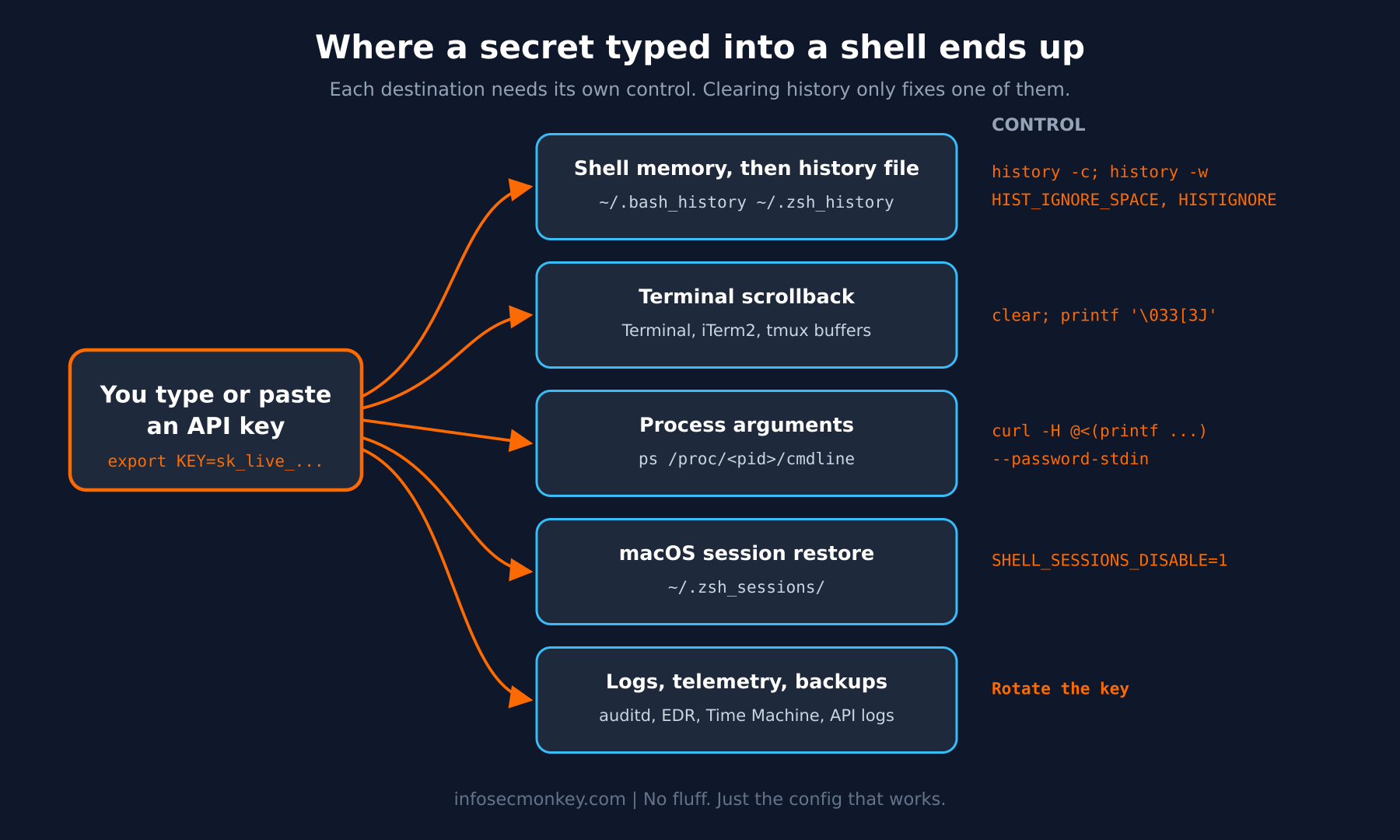
History is only one of the places a secret leaks. The same key also shows up in terminal scrollback, in the process list while a command runs, and in any audit or EDR telemetry that records command lines. Attackers know this: MITRE ATT&CK tracks it as Unsecured Credentials: Shell History (T1552.003), and the Kinsing malware is a documented example of scraping .bash_history for credentials.
Step-by-Step Implementation
Step 1: Check what your shell records today
Goal: know your shell, your history file, and which privacy options are already on.
Action: run the block for your shell.
# Which shell and version?
echo "$SHELL"; echo "bash=$BASH_VERSION zsh=$ZSH_VERSION"

# Bash: file, filters, and append mode
echo "HISTFILE=$HISTFILE HISTCONTROL=$HISTCONTROL HISTIGNORE=$HISTIGNORE"
shopt histappend
# Zsh: file, size, and history options that differ from defaults
echo "HISTFILE=$HISTFILE SAVEHIST=$SAVEHIST"
setopt | grep -Ei 'hist|share'Zsh prints option names in lowercase without underscores, so look for histignorespace, incappendhistory and sharehistory.
Verification: confirm the history file is readable by you only.
ls -l ~/.bash_history ~/.zsh_history 2>/dev/null
chmod 600 ~/.bash_history ~/.zsh_history 2>/dev/null
You want -rw-------. Anything wider means other local users can read every command you have typed.
Step 2: Clear Bash history completely
Goal: empty both the in-memory list and ~/.bash_history, in the right order.
Action: do not start with rm. Clear memory first, then write the empty list over the file.
history -c    # wipe the in-memory list for this session
history -w    # overwrite $HISTFILE with the (now empty) list
If you only want to make sure this session never touches disk, there are two exits that skip the save:
unset HISTFILE; exit    # nothing to write to, so nothing is written
kill -9 $$              # SIGKILL cannot be trapped, so the save never runs
Verification:
wc -l ~/.bash_history     # expect: 0 /home/<user>/.bash_history
history                   # expect: only the commands typed since the clear
Other open Bash windows still hold their own lists and will write them on exit. Close them first, or run history -c; history -w in each one.
Step 3: Clear Zsh history completely
Goal: the same result in Zsh, which has no history -c (in Zsh, history is just fc -l, and -c returns fc: bad option: -c).
Action: stop the current shell from writing, truncate the file, then replace the shell with a fresh one.
unset HISTFILE          # this shell can no longer write history on exit
: > ~/.zsh_history      # truncate the file (keeps owner and 600 permissions)
exec zsh                # fresh shell with an empty in-memory list
macOS Terminal extra step: Apple’s Terminal keeps per-window session history in ~/.zsh_sessions/ through /etc/zshrc_Apple_Terminal. Clear it and turn it off if you do not use session restore:
rm -rf ~/.zsh_sessions
echo 'export SHELL_SESSIONS_DISABLE=1' >> ~/.zshenv
Verification:
wc -c ~/.zsh_history      # expect: 0 /Users/<user>/.zsh_history
ls ~/.zsh_sessions 2>&1   # expect: No such file or directory
Step 4: Delete one sensitive line instead of everything
Goal: remove a leaked key without losing months of useful history.
Action (Bash): find the entry number, delete it, then sync the file.
history | grep 'sk_live_'       # search by a prefix, never paste the full key
history -d 1042                 # delete entry 1042
history -d 1040-1045            # or delete a range (Bash 5.0 and later)
history -w                      # write the cleaned list to $HISTFILE
If the leak was the command you just ran, history -d -2 deletes the entry right before the history -d itself (negative offsets count back from the end; -1 is the delete command). Use Bash 5.1 or later for this, since 5.0 had a bug where negative offsets could fail with “history position out of range”.
Action (Zsh): there is no per-entry delete, so edit the file with the shell’s hands off it.
grep -n 'sk_live_' ~/.zsh_history                 # confirm what will be removed
unset HISTFILE                                    # keep this shell off the file
LC_ALL=C sed -i '' '/sk_live_/d' ~/.zsh_history   # macOS (BSD sed)
LC_ALL=C sed -i '/sk_live_/d' ~/.zsh_history      # Linux (GNU sed)
exec zsh
Verification: grep -c 'sk_live_' ~/.zsh_history (or ~/.bash_history) returns 0.
Step 5: Stop secrets from being recorded in the first place
Goal: make the shell skip sensitive lines automatically.
Action 5a, the leading space: with this enabled, any command that starts with a space is not saved.
# ~/.bashrc
HISTCONTROL=ignoreboth    # ignorespace + ignoredups
# ~/.zshrc
setopt HIST_IGNORE_SPACEThen type secrets like this (note the space before export):
export FGT_TOKEN='<paste-token-here>'Zsh nuance: the space-prefixed line stays in memory until you run the next command, so the Up arrow can still recall it. Per the Zsh manual, type a single space and press Return to make it vanish right away.
Action 5b, pattern filters: catch the times you forget the space.
# ~/.bashrc  (patterns are colon-separated, so do not put a colon inside one)
HISTIGNORE='*API_KEY*:*TOKEN*:*SECRET*:*PASSWORD*:*Bearer*:*--password*'
# ~/.zshrc (a non-zero return keeps the line out of history)
zshaddhistory() {
emulate -L zsh
[[ $1 != *(API_KEY|TOKEN|SECRET|PASSWORD|Bearer|--password)* ]]
}Zsh also has HISTORY_IGNORE='(*TOKEN*|*SECRET*)', but it only filters what gets written to the file, so the line still sits in memory for the session. The zshaddhistory hook stops it at the door.
Action 5c, incognito mode for a whole session:
set +o history     # Bash: stop recording
# ... work with secrets ...
set -o history     # resume recording
fc -p # Zsh: push a private, empty history list (not tied to a file)
# ... work with secrets ...
fc -P # pop back to your normal historyVerification: run the canary test in the Verification section below.
Step 6: Handle API keys without typing them on the command line
Goal: get the key into the session without it ever appearing in history, scrollback, or ps.
Action 6a, prompt for it silently:
read -rsp 'API token: ' FGT_TOKEN; echo; export FGT_TOKEN # Bashread -rs 'FGT_TOKEN?API token: '; echo; export FGT_TOKEN # ZshNothing is echoed, and the history only shows the read command, not the value. (In Zsh, read -p means “read from a coprocess”, which is why the prompt uses the name?prompt form.)
Action 6b, pull it from a secret store:
# macOS Keychain: store once (prompts for the value because -w is last)
security add-generic-password -a "$USER" -s fgt-lab-api -w

# Load into the session when needed
export FGT_TOKEN="$(security find-generic-password -a "$USER" -s fgt-lab-api -w)"
# Linux with pass, or any OS with the 1Password CLI
export FGT_TOKEN="$(pass show lab/fortigate-api)"
export FGT_TOKEN="$(op read 'op://Lab/FortiGate API/credential')"Action 6c, keep it out of the process list: curl -H "Authorization: Bearer $FGT_TOKEN" keeps the literal $FGT_TOKEN in history, but the expanded token sits in curl’s arguments where ps and /proc/<pid>/cmdline can see it while the command runs. Feed the header from a file descriptor instead. printf is a shell builtin, so it never shows up as a process:
curl -sk -H @<(printf 'Authorization: Bearer %s\n' "$FGT_TOKEN") \
  https://10.0.0.1/api/v2/monitor/system/status
The same idea applies to other tools: docker login <registry> -u <user> --password-stdin, mysql --defaults-extra-file=<file>, and sshpass -e (reads SSHPASS from the environment) all avoid putting the secret in argv.
Action 6d, use a locked-down env file for repeat work:
chmod 600 lab.env && echo 'lab.env' >> .gitignore
set -a; . ./lab.env; set +a     # export every variable defined in the file
Action 6e, clean up when you are done:
unset FGT_TOKEN API_KEY          # drop the variables
clear && printf '\033[3J'        # clear the screen and the scrollback buffer
tmux clear-history               # if you are inside tmux
In Terminal and iTerm2, Command K also clears the scrollback. Environment variables are a convenience, not a vault: the OWASP Secrets Management Cheat Sheet points out that they are visible to child processes and can land in logs or dumps, so keep them short-lived.
GUI Verification: open Activity Monitor (macOS) or run ps -eo pid,args | grep curl from a second terminal while a long request runs. The token should not appear in the arguments.
Step 7: Hunt down the other history files
Goal: find secrets that leaked into REPL and client histories, not just the shell.
| File | Written by |
|---|---|
~/.python_history |
Python interactive interpreter |
~/.mysql_history |
MySQL / MariaDB client |
~/.psql_history |
PostgreSQL psql |
~/.sqlite_history |
SQLite shell |
~/.node_repl_history |
Node.js REPL |
~/.rediscli_history |
redis-cli |
/root/.bash_history |
Anything you ran after sudo -i or sudo su |
~/.zsh_sessions/ |
macOS Terminal session restore |
Action: sweep them for common key formats (AWS access key IDs, GitHub classic tokens, Stripe live keys, bearer headers).
grep -RIlE -e 'AKIA[0-9A-Z]{16}|ghp_[A-Za-z0-9]{36}|sk_live_' \
  -e 'Bearer [A-Za-z0-9._-]{20,}' ~/.*history* ~/.zsh_sessions 2>/dev/null
Any file this prints gets the Step 4 treatment, and any key it finds gets rotated.
Verification and Validation
Run a canary test after changing your config. Open a new terminal so the new settings load.
 echo space-canary-1                 # leading space
echo "MY_TOKEN=pattern-canary-2"     # matches the TOKEN filter
echo normal-line-3                   # should be saved
exit
Open another new terminal and check the file:
grep -c 'canary' ~/.bash_history     # or ~/.zsh_history
grep -c 'normal-line-3' ~/.bash_history
Expected success output:
0
1
The canaries are gone and the normal line was saved, so filtering works without breaking history. In Zsh you can also run fc -l -5 in the first session after typing a single space and Return; neither canary should be listed.
Troubleshooting and Gotchas
1. “I deleted the file and the history came back”
Cause: another open shell wrote its in-memory list on exit, or SHARE_HISTORY / INC_APPEND_HISTORY re-wrote it from a session that was still running.
Diagnose:
ps -o pid,tty,comm -u "$USER" | grep -E 'bash|zsh'Fix: close the other shells first, or run unset HISTFILE in each before clearing. Then use Step 2 or Step 3.
2. “The leading space does nothing”
Cause: HISTCONTROL is not set (common on macOS Bash and some RHEL builds; Ubuntu and Debian ship ignoreboth in the default ~/.bashrc), or HIST_IGNORE_SPACE is off in Zsh. In Zsh, the Up arrow recalling the line until your next command is by design, not a failure.
Diagnose:
echo "$HISTCONTROL"                      # Bash: expect ignorespace or ignoreboth
setopt | grep histignorespace            # Zsh: expect histignorespace
Fix: add the Step 5a lines to the right rc file and open a new terminal.
3. “sed: RE error: illegal byte sequence” on macOS
Cause: Zsh stores non-ASCII characters in a “metafied” byte form, and BSD sed refuses bytes that are not valid in your UTF-8 locale.
Fix: prefix the command with LC_ALL=C, as in Step 4, so sed treats the file as raw bytes.
4. The history is clean, but the key is still out there
Clearing history does not reach Time Machine or other backups, terminal session logs, auditd or EDR command-line telemetry, or the server logs on the API side. Clearing history is also something defenders watch for: MITRE ships a detection strategy for unexpected reads of `.bash_history`, and a wiped history on a server is a classic indicator-removal signal that can trigger an investigation.
Fix: if a real key ever hit history, rotate it. Clearing history is hygiene; rotation is remediation.
Bash and Zsh History Quick Reference
| Task | Bash | Zsh |
|---|---|---|
| Clear everything | history -c; history -w |
unset HISTFILE; : > ~/.zsh_history; exec zsh |
| Delete one entry | history -d <n>; history -w |
LC_ALL=C sed -i '' '/<prefix>/d' ~/.zsh_history |
| Skip one command | Leading space + HISTCONTROL=ignoreboth |
Leading space + setopt HIST_IGNORE_SPACE |
| Skip by pattern | HISTIGNORE='*TOKEN*:*SECRET*' |
zshaddhistory hook |
| Private session | set +o history / set -o history |
fc -p / fc -P |
| Don’t save this session | unset HISTFILE |
unset HISTFILE |
| Prompt for a secret | read -rsp 'Key: ' KEY |
read -rs 'KEY?Key: ' |
Sources
- GNU Bash Reference Manual: Bash History Builtins
- Bash 5.3 history builtin source (history.def) on Debian Sources
- bug-bash: Fix history deletion when using negative offsets (Bash 5.1 patch)
- Zsh Options Index (History options)
- zsh-workers: HIST_IGNORE_SPACE documentation change (“type a space and press return”)
- zsh-users: SHELL_SESSIONS_DISABLE and macOS /etc/zshrc_Apple_Terminal
- Jamf Community: Unify your macOS Terminal command history
- MITRE ATT&CK T1552.003: Unsecured Credentials, Shell History
- MITRE ATT&CK DET0385: Detect Access and Parsing of .bash_history Files
- OWASP Secrets Management Cheat Sheet
- Tecmint: How to Prevent Passwords from Saving in Bash History