Executive Summary
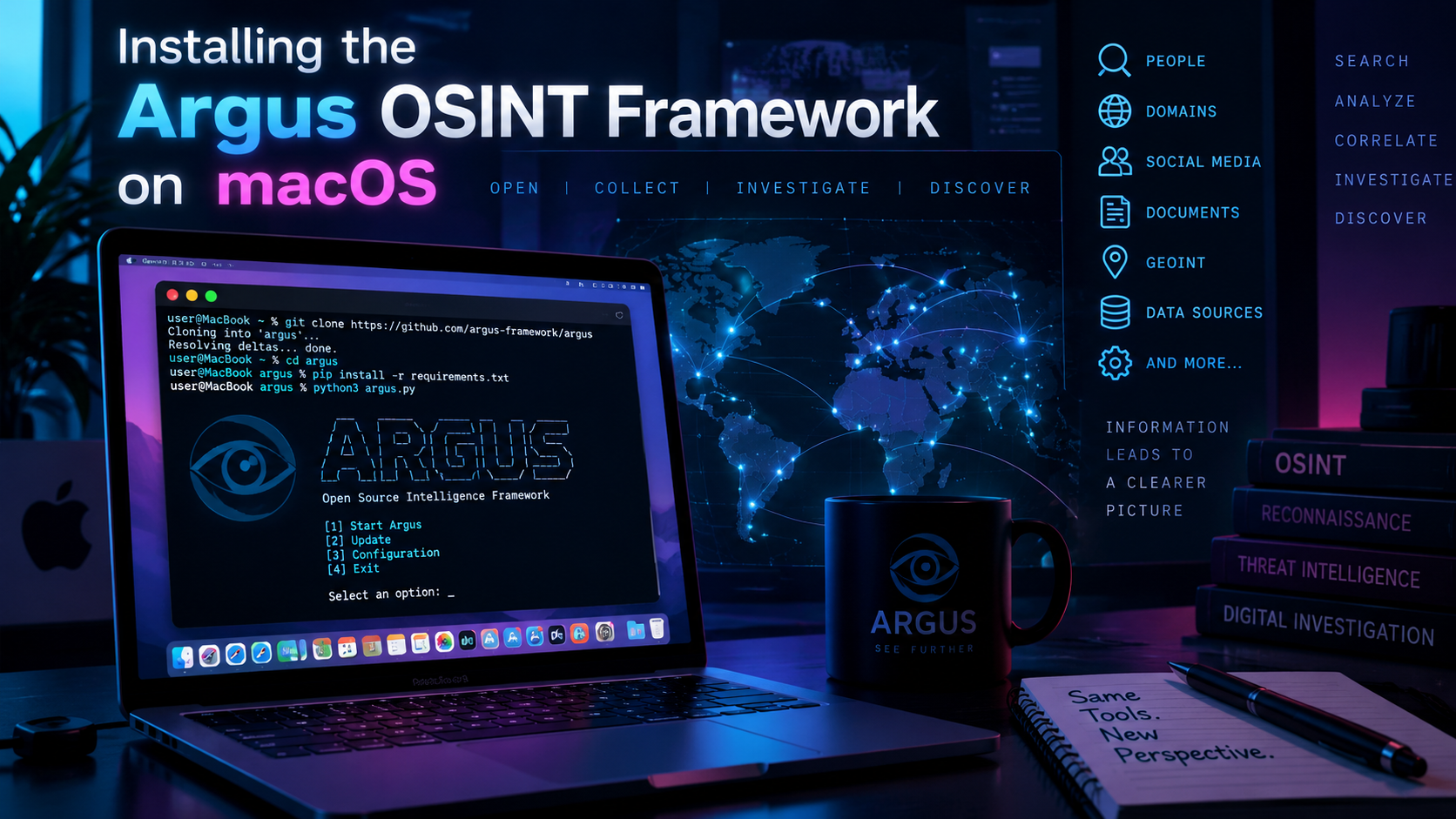
Argus (jasonxtn/Argus) is a Python based, all in one reconnaissance toolkit built around a single interactive CLI shell and 135 modules spread across three categories: Network & Infrastructure, Web Application Analysis, and Security & Threat Intelligence. It’s the kind of tool you reach for when you want WHOIS, DNS, TLS, subdomain, and exposure checks in one console instead of ten different one off scripts.
The official install docs are written for a generic Linux box. macOS has its own wrinkles: no bundled python3 on current releases, PEP 668’s “externally managed environment” lockout on Homebrew Python, a sudo-only installer script that quietly loses your PATH, and a couple of C extension dependencies that need Xcode’s compiler toolchain. This guide walks through a clean, fully working install on both Apple Silicon and Intel Macs, covers all four install paths from the README, and closes with the macOS specific failures you’re actually going to hit.
Target audience: SEs, OSINT analysts, and blue/red team practitioners who are comfortable in Terminal and want a native macOS install rather than a Linux VM.
Legal disclaimer: Argus is built for educational and authorized security research only. Only point it at assets you own or have explicit written permission to test.
Prerequisites & Architecture
| Component | Purpose | Install command |
|---|---|---|
| Xcode Command Line Tools | Compiler toolchain for C extension packages (mmh3, and any dependency without a prebuilt macOS wheel) |
xcode-select –install |
| Homebrew | Package manager for Python, Git, and pipx | /bin/bash -c “$(curl -fsSL https://raw.githubusercontent.com/Homebrew/install/HEAD/install.sh)” |
| Python 3.10+ | Argus requires Python 3.10 or newer (requires-python = ">=3.10") |
brew install python@3.12 |
| Git | Clone the repository | brew install git |
| pipx (optional) | Isolated installs of the PyPI package without fighting PEP 668 | brew install pipx && pipx ensurepath |
| Docker Desktop (optional) | Container based install, no Python packaging at all | Download from docker.com |
A quick note on why Python itself needs a call out: recent macOS releases no longer ship a usable /usr/bin/python3 (Apple’s stub either redirects to the Xcode CLT installer or points at an ancient build). Don’t fight it. Install Python 3.12 through Homebrew and use that.
Installation Method 1: Git Clone + Virtual Environment (Recommended)
This is the path that installs every dependency in requirements.txt, which means every one of the 135 modules is available, including the SNMP, LDAP, and SSL/JWT focused ones. It also sidesteps PEP 668 entirely because a virtual environment is never “externally managed.”
git clone https://github.com/jasonxtn/Argus.git
cd Argus

python3.12 -m venv .venv
source .venv/bin/activate

pip install --upgrade pip
pip install -r requirements.txt

python -m argus
Every time you come back to it in a new terminal session, reactivate the environment first:
cd Argus && source .venv/bin/activate && python -m argusInstallation Method 2: pipx Quick Install
The README’s “Option 2” installs Argus straight from PyPI as argus-recon. pipx is the right tool for this on macOS because it builds an isolated virtual environment for you behind the scenes and drops a clean argus command on your PATH, no manual venv juggling required.
brew install pipx
pipx ensurepath
pipx install argus-recon

argus
Read this before you pick Method 2: the PyPI package’s pyproject.toml pins a noticeably shorter dependency list than the git repo’s requirements.txt. It’s missing pysnmp, pyOpenSSL, PyJWT, cryptography, ldap3, jarm, cmd2, rich, colorama, tabulate, aiohttp, and aioquic. That means the SNMP walk modules, several TLS/certificate modules, the JWT analyzer, and the LDAP module can throw ImportError the first time you run them. If you hit that, inject the missing packages into the same isolated environment:
pipx inject argus-recon pysnmp pyOpenSSL PyJWT cryptography ldap3 jarm cmd2 rich colorama tabulate aiohttp aioquicIf you want zero chance of a missing module, use Method 1 instead.
Installation Method 3: Full System-Wide Installer
The README’s “Option 3” runs install.sh, which copies the source to /opt/argus, drops a launcher at /usr/local/bin/argus, and installs dependencies with a plain, non-venv pip3 install -r requirements.txt. It requires root.
git clone https://github.com/jasonxtn/Argus.git
cd Argus
chmod +x install.sh
sudo ./install.sh
Two macOS specific things will bite you here, both covered in Troubleshooting below: sudo resetting your PATH so it can’t find a Homebrew python3, and the same PEP 668 lockout from Method 2, except now you don’t have pipx’s isolation to save you. If you go this route, read the Troubleshooting section before you run it.
Installation Method 4: Docker
The README’s “Option 4.” No Python packaging on the host at all, at the cost of running Argus inside a container.
git clone https://github.com/jasonxtn/Argus.git
cd Argus

docker build -t argus-recon:latest .
docker run -it --rm -v $(pwd)/results:/app/results argus-recon:latest
On Apple Silicon, Docker Desktop builds a native arm64 image by default as long as the Dockerfile doesn’t hardcode a platform. Confirm you actually got a native build rather than an emulated one:
docker image inspect argus-recon:latest --format '{{.Architecture}}'You want arm64 back on an M-series Mac. amd64 means the image is running under Rosetta emulation, which works but is noticeably slower for anything CPU heavy.
First Run and Basic Usage
However you installed it, the shell works the same way:
argus
# or, running from inside the repo folder without an installed entry point:
python -m argus
argus> modules
argus> modules -d
argus> use 18
argus> set target example.com
argus> runModule 18 in the current catalog is WHOIS Lookup, a safe first module to confirm everything is wired up correctly. Point set target at a domain you actually own or are authorized to assess, not a random third party.
Configuring API Keys
Several modules (Shodan, VirusTotal, Censys, Have I Been Pwned) are far more useful with API keys attached. macOS has used zsh as the default login shell since Catalina, so these go in ~/.zshrc, not ~/.bash_profile:
cat >> ~/.zshrc << 'EOF'
export VIRUSTOTAL_API_KEY="your_key_here"
export SHODAN_API_KEY="your_key_here"
export CENSYS_API_ID="your_id_here"
export CENSYS_API_SECRET="your_secret_here"
export GOOGLE_API_KEY="your_key_here"
export HIBP_API_KEY="your_key_here"
EOF

source ~/.zshrc
Confirm they loaded from inside the shell:
argus> show api_statusVerification & Validation
You’re in good shape if:
argus> modules -dlists all 135 modules across the three categories without a stack trace on launch.argus> use 18followed byset target <your-domain>andrunreturns WHOIS output rather than aModuleNotFoundErrororImportError.argus> show api_statusshows any keys you configured as active rather than missing.
If a module import fails specifically, that’s almost always the Method 2 dependency gap above, not a broken install.
Troubleshooting & Gotchas
“error: externally-managed-environment” during pip install
Homebrew’s Python (and current python.org installers) refuse a bare pip install outside a virtual environment, per PEP 668. This is what Method 1’s venv and Method 2’s pipx both exist to avoid. If you’re stuck doing a raw system install anyway, the escape hatch is pip3 install --break-system-packages -r requirements.txt, but a venv is the better answer every time.
sudo ./install.sh fails with “Python3 not found” even though python3 works fine in your normal shell
sudo resets PATH to a restricted “secure_path” that typically only includes /usr/bin:/bin:/usr/sbin:/sbin, so it never sees Homebrew’s python3 at /opt/homebrew/bin (Apple Silicon) or /usr/local/bin (Intel). Preserve your own PATH for the one command instead of editing sudoers:
sudo env "PATH=$PATH" ./install.shmmh3 (or another package) fails to build with a clang error or “command not found”
That’s a missing compiler, not a broken package. Install the Command Line Tools and retry:
xcode-select --installA specific module throws ImportError: No module named ‘pysnmp’ (or ldap3, jwt, OpenSSL)
You installed via pipx install argus-recon (Method 2). See the dependency gap noted above; either pipx inject the missing packages or switch to Method 1’s full requirements.txt install.
Modules time out or return empty results on the first run
macOS’s built-in Application Firewall (or Little Snitch, if you run it) may be silently blocking outbound connections from an unsigned Python process the first time it tries to reach the network. Check System Settings > Network > Firewall for a blocked-connection prompt, or check Little Snitch’s connection log, and allow outbound access for python3 (or the argus binary if you used Method 3).
Docker build produces a slow, emulated image on an M-series Mac
Confirm the architecture with docker image inspect argus-recon:latest --format '{{.Architecture}}'. If it comes back amd64, rebuild without forcing a platform, or explicitly pass --platform linux/arm64 to docker build.
Argus is a third party open source project (MIT licensed) maintained by jasonxtn, unaffiliated with Fortinet or InfoSecMonkey. Test only what you’re authorized to test.