
If you've spent any time configuring user authentication on... Full Story
By Manny Fernandez
September 22, 2026
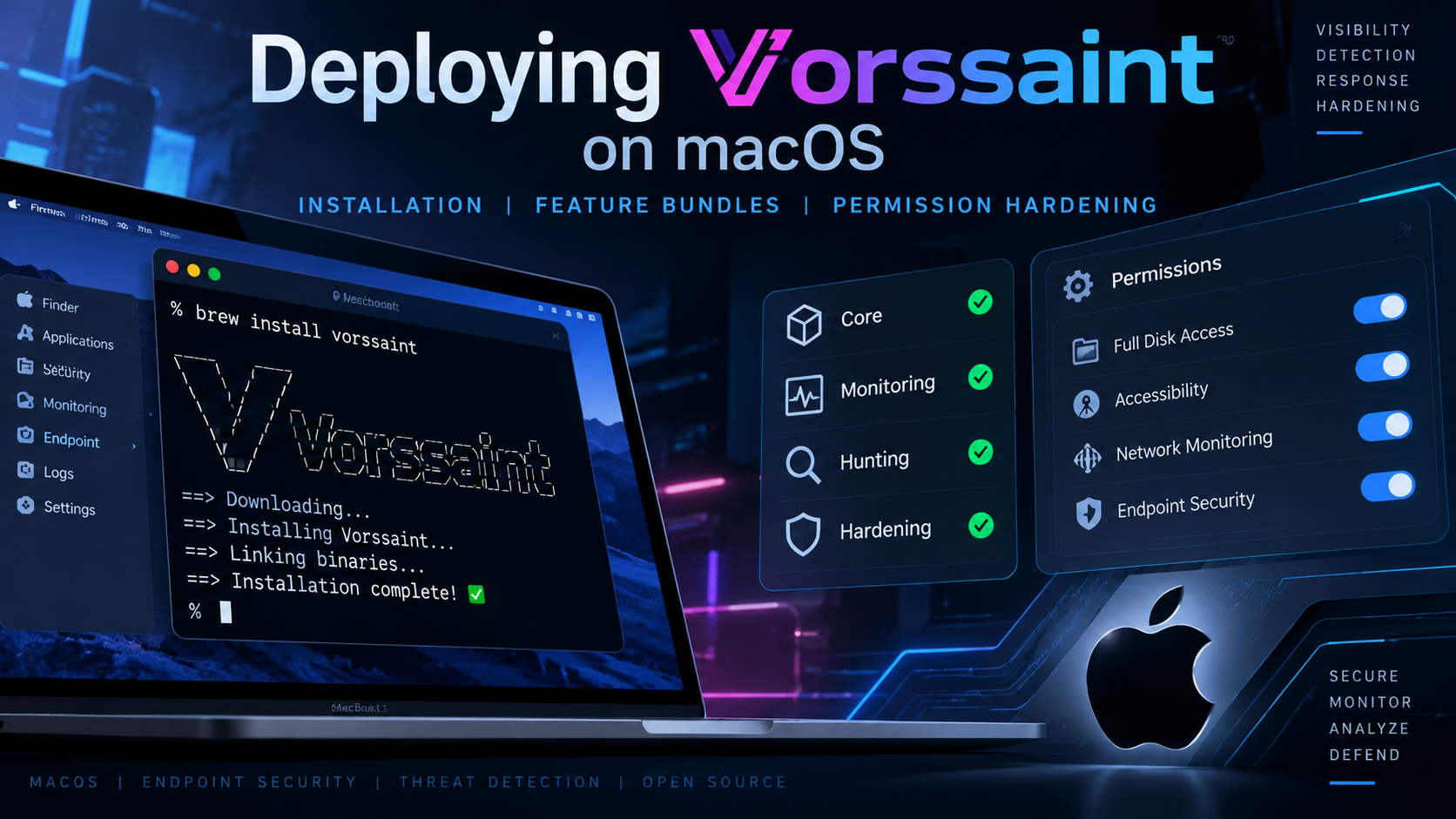
Deploying Vorssaint on macOS: Installation, Feature Bundles, and Permission Hardening
Executive Summary
Objective: install Vorssaint cleanly on an Apple Silicon Mac, choose the feature bundle that matches how the machine is actually used, and grant only the macOS permissions those features require.
Target audience: Mac power users and IT practitioners standardizing an Apple Silicon fleet, plus anyone consolidating a stack of paid menu bar utilities, iStat Menus, SoundSource, AltTab, Rectangle, and similar, into a single free, open source tool.
Vorssaint is a free, open source macOS menu bar toolkit. It bundles a volume mixer, system monitor, window manager and switcher, Dock previews, clipboard history, a file shelf, text snippets, a screen capture suite, and an app uninstaller behind one menu bar icon. Features install and uninstall independently, so a feature that is never turned on never runs and never asks for a permission.
Prerequisites & Architecture
Assumed knowledge: comfortable in Terminal, familiar with Homebrew basics, and able to navigate System Settings > Privacy & Security.
Environment / lab requirements:
- A Mac with Apple Silicon (M1 or newer). Intel Macs are not supported.
- macOS 14 Sonoma or newer.
- Homebrew installed, for the recommended install path. A manual disk image path is covered as an alternative.
- Local admin rights, needed to grant privacy permissions and, optionally, to enable password-free closed-lid toggling.
Component table:
| Component | Role |
|---|---|
| Vorssaint.app | The menu bar app itself, installed to /Applications |
| Homebrew Cask | Package manager path; tracks the app and handles auto-updates |
| TCC (Transparency, Consent, and Control) | The macOS subsystem holding the privacy grants each feature needs |
| Features hub | In-app screen (Settings > Features) where individual features are installed, uninstalled, and bundled |
| Tools/uninstall.sh | Script in the GitHub repo that performs a complete removal: quits the app, drops the login item, resets every privacy grant, deletes remaining files |
Step-by-Step Implementation Workflow
Step 1: Confirm hardware and OS compatibility
Goal: confirm the Mac qualifies before spending time on the install.
Action: check the chip architecture and the installed macOS version.
sw_vers -productVersion
uname -m
Expected output: a version string of 14.0 or higher, and arm64, not x86_64.
GUI Verification: Apple menu > About This Mac shows the chip name (should read Apple M-something, not Intel) and the macOS version.
Step 2: Install Vorssaint with Homebrew (recommended)
Goal: get the signed, notarized build onto the Mac with Homebrew tracking updates going forward.
Action: install the cask.
brew install --cask vorssaintGUI Verification: /Applications/Vorssaint.app exists. Launch it once with open -a Vorssaint and confirm the icon appears in the menu bar.
Step 3 (alternative): Manual install from the disk image
Goal: install without Homebrew, or pin a specific release version.
Action: download the disk image from the GitHub releases page, mount it, and copy the app into Applications.
curl -LO https://github.com/vorssaint/vorssaint-utils/releases/download/v3.3.5/Vorssaint-3.3.5.dmg
hdiutil attach Vorssaint-3.3.5.dmg
cp -R "/Volumes/Vorssaint/Vorssaint.app" /Applications/
hdiutil detach "/Volumes/Vorssaint"
Substitute the version number in the URL for whichever release is needed; the releases page lists every prior build.
Current releases are signed with an Apple Developer ID and notarized, so Gatekeeper should not block the first launch either way.
GUI Verification: same as Step 2.
Step 4: Choose a feature bundle on first launch
Goal: install only the features that match how the Mac is used. An uninstalled feature spends no CPU, memory, or energy, and requests no permission.
Action: on first launch, pick one of the three quick bundles, Essentials, Windows, or Battery and quiet, or open Settings > Features and hand pick individually. Bundles can be changed later, and reinstalling a feature restores its saved settings.
GUI Verification: Settings > Features shows the toggled features as installed; the menu bar panel reflects only those sections.
Step 5: Grant only the permissions those features actually need
Goal: keep macOS privacy grants matched one to one with enabled features, rather than granting everything up front.
Action: Vorssaint prompts for each permission at the point a feature first needs it. Confirm from Settings > Permissions rather than granting speculatively.
| Permission | Used by | Skip it and |
|---|---|---|
| Accessibility | Switcher, Dock features, window controls, mouse/keyboard features, snippets, cut and paste | Those features stay off |
| Screen Recording | Window previews, screenshots, copy text from screen, screen recordings | Those captures stay unavailable |
| System Audio Recording | Per-app volume and output routing | Apps stay on normal system audio |
| Microphone | Optional voice track in screen recordings | Recordings continue without voice |
| Camera | Camera mirror window / Dynamic Island preview | The mirror stays off |
| Calendars | Appointments shown in Dynamic Island | Calendar access stays unavailable |
| Files and Folders | Downloads in a chosen folder | Choose an accessible folder |
| Notifications | Keep awake, battery, monitor, update alerts | System notifications stay off |
| Full Disk Access (optional) | Deeper cleaner and uninstaller scans | Only reachable locations get scanned |
| Administrator, once (optional) | Password-free closed-lid toggling | A password prompt appears per toggle |
GUI Verification: System Settings > Privacy & Security > [category] lists Vorssaint checked only for the categories tied to features actually turned on. Settings > Permissions inside Vorssaint flags any grant no longer used by an active feature.
Step 6 (optional): Build from source
Goal: audit the code or pin an exact commit instead of trusting a downloaded binary.
Action:
git clone https://github.com/vorssaint/vorssaint-utils.git
cd vorssaint-utils
./build.sh --install
Xcode Command Line Tools are the only build dependency. ./build.sh --install compiles, assembles the signed bundle, installs it into Applications, and launches it.
Verification & Validation
Confirm the install and its state from Terminal:
brew list --cask vorssaintExpected output: a single line listing /Applications/Vorssaint.app (or the equivalent path), confirming brew tracks it.
pgrep -fl VorssaintExpected output: a process line for Vorssaint if it is running. Launch it first if this returns nothing.
launchctl list | grep -i vorssaintExpected output: an entry if Vorssaint is configured as a login item; no output if login-item behavior was left off.
From the GUI: open System Settings > Privacy & Security and confirm the categories from the permissions table above show Vorssaint only where a corresponding feature was enabled, nothing more.
Troubleshooting & Gotchas
1. macOS blocks the app on first launch. Current Vorssaint releases are signed and notarized, so this should not happen on a fresh install. If it does, most commonly on an older or manually rebuilt binary, go to System Settings > Privacy & Security, scroll to Security, and click Open Anyway, or clear the quarantine flag directly:
xattr -dr com.apple.quarantine "/Applications/Vorssaint.app"2. brew install –cask vorssaint fails on the Mac. The cask requires Arm 64-bit architecture; there is no Intel build. Confirm the chip first:
uname -mIf this returns x86_64, the Mac is Intel-based and is not supported. There is no workaround short of running the app on Apple Silicon hardware.
3. A permission will not stick, or a feature silently stops working after an update. This is usually a stale TCC entry left over from an older signing certificate; notarization was added partway through the project’s release history, and updating across that boundary re-prompts for permissions once. Recheck Settings > Permissions inside the app first. If a grant still will not take, reset it cleanly with a full removal and reinstall:
./Tools/uninstall.sh
brew install --cask vorssaint
4. Window thumbnails or Dock previews show a generic icon instead of a live preview. This traces back to the Screen Recording permission specifically, not Accessibility. Confirm Vorssaint is checked under System Settings > Privacy & Security > Screen Recording, and if it was only just granted, quit and relaunch Vorssaint, since this permission does not always take effect on a process that is already running.
Recent posts
-

-

DNS is one of those technologies that quietly underpins... Full Story
-

BGP issues on FortiGate firewalls usually trace back to... Full Story
-

Every time your laptop talks to your router, a... Full Story
-

If you've spent any time configuring NAT on a... Full Story
-

If you have spent any time configuring firewall policies... Full Story
-

High availability on FortiGate is one of those features... Full Story
-

If you've configured SD-WAN on a FortiGate, you've almost... Full Story
-

FortiLink is the management protocol that turns a FortiSwitch... Full Story
-

FortiSwitches are pretty rock solid from Mean Time Between... Full Story
-

This is a quicky tip. Have you ever gone... Full Story
-

DNS is one of those quiet pieces of internet... Full Story
-

This article is an updated version of the previous... Full Story
-

You will add ns2 as a secondary (slave) BIND9... Full Story
-

In the process of deploying my lab, I needed... Full Story
-

RFC 8805, used to be known as Self-Correcting IP... Full Story
-

Years back, I wrote an article about certificate pinning. ... Full Story
-

FortiGates have the ability to send alerts to Microsoft... Full Story
-

In this post, I am going to walk through... Full Story
-

Troubleshooting VoIP on a FortiGate can feel like trying... Full Story
-

Prior to FortiOS 7.0, there were three commands to... Full Story
-

In this post, I am going to go over... Full Story
-

What we are going to do: We are going... Full Story
-

Choosing between FGCP (FortiGate Clustering Protocol) and FGSP (FortiGate... Full Story
-

Creating a VLAN on macOS (The "Pro" Move) A... Full Story
-

This blog post explores the logic behind how macOS... Full Story
-

Pretty Fly for a Wi-Fi Tell My Wi-Fi Love... Full Story
-

Part of my daily gig is creating BoMs (Bill-of-Materials)... Full Story
-

ICMP introduces several security risks, but careful filtering, rate... Full Story
-

The command diag debug application dhcps -1 enables full... Full Story
-

In the world of FortiOS, execute tac report is... Full Story
-

LLDP; What is it The Link Layer Discovery Protocol... Full Story
-

What it actually does When you run diagnose fdsm... Full Story
-

Monkey Bites are bite-sized, high-impact security insights designed for... Full Story
-

I have run macOS in macOS with Parallels but... Full Story
-

Don't be confused with my other FortiNAC posts where... Full Story
-

This is the third session in a multi-part article... Full Story
-

Today I was configuring key-based authentication on a FortiGate... Full Story
-

Netcat, often called the "Swiss Army knife" of networking,... Full Story
-

At its core, IEEE 802.1X is a network layer... Full Story
-

In case you did not see the previous FortiNAC... Full Story
-

This is our 5th session where we are going... Full Story
-

Now that we have Wireshark installed and somewhat configured,... Full Story
-

The Philosophy of Packet Analysis Troubleshooting isn't about looking... Full Story
-

APT CVE-2026-109518: How a Download Retry Lets an Attacker... Full Story
-

Managing Windows Firewall from the Command Line: netsh, PowerShell... Full Story
-

Chrome CVE-2026-106378: Patching the macOS Sandbox Escape No fluff.... Full Story