
If you've spent any time configuring user authentication on... Full Story
By Manny Fernandez
October 21, 2024

Syncing Sublime Text for macOS with iCloud
I have been playing with the free version of Sublime Text for macOS for years. I mainly have been using UltraEdit for my text manipulation and coding. I have been paying the subscription from UltraEdit on a yearly basis and it is starting to sting a bit. I have cleaned up so many subscription services these past few months I figured I would keep going.
Installing Sublime Text
First things, first. You do not have to “license” this software, however I tend to support organizations and developers of which I use their software. At the writing of this article, it was $99.00 for the next few released and then you pay a renewal. Still cheaper than other platforms since Sublime Text has been around for a decade and they are on v4.
Head over to their website
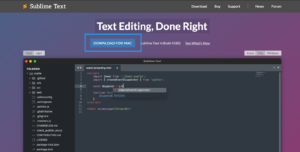
Click the download button.
I recommend installing the Package Installer
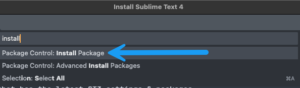
Inside Sublime Text click ⌘ ⇧ P
You will get a search box, and in it type Install Package and you should see the package install show up. Select it.
I made some changes to mine such as font size, font etc. You can do this by again typing ⌘ ⇧ P and searching for preferences
Its Json format
{
"font_size": 15,
"font_face": "Jetbrains Mono",
"highlite_line": true,
"ignored_packages":
[
Now for the iCloud portion
MAIN COMPUTER – HOST
cd ~/Library/Application\ Support/Sublime\ Text/Packages
mkdir -p ~/Library/Mobile\ Documents/com\~apple\~CloudDocs/WebDev/ST/Plugins
mv User ~/Library/Mobile\ Documents/com\~apple\~CloudDocs/WebDev/ST/Plugins
ln -s ~/Library/Mobile\ Documents/com\~apple\~CloudDocs/WebDev/ST/Plugins/User
These commands essentially move your configuration files to a syncable folder in iCloud Drive then sets up a symbolic link to the User folder under Sublime Text's new folder structure and where the app is expecting the files.
Next we will sync the User folder as well
cp -R ~/Library/Application\ Support/Sublime\ Text/Packages/User ~/User
-R If source_file designates a directory, cp copies the directory and
the entire subtree connected at that point. If the source_file
ends in a /, the contents of the directory are copied rather than
the directory itself. This option also causes symbolic links to be
copied, rather than indirected through, and for cp to create
special files rather than copying them as normal files. Created
directories have the same mode as the corresponding source
directory, unmodified by the process’ umask.
In -R mode, cp will continue copying even if errors are detected.
ON THE SECONDARY(S)
On the secondaries, you will need to install the fullSublime Textapp and also enable thePackage Installer. Close outSublime Textand run the following commands cd ~/Library/Application\ Support/Sublime\ Text/Packages rm -rf User ln -s ~/Library/Mobile\ Documents/com\~apple\~CloudDocs/WebDev/ST/Plugins/User
-R Attempt to remove the file hierarchy rooted in each file argument. The -R option implies the -d option. If the -i option is specified, the user is prompted for confirmation before each directory’s contents are processed (as well as before the attempt is made to remove the directory). If the user does not respond affirmatively, the file hierarchy rooted in that directory is skipped.
-r Equivalent to -R.
-f Attempt to remove the files without prompting for confirmation, regardless of the file’s permissions. If the file does not exist, do not display a diagnostic message or modify the exit status to reflect an error. The -f option overrides any previous -i options.
All set, your Sublime Text should be syncing with the Host Mac. I will be coming out with a Fortinet specific and Network Engineer specific article in the near future.
Recent posts
-

-

DNS is one of those technologies that quietly underpins... Full Story
-

BGP issues on FortiGate firewalls usually trace back to... Full Story
-

Every time your laptop talks to your router, a... Full Story
-

If you've spent any time configuring NAT on a... Full Story
-

If you have spent any time configuring firewall policies... Full Story
-

High availability on FortiGate is one of those features... Full Story
-

If you've configured SD-WAN on a FortiGate, you've almost... Full Story
-

FortiLink is the management protocol that turns a FortiSwitch... Full Story
-

FortiSwitches are pretty rock solid from Mean Time Between... Full Story
-

This is a quicky tip. Have you ever gone... Full Story
-

DNS is one of those quiet pieces of internet... Full Story
-

This article is an updated version of the previous... Full Story
-

You will add ns2 as a secondary (slave) BIND9... Full Story
-

In the process of deploying my lab, I needed... Full Story
-

RFC 8805, used to be known as Self-Correcting IP... Full Story
-

Years back, I wrote an article about certificate pinning. ... Full Story
-

FortiGates have the ability to send alerts to Microsoft... Full Story
-

In this post, I am going to walk through... Full Story
-

Troubleshooting VoIP on a FortiGate can feel like trying... Full Story
-

Prior to FortiOS 7.0, there were three commands to... Full Story
-

In this post, I am going to go over... Full Story
-

What we are going to do: We are going... Full Story
-

Choosing between FGCP (FortiGate Clustering Protocol) and FGSP (FortiGate... Full Story
-

Creating a VLAN on macOS (The "Pro" Move) A... Full Story
-

This blog post explores the logic behind how macOS... Full Story
-

Pretty Fly for a Wi-Fi Tell My Wi-Fi Love... Full Story
-

Part of my daily gig is creating BoMs (Bill-of-Materials)... Full Story
-

ICMP introduces several security risks, but careful filtering, rate... Full Story
-

The command diag debug application dhcps -1 enables full... Full Story
-

In the world of FortiOS, execute tac report is... Full Story
-

LLDP; What is it The Link Layer Discovery Protocol... Full Story
-

What it actually does When you run diagnose fdsm... Full Story
-

Monkey Bites are bite-sized, high-impact security insights designed for... Full Story
-

I have run macOS in macOS with Parallels but... Full Story
-

Don't be confused with my other FortiNAC posts where... Full Story
-

This is the third session in a multi-part article... Full Story
-

Today I was configuring key-based authentication on a FortiGate... Full Story
-

Netcat, often called the "Swiss Army knife" of networking,... Full Story
-

At its core, IEEE 802.1X is a network layer... Full Story
-

In case you did not see the previous FortiNAC... Full Story
-

This is our 5th session where we are going... Full Story
-

Now that we have Wireshark installed and somewhat configured,... Full Story
-

The Philosophy of Packet Analysis Troubleshooting isn't about looking... Full Story
-

Executive Summary Objective: Get you from zero to writing... Full Story
-

NAND cells, the flash translation layer, SLC caching, TRIM,... Full Story
-

Nmap Scripting Engine (NSE): From One-Liners to Your First... Full Story