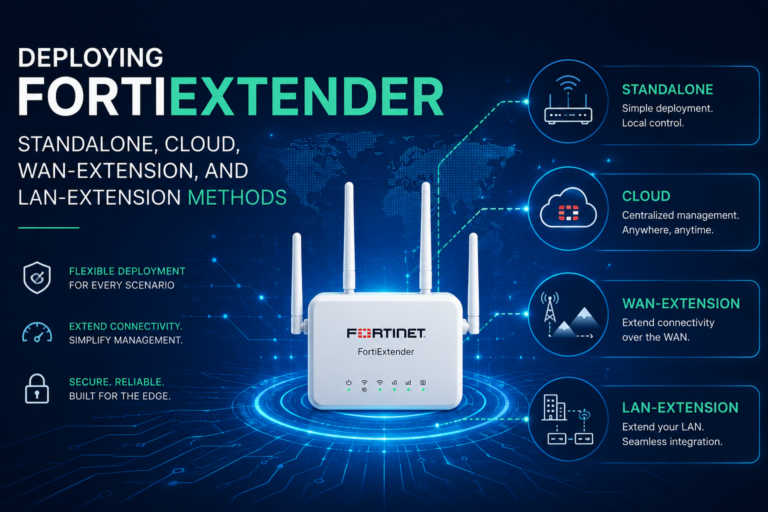
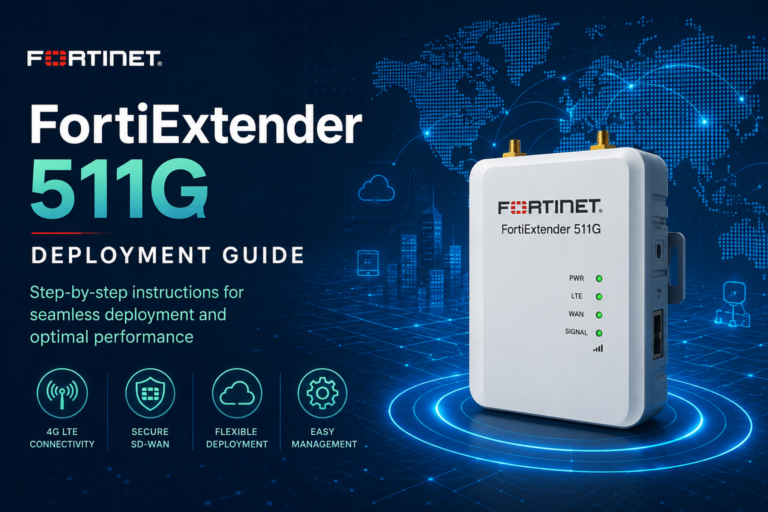
This post was take from a document I created for a customer.
In my lab, I used a FEX200F which does not have a cellular connection. It is five ports, can be a switch, separate connections. It has a USB A port and a RJ45 console port.

By logging into FortiCloud, I can pre-configure FEX’s via a profile. When the FEX connects to the Internet, in my case a copper connection to a AT&T or Comcast modem, but 5G using the cellular FEX platforms, it will check in with FortiCloud, download the profile, and apply the config.
Now you can connect FortiCloud by browsing to:

Once logged-in, you can launch your FortiExtender Console and you will see all of your FEX’s. You can group them as well.

In the figure above, we can see the following:
- These are the controls of the
FEXitself. In can reboot them, get console access to them, upgrade them, etc. - Gives me the Status and the
S/Nof theFEXwe are working with. - Tells me the online status, the state, and other useful information. This dashboard contains additional information such as group, work mode, ports, firmware, etc.
There is very detailed information on this portal, too much to cover in this in this article.
Now lets look at the following screenshot. It shows us the OBM button that launches the console connections.

In figure below, we can see that I have 4 USB to RJ45 cables attached. You can select anyone….