
If you've spent any time configuring user authentication on... Full Story
By Manny Fernandez
August 17, 2026
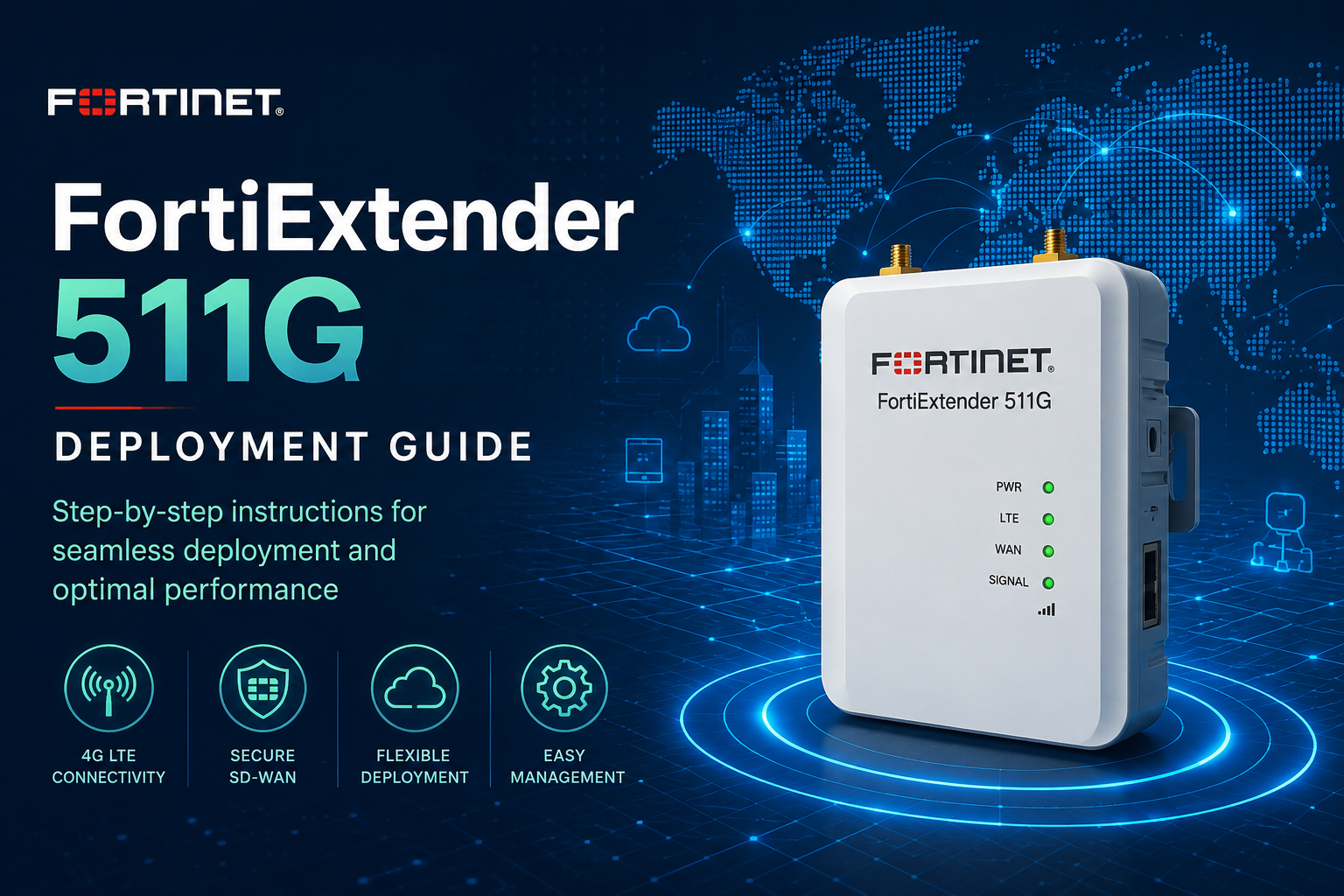
FortiExtender 511G Deployment Guide
Executive Summary
This guide deploys a FortiExtender 511G (FEX-511G) as a cellular WAN extension for a FortiGate 120G running FortiOS 8.0. The FEX-511G is powered entirely over Ethernet from a PoE port on an attached FortiSwitch 110G, which also carries the extender’s discovery and management traffic back to the FortiGate over the existing FortiLink fabric. Once authorized, the FEX-511G’s 5G/LTE modem appears on the FortiGate as a standard WAN interface, suitable for SD-WAN failover or supplemental internet capacity.
This guide assumes the FortiSwitch 110G is already FortiLink-managed by the FortiGate 120G and is the PoE-capable variant (FS-110G-FPOE). If the switch on hand is a non-PoE 110G, it cannot power the extender and an injector or the FortiGate’s own PoE port (if present) will be needed instead.
- Objective: Bring a FEX-511G online as a FortiGate-managed WAN extension interface, powered solely by FortiSwitch PoE.
- Target audience: Network or security engineers already comfortable with FortiGate and FortiSwitch administration.
- Scope: WAN extension mode only. LAN extension mode (used when the extender sits at a remote site with no on-site FortiGate) is a different configuration and is not covered here.
Prerequisites & Architecture
Component checklist:
| Component | Model / Detail | Notes |
|---|---|---|
| Access controller | FortiGate 120G, FortiOS 8.0 | Manages both the FortiSwitch and the FortiExtender |
| Switch | FortiSwitch 110G-FPOE | Must be the PoE (FPOE) variant, already authorized on FortiLink |
| Extender | FortiExtender FEX-511G | Powered entirely via Port4; PoE PD 802.3at, up to 25.5W draw |
| SIM card(s) | Carrier-provided | Install before powering on; APN needed in Step 6 |
| Cabling | Cat5e/6 Ethernet | Single run, FortiSwitch PoE port to FEX-511G Port4, up to 100m |
Key architecture facts:
- Power budget: the FEX-511G requires 802.3at (PoE+) or better and draws up to 25.5W on Port4. The FS-110G-FPOE’s eight 2.5GbE ports (802.3af/at, up to 30W each) and two 5GbE ports (802.3bt, up to 60W each) both comfortably exceed that draw. Total switch PoE budget is 200W, so tally any other powered devices already on the switch before assuming headroom.
- Layer 2 adjacency: FortiExtender discovery requires the extender and the FortiGate to be Layer 2 adjacent by default. Because the FEX-511G is landing on a FortiSwitch port rather than a FortiGate port directly, that switch port must sit in the same VLAN and broadcast domain as whichever FortiGate interface will do the discovering (commonly the “internal” interface).
- Port4 does double duty: it delivers PoE power to the unit and carries the CAPWAP discovery/management session back to the FortiGate. The 5G/LTE modem is the actual WAN path once the extender is authorized and a data plan is attached.
Step-by-Step Implementation Workflow
Step 1: Prepare and power the FortiExtender
Goal: Get the FEX-511G physically installed, powered, and booted.
Action:
- Install the SIM card(s) in the M.2 modem tray before applying power.
- Attach the 5G/LTE antennas (and WiFi antennas on the -WiFi variant).
- Run a single Ethernet cable from a PoE-capable port on the FortiSwitch 110G to Port4 on the FEX-511G. Port4 is the only PoE-powered port on this model; power will not come up on any other port.
- No separate power adapter is needed. The unit boots automatically once PoE is delivered.
Verify: The Power LED goes solid green within about 60 seconds. The Management LED stays off (standalone) until the unit reaches the FortiGate in Step 4.
Step 2: Enable PoE and place the switch port in the discovery VLAN
Goal: Confirm the FortiSwitch port is delivering PoE and sits on the broadcast domain the FortiGate will use for discovery.
Action, from the FortiGate CLI (the switch is FortiLink-managed, so its ports are configured through the FortiGate):
config switch-controller managed-switch
    edit "<FortiSwitch-serial>"
        config ports
            edit "port6"
                set poe-status enable
                set vlan "internal"
            next
        end
    next
end
Substitute the actual port name and VLAN for the deployment. If PoE is already enabled switch-wide and the port already sits on the internal VLAN, this step is just a confirmation, not a change.
Verify: In the GUI, go to WiFi & Switch Controller > Managed FortiSwitch, select the port the FEX-511G is on, and confirm PoE status shows enabled/powered with the link up.
Step 3: Confirm the FortiGate is ready to discover the extender
Goal: Enable the FortiExtender controller and make sure the discovery interface allows Fabric traffic. These are the two most common reasons a unit shows up as a generic asset in Dashboard > Assets & Identities but never appears under Network > FortiExtender.
Enable the FortiExtender controller first. The Network > FortiExtender menu item is visible in the GUI by default, which can make it look like this is already on, but the backend that processes discovery still needs to be enabled explicitly:
show system global | grep fortiextender

config system global
    set fortiextender enable
end
Then confirm the discovery interface allows Fabric traffic:
config system interface
    edit "internal"
        set allowaccess ping https ssh fabric
    next
end
Both are almost always already set if FortiAPs or FortiSwitches are already being discovered on the same interface. Check the existing configuration before changing either one.
Verify: show system interface internal should list fabric among the allowaccess values. get extension-controller extender should return an entry for the unit, even before it is authorized, once both of the above are correct.
Step 4: Discover and authorize the FortiExtender
Goal: Bring the FEX-511G under FortiGate management.
Action, via GUI:
- Go to
Network>FortiExtenderand wait for the unit to appear, typically one to three minutes after Step 1. - Right-click the discovered unit and select
Authorize.
Action, via CLI, once the unit shows as discovered:
config extension-controller extender
    edit "<FEX-511G-serial>"
        set authorized enable
        set extension-type wan-extension
        set profile "<profile-name>"
    next
end
FortiOS auto-generates an extender entry and a default profile the moment it sees the unit on the wire. Accept the default profile name, or replace it with one you build in Step 6.
Verify: The Management LED on the FEX-511G goes solid blue. get extension-controller extender shows the unit with status “online” and authorized “enable”.
Step 5: Create the virtual WAN interface for the cellular link
Goal: Give the FortiGate a routable interface tied to the extender’s cellular modem.
Action:
config system interface
    edit "fexwan"
        set vdom "root"
        set mode dhcp
        set allowaccess ping https
        set type fext-wan
        set role wan
    next
end

config extension-controller extender
    edit "<FEX-511G-serial>"
        config wan-extension
            set modem1-extension "fexwan"
        end
    next
end
Verify: fexwan appears under Network > Interfaces with a status of Up once the modem registers on the carrier network.
Step 6: Configure the data plan and attach it to the extender profile
Goal: Give the modem the APN and carrier details it needs to establish a cellular data session.
Action:
config extension-controller dataplan
    edit "<carrier>-modem1"
        set modem-id modem1
        set type carrier
        set carrier "<carrier-name>"
        set apn "<apn>"
    next
end

config extension-controller extender-profile
    edit "<profile-name>"
        config cellular
            set dataplan "<carrier>-modem1"
        end
    next
end
Run show extension-controller extender-profile after discovery to see the exact field names and defaults FortiOS auto-populated for this specific unit before editing it, since some defaults vary by firmware build.
Verify: On Network > FortiExtenders, the unit’s modem status shows the carrier name and a signal bar. get extender modem-status <FEX-511G-serial> returns connection state and signal strength.
Step 7: Add fexwan to SD-WAN or routing
Goal: Put the new WAN interface to work as a failover or supplemental path.
Action: add fexwan as an SD-WAN member (Network > SD-WAN) with an appropriate cost or priority, or configure a static default route on fexwan with a higher distance than the primary WAN, matching the intended failover design. Confirm an outbound firewall policy exists that permits traffic out fexwan.
Verify: The SD-WAN member table lists fexwan and it is passing configured health checks, or a manual route lookup shows it as a viable path.
Verification & Validation
| Check | Where | Expected result |
|---|---|---|
| PoE delivery | Managed FortiSwitch port detail (GUI) or diagnose switch-controller switch-info poe status | Port shows powered, class/wattage consistent with 802.3at |
| Extender discovered | Network > FortiExtender |
Unit listed with model FEX-511G and a serial number |
| Extender authorized | get extension-controller extender |
authorized: enable, status: online |
| Modem/SIM state | get extender modem-status <serial> |
SIM detected, registered on carrier, signal bars present |
| WAN interface up | Network > Interfaces, fexwan |
Status Up, IP assigned |
| End-to-end reachability | diagnose sniffer / execute ping via fexwan |
Ping and HTTPS succeed out fext1 |
Troubleshooting & Gotchas
| Symptom | Likely cause | Resolution |
|---|---|---|
Unit appears in Dashboard > Assets & Identities but never in Network > FortiExtender |
FortiExtender controller not enabled globally (config system global, fortiextender still disabled), which is easy to miss since the GUI menu item shows regardless | show system global | grep fortiextender, then set fortiextender enable if it is off; recheck get extension-controller extender for a new entry within a couple of minutes |
| Unit never appears anywhere, including Assets | Not Layer 2 adjacent to the discovery interface, or NAC/802.1X on the port is blocking an unrecognized device | Confirm the switch port’s VLAN matches the FortiGate discovery interface; temporarily bypass NAC or dynamic port policy on that port |
| FEX-511G never powers on | Switch port not PoE-enabled, or PoE budget exhausted | Confirm poe-status enable on the port; total existing PoE draw against the 200W switch budget |
| Shows discovered, but authorization does not stick | Profile mismatch or a stale extender entry from an earlier attempt | Delete the stale entry and let FortiOS auto-regenerate the extender record and default profile, then reauthorize |
| Modem reports no SIM or repeated carrier errors | SIM in the wrong physical slot for the configured SIM priority, or an APN typo | Verify default-sim matches the physical slot used; confirm the APN against the carrier’s published value |
| fexwan is up but passes no traffic | Interface not yet added to SD-WAN or routing, or no matching firewall policy | Add fexwan to the SD-WAN member list or a static route, and confirm an outbound policy permits it |
Recent posts
-

-

DNS is one of those technologies that quietly underpins... Full Story
-

BGP issues on FortiGate firewalls usually trace back to... Full Story
-

Every time your laptop talks to your router, a... Full Story
-

If you've spent any time configuring NAT on a... Full Story
-

If you have spent any time configuring firewall policies... Full Story
-

High availability on FortiGate is one of those features... Full Story
-

If you've configured SD-WAN on a FortiGate, you've almost... Full Story
-

FortiLink is the management protocol that turns a FortiSwitch... Full Story
-

FortiSwitches are pretty rock solid from Mean Time Between... Full Story
-

This is a quicky tip. Have you ever gone... Full Story
-

DNS is one of those quiet pieces of internet... Full Story
-

This article is an updated version of the previous... Full Story
-

You will add ns2 as a secondary (slave) BIND9... Full Story
-

In the process of deploying my lab, I needed... Full Story
-

RFC 8805, used to be known as Self-Correcting IP... Full Story
-

Years back, I wrote an article about certificate pinning. ... Full Story
-

FortiGates have the ability to send alerts to Microsoft... Full Story
-

In this post, I am going to walk through... Full Story
-

Troubleshooting VoIP on a FortiGate can feel like trying... Full Story
-

Prior to FortiOS 7.0, there were three commands to... Full Story
-

In this post, I am going to go over... Full Story
-

What we are going to do: We are going... Full Story
-

Choosing between FGCP (FortiGate Clustering Protocol) and FGSP (FortiGate... Full Story
-

Creating a VLAN on macOS (The "Pro" Move) A... Full Story
-

This blog post explores the logic behind how macOS... Full Story
-

Pretty Fly for a Wi-Fi Tell My Wi-Fi Love... Full Story
-

Part of my daily gig is creating BoMs (Bill-of-Materials)... Full Story
-

ICMP introduces several security risks, but careful filtering, rate... Full Story
-

The command diag debug application dhcps -1 enables full... Full Story
-

In the world of FortiOS, execute tac report is... Full Story
-

LLDP; What is it The Link Layer Discovery Protocol... Full Story
-

What it actually does When you run diagnose fdsm... Full Story
-

Monkey Bites are bite-sized, high-impact security insights designed for... Full Story
-

I have run macOS in macOS with Parallels but... Full Story
-

Don't be confused with my other FortiNAC posts where... Full Story
-

This is the third session in a multi-part article... Full Story
-

Today I was configuring key-based authentication on a FortiGate... Full Story
-

Netcat, often called the "Swiss Army knife" of networking,... Full Story
-

At its core, IEEE 802.1X is a network layer... Full Story
-

In case you did not see the previous FortiNAC... Full Story
-

This is our 5th session where we are going... Full Story
-

Now that we have Wireshark installed and somewhat configured,... Full Story
-

The Philosophy of Packet Analysis Troubleshooting isn't about looking... Full Story
-

Executive Summary Objective: Get you from zero to writing... Full Story
-

NAND cells, the flash translation layer, SLC caching, TRIM,... Full Story
-

Nmap Scripting Engine (NSE): From One-Liners to Your First... Full Story