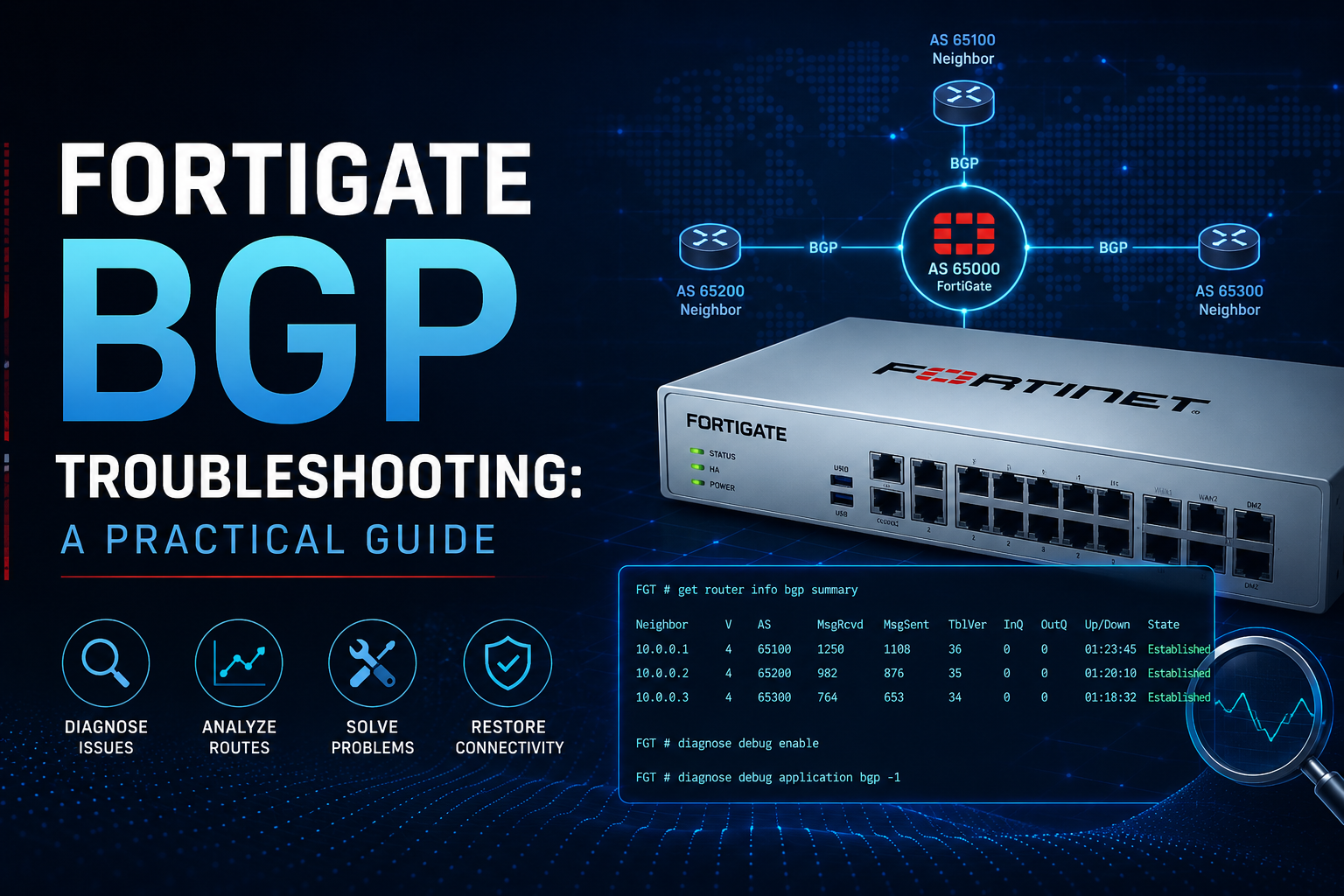
BGP issues on FortiGate firewalls usually trace back to a handful of common culprits: misconfigured peers, routing policy mistakes, or underlying connectivity problems. This guide walks through a structured troubleshooting approach with the exact CLI commands you need.
Step 1: Verify BGP Configuration Basics
Before chasing complex issues, confirm the fundamentals are correct.
get router info bgp summary
show router bgp
get router info routing-table bgp
Check that the local AS number, router ID, and neighbor IP addresses match what your peer expects. A mismatch in AS numbers is one of the most frequent reasons sessions never establish.
Step 2: Check Neighbor Session State
The neighbor state tells you exactly where in the BGP finite state machine the session is stuck.
get router info bgp neighbors <neighbor-ip>
get router info bgp neighbors <neighbor-ip> advertised-routes
get router info bgp neighbors <neighbor-ip> received-routes
Common states and what they mean:
- Idle: BGP process is not initiating a connection. Check if the peer is administratively down or if there is no route to the peer.
- Connect / Active: TCP session cannot be established. This points to Layer 3 reachability or TCP port 179 being blocked.
- OpenSent / OpenConfirm: TCP works but BGP open messages are failing. Look at AS number, router ID conflicts, or authentication.
- Established: Session is up and routes should be exchanging.
Step 3: Validate Layer 3 Connectivity
If the session is stuck in Active or Connect, test underlying reachability.
execute ping <neighbor-ip>
execute traceroute <neighbor-ip>
diagnose sniffer packet any "host <neighbor-ip> and port 179" 4
The sniffer command is invaluable. If you see SYN packets leaving but no SYN-ACK returning, a firewall or ACL in the path is blocking TCP 179.
Step 4: Confirm Firewall Policies Allow BGP
FortiGate requires an explicit policy permitting BGP traffic between the peering interfaces, even for sessions terminating on the FortiGate itself when using loopbacks.
show firewall policy
diagnose debug flow filter addr <neighbor-ip>
diagnose debug flow show function-name enable
diagnose debug enable
diagnose debug flow trace start 100
For sessions sourced from a loopback, also verify the local-out routing and that the source IP is reachable from the peer’s perspective.
Step 5: Debug Authentication Issues
MD5 authentication mismatches are silent killers. The session will repeatedly fail without obvious errors in summary output.
diagnose ip router bgp all enable
diagnose ip router bgp level info
diagnose debug enable
Look for messages like “BGP MD5 authentication failed” or TCP segments being dropped. Verify the password matches exactly on both ends, including any trailing whitespace.
Step 6: Investigate Route Advertisement Problems
Session is up but routes are not appearing? Check both advertising and receiving sides.
get router info bgp neighbors <neighbor-ip> advertised-routes
get router info bgp neighbors <neighbor-ip> received-routes
get router info bgp network
diagnose ip router bgp show route-map
Common causes include missing network statements, route-maps filtering prefixes, prefix-lists denying routes, or next-hop reachability failures on the receiving end.
Step 7: Examine Route-Maps and Filters
Policy filters often block expected prefixes without warning.
show router route-map
show router prefix-list
show router access-list
get router info routing-table all
Trace each prefix through inbound and outbound policy. A single deny statement at the top of a route-map can wipe out an entire advertisement.
Step 8: Check for TCP MSS and MTU Issues
Large BGP updates can fail silently if MTU is misconfigured across a tunnel or WAN link.
diagnose sys session list | grep 179
diagnose netlink interface list | grep mtu
execute ping-options df-bit yes
execute ping-options data-size 1472
execute ping <neighbor-ip>
If small pings succeed but large ones fail, you have an MTU problem. Adjust TCP MSS or interface MTU accordingly.
Common Issues Quick Reference
- Session flapping: Usually a timer mismatch, MTU issue, or unstable underlying transport. Check
get router info bgp neighborsfor last reset reason. - Wrong AS number: Visible immediately in debug output as “bad BGP identifier” or AS mismatch notifications.
- eBGP multihop missing: Required when peering between non-directly-connected interfaces. Configure with
set ebgp-enforce-multihop enable. - Routes not installed in RIB: Check administrative distance, next-hop reachability, and whether another protocol has a better route.
- VDOM or VRF confusion: Verify the BGP process is running in the correct VDOM and that interfaces belong to the expected VRF.
Disabling Debug Output
Always remember to disable debugging when finished to avoid performance impact.
diagnose debug disable
diagnose debug reset
diagnose ip router bgp all disable
Final Thoughts
Methodical troubleshooting beats guessing every time. Start at Layer 3, work up through TCP, then BGP session state, and finally policy. Most BGP issues on FortiGate resolve within these eight steps once you have the right command output in front of you.