
If you've spent any time configuring user authentication on... Full Story
By Manny Fernandez
October 22, 2026
Fortinet Support Ticket: P1 to P4 Priority and SLA Guide
Plus what you actually get with FortiCare Essential, Premium and Elite
No fluff. Just the config that works.
Executive Summary
Every Fortinet support ticket runs on three labels and one contract. The Status tells you whose court the ball is in. The Priority (P1 to P4) decides how fast Fortinet TAC has to call you back and how often it has to update you. The FortiCare tier on the serial number (Essential, Premium or Elite) sets the actual clock. Get any of them wrong and a production outage sits in a P3 web queue until the next business day.
Objective: open a Fortinet support ticket the right way, read every ticket status, set and change priority correctly, understand where “severity” fits, and know the exact SLA your contract buys you.
Target audience: network and security engineers, NOC and MSP staff, and anyone who owns Fortinet gear and has ever stared at a ticket stuck in PendCustFB wondering what it means.
Note: All definitions and SLA values in this post come from Fortinet’s FortiCare documentation (FortiCompanion to Technical Support, FortiCare Case Priority, and the FortiCare service briefs) as of October 2026. Fortinet updates these, so confirm against the Support Portal document library before you quote an SLA in a contract.
Prerequisites and Architecture
Assumed knowledge: basic Fortinet administration and access to the CLI or GUI of the affected device.
Before you can open a technical ticket, all of these must be true:
- You have a FortiCloud / Support Portal account at
support.fortinet.com. - The product is registered to that same account (or you are listed as an authorized user on the account that owns it).
- The serial number has an active FortiCare entitlement. Expired support means no technical ticket.
- You are asking about one issue. Fortinet allows one technical issue per ticket.
- It is a support issue, not a missing feature. Missing features are New Feature Requests (NFR) and are not handled as support tickets.
| Component | What it is | When to use it |
|---|---|---|
| Support Portal (support.fortinet.com) | Web ticketing, entitlement view, asset management | Open P3/P4 tickets, upload logs, track status |
| Live chat | Chat with Customer Service / TAC | P3/P4 questions, quick routing help |
| TAC phone (regional toll-free) | Fortinet Technical Assistance Center, 24×7 | Any P1 or P2, and every priority raise to P2 or P1 |
| Fortinet Community | Knowledge base and forums | Search before you open; known bugs and fixes |
| FortiCare contract | Essential, Premium or Elite, per serial number | Sets channels, SLA and RMA type |
Step-by-Step: How to Open a Fortinet Support Ticket
Step 1: Confirm the entitlement
Goal: make sure the serial number is covered, and know which tier it has, before you need it.
Action: in the Support Portal go to Product List, select the serial number, then open Entitlement. Note the support level and expiry. On the device itself, grab the serial and firmware so they go straight into the ticket.
# FortiGate CLI: serial number, firmware build, HA mode
get system status

# Tip: the serial number is what the Support Portal asks for first
GUI verification: System > FortiGuard shows the FortiCare Support line with the contract level and expiry date. If it says expired or unregistered, fix that first (Customer Service ticket), not a technical ticket.
Step 2: Gather the evidence before you click Create
Goal: give TAC everything in the first submission. Missing data is the number one reason tickets bounce to PendCustFB.
Action: collect the following, and attach it to the ticket. Fortinet explicitly asks for the device configuration and all available logs on every new ticket.
# Full diagnostic bundle TAC will ask for on almost every FortiGate ticket
execute tac report

# Save the session output to a file in your terminal client, then attach it.
# Also attach: a config backup (System > Configuration > Backup),
# relevant debug output, packet captures, and screenshots of errors.
Use this description template. It answers the questions the TAC engineer asks on the first call:
SUMMARY:      <one line: what is broken, on which device>
SERIAL / FW:  <FGxxxxxxxxxxxxxx> / <v7.x.x build xxxx>
ROLE:         <edge firewall / SD-WAN hub / HA A-P cluster member ...>
IMPACT:       <users/sites/services affected, revenue or safety impact>
STARTED:      <exact date and time, time zone>
CHANGES:      <upgrade from X to Y? config change? network change? none?>
WORKED BEFORE:<yes/no, since when>
REPRODUCE:    <exact steps>
ALREADY TRIED:<what you did and the result>
CONTACT:      <name, phone, hours, time zone of the device>
ATTACHED:     tac report, config backup, debug output, pcap
Step 3: Create the ticket in the Support Portal
Goal: a ticket number, routed to the right TAC team.
- Log in to
support.fortinet.comwith the account that owns the device. - Go to Support > Manage Tickets > Create Ticket.
- Pick the ticket type: Technical Support Ticket for product issues, Customer Service for licensing, account and ownership changes, Anti Virus / FortiGuard Service for AV, IPS signature and CVE questions, FortiConverter for conversion work.
- Type at least three characters of the serial number and select the device from the list.
- Enter the title, product category and firmware version, then select Next.
- Paste the description template, attach the files from Step 2, and submit.
Warning: A ticket opened on the web is registered as P3 or P4 only. If production is down, do not wait in the web queue. Go to Step 4.
GUI verification: the ticket appears under Support > Manage Tickets with a ticket number and status Registered, and you receive a confirmation email.
Step 4: For P1 or P2, call TAC right away
Goal: get the ticket worked at critical priority.
Action: Fortinet’s recommended pattern is to open the web ticket first (so the logs are already attached), then immediately call the regional TAC toll-free number, quote the ticket number, and request the raise to P1 or P2. Fortinet requires telephone contact for every P1 and P2 ticket, both for creation and for any priority increase.
Have proof of business impact ready. Fortinet sets the final priority based on its definitions, not on what you selected.
Warning: FortiCare Essential customers are web-only and are not entitled to P1 or P2. If the device is critical, it needs Premium or Elite.
Step 5: Work the ticket
Goal: keep the ticket moving and avoid an auto-close.
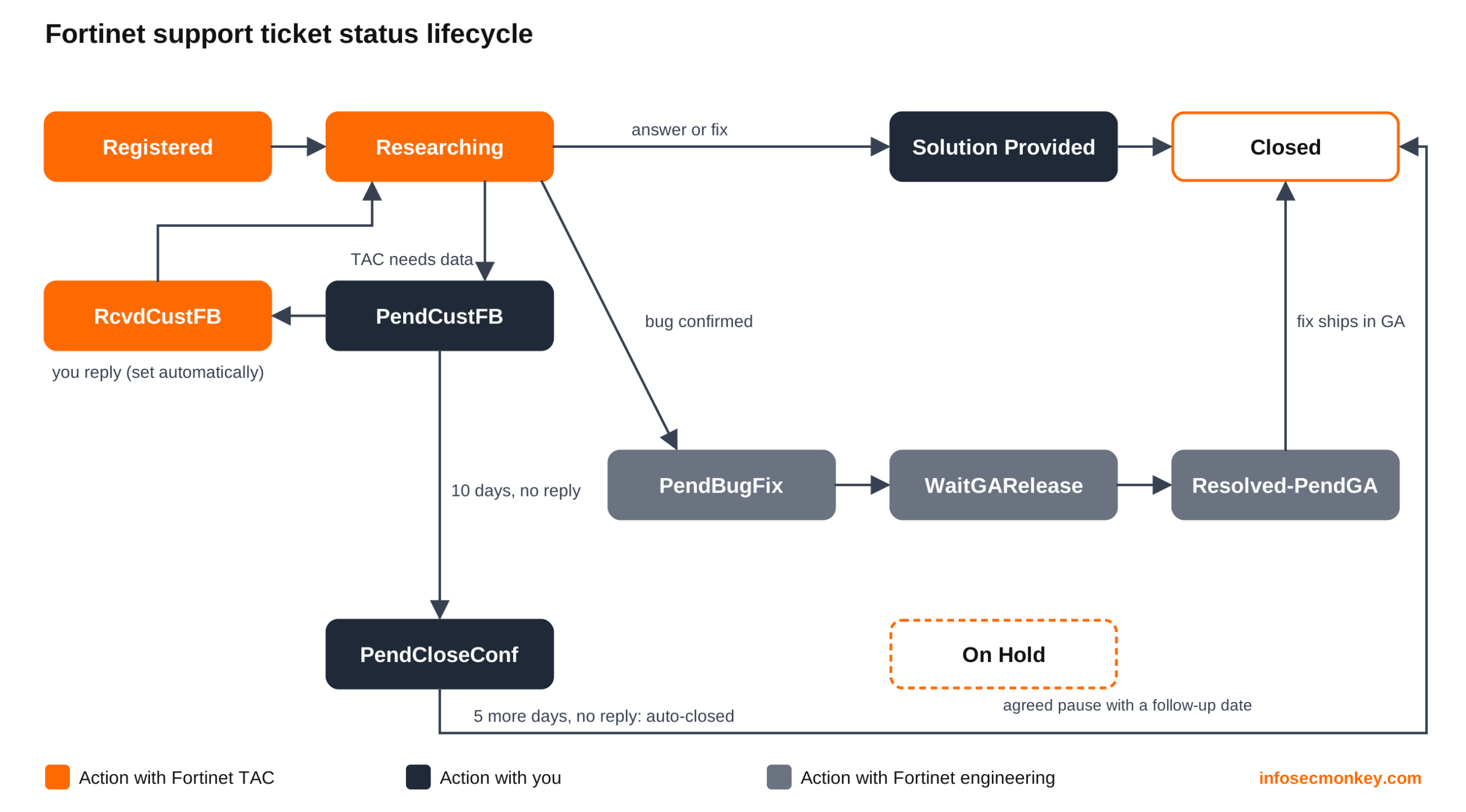
Action: watch the status (next section). Whenever it shows PendCustFB, the clock is on you. Reply with the requested data in the portal; the status flips to RcvdCustFB automatically and the action goes back to Fortinet.
Fortinet Ticket Status: What Each One Means
Every status change triggers an email. The one column that matters most is who owns the next action.
| Status | Meaning | Next action is with |
|---|---|---|
| Registered | New ticket opened, waiting to be assigned to an engineer. | Fortinet |
| Researching | Engineer is analyzing the data and will contact you with findings. | Fortinet |
| PendCustFB | Pending Customer Feedback. TAC asked for more info and is waiting. | You |
| RcvdCustFB | Received Customer Feedback. Set automatically when you update the ticket. | Fortinet |
| On Hold | Both sides agreed to pause, usually to plan a maintenance window or data capture. Has a committed follow-up date. | Agreed date |
| PendCloseConf | Pending Close Confirmation. Set automatically after 10 days in PendCustFB. | You (5 days left) |
| PendBugFix | Bug report filed with engineering. You get a bug ID. | Fortinet engineering |
| WaitGARelease | Engineering built the fix; waiting for it to ship in the next GA release. | Fortinet engineering |
| Resolved-PendGA | A patch was provided; ticket stays open until the fix is in a GA release. | Fortinet engineering |
| Solution Provided | Solution delivered, waiting for your confirmation to close. | You |
| Closed | Resolved and closed. A closed ticket cannot be reopened. | Nobody (open a new one) |
The auto-close timer
When a ticket is waiting on you, Fortinet automates the chase:
| Day (in PendCustFB) | What happens |
|---|---|
| Day 3 | First reminder email. |
| Day 7 | Second reminder email. |
| Day 11 | No reply in 10 days: status moves to PendCloseConf and a feedback request goes out. |
| 5 days later | Still no reply: the ticket is closed automatically the following day. |
If you need time (change freeze, waiting on a maintenance window), tell the TAC engineer and ask for On Hold with a follow-up date instead of letting it drift to closure.
Fortinet Ticket Priority: P1, P2, P3 and P4
Priority is about business impact, not about which feature is broken. Fortinet measures it by the number of users affected and the financial impact, and Fortinet makes the final call using these definitions:
| Priority | Definition | Typical examples | Resource commitment |
|---|---|---|---|
| P1 (Critical) | Total loss or continuous instability of mission-critical functionality in a live production network. | Full outage; multiple active user sessions or critical traffic down; significant loss of connectivity; vital security flaw affecting active business services. | Customer and Fortinet 24x7x365, by phone and remote session. |
| P2 (High) | Significant impact on mission-critical functionality in production. | Serious loss or frequent instability affecting active sessions; loss of redundancy of a critical component (for example, an HA member down). | Dedicated resources 8 hours a day (see note below). |
| P3 (Medium) | Minimal impact on business operations. | Occasional or intermittent instability of core functions; follow-up work on a P1/P2 once a workaround is in place. | Business hours until resolution or workaround. |
| P4 (Low) | No impact on business services. | Information requests, basic configuration help, documentation errors, minor defects. | Business hours until resolution or workaround. |
Note: Fortinet’s two KB articles differ slightly on P2: the FortiCare Case Priority article says 8 hours a day, 7 days a week, while the FortiCompanion article says 8 hours a day on business days. If weekend P2 coverage matters, confirm it with your TAC duty manager or account team.
Workarounds downgrade the ticket
This surprises people. Once you accept a workaround, a P1 becomes a P2 and a P2 becomes a P3. Workarounds include reverting a config change, upgrading or downgrading firmware, replacing hardware, or a configuration change. The root-cause investigation continues, just at the lower priority.
Severity vs Priority: Where Severity Fits
Fortinet’s ticket SLAs are keyed to Priority only. The FortiCare documentation does not publish a separate severity scale for technical tickets, yet “severity” shows up constantly. It comes from three places, and mixing them up causes most of the confusion:
| Where you see it | What it actually means | Does it change your SLA? |
|---|---|---|
| Resellers, contracts, ITSM tools (“Sev 1”, “Severity 1”) | Usually a synonym for P1. Many organizations map Sev 1 to 4 straight onto P1 to P4. | Only through the Fortinet priority it maps to |
| FortiGuard PSIRT advisories | Vulnerability severity: Critical, High, Medium, Low (CVSS based). Describes the flaw, not your incident. | No. A Critical PSIRT does not make your ticket a P1 |
| Your own ticketing system | Technical impact as your NOC sees it (how broken). | No. Fortinet sets priority from business impact |
The practitioner rule: severity is how broken it is, priority is how fast Fortinet works it. A critical CVE on an internet-facing SSL VPN that is not under active exploitation is a patch-planning problem, so handle it through PSIRT guidance and, if you need help, a P3 or P4 ticket. The same CVE being actively exploited against live business services matches the P1 definition (“vital security flaw affecting active business services”), so call TAC.
When you write the ticket, state impact in Fortinet’s language: number of users, sites or sessions affected, whether it is production, and what it costs per hour. That is what moves a ticket from P3 to P1, not the word “critical”.
Fortinet Support SLA by Priority and FortiCare Tier
Two clocks matter, and neither is a resolution time:
- Initial Response Time: time until a qualified TAC engineer contacts you.
- Update Frequency Interval: maximum time between updates from the ticket owner while the action is with Fortinet.
Initial response time
| Priority | Essential | Premium | Elite (FortiGate) | Elite (other products) |
|---|---|---|---|---|
| P1 | n/a | 1 hour | 15 minutes | 15 minutes |
| P2 | n/a | 1 hour | 15 minutes | 15 minutes |
| P3 | Next business day | Next business day | 2 business hours | 4 business hours |
| P4 | Next 2 business days | Next 2 business days | 4 business hours | Next business day |
Update frequency interval
| Priority | Essential | Premium | Elite (FortiGate) | Elite (other products) |
|---|---|---|---|---|
| P1 | n/a | Every 6 hours | Every 3 hours | Every 3 hours |
| P2 | n/a | Daily | Every 12 hours | Every 12 hours |
| P3 | Every 3 business days | Every 3 business days | Each business day | Each business day |
| P4 | Every 5 business days | Every 5 business days | Every 3 business days | Every 3 business days |
Note: The Elite service brief summarizes non-critical response as “2 business hours” across the board. The ticket-handling table in the Fortinet KB is more granular (shown above) and is the one to plan around.
Reading the table: Premium is the line most fleets live on, because the FortiGate UTP and Enterprise bundles include FortiCare Premium. Note that Premium’s P3 response is still next business day, the same as Essential. The faster P3 and P4 times are an Elite-only benefit.
FortiCare Essential vs Premium vs Elite
The tier is bought per serial number and drives far more than the response clock. Here is what actually changes:
| Feature | Essential | Premium | Elite |
|---|---|---|---|
| Intended for | Devices that can tolerate next-business-day, web-only support | Devices that need 24x7x365 coverage | Devices that need the fastest SLAs and highest service level |
| Ticket channels | Web portal and online tools only, no phone | Web, chat and 24×7 phone | Web, chat and 24×7 phone |
| P1 / P2 tickets | Not entitled | Yes | Yes |
| Critical (P1/P2) response | n/a | 1 hour | 15 minutes |
| Non-critical (P3/P4) response | Next business day / next 2 business days | Next business day / next 2 business days | 2 to 4 business hours (FortiGate), 4 hours to next business day (others) |
| Hardware RMA | Return and replace (you ship first) | Advanced replacement, next business day | Advanced replacement, next business day |
| Priority RMA add-on | Not eligible | Eligible | Eligible |
| Secure RMA add-on | Eligible | Eligible | Eligible |
| 18-month Extended End of Engineering Support (E-EoES) on LTS releases | No | No | Yes |
| Device insights and monitoring portal (Elite portal) | No | No | Yes (FortiGate) |
What each tier is really for
- Essential: lab, branch spares and low-risk devices. The catch is not just speed: you cannot open or raise a P1 or P2 at all, and RMA is return-and-replace, so a dead box stays dead until Fortinet receives the faulty one.
- Premium: the default for production. Phone access to TAC 24×7, a 1-hour critical response and advanced replacement RMA. It comes in the FortiGate UTP and Enterprise bundles.
- Elite: data center cores, SD-WAN hubs and anything where an hour without a TAC engineer on the line is too long. It adds the 15-minute critical response, much faster P3/P4 handling, the Elite device health portal and 18 extra months of engineering support on LTS firmware, which buys time when you cannot upgrade on Fortinet’s lifecycle. Elite is sold standalone or as an upgrade on top of an active Premium contract.
Two related points that often get confused with the tier: an active FortiCare contract is required to upgrade FortiOS to a higher major or minor release (patch releases stay available for security fixes), and FortiCare Advanced Support (Core, Pro, Pro Plus) is a separate account-level service that adds a designated Technical Account Manager, root-cause analysis for P1/P2 incidents, operational reviews and upgrade assistance.
Raising Priority and Escalating a Ticket
These are two different things. Raising priority changes the SLA. Escalating gets management attention but does not automatically raise priority or guarantee a faster fix.
| Change | How to do it |
|---|---|
| P4 to P3 | Update the ticket in the Support Portal and describe the new business impact. |
| P3 to P2, P2 to P1 | Phone call to TAC only. Not available on Essential. |
| Escalate to TAC management | Call TAC with the ticket number and ask for the duty manager, ask the engineer on an active call, or request a duty manager callback in a ticket update (callback within the ticket’s SLA). |
Before you escalate, Fortinet expects four things in place: all relevant data is in the ticket, the business impact or deadline is documented in the ticket, your management is informed and available, and your own technical staff are available to work with TAC (mandatory for a P1).
Verification and Validation
Use this checklist after you submit, so you know the SLA clock is actually running:
[ ] Confirmation email received with ticket number
[ ] Portal shows status: Registered  (then Researching once assigned)
[ ] Serial number on the ticket matches the affected device
[ ] Entitlement shows the tier you expect (Premium/Elite for P1/P2)
[ ] Priority on the ticket matches business impact
    - P1/P2: you called TAC and quoted the ticket number
[ ] Attachments uploaded: tac report, config backup, debugs, pcap
[ ] First contact arrives inside the Initial Response Time for your tier
Expected success state: within the initial response window (for example 1 hour for a Premium P1), a TAC engineer contacts you by phone or email, and the status moves from Registered to Researching.
Troubleshooting and Gotchas
1. The serial number does not appear when creating the ticket
Cause: the device is registered to a different FortiCloud account (often the reseller’s or a previous owner’s), or your user is not listed on the owning account, or the entitlement has expired.
Fix: check Product List > serial > Entitlement from the owning account. Have the organization’s master account admin add you as a user, or open a Customer Service ticket (or call Customer Service) to transfer registration. Partners can open a partner ticket on the customer’s behalf.
2. Production is down and nobody has called back
Cause: the ticket was opened on the web, so it is a P3 or P4 sitting in a next-business-day queue.
Fix: call the TAC toll-free number now, quote the ticket number, describe the business impact and request P1 or P2. Confirm the serial is on Premium or Elite; Essential cannot be raised.
3. The ticket closed itself before the maintenance window
Cause: it sat in PendCustFB for 10 days, moved to PendCloseConf, and auto-closed 5 days later. Closed tickets cannot be reopened.
Fix: open a new ticket referencing the old ticket number. Next time, ask the engineer to set On Hold with a follow-up date, or post a short update so the reminder clock resets.
Sources
Recent posts
-

-

DNS is one of those technologies that quietly underpins... Full Story
-

BGP issues on FortiGate firewalls usually trace back to... Full Story
-

Every time your laptop talks to your router, a... Full Story
-

If you've spent any time configuring NAT on a... Full Story
-

If you have spent any time configuring firewall policies... Full Story
-

High availability on FortiGate is one of those features... Full Story
-

If you've configured SD-WAN on a FortiGate, you've almost... Full Story
-

FortiLink is the management protocol that turns a FortiSwitch... Full Story
-

FortiSwitches are pretty rock solid from Mean Time Between... Full Story
-

This is a quicky tip. Have you ever gone... Full Story
-

DNS is one of those quiet pieces of internet... Full Story
-

This article is an updated version of the previous... Full Story
-

You will add ns2 as a secondary (slave) BIND9... Full Story
-

In the process of deploying my lab, I needed... Full Story
-

RFC 8805, used to be known as Self-Correcting IP... Full Story
-

Years back, I wrote an article about certificate pinning. ... Full Story
-

FortiGates have the ability to send alerts to Microsoft... Full Story
-

In this post, I am going to walk through... Full Story
-

Troubleshooting VoIP on a FortiGate can feel like trying... Full Story
-

Prior to FortiOS 7.0, there were three commands to... Full Story
-

In this post, I am going to go over... Full Story
-

What we are going to do: We are going... Full Story
-

Choosing between FGCP (FortiGate Clustering Protocol) and FGSP (FortiGate... Full Story
-

Creating a VLAN on macOS (The "Pro" Move) A... Full Story
-

This blog post explores the logic behind how macOS... Full Story
-

Pretty Fly for a Wi-Fi Tell My Wi-Fi Love... Full Story
-

Part of my daily gig is creating BoMs (Bill-of-Materials)... Full Story
-

ICMP introduces several security risks, but careful filtering, rate... Full Story
-

The command diag debug application dhcps -1 enables full... Full Story
-

In the world of FortiOS, execute tac report is... Full Story
-

LLDP; What is it The Link Layer Discovery Protocol... Full Story
-

What it actually does When you run diagnose fdsm... Full Story
-

Monkey Bites are bite-sized, high-impact security insights designed for... Full Story
-

I have run macOS in macOS with Parallels but... Full Story
-

Don't be confused with my other FortiNAC posts where... Full Story
-

This is the third session in a multi-part article... Full Story
-

Today I was configuring key-based authentication on a FortiGate... Full Story
-

Netcat, often called the "Swiss Army knife" of networking,... Full Story
-

At its core, IEEE 802.1X is a network layer... Full Story
-

In case you did not see the previous FortiNAC... Full Story
-

This is our 5th session where we are going... Full Story
-

Now that we have Wireshark installed and somewhat configured,... Full Story
-

The Philosophy of Packet Analysis Troubleshooting isn't about looking... Full Story
-

Plus what you actually get with FortiCare Essential, Premium... Full Story
-

No fluff. Just the config that works. This one... Full Story
-

No fluff. Just the config that works. Executive Summary... Full Story