
If you've spent any time configuring user authentication on... Full Story
By Manny Fernandez
October 1, 2026
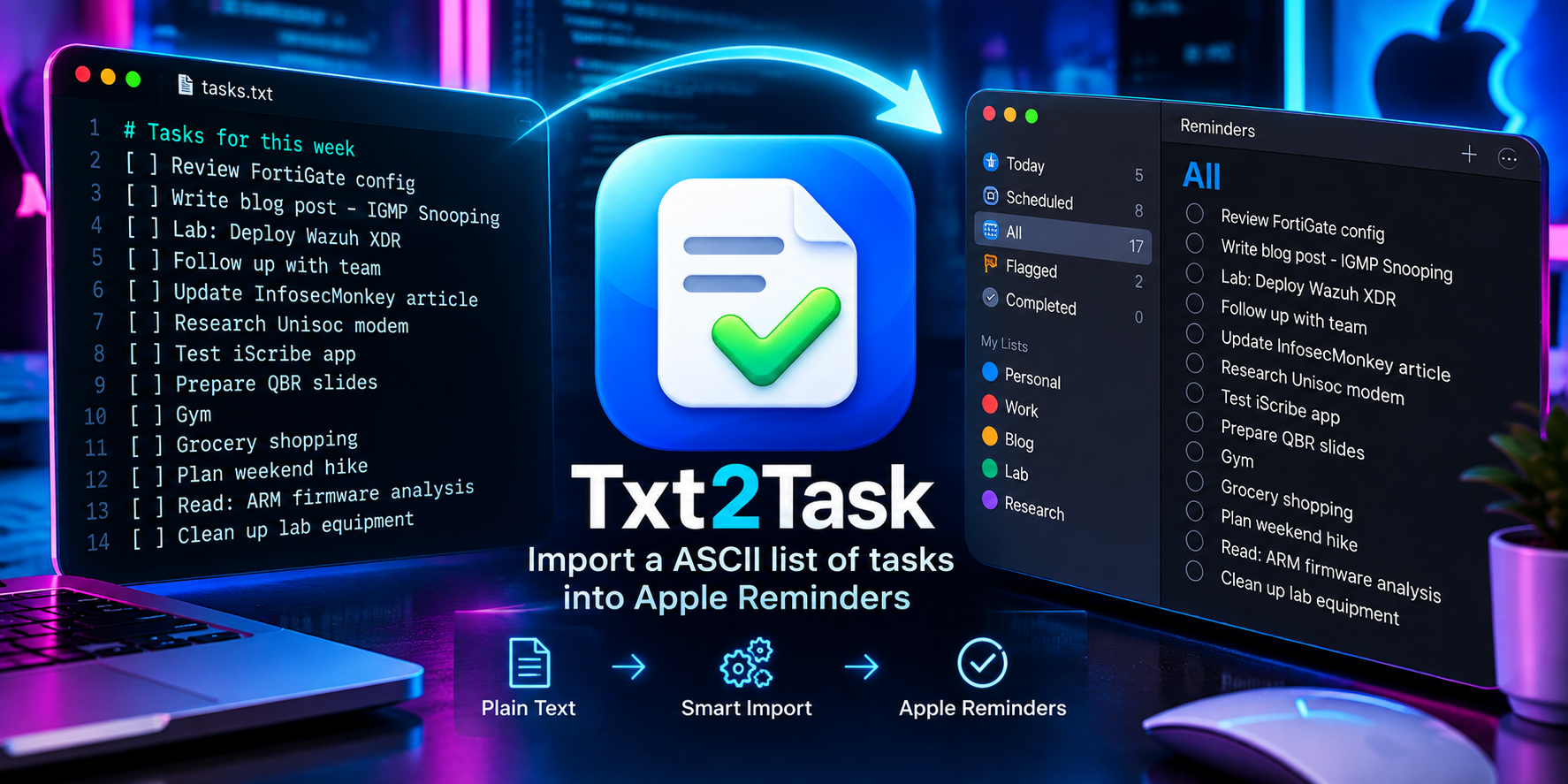
Txt2Task – Import a ASCII list of tasks into Apple Reminders
Executive summary. After Apple significantly upgraded Reminders, I finally made the jump from OmniFocus. What I did not want to give up was the frictionless workflow of drafting tasks in a plain text file with nested subtasks. To bridge that gap, I built Txt2Tasks, a lightweight AppleScript app that parses an indented .txt file and imports parent tasks and subtasks directly into any Apple Reminders list you choose.
Objective: Install Txt2Tasks, format a task file correctly, and import it into Reminders on the first try.
Target audience: Mac users moving from OmniFocus, Things, or Taskpaper-style text workflows who want to keep drafting in plain text.
Prerequisites
| Component | Requirement |
|---|---|
| macOS | A current macOS release with the upgraded Reminders app (subtask support required) |
| Reminders list | The destination list must already exist before you run the import |
| Task file | A plain text .txt file (not RTF), one task per line |
| Permissions | Access to Reminders for Txt2Tasks (macOS prompts on first run) |
Step-by-Step Installation
Step 1 | Download the app
Goal: Get the Txt2Tasks disk image onto your Mac.
Action: Click the button below. The download is a zipped .dmg file.

Step 2 | Unzip and mount the .dmg
Goal: Open the installer window.
Action: Double-click the downloaded .zip to extract it, then double-click the .dmg to mount it. If you prefer the terminal:
cd ~/Downloads
unzip Txt2Tasks.zip
hdiutil attach Txt2Tasks.dmg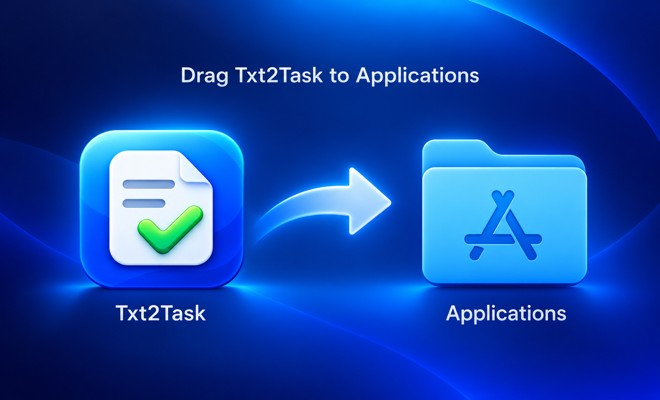
Step 3 | Install to Applications
Goal: Put the app where macOS expects it.
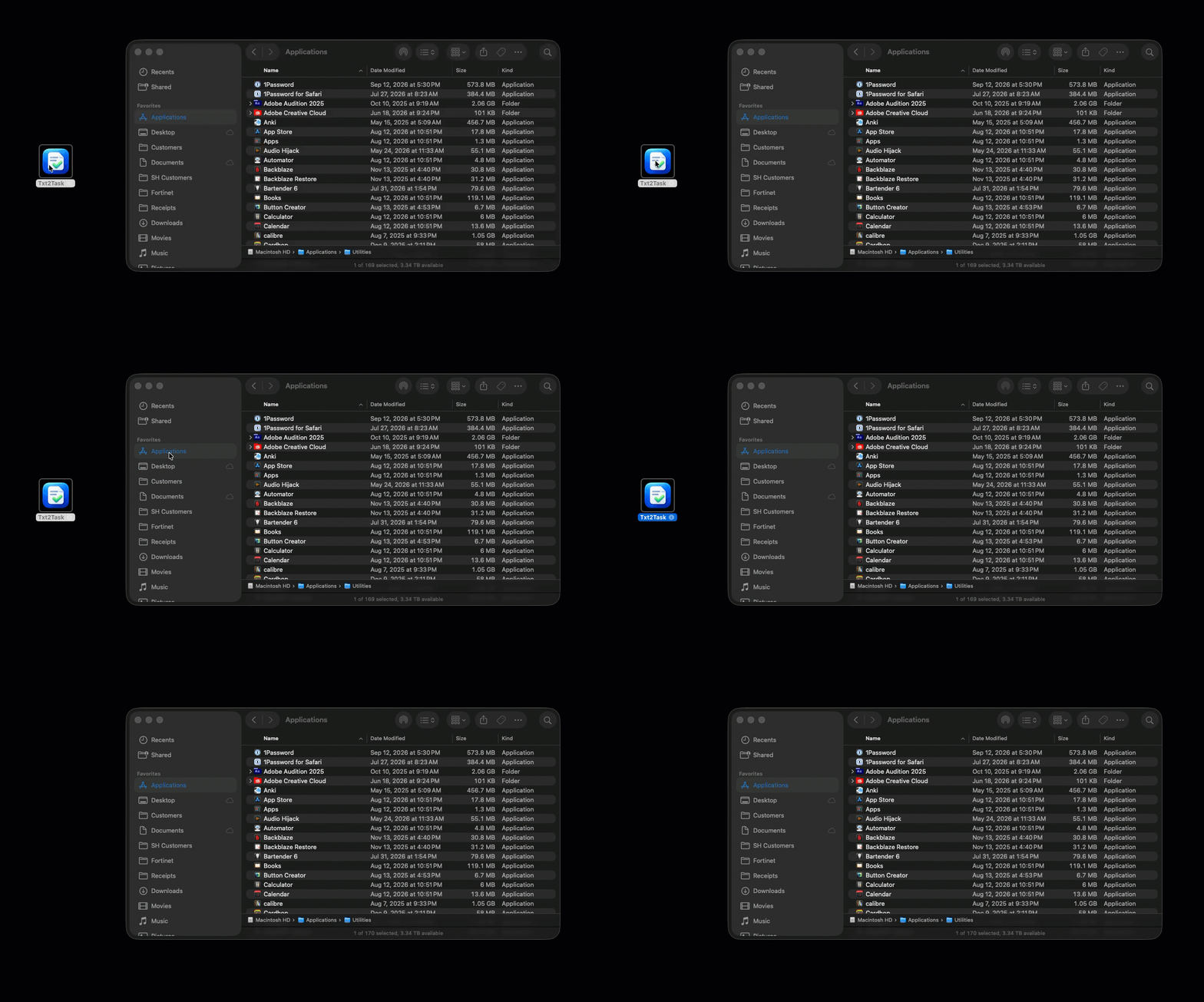
Action: Drag the Txt2Tasks app onto the Applications folder shortcut in the disk image window, then eject the disk image.
Step 4 | Grant Reminders access
Goal: Allow Txt2Tasks to create reminders.
Action: Launch Txt2Tasks from Applications. When macOS asks whether Txt2Tasks can access Reminders, click OK. If macOS also asks for Accessibility or Automation access, allow it as well.
GUI verification: Open System Settings > Privacy & Security > Reminders and confirm Txt2Tasks is listed and enabled.
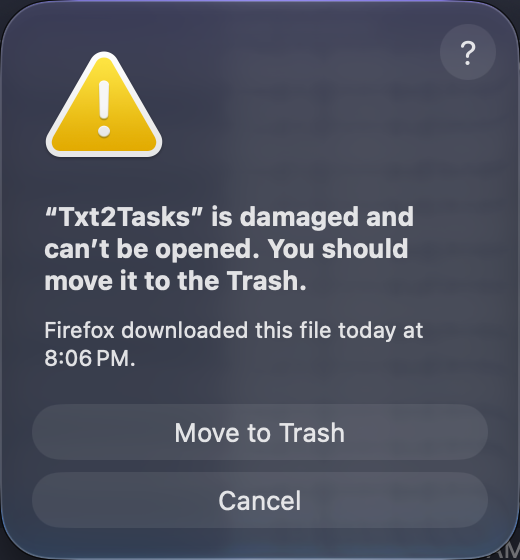
If you get the above error message, you will more than likely need to run:
xattr -dr com.apple.quarantine /Applications/Txt2Tasks.appSoon I will sign these properly.
Building the Task File
The parser is simple on purpose. Keep these rules in mind:
- Each line is imported as one task in Reminders.
- A line that starts with a
tabor aspacebecomes a subtask of the nearest non-indented line above it. - Reminders supports one level of subtasks, so keep nesting one level deep.
- Save the file as plain text. In TextEdit, use Format > Make Plain Text before saving.
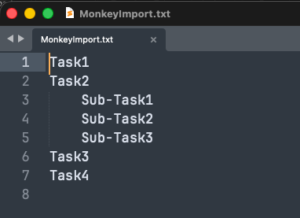
Here is a sample file you can copy and use as a starting template:
Rebuild the home lab
	Back up the current firewall config
	Re-rack the switches
	Update firmware on all access points
Publish the Txt2Tasks blog post
	Capture the DMG screenshot
	Record the import GIF
	Proofread and schedule
Renew domain certificates
That file produces three parent tasks. The first has three subtasks, the second has three, and the last stands alone.
Pre-flight check
Before importing, confirm your indentation is what you think it is. On macOS, cat -et shows every tab as ^I and every line ending as $, so stray spaces and blank lines stand out:
cat -et ~/Desktop/tasks.txtExpected output for the sample file:
Rebuild the home lab$
^IBack up the current firewall config$
^IRe-rack the switches$
^IUpdate firmware on all access points$
Publish the Txt2Tasks blog post$
^ICapture the DMG screenshot$
^IRecord the import GIF$
^IProofread and schedule$
Renew domain certificates$
You can also count what should land in Reminders. The first command counts parent tasks, the second counts subtasks:
grep -cE '^[^[:space:]]' ~/Desktop/tasks.txt
grep -cE '^[[:space:]]+[^[:space:]]' ~/Desktop/tasks.txt
Running the Import
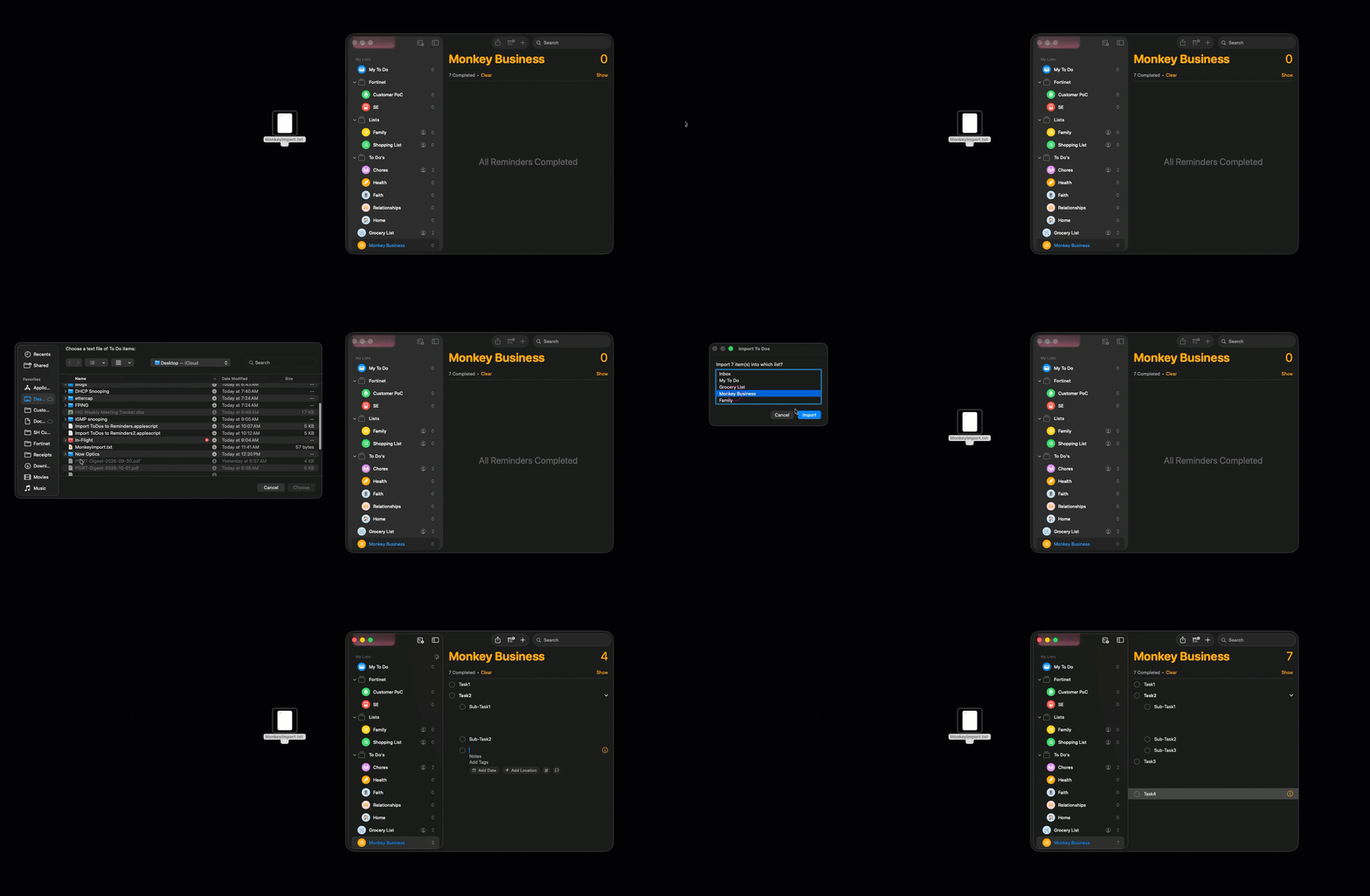
- Launch Txt2Tasks.
- Select your source
.txtfile when prompted. - Choose the Reminders list to import into.
- Take your hands off the keyboard and mouse and let it run.
Important: Do not touch the keyboard or switch apps while the import is running. Txt2Tasks drives Reminders directly, and any input during the run can end up in the wrong place or break the subtask structure.
Verification
- Open the destination list in Reminders. Each parent task should show a disclosure arrow with its subtasks underneath.
- Compare the number of parent tasks and subtasks to the
grepcounts from the pre-flight check. - Because Reminders syncs through iCloud, the tasks should appear on your iPhone and iPad shortly after.
Troubleshooting and Gotchas
macOS will not open the app
Apps downloaded from the web can be held by Gatekeeper on first launch. Try to open Txt2Tasks once, then go to System Settings > Privacy & Security, scroll to the Security section, and click Open Anyway next to the Txt2Tasks message.
Nothing imports, or it stops partway
This is almost always a permission that was denied on the first prompt. Check System Settings > Privacy & Security under Reminders, Automation, and Accessibility, and enable Txt2Tasks wherever it appears. If you denied a prompt and it never comes back, reset the permission and relaunch the app. Note that these commands reset the permission for every app, not just Txt2Tasks:
tccutil reset Reminders
tccutil reset AppleEvents
tccutil reset Accessibility
Subtasks land as top-level tasks (or the reverse)
Run the cat -et pre-flight check. A parent line with an invisible leading space will be treated as a subtask, and an indented line copied from a rich text source may carry non-standard whitespace. Pick tabs, use them everywhere, and remove blank lines before running the import.
Random characters appear inside task names
Something received keyboard input during the run. Delete the imported tasks from the list, close other apps that might grab focus (chat apps and notification pop-ups are common culprits), turn on a Focus mode, and run the import again without touching anything.
Recent posts
-

-

DNS is one of those technologies that quietly underpins... Full Story
-

BGP issues on FortiGate firewalls usually trace back to... Full Story
-

Every time your laptop talks to your router, a... Full Story
-

If you've spent any time configuring NAT on a... Full Story
-

If you have spent any time configuring firewall policies... Full Story
-

High availability on FortiGate is one of those features... Full Story
-

If you've configured SD-WAN on a FortiGate, you've almost... Full Story
-

FortiLink is the management protocol that turns a FortiSwitch... Full Story
-

FortiSwitches are pretty rock solid from Mean Time Between... Full Story
-

This is a quicky tip. Have you ever gone... Full Story
-

DNS is one of those quiet pieces of internet... Full Story
-

This article is an updated version of the previous... Full Story
-

You will add ns2 as a secondary (slave) BIND9... Full Story
-

In the process of deploying my lab, I needed... Full Story
-

RFC 8805, used to be known as Self-Correcting IP... Full Story
-

Years back, I wrote an article about certificate pinning. ... Full Story
-

FortiGates have the ability to send alerts to Microsoft... Full Story
-

In this post, I am going to walk through... Full Story
-

Troubleshooting VoIP on a FortiGate can feel like trying... Full Story
-

Prior to FortiOS 7.0, there were three commands to... Full Story
-

In this post, I am going to go over... Full Story
-

What we are going to do: We are going... Full Story
-

Choosing between FGCP (FortiGate Clustering Protocol) and FGSP (FortiGate... Full Story
-

Creating a VLAN on macOS (The "Pro" Move) A... Full Story
-

This blog post explores the logic behind how macOS... Full Story
-

Pretty Fly for a Wi-Fi Tell My Wi-Fi Love... Full Story
-

Part of my daily gig is creating BoMs (Bill-of-Materials)... Full Story
-

ICMP introduces several security risks, but careful filtering, rate... Full Story
-

The command diag debug application dhcps -1 enables full... Full Story
-

In the world of FortiOS, execute tac report is... Full Story
-

LLDP; What is it The Link Layer Discovery Protocol... Full Story
-

What it actually does When you run diagnose fdsm... Full Story
-

Monkey Bites are bite-sized, high-impact security insights designed for... Full Story
-

I have run macOS in macOS with Parallels but... Full Story
-

Don't be confused with my other FortiNAC posts where... Full Story
-

This is the third session in a multi-part article... Full Story
-

Today I was configuring key-based authentication on a FortiGate... Full Story
-

Netcat, often called the "Swiss Army knife" of networking,... Full Story
-

At its core, IEEE 802.1X is a network layer... Full Story
-

In case you did not see the previous FortiNAC... Full Story
-

This is our 5th session where we are going... Full Story
-

Now that we have Wireshark installed and somewhat configured,... Full Story
-

The Philosophy of Packet Analysis Troubleshooting isn't about looking... Full Story
-

InfoSecMonkey Threat Response October 24, 2026 | No fluff.... Full Story
-

InfoSecMonkey Threat Response October 24, 2026 | No fluff.... Full Story
-

Plus what you actually get with FortiCare Essential, Premium... Full Story