
If you've spent any time configuring user authentication on... Full Story
By Manny Fernandez
November 3, 2026
Managing Windows Firewall from the Command Line: netsh, PowerShell and 7 Hidden Features
Managing Windows Firewall from the Command Line: netsh, PowerShell and 7 Hidden Features
No fluff. Just the config that works.
Executive Summary
Objective: master the Windows firewall command line end to end: back it up, read what is actually enforced, write tightly scoped rules, log drops, and prove which rule killed a packet. Along the way we hit seven features most admins never touch, including FQDN rules, a built-in drop forensics trail, and a self-reverting change window that saves you when you lock yourself out of a remote box.
Target audience: Windows and network admins, SOC analysts, and anyone who has stared at wf.msc wondering why a rule that clearly exists is not working.
Everything here uses tools already on the box: netsh advfirewall, netsh wfp, auditpol, schtasks and the PowerShell NetSecurity module. Run every command from an elevated Windows Terminal.
| # | Hidden feature | Why it matters |
|---|---|---|
| 1 | Self-reverting change window (export plus scheduled import) | A remote rule mistake rolls itself back in 10 minutes |
| 2 | -PolicyStore ActiveStore and RSOP |
Shows what is enforced, not just what you created locally |
| 3 | Filter object pipeline (Get-NetFirewallPortFilter) |
Answers “which rule opens port 3389?” in one line |
| 4 | Address keywords (LocalSubnet, DefaultGateway, DNS) |
Scoped rules that survive DHCP and re-IP |
| 5 | FQDN rules via dynamic keywords | Allow or block by domain name, natively |
| 6 | Filter Origin in events 5157 and 5152 | Names the exact rule or default filter that dropped a packet |
| 7 | Hyper-V firewall rules for WSL | A second rule set most people never knew existed |
Prerequisites and Architecture
Assumed knowledge: basic PowerShell, TCP/UDP ports, and the three firewall profiles (Domain, Private, Public).
Lab requirements: a Windows 11 or Windows Server 2022/2025 host, local admin rights, and a second host to test from. Lab addressing follows house convention: 10.0.10.0/24 is the LAN, 10.0.10.1 is the gateway, 10.0.10.50 is the Windows host, and 198.18.0.0/15 stands in for public addresses.
| Component | What it is | When you use it |
|---|---|---|
netsh advfirewall |
Classic CLI, works in cmd and PowerShell | Export/import, quick rule adds, logging, scripts that must run anywhere |
| NetSecurity module | *-NetFirewall* cmdlets, object based |
Querying, filtering, remote hosts, GPO editing, FQDN and Hyper-V rules |
| Policy stores | Local, GPO, MDM and service rule containers | Understanding why the effective policy differs from what you see |
| Windows Filtering Platform (WFP) | Kernel engine the firewall compiles rules into | Drop forensics with netsh wfp and audit events |
auditpol |
Advanced audit policy CLI | Turning on events 5157 and 5152 |
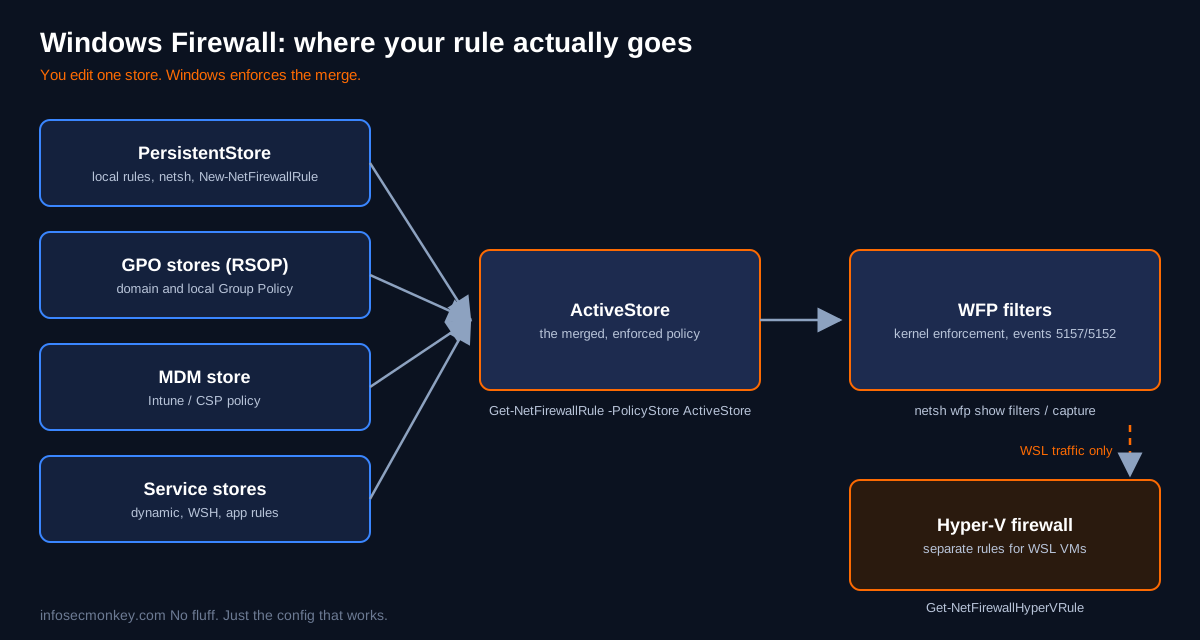
The single most important mental model: you never edit the firewall that is enforced. You edit one store, and Windows merges every store into the ActiveStore, then compiles that into WFP filters. WSL traffic gets a second pass through the Hyper-V firewall.
Figure 1: Policy stores merge into the ActiveStore, which WFP enforces
Step-by-Step Implementation
Step 1: Snapshot the policy and arm a self-reverting change window (Hidden feature 1)
Goal: never lose a remote box to a bad rule again.
Action: export the full policy to a .wfw file, then schedule a SYSTEM task that imports it back in 10 minutes. If your change works, you delete the task. If it locks you out, the box heals itself. Think of it as FortiOS revert mode for Windows.
REM 1. Full policy backup (rules, profiles, IPsec, logging)
mkdir C:\fwbackup
netsh advfirewall export "C:\fwbackup\pre-change.wfw"# 2. Arm the revert: import the backup 10 minutes from now as SYSTEM
$t = (Get-Date).AddMinutes(10).ToString("HH:mm")
schtasks /create /tn "FW-AutoRevert" /sc once /st $t `
/ru SYSTEM /rl HIGHEST /f `
/tr "netsh advfirewall import C:\fwbackup\pre-change.wfw"
# 3. Make the risky change, then reconnect and confirm you still have access
# 4. Change is good: disarm the revert
schtasks /delete /tn "FW-AutoRevert" /fGotcha:
import replaces the whole local policy, it does not merge. Microsoft recommends exporting the current store before any import, which is exactly what this pattern does. Policy files carry a version number, so importing a newer export onto an older OS silently drops unsupported elements.GUI Verification: open taskschd.msc and confirm FW-AutoRevert shows the expected trigger time while armed, and is gone after step 4.
Step 2: Read the effective policy, not just your local rules (Hidden feature 2)
Goal: see what Windows is actually enforcing.
Action: every NetSecurity cmdlet reads the PersistentStore (local rules) by default. Add -PolicyStore ActiveStore to see the merged result of local, GPO, MDM and dynamic service rules, or RSOP to see only what Group Policy contributed.
# Profiles as enforced, including GPO overrides
Get-NetFirewallProfile -PolicyStore ActiveStore |
Format-Table Name, Enabled, DefaultInboundAction, DefaultOutboundAction,
AllowLocalFirewallRules
# Where did each enabled inbound allow rule come from?
Get-NetFirewallRule -PolicyStore ActiveStore -Enabled True `
-Direction Inbound -Action Allow |
Format-Table DisplayName, PolicyStoreSourceType, PolicyStoreSource -AutoSize
# Only what Group Policy pushed
Get-NetFirewallRule -PolicyStore RSOP |
Format-Table DisplayName, Direction, ActionREM netsh equivalents
netsh advfirewall show allprofiles state
netsh advfirewall monitor show currentprofile
netsh advfirewall monitor show firewallWhy this matters: If
AllowLocalFirewallRules comes back False in the ActiveStore, a GPO has told Windows to ignore every local rule. Your new rule shows up in Get-NetFirewallRule, looks perfect, and does nothing. This one setting explains most “the rule is there but it does not work” tickets.GUI Verification: wf.msc > Monitoring > Firewall lists the active rules and should match the ActiveStore output, while Inbound Rules only shows the local store.
Step 3: Find rules by port, program or address with the filter pipeline (Hidden feature 3)
Goal: answer “what opens this port?” without scrolling 400 rules.
Action: ports, programs, addresses and interfaces live in separate filter objects linked to each rule. Get-NetFirewallRule cannot filter on LocalPort directly, but you can query the filter objects and pipe them back into Get-NetFirewallRule.
# Which enabled rules allow inbound TCP 3389?
Get-NetFirewallPortFilter -PolicyStore ActiveStore |
Where-Object { $_.Protocol -eq "TCP" -and $_.LocalPort -contains "3389" } |
Get-NetFirewallRule |
Where-Object { $_.Enabled -eq "True" -and $_.Direction -eq "Inbound" } |
Format-Table DisplayName, Action, Profile, PolicyStoreSourceType
# Which rules reference a specific program?
Get-NetFirewallApplicationFilter -Program "*sqlservr.exe" | Get-NetFirewallRule
# Full detail on one rule: ports, addresses, program in one view
Get-NetFirewallRule -DisplayName "Contoso App" |
Format-List DisplayName, Enabled, Direction, Action,
@{n="Ports";e={($_ | Get-NetFirewallPortFilter).LocalPort}},
@{n="Remote";e={($_ | Get-NetFirewallAddressFilter).RemoteAddress}},
@{n="Program";e={($_ | Get-NetFirewallApplicationFilter).Program}}REM The netsh way: verbose dump of one rule
netsh advfirewall firewall show rule name="Contoso App" verboseGUI Verification: open the rule in wf.msc and compare the Protocols and Ports and Scope tabs to the output.
Step 4: Create scoped rules with address keywords (Hidden feature 4)
Goal: open only what you need, to only who needs it, and survive re-addressing.
Action: use the built-in remote address keywords instead of hard-coded subnets. LocalSubnet, DefaultGateway, DHCP, DNS and WINS resolve at run time from the active interface, so the rule keeps working when DHCP hands out a new scope.
# SSH from the local subnet only, Domain and Private profiles
New-NetFirewallRule -DisplayName "IMK SSH from LAN" -Direction Inbound `
-Protocol TCP -LocalPort 22 -RemoteAddress LocalSubnet `
-Profile Domain,Private -Action Allow -Group "InfoSecMonkey"
# SNMP polls only from a monitoring host and the gateway
New-NetFirewallRule -DisplayName "IMK SNMP from NMS" -Direction Inbound `
-Protocol UDP -LocalPort 161 -RemoteAddress 10.0.10.20,DefaultGateway `
-Action Allow -Group "InfoSecMonkey"
# Block outbound SMB to anything outside the LAN
New-NetFirewallRule -DisplayName "IMK Block SMB out" -Direction Outbound `
-Protocol TCP -RemotePort 445 -RemoteAddress Internet -Action Block
# Turn on a built-in group in one shot, then manage your own the same way
Enable-NetFirewallRule -DisplayGroup "Remote Desktop"
Disable-NetFirewallRule -Group "InfoSecMonkey"REM Same SSH rule with netsh
netsh advfirewall firewall add rule name="IMK SSH from LAN" ^
dir=in action=allow protocol=TCP localport=22 ^
remoteip=localsubnet profile=domain,privateTip: Put every rule you create in your own
-Group. One Disable-NetFirewallRule -Group call rolls back a whole change, and Get-NetFirewallRule -Group gives you an instant audit of your footprint. -DisplayGroup is localized, so scripts that run on non-English Windows should match the Group property instead.GUI Verification: wf.msc > Inbound Rules, sort by Group, and confirm the InfoSecMonkey rules show LocalSubnet on the Scope tab.
Step 5: Allow or block by domain name with FQDN rules (Hidden feature 5)
Goal: write firewall rules against updates.contoso.com instead of chasing CDN IPs.
Action: create a dynamic keyword address with AutoResolve, then reference its GUID from a normal rule. The firewall learns the IPs when it sees DNS responses for that name and updates the rule on the fly.
$fqdn = "contoso.com"
$id = "{" + (New-Guid).ToString() + "}"
New-NetFirewallDynamicKeywordAddress -Id $id -Keyword $fqdn -AutoResolve $true
New-NetFirewallRule -DisplayName "IMK Block $fqdn" -Direction Outbound `
-Action Block -RemoteDynamicKeywordAddresses $id
# Trigger a lookup, then see which IPs the keyword has learned
Resolve-DnsName $fqdn | Out-Null
Get-NetFirewallDynamicKeywordAddress -AllAutoResolve |
Format-List Keyword, AddressesGotchas: FQDN resolution rides on the Microsoft Defender Network Protection callout driver, so it needs Defender with network protection active. Addresses stay empty until a DNS query for that name is actually seen, and an app can race the update and connect before the rule refreshes. In a block-all-outbound posture you must also allow DNS (and
nslookup.exe if you pre-hydrate with it).GUI Verification: the rule appears in wf.msc but the dynamic address is only visible from PowerShell, so verify with Get-NetFirewallDynamicKeywordAddress.
Step 6: Turn on per-profile logging
Goal: a text record of every drop, split by profile so you know which profile blocked it.
Action: enable dropped and allowed logging, bump the size to the 32 MB maximum, and give each profile its own file as Microsoft recommends.
foreach ($p in "Domain","Private","Public") {
Set-NetFirewallProfile -Profile $p -LogBlocked True -LogAllowed True `
-LogMaxSizeKilobytes 32767 `
-LogFileName "%windir%\system32\logfiles\firewall\pfirewall_$p.log"
}
Get-NetFirewallProfile | Format-Table Name, LogBlocked, LogAllowed, LogFileName
# Live tail of drops
$log = "$env:windir\system32\logfiles\firewall\pfirewall_Public.log"
Get-Content $log -Wait -Tail 20 |
Select-String " DROP "netsh advfirewall set allprofiles logging droppedconnections enable
netsh advfirewall set allprofiles logging allowedconnections enable
netsh advfirewall set allprofiles logging maxfilesize 32767GUI Verification: wf.msc > Properties > each profile tab > Logging > Customize shows the per-profile path and size.
Step 7: Prove which rule dropped a packet with Filter Origin (Hidden feature 6)
Goal: stop guessing. Get the exact rule GUID, or the name of the default filter, that killed the traffic.
Action: turn on the WFP connection audit. Since Windows 11 and Server 2022, events 5157 and 5152 carry a Filter Origin field (the rule ID or default block filter name) and an Interface Index. Feed the rule ID straight into Get-NetFirewallRule -Name.
auditpol /set /subcategory:"Filtering Platform Connection" /failure:enable# Reproduce the failure, then pull the latest block event
$f = @{ LogName = "Security"; Id = 5157 }
$e = Get-WinEvent -FilterHashtable $f -MaxEvents 1
$e.Message -split "`n" |
Select-String "Application Name|Destination|Filter Origin|Interface Index"
# Filter Origin is a rule ID? Resolve it to the rule
Get-NetFirewallRule -Name "{3F1C2A9E-7B44-4E0B-9C1D-5A6E8F2B7D10}" |
Format-List DisplayName, Direction, Action,
PolicyStoreSourceType, PolicyStoreSourceIf Filter Origin is not a GUID, it is one of the default block filters, and each one points to a different fix:
| Filter Origin | Meaning | Fix |
|---|---|---|
| Query User Default | No allow rule, user dismissed or denied the prompt | Create an explicit inbound allow rule; delete auto-generated Query User block rules |
| Quarantine Default | Interface briefly quarantined after a network change | Usually transient; check Get-NetIPInterface -InterfaceIndex <n> |
| WSH Default | Windows Service Hardening blocked a protected service | The service needs an explicit WSH allow rule |
| Stealth | Stealth mode dropped an unsolicited probe | Expected for port scans; only disable stealth deliberately |
| Boot Time Default | Packet arrived before the firewall service started | Service must create a boot time allow filter |
For the deep dive, capture WFP itself while you reproduce the problem. The cab contains wfpdiag.xml with every filter and net event:
netsh wfp capture start file=C:\fwbackup\wfpdiag
REM ...reproduce the drop...
netsh wfp capture stop
netsh wfp show netevents file=C:\fwbackup\netevents.xml
netsh wfp show filters file=C:\fwbackup\filters.xmlGotcha: Do not chase raw WFP filter IDs from old notes. Microsoft documents that filter IDs change for many reasons even when the rule does not. Filter Origin is the stable pointer. Turn the audit back off (same command with
/failure:disable) when you are done, because 5157 is noisy.GUI Verification: Event Viewer > Windows Logs > Security, filter on 5157, and read the Filter Origin line in the event details.
Step 8: Manage remote hosts and GPOs without RDP
Goal: push the same rule to many machines, and edit firewall GPOs in a batch.
Action: every NetSecurity cmdlet accepts -CimSession. For domain GPOs, Open-NetGPO caches the GPO locally so many changes go back to the domain controller in one save instead of one round trip each.
# Same rule on three servers over WinRM
$s = New-CimSession -ComputerName SRV01,SRV02,SRV03
New-NetFirewallRule -CimSession $s -DisplayName "IMK HTTPS in" `
-Direction Inbound -Protocol TCP -LocalPort 443 -Action Allow `
-Group "InfoSecMonkey"
Get-NetFirewallProfile -CimSession $s -PolicyStore ActiveStore |
Format-Table PSComputerName, Name, Enabled
# Batch edit a domain GPO against a writable DC
$gpo = Open-NetGPO -PolicyStore "corp.contoso.com\Workstation Firewall" `
-DomainController DC01
New-NetFirewallRule -GPOSession $gpo -DisplayName "IMK Block Telnet out" `
-Direction Outbound -Protocol TCP -RemotePort 23 -Action Block
Set-NetFirewallProfile -GPOSession $gpo -Profile Public -LogBlocked True
Save-NetGPO -GPOSession $gpoGotcha:
Save-NetGPO writes the whole cached GPO back. Anything another admin changed in that GPO after you opened it is overwritten. Open, change, save, and do it quickly.Step 9: Find the second firewall: Hyper-V rules for WSL (Hidden feature 7)
Goal: fix WSL services that are unreachable even though the Windows rule is open.
Action: on recent Windows 11 builds, WSL traffic is filtered by the Hyper-V firewall, a separate rule set keyed by a VM creator ID. Normal New-NetFirewallRule rules do not open ports into WSL; Hyper-V rules do.
# WSL's VM creator ID
Get-NetFirewallHyperVVMCreator
# Settings and rules that apply to WSL
$wsl = "{40E0AC32-46A5-438A-A0B2-2B479E8F2E90}"
Get-NetFirewallHyperVVMSetting -PolicyStore ActiveStore -Name $wsl
Get-NetFirewallHyperVRule -VMCreatorId $wsl |
Format-Table DisplayName, Direction, Action
# Allow inbound TCP 8080 to a web app running in WSL
New-NetFirewallHyperVRule -Name "IMK-WSL-8080" `
-DisplayName "IMK WSL web 8080" `
-Direction Inbound -VMCreatorId $wsl -Protocol TCP -LocalPorts 8080GUI Verification: there is none. Hyper-V firewall rules do not appear in wf.msc, which is exactly why nobody finds them.
Verification and Validation
From the second lab host, test the rules you built, then confirm on the Windows host:
# From the test host
Test-NetConnection 10.0.10.50 -Port 22
# On the Windows host: your footprint, as enforced
Get-NetFirewallRule -PolicyStore ActiveStore -Group "InfoSecMonkey" |
Format-Table DisplayName, Enabled, Direction, ActionExpected success output:
ComputerName : 10.0.10.50
RemoteAddress : 10.0.10.50
RemotePort : 22
InterfaceAlias : Ethernet
SourceAddress : 10.0.10.25
TcpTestSucceeded : True
DisplayName Enabled Direction Action
----------- ------- --------- ------
IMK SSH from LAN True Inbound Allow
IMK SNMP from NMS True Inbound Allow
IMK Block SMB out True Outbound BlockThen run the same Test-NetConnection from an address outside LocalSubnet. It should fail, a matching DROP line should land in the profile log, and event 5157 should show a default block filter as the Filter Origin rather than one of your rules, which proves the scope is doing its job.
Troubleshooting and Gotchas
1. The rule exists, the traffic still drops
Diagnose: check whether local rules are even allowed, then get the real answer from Filter Origin.
Get-NetFirewallProfile -PolicyStore ActiveStore |
Format-Table Name, AllowLocalFirewallRules
$f = @{ LogName = "Security"; Id = 5157 }
Get-WinEvent -FilterHashtable $f -MaxEvents 5 | ForEach-Object {
($_.Message -split "`n" | Select-String "Filter Origin").Line
}Fix: if AllowLocalFirewallRules is False, the rule has to live in the GPO (step 8). If Filter Origin is a GUID, a higher priority block rule is winning, since block beats allow in Windows firewall. Find it with Get-NetFirewallRule -Name.
2. The FQDN rule never fills in
Diagnose: Get-NetFirewallDynamicKeywordAddress -AllAutoResolve shows the keyword with empty Addresses.
Fix: confirm Defender is the active antivirus with network protection on, then trigger a real DNS query for the name. Remember a rule with no resolved remote address is not enforced yet.
3. Logging is on, the log file stays empty
Diagnose: Get-NetFirewallProfile -PolicyStore ActiveStore | Format-Table Name, Log*. GPO logging settings override local ones, and a custom folder may lack write access for the firewall service.
Fix: keep logs under %windir%\system32\logfiles\firewall, or grant the firewall service write permission on your custom folder, and check the ActiveStore values rather than the local ones.
Windows Firewall Command Line Quick Reference: netsh vs PowerShell
| Task | netsh | PowerShell |
|---|---|---|
| Show profile state | netsh advfirewall show allprofiles state |
Get-NetFirewallProfile -PolicyStore ActiveStore |
| Back up policy | netsh advfirewall export file.wfw |
No native equivalent, use netsh |
| Add inbound rule | netsh advfirewall firewall add rule ... |
New-NetFirewallRule ... |
| Show one rule | ... show rule name="X" verbose |
Get-NetFirewallRule -DisplayName X |
| Delete rule | ... delete rule name="X" |
Remove-NetFirewallRule -DisplayName X |
| Enable a group | ... set rule group="X" new enable=yes |
Enable-NetFirewallRule -DisplayGroup X |
| Logging | netsh advfirewall set allprofiles logging ... |
Set-NetFirewallProfile -Log* |
| Reset to defaults | netsh advfirewall reset |
netsh advfirewall reset (no cmdlet) |
| Drop forensics | netsh wfp capture start / stop |
Get-WinEvent on 5157 plus Get-NetFirewallRule -Name |
Sources
- Microsoft: Netsh commands for Windows Firewall with Advanced Security (export, import, reset)
- Microsoft Learn: Get-NetFirewallRule
- Microsoft Learn: Get-NetFirewallProfile and policy stores
- Microsoft Learn: Set-NetFirewallProfile
- Microsoft Learn: Enable-NetFirewallRule
- Microsoft Learn: INetFwRule RemoteAddresses keywords
- Microsoft Learn: Windows Firewall dynamic keywords (FQDN rules)
- Microsoft Learn: New-NetFirewallDynamicKeywordAddress
- Microsoft Learn: Configure Windows Firewall logging
- Microsoft Learn: Filter origin audit log (events 5157 and 5152)
- Microsoft Learn: netsh wfp command reference
- Microsoft Learn: Open-NetGPO
- Microsoft Learn: Save-NetGPO
- Microsoft Learn: Hyper-V firewall for WSL
- Microsoft Learn: Get-NetFirewallHyperVRule
InfoSecMonkey. No fluff. Just the config that works.
Recent posts
-

-

DNS is one of those technologies that quietly underpins... Full Story
-

BGP issues on FortiGate firewalls usually trace back to... Full Story
-

Every time your laptop talks to your router, a... Full Story
-

If you've spent any time configuring NAT on a... Full Story
-

If you have spent any time configuring firewall policies... Full Story
-

High availability on FortiGate is one of those features... Full Story
-

If you've configured SD-WAN on a FortiGate, you've almost... Full Story
-

FortiLink is the management protocol that turns a FortiSwitch... Full Story
-

FortiSwitches are pretty rock solid from Mean Time Between... Full Story
-

This is a quicky tip. Have you ever gone... Full Story
-

DNS is one of those quiet pieces of internet... Full Story
-

This article is an updated version of the previous... Full Story
-

You will add ns2 as a secondary (slave) BIND9... Full Story
-

In the process of deploying my lab, I needed... Full Story
-

RFC 8805, used to be known as Self-Correcting IP... Full Story
-

Years back, I wrote an article about certificate pinning. ... Full Story
-

FortiGates have the ability to send alerts to Microsoft... Full Story
-

In this post, I am going to walk through... Full Story
-

Troubleshooting VoIP on a FortiGate can feel like trying... Full Story
-

Prior to FortiOS 7.0, there were three commands to... Full Story
-

In this post, I am going to go over... Full Story
-

What we are going to do: We are going... Full Story
-

Choosing between FGCP (FortiGate Clustering Protocol) and FGSP (FortiGate... Full Story
-

Creating a VLAN on macOS (The "Pro" Move) A... Full Story
-

This blog post explores the logic behind how macOS... Full Story
-

Pretty Fly for a Wi-Fi Tell My Wi-Fi Love... Full Story
-

Part of my daily gig is creating BoMs (Bill-of-Materials)... Full Story
-

ICMP introduces several security risks, but careful filtering, rate... Full Story
-

The command diag debug application dhcps -1 enables full... Full Story
-

In the world of FortiOS, execute tac report is... Full Story
-

LLDP; What is it The Link Layer Discovery Protocol... Full Story
-

What it actually does When you run diagnose fdsm... Full Story
-

Monkey Bites are bite-sized, high-impact security insights designed for... Full Story
-

I have run macOS in macOS with Parallels but... Full Story
-

Don't be confused with my other FortiNAC posts where... Full Story
-

This is the third session in a multi-part article... Full Story
-

Today I was configuring key-based authentication on a FortiGate... Full Story
-

Netcat, often called the "Swiss Army knife" of networking,... Full Story
-

At its core, IEEE 802.1X is a network layer... Full Story
-

In case you did not see the previous FortiNAC... Full Story
-

This is our 5th session where we are going... Full Story
-

Now that we have Wireshark installed and somewhat configured,... Full Story
-

The Philosophy of Packet Analysis Troubleshooting isn't about looking... Full Story
-

Managing Windows Firewall from the Command Line: netsh, PowerShell... Full Story
-

Chrome CVE-2026-106378: Patching the macOS Sandbox Escape No fluff.... Full Story
-

OpenLDAP Server on Ubuntu 24.04: Deploy, Configure and Use... Full Story