
If you've spent any time configuring user authentication on... Full Story
By Manny Fernandez
July 15, 2019

Fortitoken Push Notification without FortiAuthenticator
One of the great features of the Fortigate Firewall platform is its versatility. Aside from having an Ethernet Switch and Wireless Access Point controller built-in to the platform, aside from the WAF, Load Balancer, Full DNS Server, SD WAN and the ASICs to name a very few, there is also the ability to do multi-factor authentication without the need for an additional server. All you need is FortiTokens (either hardware or electronic). In a past life, I deployed a lot of SecureID by RSA and aside from its complexity to configure and deploy, the user experience was the biggest challenge. Users did not grasp the pin/passcode/password amalgamation and was always a tough sell. In this post, I am going to show you how to configure push notification with just the Fortigate and FortiTokens. Note that the Fortigate comes with 2 “free” Electronic Tokens that can be used in this example. This eases the user experience substantially.
This video will show you the user experience. I have masked certain personal info with the Infosec Monkey logo.
What you will need:
- Fortigate Firewall
- FortiTokens (If you factory reset your box and do not have the 2 free tokens, send an email to cs@fortinet.com)
Let’s get started.
I have a couple of prior post describing the deployment of FortiToken with AD and another with a more complex configuration of Certificate Pinning.
In this post, I will use a local user, meaning he will not be part of my Active Directory or my RADIUS environments. Please refer to the other post for details. Once you have the token assigned to the user, this post will be relevant.
Step 1 – Creating the user
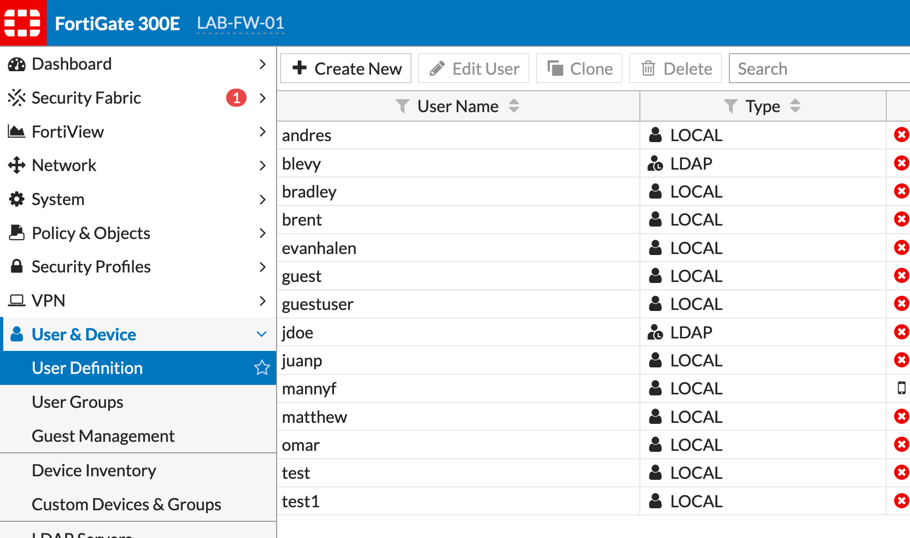
Choose the User & Device section, then User Definition. You will want to choose Create New
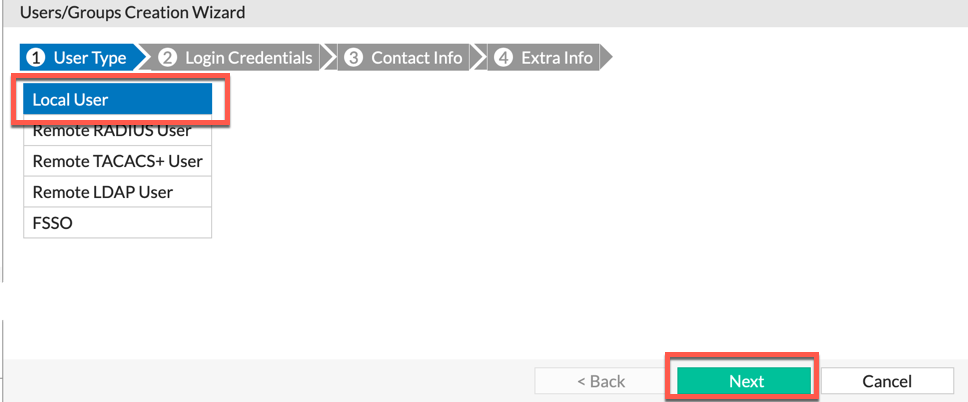
Ensure you choose Local User then choose Next
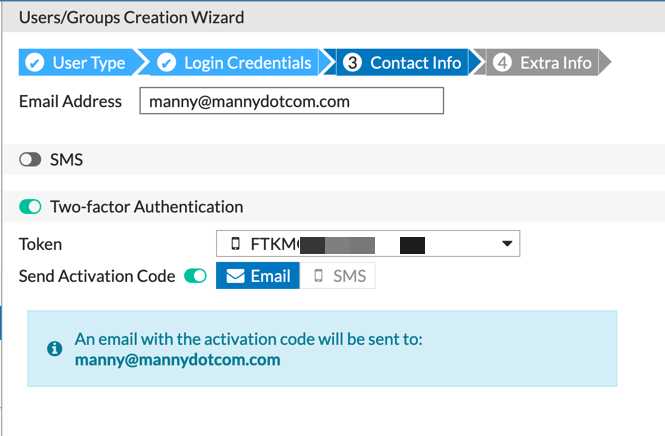
You will need to add a valid email to the account so that the token QR code can be sent to. Select the Two-factor Authentication radio button, then choose Send Activation Code and choose the drop down and choose an available token.
Step 2 – Configure the public facing Internet
In order for the Push to work, you will need to modify the Allowed Access on the public interface.
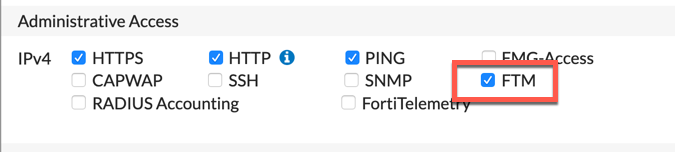
You need to add the FTM administrative access to the public interface. Make note of the IP address as you will need it in the subsequent steps.
Step 4 – Enabling Push from the Command Line
We will need to jump into the CLI to enable the feature.
config system ftm-push
set server-ip X.X.X.X
set status enable
end
Where X.X.X.X is your public IP address
Step 5 – VPN Connection
Now you can configure the Forticlient and when prompted, enter your username and password .
What you should expect:
- Configure the SSL VPN using Forticlient
- Go to Apple AppStore or Android Play Store
- Obtain the email you received from the Fortigate from Step 1 and scan the QR code with your Smart phone app you installed.
- When prompted for username and password, enter your credentials.
- The app will prompt you to either
AcceptorDeny
Hope this helps
Recent posts
-

-

DNS is one of those technologies that quietly underpins... Full Story
-

BGP issues on FortiGate firewalls usually trace back to... Full Story
-

Every time your laptop talks to your router, a... Full Story
-

If you've spent any time configuring NAT on a... Full Story
-

If you have spent any time configuring firewall policies... Full Story
-

High availability on FortiGate is one of those features... Full Story
-

If you've configured SD-WAN on a FortiGate, you've almost... Full Story
-

FortiLink is the management protocol that turns a FortiSwitch... Full Story
-

FortiSwitches are pretty rock solid from Mean Time Between... Full Story
-

This is a quicky tip. Have you ever gone... Full Story
-

DNS is one of those quiet pieces of internet... Full Story
-

This article is an updated version of the previous... Full Story
-

You will add ns2 as a secondary (slave) BIND9... Full Story
-

In the process of deploying my lab, I needed... Full Story
-

RFC 8805, used to be known as Self-Correcting IP... Full Story
-

Years back, I wrote an article about certificate pinning. ... Full Story
-

FortiGates have the ability to send alerts to Microsoft... Full Story
-

In this post, I am going to walk through... Full Story
-

Troubleshooting VoIP on a FortiGate can feel like trying... Full Story
-

Prior to FortiOS 7.0, there were three commands to... Full Story
-

In this post, I am going to go over... Full Story
-

What we are going to do: We are going... Full Story
-

Choosing between FGCP (FortiGate Clustering Protocol) and FGSP (FortiGate... Full Story
-

Creating a VLAN on macOS (The "Pro" Move) A... Full Story
-

This blog post explores the logic behind how macOS... Full Story
-

Pretty Fly for a Wi-Fi Tell My Wi-Fi Love... Full Story
-

Part of my daily gig is creating BoMs (Bill-of-Materials)... Full Story
-

ICMP introduces several security risks, but careful filtering, rate... Full Story
-

The command diag debug application dhcps -1 enables full... Full Story
-

In the world of FortiOS, execute tac report is... Full Story
-

LLDP; What is it The Link Layer Discovery Protocol... Full Story
-

What it actually does When you run diagnose fdsm... Full Story
-

Monkey Bites are bite-sized, high-impact security insights designed for... Full Story
-

I have run macOS in macOS with Parallels but... Full Story
-

Don't be confused with my other FortiNAC posts where... Full Story
-

This is the third session in a multi-part article... Full Story
-

Today I was configuring key-based authentication on a FortiGate... Full Story
-

Netcat, often called the "Swiss Army knife" of networking,... Full Story
-

At its core, IEEE 802.1X is a network layer... Full Story
-

In case you did not see the previous FortiNAC... Full Story
-

This is our 5th session where we are going... Full Story
-

Now that we have Wireshark installed and somewhat configured,... Full Story
-

The Philosophy of Packet Analysis Troubleshooting isn't about looking... Full Story
-

Executive Summary Objective: Get you from zero to writing... Full Story
-

NAND cells, the flash translation layer, SLC caching, TRIM,... Full Story
-

Nmap Scripting Engine (NSE): From One-Liners to Your First... Full Story