
At its core, IEEE 802.1X is a network layer... Full Story
By Manny Fernandez
February 4, 2026

Adding VNC Directly to Your ProxMox VMs
As I play with ProxMox, I am discovering little things that may make your day easier. You can set up access to your VMs via VNC directly from your desktop, Windows, macOS, IOS, Android.
One of the nice things about VMWare is the remote Console. I wanted something like that on my ProxMox.
You will need to your host and use the shell
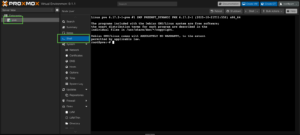
Now you will need to run vi /etc/pve/qemu-server/%vm-id.conf where %vm-id is the ID next to your server name
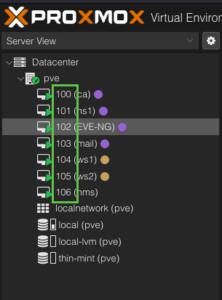
When you edit the file, you will need to add the following:
args: -vnc 0.0.0.0:XX (no password) or args: -vnc 0.0.0.0:XX,password=on (will require a password).
NOTE: The :XX will be added to the 59 of the standard VNC TCP5900 to connect. Remember NOT to use a port already in use such as 22
VNC Port Assignment Guidelines
You can assign any display number to your VNC service, provided each number remains unique to avoid system conflicts. The service calculates the network port using the following logic:
port=5900+display_number-
Avoid Low Numbers: The
noVNCservice typically defaults to display number0and counts upward. -
Use High Ranges: To prevent port overlaps or service crashes, it is recommended to select significantly higher display numbers (e.g.,
10or above). - Pro-Tip: If you assign display number
15, your VNC client should be configured to connect via port5915.
To set a password, select your VM you are wanting to connect to and choose the Monitor menu
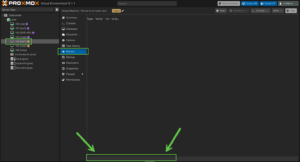
In the bottom portion of the Monitor button, you will see a long “box” that looks like a footer, in that box, you will type the following.
set_password vnc SuperSecretPassword -d vnc2
To access the system using an external VNC client, use the password SuperSecretPassword. Please keep in mind that VNC protocols restrict passwords to a maximum of 8 characters.
Usage Notes
-
Volatile Storage: This password is non-persistent. If the Virtual Machine (VM) restarts, you will need to re-execute the setup command to re-enable access.
-
Security Expiration: You have the option to set a time limit on the password’s validity.
Implementation Example
To set the password to expire in 10 minutes (600 seconds), use the following syntax:
expire_password vnc +600 -d vnc2
Making it Permanent
To automate the VNC password so it survives a reboot, you typically need to add the command to your VM’s configuration file or a startup script within the virtualization host (like QEMU/KVM).
Since VNC passwords are often managed at the hypervisor level rather than inside the guest OS, here are the most effective ways to make it “permanent”:
1. Using the Hypervisor Configuration
If you are using libvirt (virt-manager), you can define a password directly in the XML configuration. This ensures the password is set automatically every time the VM boots.
Command: virsh edit <vm_name>
Locate the graphics section:
XML
<graphics type='vnc' port='-1' autoport='yes' passwd='SuperSecretPassword'>
<listen type='address'/>
</graphics>
2. Startup Script (Wrapper)
If you are running the VM via a direct command line, you can create a simple bash script to launch the VM and immediately inject the monitor command:
Bash
# Example wrapper logic
virsh start my_vm
sleep 5
virsh qemu-monitor-command my_vm --hmp "set_password vnc SuperSecretPassword"
Comparison of Methods

[!WARNING] Because VNC passwords are capped at 8 characters, they are relatively easy to brute-force. Always ensure your VNC traffic is tunneled through SSH or protected by a firewall if the host is reachable over a network.
Hope this helps.
Recent posts
-

-

In case you did not see the previous FortiNAC... Full Story
-

This is our 5th session where we are going... Full Story
-

Now that we have Wireshark installed and somewhat configured,... Full Story
-

The Philosophy of Packet Analysis Troubleshooting isn't about looking... Full Story