
If you've spent any time configuring user authentication on... Full Story
By Manny Fernandez
October 27, 2026
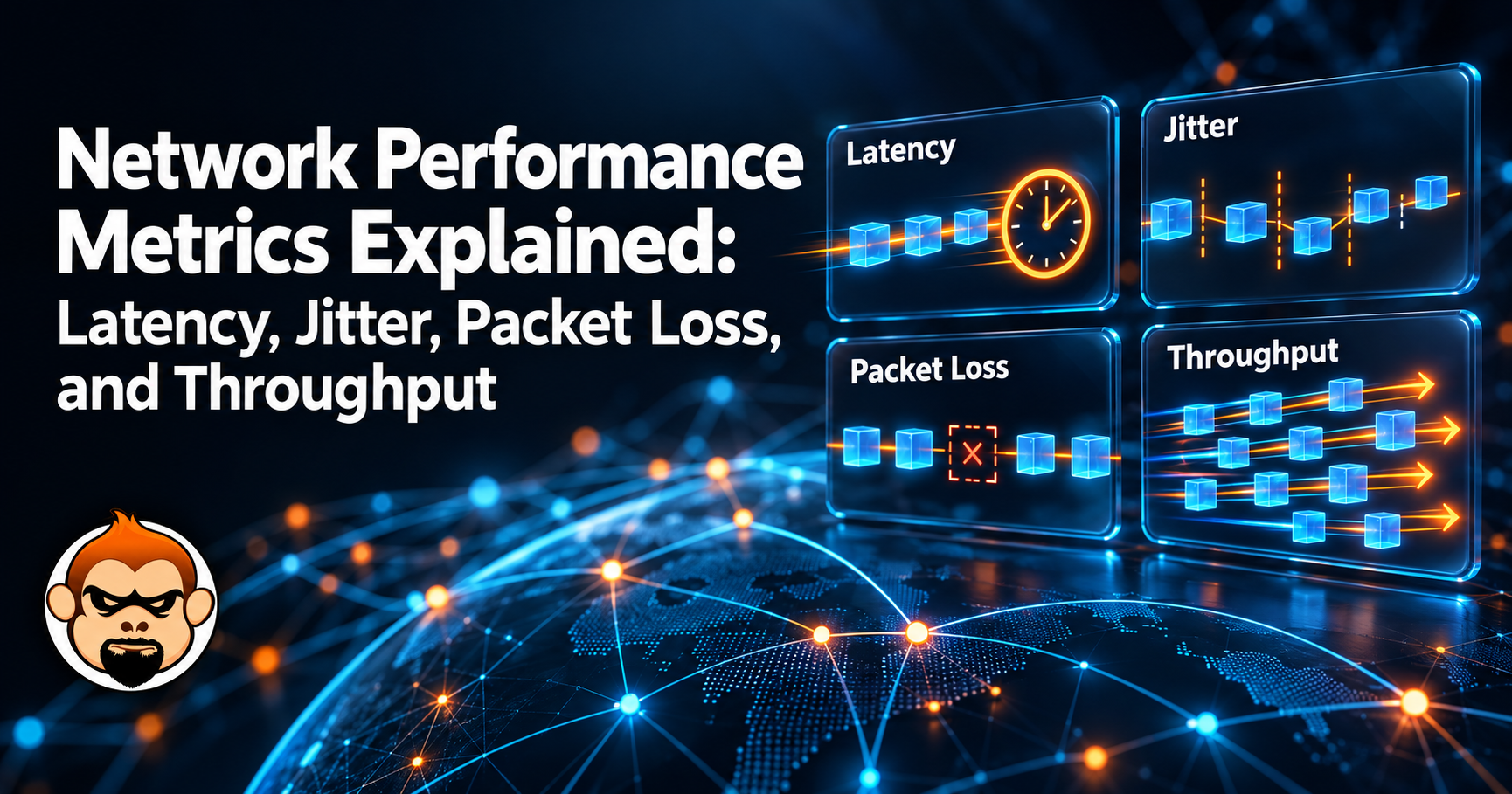
Network Performance Metrics Explained: Latency, Jitter, Packet Loss, and Throughput
InfoSecMonkey | Networking
What each metric means, how it is actually calculated, and a plain-English analogy so it finally sticks
No fluff. Just the config that works.
Executive Summary
Every network complaint (“it’s slow”, “the call broke up”, “the game lagged”) traces back to a small set of network performance metrics. Four of them do most of the work: latency, jitter, packet loss, and throughput. Learn what each one measures, how it is calculated, and how they interact, and you can turn a vague complaint into a number you can test and fix.
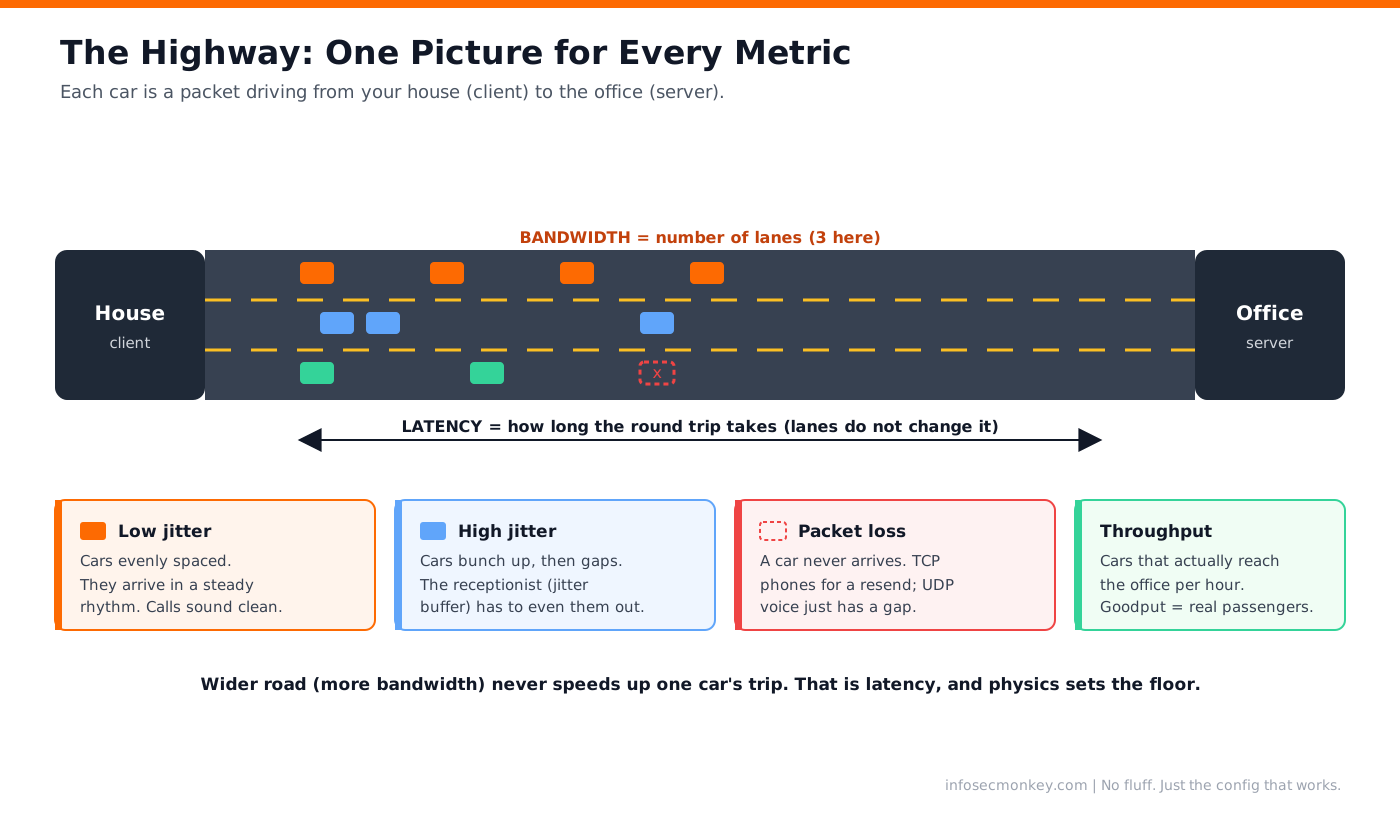
This post defines each metric, shows the formula, and then explains it with one running analogy: a highway between your house and your office. Bandwidth is how many lanes the highway has, latency is how long your drive takes, and so on. By the end the whole dashboard should read like a traffic report.
| Metric | Measures | Good target (general) |
|---|---|---|
| Latency (RTT) | Round-trip delay for a packet | < 50 ms on the open internet, < 1 ms on a LAN |
| Jitter | Variation in latency between packets | < 30 ms for voice and video |
| Packet loss | Percentage of packets that never arrive | < 1% general, < 0.1% for voice |
| Throughput | Actual data delivered per second | As close to provisioned bandwidth as possible |
Pro tip: The one analogy for the whole post
Picture a highway from your house (the client) to your office (the server). Every car is a packet. We will use this same highway to explain every metric below.
Latency
What it means
Latency is the time it takes for data to travel from source to destination. Most tools report round-trip time (RTT), the there-and-back time, because that is what a sender can measure without a perfectly synchronized clock at the far end. One-way latency is half of RTT only when the two directions are symmetric, which on the internet they often are not.
Latency has four components, and only one of them is about distance:
| Component | What causes it | Can you fix it? |
|---|---|---|
| Propagation delay | Distance divided by the speed of signal in the medium (about 2/3 c in fiber) | Only by moving closer. Physics sets a floor. |
| Transmission (serialization) delay | Time to clock the bits onto the wire: packet size / link rate | Faster links, smaller packets |
| Processing delay | Routers and firewalls inspecting and forwarding | Better hardware, fewer hops, less deep inspection |
| Queuing delay | Packets waiting in buffers behind other packets | QoS, less congestion, smaller buffers (bufferbloat) |
How it is calculated
RTT is simply the timestamp when a reply arrives minus the timestamp when the probe was sent:
RTT = t_reply_received  -  t_probe_sent

One-way delay = propagation + transmission + processing + queuing
             = (distance / signal_speed)
             + (packet_bits / link_rate_bps)
             + processing
             + queuing
A worked propagation example: fiber from New York to Los Angeles is roughly 4,500 km of cable. Light in fiber travels about 200,000 km/s. That is 4,500 / 200,000 = 22.5 ms one way, or about 45 ms RTT, before you add a single router. No upgrade will ever beat that number; it is the speed of light in glass.
The analogy
Latency is how long your car takes to drive from your house to the office and back. It does not matter how many lanes the road has: one car still takes the same time to make the trip. Propagation delay is the length of the road. Queuing delay is sitting at red lights and in traffic. Processing delay is slowing down for every toll booth. A wider road (more bandwidth) does not make your single trip any faster, which is why a gigabit link to a server on another continent still feels slow.
Jitter
What it means
Jitter is the variation in latency from one packet to the next. If every packet takes exactly 40 ms, latency is 40 ms and jitter is zero. If packets arrive at 40, 55, 38, and 60 ms, the average latency is fine but the jitter is high, and that is what wrecks a voice or video call. Real-time apps hide jitter with a jitter buffer: they hold incoming packets for a few milliseconds so they can play them out at a steady rate. When jitter exceeds the buffer, packets arrive too late to use and are discarded, which shows up as choppy audio.
How it is calculated
The simple version is the mean absolute difference between consecutive one-way delays. RFC 3550 (RTP) defines the running estimate that most VoIP systems actually use, which smooths each new sample into the estimate:
Simple jitter = average( | delay[i]  -  delay[i-1] | )

RFC 3550 running estimate:
  D       = (R[i] - R[i-1]) - (S[i] - S[i-1])
  J[i]    = J[i-1] + ( |D| - J[i-1] ) / 16

where S = sender timestamp, R = receiver timestamp,
and 1/16 is the smoothing gain.
Worked example of the simple form: delays of 40, 55, 38, 60 ms give consecutive differences of 15, 17, 22. The mean is 18 ms of jitter, right at the edge of acceptable for a call.
The analogy
You and your coworkers all leave home at perfectly even five-minute intervals. Jitter is whether you arrive at the office evenly spaced or in clumps. If traffic bunches some of you together and strings others out, people show up at random, and the receptionist (the jitter buffer) has to hold early arrivals in the lobby to send everyone in at a steady pace. If someone is so late they miss the meeting entirely, that is a packet dropped by the jitter buffer.
Packet Loss
What it means
Packet loss is the percentage of packets sent that never arrive. Causes include congestion (a full buffer has nowhere to put the packet, so it is dropped), bit errors on a bad link or optic, and policing that deliberately drops traffic over a rate. How much it hurts depends entirely on the protocol. TCP treats loss as a congestion signal, retransmits the data, and slows down, so a file transfer survives loss but gets slower. UDP voice and video have no retransmit, so a lost packet is simply gone, heard as a glitch.
How it is calculated
Packet loss %  =  ( packets_sent - packets_received )
                  / packets_sent  x  100

Example: 1000 sent, 985 received
       = (1000 - 985) / 1000 x 100
       = 1.5% loss
One subtlety: loss is rarely spread evenly. Ten lost packets in a row (a burst, often from a buffer overflowing all at once) sound far worse on a call than ten single losses spread across a minute, even though both report the same percentage. This is why loss alone never tells the whole story; you want the pattern too.
The analogy
Some cars leave your house and never reach the office. They ran out of gas, took a wrong turn, or the highway patrol pulled them over at a checkpoint (policing). For a file transfer (TCP), the office notices a car is missing and phones you to send a duplicate, so the data still gets there, just later. For a live phone call (UDP), there is no callback: whatever was in that car is lost, and you hear a gap in the conversation.
Throughput, Bandwidth, and Goodput
What they mean
These three get used interchangeably and they should not be. Bandwidth is the theoretical maximum capacity of the link, what you provisioned. Throughput is how much data actually gets through per second under real conditions. Goodput is throughput minus all the overhead: protocol headers, retransmissions, and acknowledgements, so it is the useful application data only. You always have bandwidth >= throughput >= goodput.
How it is calculated
Throughput (bps) = bits_transferred / seconds

Goodput (bps)    = application_bytes x 8 / seconds
                   (headers and retransmits excluded)

TCP's throughput ceiling is also bounded by latency:
  Max throughput  <=  TCP_window_size / RTT
That last formula is the one people forget. A single TCP flow cannot send more than one window of data per round trip. With a 64 KB window and 100 ms RTT, the ceiling is about 5.2 Mbps no matter how much bandwidth you bought. This is the bandwidth-delay product, and it is why long-distance transfers need large TCP windows to go fast.
The analogy
Bandwidth is the number of lanes on the highway. Throughput is how many cars actually reach the office each hour. Goodput is how many of those cars were carrying real passengers rather than paperwork and empty escort vehicles. You can have a ten-lane highway (high bandwidth) that still moves few passengers per hour because everyone is stuck at a red light far away (high latency throttling TCP), or because half the vehicles are overhead.
One More for Voice: MOS
For voice specifically, latency, jitter, and loss get rolled into a single score called MOS (Mean Opinion Score), from 1 (unusable) to 5 (perfect). It was originally humans rating call quality; now tools estimate it from the metrics using the ITU E-model (which produces an R-factor that maps to MOS). A MOS of 4.0 or above is good, 3.5 is the floor most people tolerate, and below 3.0 users start complaining. It is a handy single number to alert on, but when it drops you still go back to the three metrics underneath it to find out why.
| MOS | Quality | User reaction |
|---|---|---|
| 4.3 to 5.0 | Excellent | Sounds like a landline |
| 4.0 to 4.3 | Good | Normal business call |
| 3.5 to 4.0 | Fair | Noticeable but usable |
| 3.0 to 3.5 | Poor | People ask you to repeat |
| < 3.0 | Bad | “You’re breaking up” |
Measuring Them Yourself
You do not need expensive gear to see all four. These are the quick ones.
Latency and loss: ping
ping -c 100 8.8.8.8--- 8.8.8.8 ping statistics ---
100 packets transmitted, 99 received, 1% packet loss
rtt min/avg/max/mdev = 11.4/14.2/28.9/2.7 msRead it like this: avg is your latency, 1% packet loss is your loss, and mdev (mean deviation) is a rough stand-in for jitter. One command, three metrics.
Jitter and MOS: a real stream
Ping‘s mdev is only an approximation. For true jitter you need a UDP stream that timestamps every packet, which is what iperf3 does:
# On the server
iperf3 -s

# On the client: 60s UDP test at 5 Mbps
iperf3 -c 10.0.20.10 -u -b 5M -t 60
[ ID] Interval Transfer Bitrate Jitter Lost/Total
[ 5] 0.00-60.00 s 35.8 MBytes 5.00 Mbps 0.412 ms 3/25600 (0.012%)Throughput: iperf3 over TCP
iperf3 -c 10.0.20.10 -t 30The final receiver line is your real throughput. Compare it to what you provisioned; a big gap points at latency (check the bandwidth-delay product), loss, or a duplex mismatch.
On a FortiGate
# Latency and loss per SD-WAN member, continuously
diagnose sys sdwan health-check status

# One-off reachability and RTT from the firewall itself
execute ping-options repeat-count 20
execute ping 8.8.8.8
FortiGate SD-WAN health-checks measure latency, jitter, and packet loss on every member link on a schedule, which is exactly these metrics turned into link-selection decisions. That is the whole point of an SLA rule: send voice down the member whose jitter and loss are inside the threshold.
How They Interact (the Gotchas)
1. Low latency does not mean low jitter
A link can average a healthy 20 ms and still ruin calls if that 20 ms swings between 5 and 90. Averages hide variation. Always look at jitter and the max, not just the average latency.
2. Bandwidth does not fix latency
The most common mistake: a user complains that something is slow, so someone buys more bandwidth, and nothing changes. If the bottleneck is latency (a distant server, or TCP capped by the bandwidth-delay product), extra lanes on the highway do nothing for a single car’s trip time. Measure first.
3. A little loss plus TCP equals a lot of slow
Because TCP backs off hard on loss, even 1 to 2% loss can cut throughput dramatically over a high-latency path. The loss number looks small, the throughput impact is huge. This is why a “1% loss” link can feel broken for large transfers while a voice call on the same link sounds only slightly rough.
4. Bufferbloat: the hidden latency under load
A link can ping at 15 ms when idle and 300 ms the moment you start an upload, because oversized buffers queue packets instead of dropping them. Test latency while the link is busy, not just when it is quiet, or you will miss it entirely.
Warning: Measure under load, not at rest
Every one of these metrics changes when the link is busy. A test on an idle link tells you the best case, not the case your users actually hit at 10 a.m.
Quick Reference
| Metric | Formula | Measure with | Good target |
|---|---|---|---|
| Latency (RTT) | t_reply – t_sent | ping, execute ping |
< 50 ms WAN, < 1 ms LAN |
| Jitter | avg |delay[i] – delay[i-1]| | iperf3 -u, RTP stats |
< 30 ms |
| Packet loss | (sent – recv) / sent x 100 | ping, iperf3 |
< 1%, < 0.1% voice |
| Throughput | bits / seconds | iperf3 |
Near provisioned |
| MOS | E-model from the three above | VoIP monitor, probe | >= 4.0 |
Related Links
- A Practical Guide to Ping: Your First Tool for Network Troubleshooting
- iPerf for Network Geeks
- HopMatrix: A Great Little Tool Packed With Features
- iPerf Official Documentation (iperf.fr)
Recent posts
-

-

DNS is one of those technologies that quietly underpins... Full Story
-

BGP issues on FortiGate firewalls usually trace back to... Full Story
-

Every time your laptop talks to your router, a... Full Story
-

If you've spent any time configuring NAT on a... Full Story
-

If you have spent any time configuring firewall policies... Full Story
-

High availability on FortiGate is one of those features... Full Story
-

If you've configured SD-WAN on a FortiGate, you've almost... Full Story
-

FortiLink is the management protocol that turns a FortiSwitch... Full Story
-

FortiSwitches are pretty rock solid from Mean Time Between... Full Story
-

This is a quicky tip. Have you ever gone... Full Story
-

DNS is one of those quiet pieces of internet... Full Story
-

This article is an updated version of the previous... Full Story
-

You will add ns2 as a secondary (slave) BIND9... Full Story
-

In the process of deploying my lab, I needed... Full Story
-

RFC 8805, used to be known as Self-Correcting IP... Full Story
-

Years back, I wrote an article about certificate pinning. ... Full Story
-

FortiGates have the ability to send alerts to Microsoft... Full Story
-

In this post, I am going to walk through... Full Story
-

Troubleshooting VoIP on a FortiGate can feel like trying... Full Story
-

Prior to FortiOS 7.0, there were three commands to... Full Story
-

In this post, I am going to go over... Full Story
-

What we are going to do: We are going... Full Story
-

Choosing between FGCP (FortiGate Clustering Protocol) and FGSP (FortiGate... Full Story
-

Creating a VLAN on macOS (The "Pro" Move) A... Full Story
-

This blog post explores the logic behind how macOS... Full Story
-

Pretty Fly for a Wi-Fi Tell My Wi-Fi Love... Full Story
-

Part of my daily gig is creating BoMs (Bill-of-Materials)... Full Story
-

ICMP introduces several security risks, but careful filtering, rate... Full Story
-

The command diag debug application dhcps -1 enables full... Full Story
-

In the world of FortiOS, execute tac report is... Full Story
-

LLDP; What is it The Link Layer Discovery Protocol... Full Story
-

What it actually does When you run diagnose fdsm... Full Story
-

Monkey Bites are bite-sized, high-impact security insights designed for... Full Story
-

I have run macOS in macOS with Parallels but... Full Story
-

Don't be confused with my other FortiNAC posts where... Full Story
-

This is the third session in a multi-part article... Full Story
-

Today I was configuring key-based authentication on a FortiGate... Full Story
-

Netcat, often called the "Swiss Army knife" of networking,... Full Story
-

At its core, IEEE 802.1X is a network layer... Full Story
-

In case you did not see the previous FortiNAC... Full Story
-

This is our 5th session where we are going... Full Story
-

Now that we have Wireshark installed and somewhat configured,... Full Story
-

The Philosophy of Packet Analysis Troubleshooting isn't about looking... Full Story
-

No fluff. Just the config that works. The /31... Full Story
-

A practitioner guide to arp-scan network discovery on Linux... Full Story
-

CVE-2026-0322 PAN-OS Management Interface RCE: Patch, Lock Down, Hunt... Full Story