
If you've spent any time configuring user authentication on... Full Story
By Manny Fernandez
February 13, 2018

Upgrading My 2FA Foo
Today I updated any account I could find that uses 2FA. I chose Authy since it allows me to backup my keys. The backup is locally encrypted on my device and once in the Authy cloud is salted and encrypted again. Not 100% where I can back up locally, but much better than most of the authetication methods used by some of these providers I enabled 2FA on.
Twitter
Amazon.com
AWS
ARIN
GoDaddy
IFTTT
Team Viewer (Although I barely use it)
Gmail
I know I am missing a few, but for now, I can rest somewhat easier. The problems I see today with other solutions:
Microsoft Authenticator – If you replace your phone, something I do ever year, you are hosed. I started using their 2FA or MFA for Azure and an O365 account. This is going to be painful when I replace my phone.
Google Authenticator – Suffers from the same issues as Azure and in addition, using the same seed code on all your devices (e.g iPhone, iPad, etc). Authy uses unique ones for each of your devices.
Recommendations:
Create a fake Gmail account or on an email server which does NOT have access to any of your domains. For instance, if you have registered infosecmonkey.com, do not use that email in your recovery password scheme. If someone hijacks your domain, they can easily recieve your emails. Set this account up and store the password in a secure location even if it is a physical vault. Use this account as your password recovery account. I have a Gmail account that is random letters and numbers. An example would be Lb5KkCQy4fgwTSlQ34@gmail.com. Do NOT use this account anywhere but the recovery accounts. That is, do not use it as the account username or email associated. If you need to have SMS validation/verification, get a Google Voice number associate with that account. That account should have 2FA enabled and you should use a burner phone with WiFi only if you want to house that 2FA app. This burner device should NOT be used for browsing etc. This is how I am set up. It may be over the top, but that is fine by me.
Authy is a simple application that runs on both Android and IOS. You connect to whatever site you want to enable 2FA, you generate the code and a QR code will show up on the screen

You tell Authy to “Add an Account” and you will see the following screen:
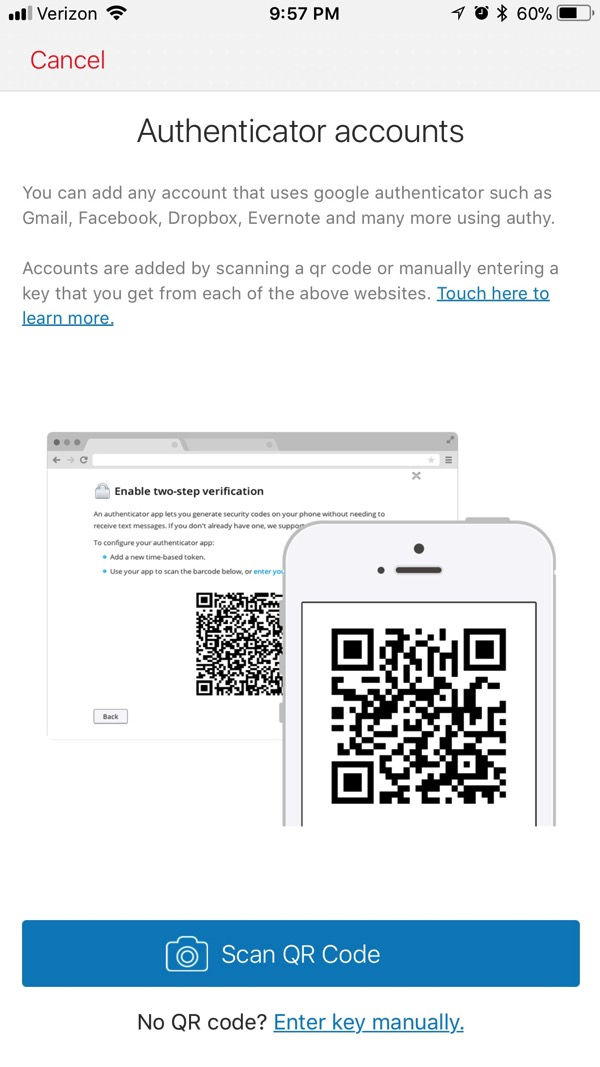
Choose “Scan QR Code” and boom. You are done. Usually, the site will ask you to enter one or two of the time based codes before you can continue. There is a backup code that normally gets generated. Save this in a secure location.
BTW: For those that thought I added an actual QR code from one of my sites…. think again. 🙂
Recent posts
-

-

DNS is one of those technologies that quietly underpins... Full Story
-

BGP issues on FortiGate firewalls usually trace back to... Full Story
-

Every time your laptop talks to your router, a... Full Story
-

If you've spent any time configuring NAT on a... Full Story
-

If you have spent any time configuring firewall policies... Full Story
-

High availability on FortiGate is one of those features... Full Story
-

If you've configured SD-WAN on a FortiGate, you've almost... Full Story
-

FortiLink is the management protocol that turns a FortiSwitch... Full Story
-

FortiSwitches are pretty rock solid from Mean Time Between... Full Story
-

This is a quicky tip. Have you ever gone... Full Story
-

DNS is one of those quiet pieces of internet... Full Story
-

This article is an updated version of the previous... Full Story
-

You will add ns2 as a secondary (slave) BIND9... Full Story
-

In the process of deploying my lab, I needed... Full Story
-

RFC 8805, used to be known as Self-Correcting IP... Full Story
-

Years back, I wrote an article about certificate pinning. ... Full Story
-

FortiGates have the ability to send alerts to Microsoft... Full Story
-

In this post, I am going to walk through... Full Story
-

Troubleshooting VoIP on a FortiGate can feel like trying... Full Story
-

Prior to FortiOS 7.0, there were three commands to... Full Story
-

In this post, I am going to go over... Full Story
-

What we are going to do: We are going... Full Story
-

Choosing between FGCP (FortiGate Clustering Protocol) and FGSP (FortiGate... Full Story
-

Creating a VLAN on macOS (The "Pro" Move) A... Full Story
-

This blog post explores the logic behind how macOS... Full Story
-

Pretty Fly for a Wi-Fi Tell My Wi-Fi Love... Full Story
-

Part of my daily gig is creating BoMs (Bill-of-Materials)... Full Story
-

ICMP introduces several security risks, but careful filtering, rate... Full Story
-

The command diag debug application dhcps -1 enables full... Full Story
-

In the world of FortiOS, execute tac report is... Full Story
-

LLDP; What is it The Link Layer Discovery Protocol... Full Story
-

What it actually does When you run diagnose fdsm... Full Story
-

Monkey Bites are bite-sized, high-impact security insights designed for... Full Story
-

I have run macOS in macOS with Parallels but... Full Story
-

Don't be confused with my other FortiNAC posts where... Full Story
-

This is the third session in a multi-part article... Full Story
-

Today I was configuring key-based authentication on a FortiGate... Full Story
-

Netcat, often called the "Swiss Army knife" of networking,... Full Story
-

At its core, IEEE 802.1X is a network layer... Full Story
-

In case you did not see the previous FortiNAC... Full Story
-

This is our 5th session where we are going... Full Story
-

Now that we have Wireshark installed and somewhat configured,... Full Story
-

The Philosophy of Packet Analysis Troubleshooting isn't about looking... Full Story
-

Objective: Understand Bidirectional Forwarding Detection on FortiOS, decide where... Full Story
-

Field Detail Objective Explain exactly what DHCP snooping inspects,... Full Story
-

The short version Single-click the Format Painter and it... Full Story