
At its core, IEEE 802.1X is a network layer... Full Story
By Manny Fernandez
February 7, 2026
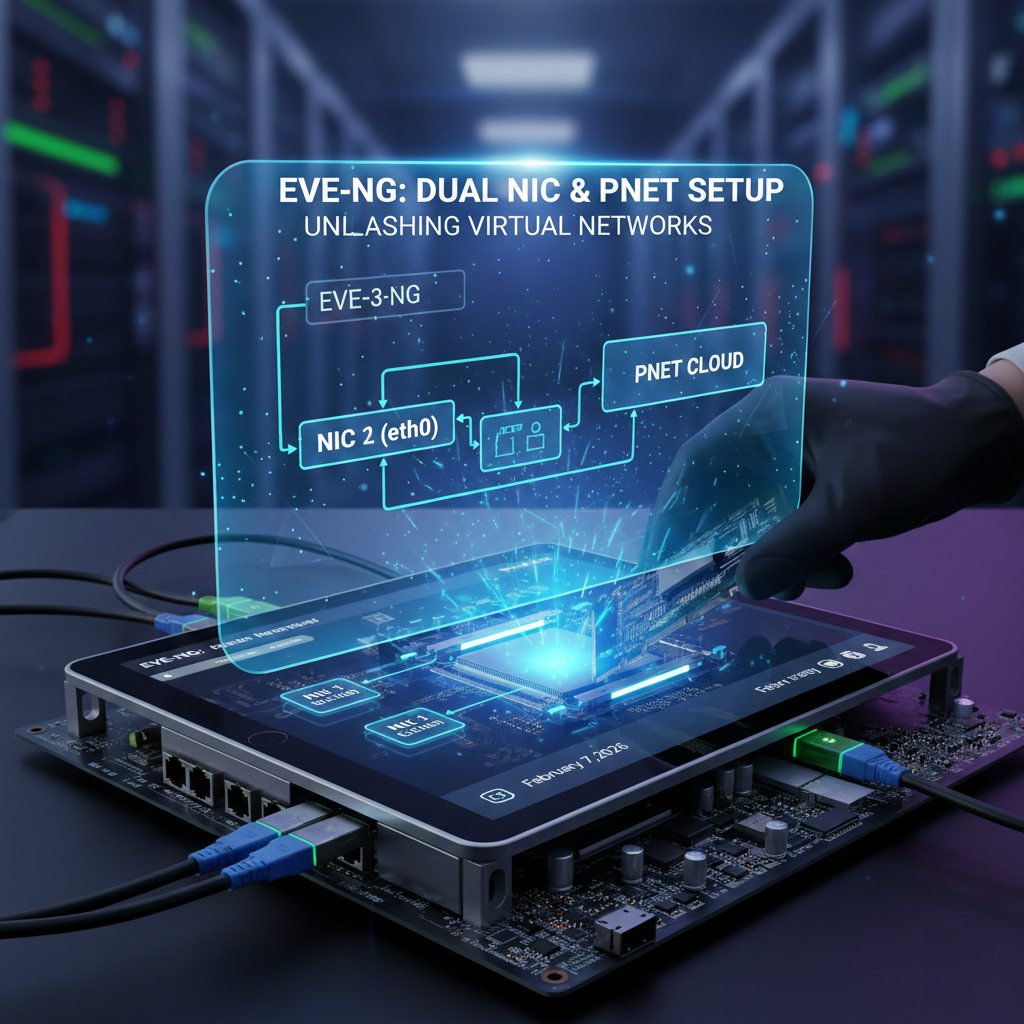
Adding Networks to you EVE-NG Installation
In EVE-NG, you may want to add additional NICs to you EVE-NG installation, whether that is a virtual NIC if you are running in a hypervised evnironment or a physical NIC if you are running a bare-metal server install.
In EVE‑NG, a pnet is a Linux bridge interface that the platform uses to connect your lab devices to the outside world or to the EVE‑NG host itself.
EVE‑NG creates up to 10 internal bridge interfaces named pnet0 through pnet9 on the host OS. Each pnet is typically associated with a specific physical NIC or virtual NIC of the EVE‑NG VM (for example, pnet0 ↔ eth0).
When you place a Cloud node in a lab and connect it to routers, switches, or VMs, you are actually connecting those devices’ interfaces to one of the pnet bridges in the host. Traffic from the lab goes into the selected pnet bridge and from there can be forwarded to the real network, to the management interface, or to another attached network on the hypervisor.
Use Cases
Internet access for lab routers: connect them to Cloud0 (pnet0), then use NAT on the host to masquerade that pnet’s subnet behind the EVE‑NG management IP.
Connecting to other VMs or physical gear: map a host NIC or a vSwitch port group to pnet1 (Cloud1), then connect lab devices to Cloud1 so they share that external segment.
pnets themselves do not run routing; they just bridge frames between your lab and host/external interfaces. If a pnet interface is down at the Linux level (for example, pnet1 showing NO‑CARRIER), devices connected to the corresponding Cloud in the GUI will not pass traffic externally until the underlying connectivity is fixed.
These 10 pnets are not a limitation on the number of nodes you can have inside a lab, that limitation is detemined by the licence or lack thereof on the EVE-NG system.
Node Limitations
Community Edition – you are limited to 63 nodes (devices) per lab, which practically limits the number of networks you can reasonably connect.
Pro Edition – supports up to 1024 nodes per lab.
Virtualization Limits
If you are connecting networks to the outside world (Cloud0-9), VMware typically allows a maximum of 10 network interface cards (NICs) per virtual machine. ProxMox does not have that limitation, however, there are resource contraints.
Resource Constraints – Each network object (cloud or bridge) consumes a small amount of memory on the EVE-NG VM. A very high number of networks, especially with high traffic, will cause CPU contention.
In ProxMox, you can attach dozens of NICs to a VM, far more than the
10 limitation of VMware. Many users run 16–32+ adapters without issue.The theoretical ceiling comes from PCI device addressing:
•Each PCI bus supports
32 devices•Additional virtual PCI bridges can be added
•Q35 machine type expands device addressing
Adding the VLAN on FortiGate
In my case, I have
vmbr1 connected to an 802.1q trunk port running a 40GB link where I have a bunch of VLANs. That is connected to a FortiSwitch 548D which is attached to my FortiGate 601E (need to upgrade it, maybe 700G) via two 10GB links connected via FortiLink. So my first step is to define the VLAN on my FortiGate.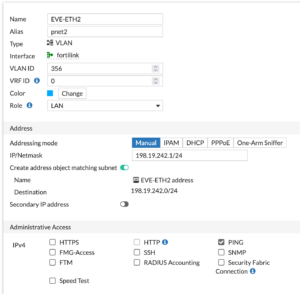
I have created a VLAN (
356) that I will use for the third interface on my EVE-NG ProxMox install (eth0, eth1 and now eth2). I gave it an IP address. I use RFC 2544 for my lab because I know that anyone I connect to is probably NOT running them. Note: If you decide to use them, these are traditionally part of the BOGON routes configured by some to be dropped. Ensure you add this interface to any corresponding policy and/or CentralSNAT policies as well as any route redistribution etc.ProxMox
The easiest part of this process is the adding of the ProxMox NIC. Go to your ProxMox GUI, select your
EVE-NG instance, in my case (only one host) its under pve.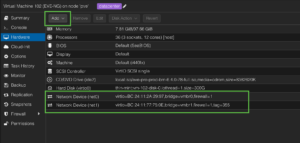
We are going to
add a new Network Device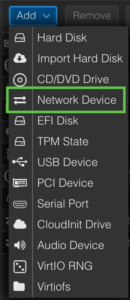
Now we are going to choose the appropriate Bridge (A)
vmbr1 which is my trunk port, and (B) we will define the tagging we want it to do, in my case 356.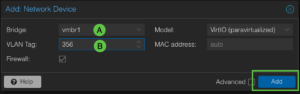
Once you hit add, you should now see the Interface in the
EVE-NG hardware inventory.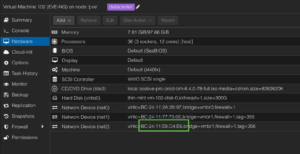
Make note of the MAC address so you can use it to ID the interface.
EVE-NG
Now lets SSH to the
EVE-NG instance. Let’s use the ip link show | grep "state UP" command to see what interfaces are up.
As we can see, eth2 is not showing up.
EVE-NG stores the configuration for the network cards in /etc/network in a file named interfaces. Lets take a look at mine.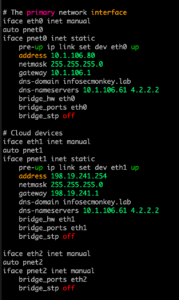
We can see that there is no configuration on
eth2 at the bottom. Use your editor of choice. I use vi so I will type vi /etc/network/interfaces and hit enter.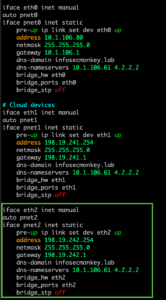
To test, I gave it the
ifconfig eth2 up command and we can see the interface now shows up. The pnet is not since I have not restarted the network.
To restart the network run systemctl restart networking which is
systemctl restart NetworkManager.serviceTesting Our Config
On the FortiGate, I will do a
diag sniffer packet any 'host 198.19.242.10 and icmp' 4 l 0 to capture any pings leaving the FortiGate with the 198.19.242.10 address.Now lets connect to the FortiGate in EVE-NG. We will assign an IP address of
198.18.242.10 and a gateway of 198.19.242.1 and end out to save.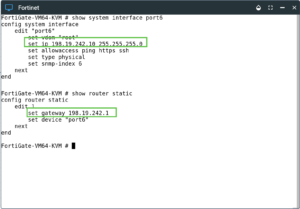
Above you can see my config on the FortiGate
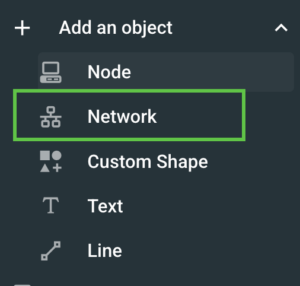
Now we will go the the
Add and object menu and choose Network.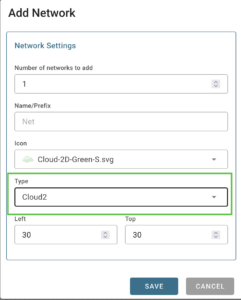
Now we are going to choose
Cloud2 under the Type and hit enter.Next we will connect the FortiGate’s
port6 to the newly created cloud “Cloud2“.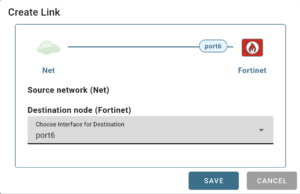
Since we used
port6 on the FortiGate node, choose that one here. Now lets generate some icmp traffic.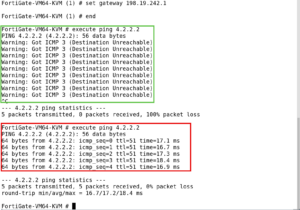
As you can see above, at first, the pings were failing. I had made a rooky mistake which I will explain in later.
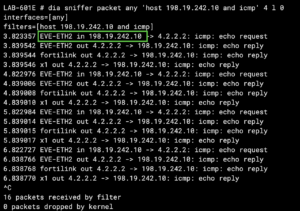
After I fixed my problem, I can now see the pings coming in from
EVE-ETH2 and the reverse traffic. Note: Since I was only filtering for 198.19.242.10 you do not see the packet as it leaves the FortiGate with the NAT’d IP, to capture the full path through the FortiGate, I could have used host 4.2.2.2 and icmp and it would have shown it.My Rooky Mistake
My ProxMox server connects to my FortiSwitch on port 53. On my port 53, I have
allowed VLANs for pruning VLANs. I needed to add my newly created VLAN to it. I guess I should update the part that saysEnsure you add this interface to any corresponding policy and/or CentralSNAT policies as well as any route redistribution etc.to include pruned VLANs

Recent posts
-

-

In case you did not see the previous FortiNAC... Full Story
-

This is our 5th session where we are going... Full Story
-

Now that we have Wireshark installed and somewhat configured,... Full Story
-

The Philosophy of Packet Analysis Troubleshooting isn't about looking... Full Story