
If you've spent any time configuring user authentication on... Full Story
By Manny Fernandez
February 7, 2026
Understanding Netplan on Linux
I remember back in the old days when I ran Red Hat on my Servers and Fedora on my desktop. Back when configuring networks relied on editing static, interface-specific text files in /etc/sysconfig/network-scripts/ (e.g., ifcfg-eth0) and using the network service to bring interfaces up or down. These files defined parameters like IP address, gateway, netmask, and DHCP usage, usually alongside manual DNS configuration in /etc/resolv.conf.
The shift from names like eth0 to ens192 or wlp2s0 wasn’t just to make things harder to type, it was a move toward Predictable Network Interface Names. In the old days, the kernel simply named interfaces as it discovered them during boot. If you had two network cards, the one that responded first became eth0. The main issue was non-determinism. If you added a new hardware card or even just updated your kernel, the enumeration order COULD change, and man did that wreak havoc on your day.
The Scenario – You set up a firewall rule for eth0 (your internet) and eth1 (your local network).
The Nightmare – After a reboot, the cards swap. Now your firewall is wide open on the internet side because the system named the local card eth0. This happened to me with the my Safe-T-Net firewalls running Red Hat and Check Point SPLAT boxes.
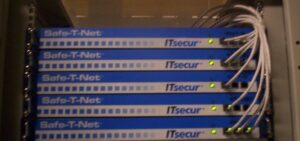
Caption: This was my Safe-T-Net firewall when I had my company, ITsecur.
DEVICE=eth0
BOOTPROTO=none
ONBOOT=yes
IPADDR=192.168.1.10
PREFIX=24
GATEWAY=192.168.1.1
DNS1=8.8.8.8
DNS2=8.8.4.4
USERCTL=no
Sample ifcfg-eth0 file for static IP
DEVICE=eth0
BOOTPROTO=dhcp
ONBOOT=yes
TYPE=Ethernet
# Other optional settings might be present, but are not necessary for basic DHCP
# PEERDNS=yes (This is the default for DHCP and ensures /etc/resolv.conf is updated)
# USERCTL=no (Non-root users cannot control this device)
The New Standard
The New Standard for naming interfaces is Systemd/udev
Most modern Linux distributions use a naming scheme based on the hardware’s physical location or firmware information. This ensures that even if you move a card to a different slot or reboot 100 times, the name stays the same.
Here is a breakdown of what those “random” letters actually mean:
1. The Prefix (Type of Interface)
en – Ethernet
wl – Wireless LAN (WLAN)
ww – Wireless Wide Area Network (WWAN)
2. The Suffix (The Location)
The letters following the prefix tell you where the device is plugged in:
o<index> – On-board (e.g., eno1). This is for ports built directly into the motherboard.
s<slot> – Hotplug slot (e.g., ens1). Common in virtual environments like VMware.
p<bus>s<slot> – PCI geographical location (e.g., enp2s0). This means Bus 2, Slot 0.
x<MAC> – Based on the MAC address (e.g., enx78e7d1ea46da). This is common for USB-to-Ethernet adapters because their “location” changes depending on which USB port you use.
Why ens you ask?
If you see ens, you are likely in a Virtual Machine or using a system with PCI Express Hotplug support. The s stands for “slot“. In a cloud environment (like AWS or a local Proxmox/ESXi setup), the virtual hardware is presented as being in specific virtual slots, hence names like ens3 or ens192.
Note – If you truly hate this, you can revert to the old naming by adding net.ifnames=0 biosdevname=0 to your GRUB boot parameters, but keep in mind you’ll be responsible for managing any naming conflicts that WILL arise!
Netplan
The Netplan method of network configuration was started by Canonical, the company behind Ubuntu. It was introduced as a way to centralize and simplify network management across various Ubuntu environments (Desktop, Server, Cloud, and IoT). It functions as an “abstraction renderer”—meaning you write a single configuration in YAML, and Netplan generates the complex back-end configuration for either systemd-networkd or NetworkManager.
Key Milestones in Netplan’s Development
-
Origins (2016): Development began around the Ubuntu 16.10 release cycle. It was born from the need to have a consistent network configuration method that worked well with cloud-init and modern, dependency-based boot models.
-
Adoption as Default (2018): Netplan became the default networking tool for Ubuntu 18.04 LTS (Bionic Beaver), replacing the long-standing
/etc/network/interfaces(ifupdown) method. -
Lead Developer: Lukas Märdian is the primary maintainer and lead developer at Canonical who has guided the project through its major milestones.
- Netplan 1.0 (April 2024): After more than seven years of development, version 1.0 was released alongside Ubuntu 24.04 LTS, signaling API/ABI stability and expanded support for advanced features like WPA3 and InfiniBand.
Why was it created?
Before Netplan, Linux administrators often had to learn different tools depending on the environment:
- Servers usually used ifupdown.
- Desktops used NetworkManager.
- Cloud instances relied on cloud-init.
By introducing Netplan, Canonical provided a unified YAML-based syntax that works across all these platforms, allowing a single configuration file to be portable between a physical server and a cloud instance.
In Ubuntu (and other Linux distributions using systemd), that numbering system isn’t just for organization, it’s actually a “priority mechanism“.
Netplan reads configuration files from /etc/netplan/ and applies them in a specific order. Since Netplan effectively merges these files into a single configuration for the back-end renderer (like NetworkManager or systemd-networkd), the order determines which setting wins if there’s a conflict.
The Lexicographical Rule
Netplan processes files in lexicographical order (alphabetical/numerical).
01-netcfg.yaml is read first.
50-cloud-init.yaml is read later.
99-custom-config.yaml would be read last.
If file 01 says an interface should use DHCP, but file 50 says that same interface should have a static IP, the higher number (50) wins, because it is processed later and overrides the previous instruction.
Common Naming Conventions
While you can technically name them anything ending in .yaml, the community and automated tools follow these standards:

Why this matters for you
If you are trying to change your IP address and your changes aren’t “sticking“, check if there is a file with a higher prefix number.
Pro Tip – If you want to manually configure your network and ensure the system doesn’t break it later, creating a file like 90-my-config.yaml is a safe bet. It ensures your settings are the final word in the sequence.
A good resource for all things Netplan is here.
Hope this helps.
Recent posts
-

-

DNS is one of those technologies that quietly underpins... Full Story
-

BGP issues on FortiGate firewalls usually trace back to... Full Story
-

Every time your laptop talks to your router, a... Full Story
-

If you've spent any time configuring NAT on a... Full Story
-

If you have spent any time configuring firewall policies... Full Story
-

High availability on FortiGate is one of those features... Full Story
-

If you've configured SD-WAN on a FortiGate, you've almost... Full Story
-

FortiLink is the management protocol that turns a FortiSwitch... Full Story
-

FortiSwitches are pretty rock solid from Mean Time Between... Full Story
-

This is a quicky tip. Have you ever gone... Full Story
-

DNS is one of those quiet pieces of internet... Full Story
-

This article is an updated version of the previous... Full Story
-

You will add ns2 as a secondary (slave) BIND9... Full Story
-

In the process of deploying my lab, I needed... Full Story
-

RFC 8805, used to be known as Self-Correcting IP... Full Story
-

Years back, I wrote an article about certificate pinning. ... Full Story
-

FortiGates have the ability to send alerts to Microsoft... Full Story
-

In this post, I am going to walk through... Full Story
-

Troubleshooting VoIP on a FortiGate can feel like trying... Full Story
-

Prior to FortiOS 7.0, there were three commands to... Full Story
-

In this post, I am going to go over... Full Story
-

What we are going to do: We are going... Full Story
-

Choosing between FGCP (FortiGate Clustering Protocol) and FGSP (FortiGate... Full Story
-

Creating a VLAN on macOS (The "Pro" Move) A... Full Story
-

This blog post explores the logic behind how macOS... Full Story
-

Pretty Fly for a Wi-Fi Tell My Wi-Fi Love... Full Story
-

Part of my daily gig is creating BoMs (Bill-of-Materials)... Full Story
-

ICMP introduces several security risks, but careful filtering, rate... Full Story
-

The command diag debug application dhcps -1 enables full... Full Story
-

In the world of FortiOS, execute tac report is... Full Story
-

LLDP; What is it The Link Layer Discovery Protocol... Full Story
-

What it actually does When you run diagnose fdsm... Full Story
-

Monkey Bites are bite-sized, high-impact security insights designed for... Full Story
-

I have run macOS in macOS with Parallels but... Full Story
-

Don't be confused with my other FortiNAC posts where... Full Story
-

This is the third session in a multi-part article... Full Story
-

Today I was configuring key-based authentication on a FortiGate... Full Story
-

Netcat, often called the "Swiss Army knife" of networking,... Full Story
-

At its core, IEEE 802.1X is a network layer... Full Story
-

In case you did not see the previous FortiNAC... Full Story
-

This is our 5th session where we are going... Full Story
-

Now that we have Wireshark installed and somewhat configured,... Full Story
-

The Philosophy of Packet Analysis Troubleshooting isn't about looking... Full Story
-

Executive Summary Objective: Get you from zero to writing... Full Story
-

NAND cells, the flash translation layer, SLC caching, TRIM,... Full Story
-

Nmap Scripting Engine (NSE): From One-Liners to Your First... Full Story