
Part of my daily gig is creating BoMs (Bill-of-Materials)... Full Story
By Manny Fernandez
March 18, 2026
Automate Commenting on macOS File System
Part of my daily gig is creating BoMs (Bill-of-Materials) and although I follow a strict naming convention and automated folder structure that is triggered with a macOS keystroke shortcut, I sometimes want to use the metadata field of the file to write information pertinent to me, the customer, the project, the options etc. I wanted to automate this. Although I could hit ⌘ i move to the comment section, add the comment, then save it and close the get info page, I wanted something cleaner. Here is my attempt at cleaner. I chose to run an Applescript because all I use is Apple products.
Setting Up a Quick Action
Setting up a keyboard shortcut for file comments involves two steps: creating a Quick Action (service) in Automator and then assigning a Keyboard Shortcut in System Settings.
Step 1: Create the Quick Action
-
Open
Automator(found in your Applications folder). -
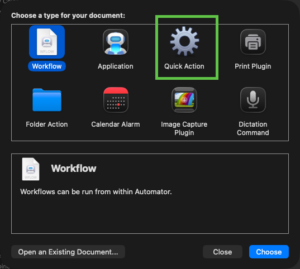
Select
New Documentand chooseQuick Action.
-
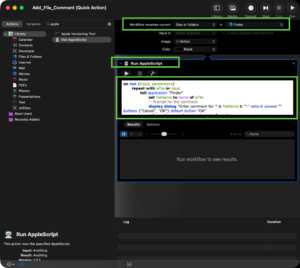
At the top of the workflow, set the dropdowns to:
-
Workflow receives current:
files or folders -
in:
Finder
-

-
Search for “AppleScript” in the library and drag the
Run AppleScriptaction into the workflow area. -
Replace the default code with this script:
on run {input, parameters}
repeat with aFile in input
tell application "Finder"
set fileName to name of aFile
-- Prompt for the comment
display dialog "Enter comment for '" & fileName & "':" default answer "" buttons {"Cancel", "OK"} default button "OK"
set userComment to text returned of result
-- Apply the comment to the file metadata
set comment of aFile to userComment
end tell
end repeat
return input
end run
You should have something like this…..
- Save the Quick Action and name it something like ”
Add_File_Comment“.
Step 2: Assign the Keyboard Shortcut
Now that the script exists as a system service, you need to trigger it with keys.
-
- Go to
System Settings>Keyboard>Keyboard Shortcut
- Go to
-
Select
Servicesfrom the left sidebar. -
Look under
Files and Foldersto find your “Add_File_Comment” service. -
Double-click “
none” (or the space next to it) and press your desired key combination
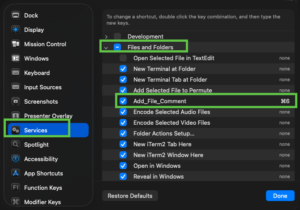
In my environment, I use the ⌘ 6
Step 3: How It Works

I created a test file, although in the real world, it would look something like this 20260318-FortiSASE 1800U 3Y ADV-v1
In my Get Info page, you can see there are no comments.
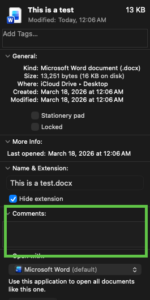
I cut off the bottom half so it would fit the screen better.
When I hit the ⌘ 6 keystroke, I get a pop up…..
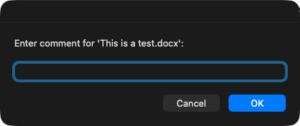
I now enter the data I want in the file comment
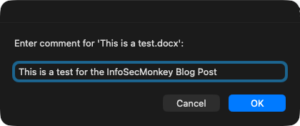
And then when I hit OK, it disappears and I can keep working.
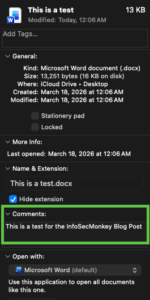
Now you can see the Comments
Step 4: Make it Better
When you are looking through your Finder, you may want to show the comments column so you can look for your comments.
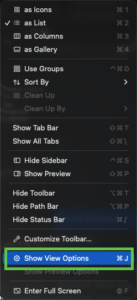
Open up your Finder, and click on the View menu button. Then choose Show View Options
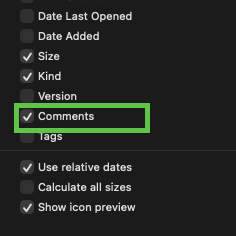
Choose Comments
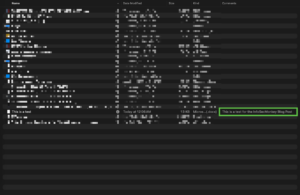
Now when you open your Finder again, you should see your comment column and the text on each file.
Recent posts
-

-

ICMP introduces several security risks, but careful filtering, rate... Full Story
-

The command diag debug application dhcps -1 enables full... Full Story
-

In the world of FortiOS, execute tac report is... Full Story
-

LLDP; What is it The Link Layer Discovery Protocol... Full Story
-

What it actually does When you run diagnose fdsm... Full Story
-

Monkey Bites are bite-sized, high-impact security insights designed for... Full Story
-

I have run macOS in macOS with Parallels but... Full Story
-

Don't be confused with my other FortiNAC posts where... Full Story
-

This is the third session in a multi-part article... Full Story
-

Today I was configuring key-based authentication on a FortiGate... Full Story
-

Netcat, often called the "Swiss Army knife" of networking,... Full Story
-

At its core, IEEE 802.1X is a network layer... Full Story
-

In case you did not see the previous FortiNAC... Full Story
-

This is our 5th session where we are going... Full Story
-

Now that we have Wireshark installed and somewhat configured,... Full Story
-

The Philosophy of Packet Analysis Troubleshooting isn't about looking... Full Story