
At its core, IEEE 802.1X is a network layer... Full Story
By Manny Fernandez
December 30, 2025

Using Multiple SSH Keys in SecureCRT and macOS CLI
When you have multiple customers or multiple servers in your environment and you want to use multiple SSH keys to connect here is how to do it on both SecureCRT and via the macOS/Linux CLI.
SecureCRT
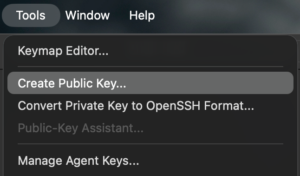
When you open SecureCRT, go to Tools then Create Public Key
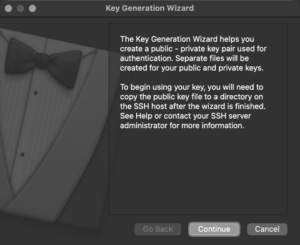
On the Key Generation Wizard choose Continue
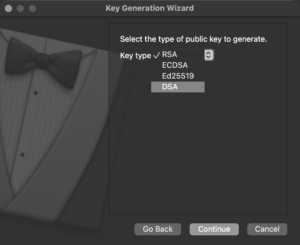
Next we can choose the Key Type . RSA is being phased out so I use ED25519
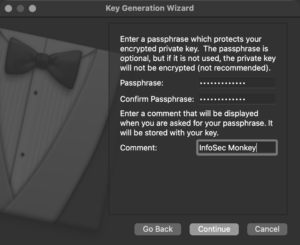
Then we want to choose a Passphrase . Note: This will be asked each time you connect. I do not recommend leaving the passphrase blank.
Next we have Key Length . With ED25519 the default is 256
The key will now generate

Now hit Continue to save the key pair.
I am using iCloud Drive to sync my Documents and Desktop. I have my Vandyke folder in my Documents folder so it is synchronized to all my macBooks and Mac Studio. It ~/Documents/Vandyke/Configs/Keys
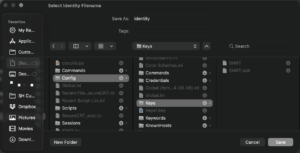
Give it a meaningful name and hit Save
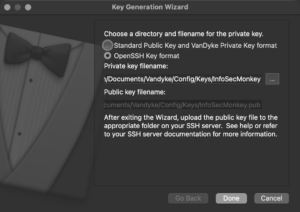
I like to use the OpenSSH Key Format so I can use them via CLI if SecureCRT fails.
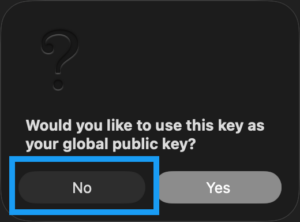
Since we want to use multiple keys, your answer to this should be No
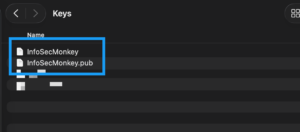
If you browse to the folder, you will see two files with the name you gave the key pair above. The .pub is the public part of the key pair, while the one without an extension is the private key, which you should not share. Makes it easy to remember.
SecureCRT Session
Now lets create a new Session although you can use an existing Session as well.
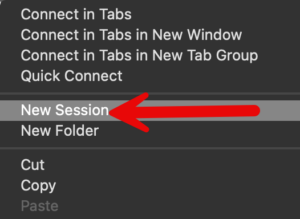
Lets create a new Session
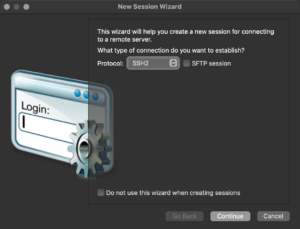
Under Protocol, we will choose SSH2
Give the Session an IP address or FQDN
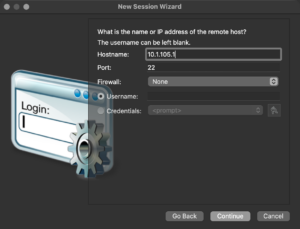
Give it your username in the case of a FortiGate (see below for the FortiGate Config)
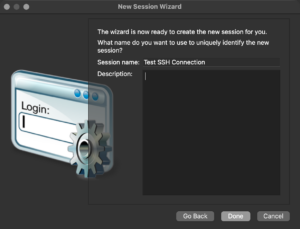
Name the Session and click Done
Now right click on the new Session and go to Properties and click on SSH2
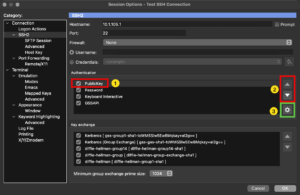
Now we will (1) click on the PublicKey In the center, and use the arrows (2) on the right to move the Authentication method to the top. Then choose the cog (3).
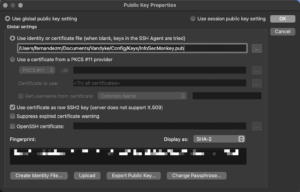
No browse to your .pub file and hit OK
Configuring the FortiGate for SSH Key Auth
On the FortiGate, you will need to go to the admin user section by typing the following

Make sure you use the "". You can cat or edit the .pub file. Save the key info.
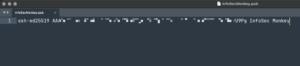
Ensure you have SSH enabled on the administrative access of the Interface you are planning to connect to the FortiGate on.

macOS / Linux Command Line
On the CLI for macOS and Linux, the default location for the SSH keys is in the ~/.ssh of each user home folder.
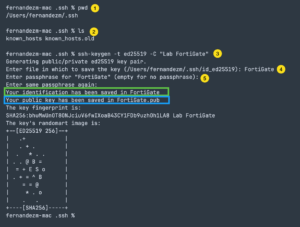
- I am showing the working directory with the pwd command
- I am showing the files currently in the directory by typing the ls command
- I am not going to use the
ssh-keygento generate the key-pair. The-Tmeanstypethen I am telling to use theed25519rather than thersadefault, then the-CIs a comment. - You will be asked what you want to name this key-pair
- You will be asked to give it a passphrase for this key-pair.
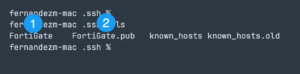
Now when we run an ls we can see the two new files
Getting the public keys to the server
On Linux boxes and other supported platforms, you can use the ssh-copy-id command to push the key to the server in question. The command for that is:
ssh-copy-id -I ~/.ssh/FortiGate.pub and enter. It will ask you to auth with a password.
NOTE: This does NOT work on the FortiGate (even though I used the name here). You will need to follow the Configuring the FortiGate for SSH Key Auth
To connect to a server using the key, the syntax is as follows ssh -I ~/.ssh/FortiGate NOTE: You are using the Private portion of the key pair.
You can use ssh-agent to cache the files, but I do not.
Recent posts
-

-

In case you did not see the previous FortiNAC... Full Story
-

This is our 5th session where we are going... Full Story
-

Now that we have Wireshark installed and somewhat configured,... Full Story
-

The Philosophy of Packet Analysis Troubleshooting isn't about looking... Full Story