
At its core, IEEE 802.1X is a network layer... Full Story
By Manny Fernandez
December 24, 2025

Workflow 2026
Back in 2016, I wrote a blog post after using macOS for 1 year. Much has changed since then.

Lets start with replacing OmniFocus. In the past, my workflow was more projects based. I was running multiple projects at once, sometimes 12 with the help of my PM. However my work flow has changed and today, its more along the lines of tasks like order this, contact this person, research X, Y or Z. Apple has come a long way with their reminders app. I am currently using that to manage my tasks. Its deep integration in macOS, Siri and Apple AI, allow me to interact with it at an entire different level. I still love Omni Focus, its just overkill for what I do today.

I am still an avid Text Expander user. Today, I work alongside a sales rep. My old rep struggled with emails I would send him. One of the shortcuts I use today is a ‘;’ and ebom at the new email prompt which triggers the following:
- It prompts me for the customer name, the products, and the length of time the customer wants subscription for.
- Then enters my sales reps email, and tabs twice
- Then it concatenates info and creates a subject line
BOM: %customername% for %products%then does tab once more. - Then says
%Sales Rep's Name%. and gives information from which I filled in on the popup. - Allows me to attach a file, which I do but I add a tag to it (cover next) and send.
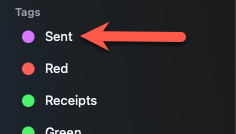
When my sales rep would tell me “you did not send me….” I look at the file, if it has a purple tag that says Sent I know I sent it. I would tell him search for BOM: %Customer% and then he would say, “oh there it is”.

Evernote replacement. I used Evernote for a lifetime it seems, but again, Apple has stepped up its game and has improved its Notes app. I exported all my thousands of notes from Evernonte into Apple Notes and now I am all in on Apple Notes. I do miss some of the Evernote features such as the OCR on attachments, but I know Apple will continue to add features.

1Password. I still use 1 Password and expanded it to the family plan where my wife and two kids are now using it as well. I can share passwords with my son that is in college and share passwords with the wife. Allows up to 6 people with the family plan.

SecureCRT is wonderful. Although it is not my top app from a usage perspective, I still use It and love what it does. I cleaned up the connections page since my role changed, but still use it.

I stopped using UltraEdit which I had used for decades. Mostly because of the cost and my usage. I was not using the features they were developing for the product and did not see the value in paying for a sub-set of features. It is a great product, and I am sure those using the feature find it valuable. I moved to Sublime Text. I paid for the license even though the license model is strange. Fantastic platform. I wrote a bunch of articles on how I use it.

Although I prefer BusyCal for my calendar of choice, my Company’s O365 will not allow me to use it. I have switched to Apple Calendar since it is allowed and allows me to interact with the corp O365 and my personal/family iCloud calendars.

This is one of my most used apps. Drafts creates a new note if you will, when you open the app. I use it as a scratchpad and a repository for things that need to be filed next. Example, someone is going to give me there number, instead of searching for contact, adding new, moving to the different fields and entering the data, I just open Drafts and jot it down. Later I can move to my contacts.

My most used app on macOS. Snagit struggled a bit when they went from a primarily Windows platform to multi platform. Feature parity was non existent. They heard from me all the time. Today I use this ~40-50 a day. Either sending an email to a customer, my sales guy, CYA, etc. Well worth the subscription.

Shortcut Bar is a little app that runs in the menu bar. You can create links to folders, files, etc. I currently use this for our price list document. I don’t need to search the folder structure for the file. Its two click away all the time.

Applescript. I use the heck out of this in my workflow. The biggest use for this is my projects folder. For every customer, I have a project folder that lives inside the customer folder.
When I hit ⌘ 8 I will get a pop up asking me the job name
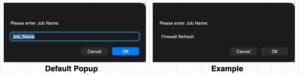
After you give it a project name such as Firewall Refresh and hit OK it will ask you the Customer Name. Enter that and hit OK.
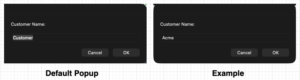
Once you hit OK, it will ask you for a location to save the file structure.
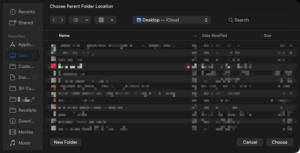
Choose the location and hit Choose
A few things happen here. One of those is that a Apple Notes gets created in a particular Business folder.

You can see that it adds the location you created the folder. This can now be used to save all of your notes for this particular project for this particular customer.
Here is the tree output so you can see the folders I create. They make sense to me but your mileage may vary.
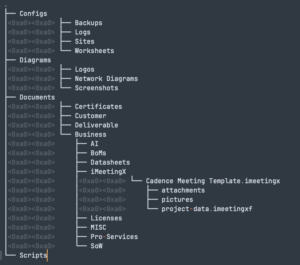
**Apple Script Below**
on run {input, parameters}
set incomingDate to (current date)
set yr to year of incomingDate as text
set mo to (month of incomingDate as number) as text
if ((length of mo) = 1) then set mo to "0" & mo
set dy to day of incomingDate as text
if ((length of dy) = 1) then set dy to "0" & dy
set nowDate to (yr & mo & dy) as text

-- Ask user for info
set jobName to text returned of (display dialog "Please enter Job Name:" default answer "Job_Name")
set customerName to text returned of (display dialog "Customer Name:" default answer "Customer")
set dateNow to nowDate
set loc to choose folder with prompt "Choose Parent Folder Location"

set newfoldername to dateNow & "-" & jobName
set superjob to customerName & "-" & jobName

tell application "Finder"
-- Parent
set dir_1 to make new folder at loc with properties {name:newfoldername}
set dir_2 to make new folder at dir_1 with properties {name:"Configs"}
set dir_3 to make new folder at dir_1 with properties {name:"Diagrams"}
set dir_4 to make new folder at dir_1 with properties {name:"Documents"}
make new folder at dir_1 with properties {name:"Scripts"}

-- Subfolders
make new folder at dir_2 with properties {name:"Backups"}
make new folder at dir_2 with properties {name:"Logs"}
make new folder at dir_2 with properties {name:"Sites"}
make new folder at dir_2 with properties {name:"Worksheets"}

make new folder at dir_3 with properties {name:"Logos"}
make new folder at dir_3 with properties {name:"Screenshots"}
make new folder at dir_3 with properties {name:"Network Diagrams"}

make new folder at dir_4 with properties {name:"Customer"}
make new folder at dir_4 with properties {name:"Deliverable"}
make new folder at dir_4 with properties {name:"Certificates"}
set sub_4_4 to make new folder at dir_4 with properties {name:"Business"}

-- Business subfolders
make new folder at sub_4_4 with properties {name:"BoMs"}
make new folder at sub_4_4 with properties {name:"Licenses"}
make new folder at sub_4_4 with properties {name:"SoW"}
make new folder at sub_4_4 with properties {name:"Pro-Services"}
make new folder at sub_4_4 with properties {name:"MISC"}
set sub_iMeetingX to make new folder at sub_4_4 with properties {name:"iMeetingX"}
make new folder at sub_4_4 with properties {name:"AI"}
make new folder at sub_4_4 with properties {name:"Datasheets"}
end tell

-- Copy a file into Business/iMeetingX
try
set sourceFile to POSIX file "/Users/fernandnezm/Documents/Data/iMeetingX/Cadence/Cadence Meeting Template.imeetingx"
tell application "Finder" to duplicate sourceFile to sub_iMeetingX with replacing
on error number -128
-- user cancelled; do nothing
end try

-- Put path on clipboard (optional)
tell application "Finder" to set the clipboard to ((dir_1 as alias) as text)

-- Create a Notes note
tell application "Notes"
activate
make new note at folder "Business" with properties {name:superjob, body:(POSIX path of (dir_1 as alias))}
end tell

return input
end run

Apple Shortcuts have come a long way. I use the heck out of this app on both macOS and IOS. In Shortcuts, you can create folders to filter your shortcuts
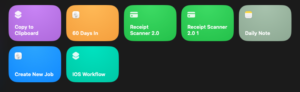
On my Copy to Clipboard shortcut it will allow me to grab text off of any portion of the screen and copy it to the clipboard. I created an article with a how to. On the 60 Days In shortcut, it will tell me what the date was 60 days ago. This is important because my company will not cover expenses greater than 60 days old. The receipt scanners is what I use on my IOS device. It pops up and asks me the location, if its an itemized or cut sheet, then writes the file with the location name, cut or item and saves it to my iCloud. The Create New Job Is the equivalent of the Apple Script but does it from an IOS device.

Setapp is a paid subscription service that gives you access to hundreds of quality titles for a small subscription price.
Here is the link
I don’t get paid on it, so its on you. Some of the apps I use from SetApp are:
- Bartender – Menu Bar cleaner
- Downie – Download content from YouTube and others
- Nitro PDF Pro – Everything you need for PDFs
- Pop Clip – Copy/Paste on steroids
- Houdah Spot – Search and Find app
- In Your Face – Monitors you calendar and gives you a full screen alarm when you need to join a meeting.
- iBoySoft NTFS – Allows you to write to NTFS
- Hookmark – Linking files, websites and folders
- Presentify – For online presentations to customers. I wrote an article about it.
- iMeetingX – Helps me run meetings like a PM
- Busy Contacts – 1000X times better than macOS
- CleanMyMac – Utilities
With the savings of any one of the apps I use, it pays for the subscription.
Loopback
Have you ever jumped on a Teams or Zoom call and wanted to record it via QiuckTime player or similar but did not want to capture the surrounding ambiance around you like the dogs barking etc,? Loopback solves that problem.
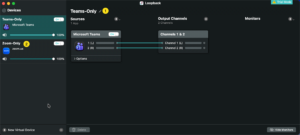
As you can see in the picture above, you create a virtual microphone tied to an application. Then in your application (e.g. QuickTime Player)
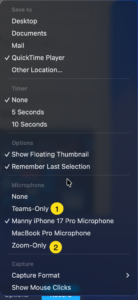
Here in QuickTime, you can see the Virtual Mics I created in Loopback.
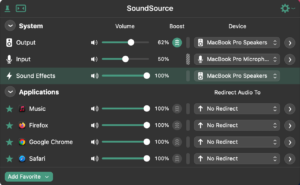
SoundSource

Have you ever been on a listen-only Teams or Zoom etc. Or have you ever had to be on a training video you really don’t need but need to watch it? The issue is on a mac at least, you cannot control the input of the apps independently. SoundSource allows you to do this. You can basically mute an app altogether.
Hope this helps.
Recent posts
-

-

In case you did not see the previous FortiNAC... Full Story
-

This is our 5th session where we are going... Full Story
-

Now that we have Wireshark installed and somewhat configured,... Full Story
-

The Philosophy of Packet Analysis Troubleshooting isn't about looking... Full Story