
If you've spent any time configuring user authentication on... Full Story
By Manny Fernandez
September 19, 2019
Login Banner on Fortigate Firewalls
Not only is it good InfoSec Hygiene but most regulatory bodies require login banners. With the Fortigate, it is easy to set up. It will require a command line entry and then a GUI modification. Her we go.
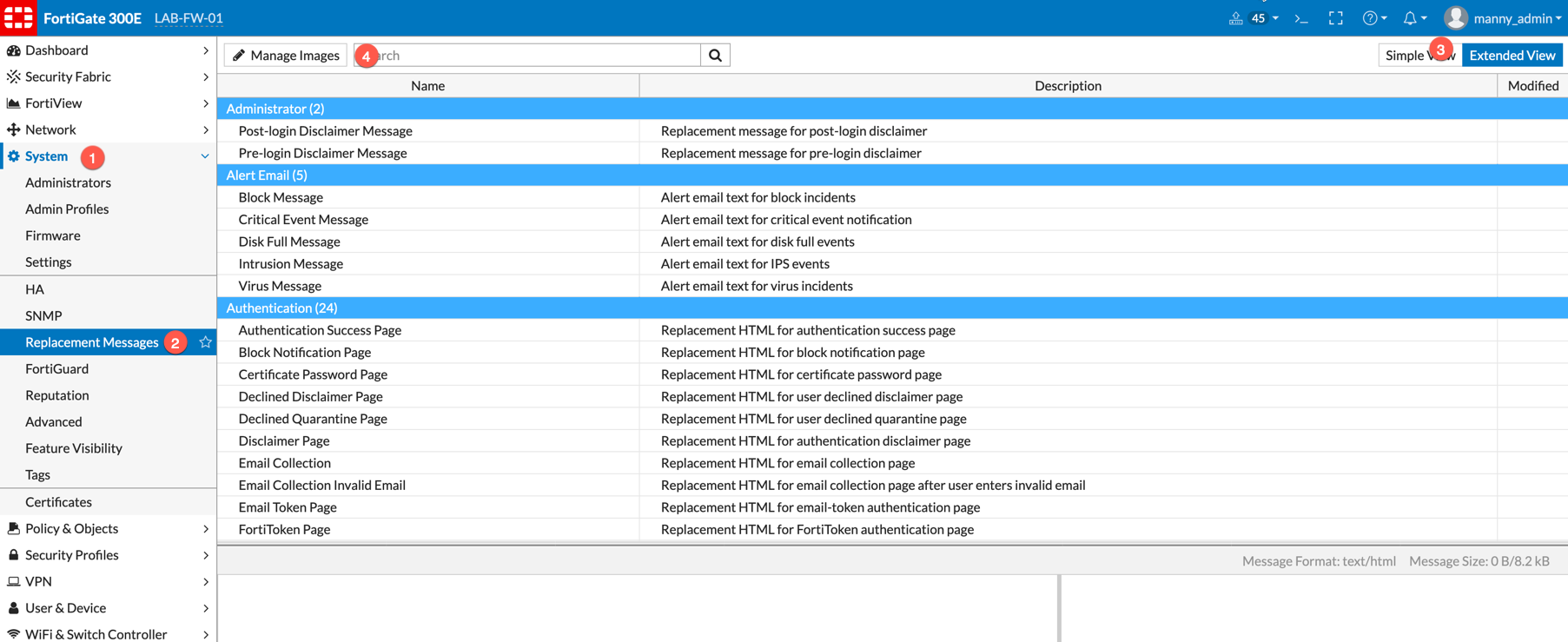 On the Fortigate, you will need to:
- Go to System
- Replacement Messages
- Choose the Extended View
- Enter
preand hit the search icon
You will then find..

Pre-Logon Disclaimer Message section.
Modify you content as needed…
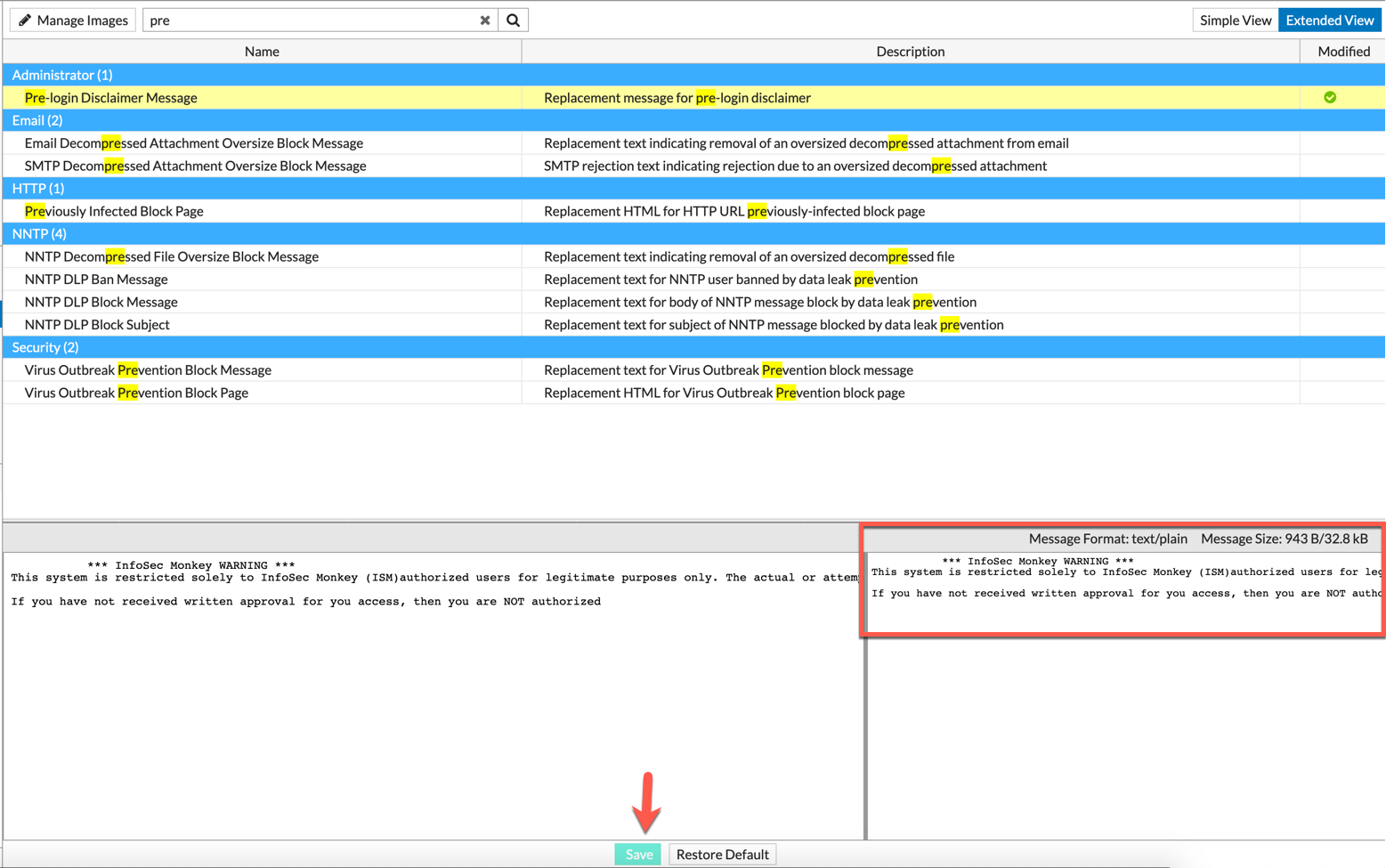
Do not worry about the spacing, as it will fix itself when it is displayed. Mine looks looked like this:
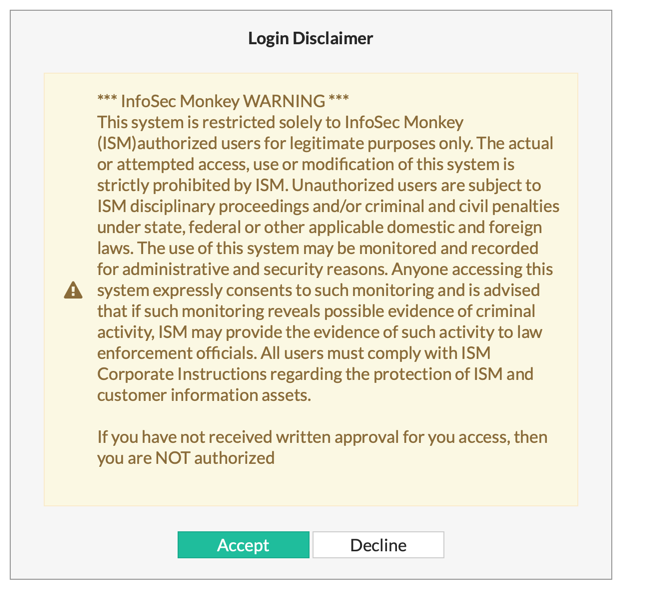
*** InfoSec Monkey WARNING ***
This system is restricted solely to InfoSec Monkey (ISM)authorized users for legitimate purposes only. The actual or attempted access, use or modification of this system is strictly prohibited by ISM. Unauthorized users are subject to ISM disciplinary proceedings and/or criminal and civil penalties under state, federal or other applicable domestic and foreign laws. The use of this system may be monitored and recorded for administrative and security reasons. Anyone accessing this system expressly consents to such monitoring and is advised that if such monitoring reveals possible evidence of criminal activity, ISM may provide the evidence of such activity to law enforcement officials. All users must comply with ISM Corporate Instructions regarding the protection of ISM and customer information assets.

If you have not received written approval for you access, then you are NOT authorized
Make sure you hit Save on the bottom.
Now, lets head to the CLI
config sys global
set pre-login-banner enable
end
Now log out and log back in
Recent posts
-

-

DNS is one of those technologies that quietly underpins... Full Story
-

BGP issues on FortiGate firewalls usually trace back to... Full Story
-

Every time your laptop talks to your router, a... Full Story
-

If you've spent any time configuring NAT on a... Full Story
-

If you have spent any time configuring firewall policies... Full Story
-

High availability on FortiGate is one of those features... Full Story
-

If you've configured SD-WAN on a FortiGate, you've almost... Full Story
-

FortiLink is the management protocol that turns a FortiSwitch... Full Story
-

FortiSwitches are pretty rock solid from Mean Time Between... Full Story
-

This is a quicky tip. Have you ever gone... Full Story
-

DNS is one of those quiet pieces of internet... Full Story
-

This article is an updated version of the previous... Full Story
-

You will add ns2 as a secondary (slave) BIND9... Full Story
-

In the process of deploying my lab, I needed... Full Story
-

RFC 8805, used to be known as Self-Correcting IP... Full Story
-

Years back, I wrote an article about certificate pinning. ... Full Story
-

FortiGates have the ability to send alerts to Microsoft... Full Story
-

In this post, I am going to walk through... Full Story
-

Troubleshooting VoIP on a FortiGate can feel like trying... Full Story
-

Prior to FortiOS 7.0, there were three commands to... Full Story
-

In this post, I am going to go over... Full Story
-

What we are going to do: We are going... Full Story
-

Choosing between FGCP (FortiGate Clustering Protocol) and FGSP (FortiGate... Full Story
-

Creating a VLAN on macOS (The "Pro" Move) A... Full Story
-

This blog post explores the logic behind how macOS... Full Story
-

Pretty Fly for a Wi-Fi Tell My Wi-Fi Love... Full Story
-

Part of my daily gig is creating BoMs (Bill-of-Materials)... Full Story
-

ICMP introduces several security risks, but careful filtering, rate... Full Story
-

The command diag debug application dhcps -1 enables full... Full Story
-

In the world of FortiOS, execute tac report is... Full Story
-

LLDP; What is it The Link Layer Discovery Protocol... Full Story
-

What it actually does When you run diagnose fdsm... Full Story
-

Monkey Bites are bite-sized, high-impact security insights designed for... Full Story
-

I have run macOS in macOS with Parallels but... Full Story
-

Don't be confused with my other FortiNAC posts where... Full Story
-

This is the third session in a multi-part article... Full Story
-

Today I was configuring key-based authentication on a FortiGate... Full Story
-

Netcat, often called the "Swiss Army knife" of networking,... Full Story
-

At its core, IEEE 802.1X is a network layer... Full Story
-

In case you did not see the previous FortiNAC... Full Story
-

This is our 5th session where we are going... Full Story
-

Now that we have Wireshark installed and somewhat configured,... Full Story
-

The Philosophy of Packet Analysis Troubleshooting isn't about looking... Full Story
-

InfoSecMonkey Threat Response October 24, 2026 | No fluff.... Full Story
-

InfoSecMonkey Threat Response October 24, 2026 | No fluff.... Full Story
-

Plus what you actually get with FortiCare Essential, Premium... Full Story