
If you've spent any time configuring user authentication on... Full Story
By Manny Fernandez
September 5, 2026
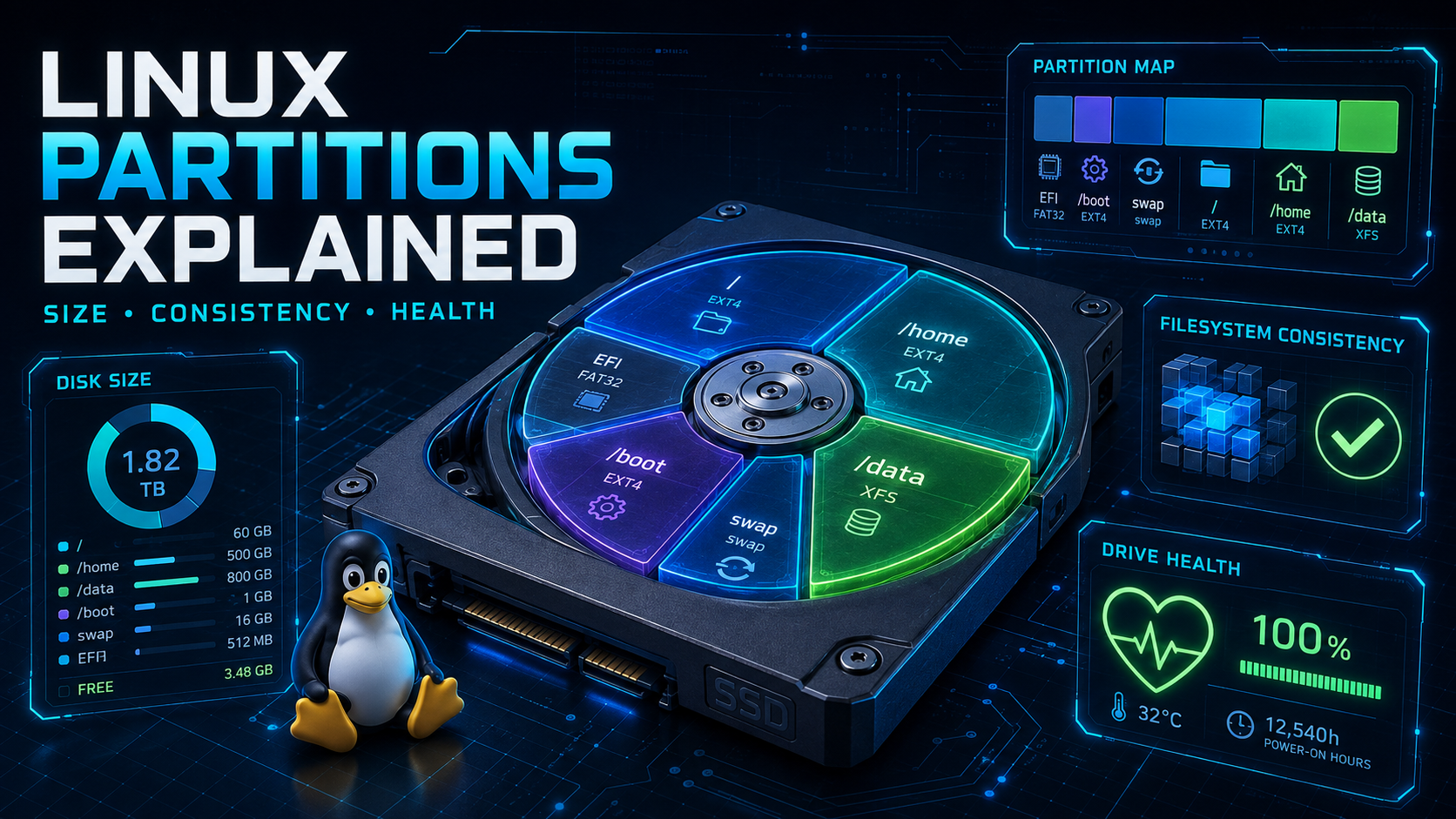
Linux Partition Types Explained: What they do, checking size, consistency and health
Executive Summary
Objective: Give a practitioner-level walkthrough of the partitions and mount points you’ll find on a typical Linux system, what each one is actually for, and the exact commands to check size, usage, filesystem consistency, and physical drive health for each.
Target audience: Sysadmins, SEs, and security engineers who need a working mental model of Linux storage layout, not a filesystem theory lecture.
Every Linux box, from a Raspberry Pi to a production log server, carves its storage into a handful of standard partitions. Get the layout wrong and you end up with a full root filesystem taking down a service at 2 AM because /var/log ate the last few gigabytes. This guide covers what each partition does, then gives you the command set to check its size, usage, filesystem integrity, and hardware health.
Partitions, Filesystems, and Mount Points: Quick Clarification
Three terms get used interchangeably and they are not the same thing:
- Partition: a physical or logical slice of a block device (a disk), defined in the partition table (MBR or GPT).
- Filesystem: the data structure written onto that partition (ext4, XFS, Btrfs, FAT32, and so on) that actually organizes files and directories.
- Mount point: the directory in the Linux filesystem hierarchy where that partition’s filesystem gets attached, like /home or /var.
A single disk can hold several partitions, each formatted with a different filesystem, each mounted at a different point in the tree. That is the layout this guide walks through.
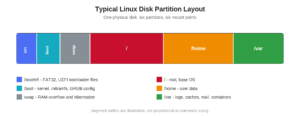
Figure 1: A typical single-disk layout across six standard partitions.
The Core Linux Partitions
/ (Root)
The top of the filesystem hierarchy. Everything else hangs off of this directory unless it has its own separate partition. On a minimal single-partition install, root holds the entire OS: binaries, configuration, libraries, and any directory that was not broken out separately. Even on a multi-partition layout, root still owns the parts of the tree nobody split off, like /etc, /bin, /sbin, and /lib (or their /usr-merged equivalents on modern distros).
/boot (Bootloader and Kernel)
Holds the Linux kernel image (vmlinuz), the initial RAM disk (initramfs/initrd), and the bootloader’s configuration (GRUB’s grub.cfg). This gets its own partition on many production and encrypted installs for two reasons: the bootloader needs to read it before any complex filesystem or encryption layer is unlocked, and keeping it small and separate protects it from filling up when root is under disk pressure.
/boot/efi (EFI System Partition)
On UEFI systems, this is a small FAT32 partition (commonly 100 MB to 512 MB) that holds the EFI bootloader binaries the firmware reads directly (grubx64.efi and similar). It has to be FAT32 because that is what the UEFI firmware itself knows how to read. Legacy BIOS/MBR systems do not have this partition at all.
swap
Not a mount point in the traditional sense (it has no directory), but a partition (or file) the kernel uses as overflow for RAM. Pages get written out to swap under memory pressure, and it also backs hibernation (suspend-to-disk) on systems that support it. Undersized swap on a memory-hungry box shows up as OOM-killer events; oversized swap on a server just wastes disk.
/home
User data and per-user configuration. Isolating this on its own partition is a classic move because it lets you reinstall or reimage the OS without touching user files, and it lets you cap runaway user disk usage independently of the OS.
/var
Variable data: logs (/var/log), package manager caches, mail spools, container image layers if you are running Docker or Podman with default storage drivers, and application data that changes constantly. This is the single most common cause of an unplanned full disk on a Linux server, usually from unrotated logs. It deserves its own partition on any server-class box specifically so a log flood fills /var instead of taking root down with it.
/tmp
Temporary files that most applications assume get cleared on reboot. Frequently mounted as tmpfs (RAM-backed, not a disk partition at all) for speed, or as its own small disk partition with noexec and nosuid mount options as a hardening measure, since /tmp is a classic drop location for malicious payloads.
/usr
Holds the bulk of installed software: binaries, libraries, and shared data that in theory should be read-only after install. Historically split from root so it could be mounted read-only or shared over NFS across many machines. Most modern distributions (Fedora, Debian, Ubuntu, RHEL 8+) now do the “usr-merge,” where /bin, /sbin, and /lib are symlinks into /usr, so this is less often a separate partition today than it was a decade ago.
/opt
Third-party and vendor-supplied software that does not follow the distribution’s package layout. Think commercial agents, custom-installed applications, or vendor appliance software. Rarely needs its own partition, but worth knowing about when you are hunting for what is eating disk space.
LVM: Not a Partition Type, but You Will Meet It
Logical Volume Manager is not a partition type, it is a layer that sits on top of one or more partitions (or whole disks) marked as physical volumes. Those get pooled into a volume group, and logical volumes get carved out of that pool to serve as the “partitions” that actually get filesystems and mount points. The payoff is that you can resize, snapshot, and add storage without touching the underlying partition table. Most enterprise Linux installs (RHEL, CentOS, Rocky, and many Ubuntu Server installs) use LVM by default rather than raw partitions for everything except /boot and the ESP, both of which the bootloader needs to read before LVM is available.
Filesystem Types You Will Actually See
The partition tells the kernel where the boundaries are; the filesystem tells it how to organize data inside those boundaries. The consistency-check commands later in this guide depend entirely on which of these you are running:
- ext4: the long-standing default on most distributions. Mature, journaled, well-understood tooling.
- XFS: default on RHEL/CentOS/Rocky since RHEL 7. Excels at large files and high-throughput workloads, but its repair model is different from ext4’s.
- Btrfs: default on openSUSE and increasingly common elsewhere (Fedora Workstation). Copy-on-write, built-in snapshotting, built-in checksums.
- FAT32: what the EFI System Partition uses, because UEFI firmware requires it.
- swap: technically not a filesystem at all, it is a raw format the kernel paging code uses directly.
Checking Size and Usage
Start here whenever you need to know how storage is laid out and how full it is.
See every block device and partition, with sizes and mount points:
lsblk -fView the partition table on a specific disk, including partition type codes:
sudo fdisk -l /dev/sdaSame idea, GPT-native and scriptable:
sudo parted -lConfirm filesystem type and UUID for a given partition:
sudo blkid /dev/sda1Check free and used space on every mounted filesystem, human-readable:
df -hFind what is actually consuming space inside a directory tree, sorted, one level deep:
du -h --max-depth=1 /var | sort -rhShow the mounted filesystem tree along with the mount options in effect (useful for confirming noexec/nosuid on /tmp, for example):
findmntChecking Filesystem Consistency
Filesystem-level corruption (from an unclean shutdown, a failing drive, or a kernel bug) shows up as errors the kernel logs, mount failures, or files that mysteriously vanish or corrupt. These commands check and repair the on-disk structure itself, separate from the hardware underneath it.
Generic dispatcher: runs the correct fsck.* helper for the filesystem type automatically. Never run against a mounted read-write filesystem:
sudo fsck /dev/sda1ext2/ext3/ext4 specific, force a check even if the filesystem looks clean:
sudo e2fsck -f /dev/sda1XFS does not use fsck for real repair work. A dry-run check without modifying anything requires the partition to be unmounted:
sudo xfs_repair -n /dev/sda1Btrfs equivalent, read-only check:
sudo btrfs check /dev/sda1Pull ext4 superblock metadata, including when it was last checked and the mount count since the last check:
sudo tune2fs -l /dev/sda1Checking Physical Health
Filesystem consistency tells you the data structures are sane. It says nothing about whether the drive underneath them is dying. That is a separate, and arguably more important, check.
Overall SMART health verdict, pass or fail, in one line:
sudo smartctl -H /dev/sdaFull SMART attribute table (reallocated sectors, pending sectors, wear leveling on SSDs):
sudo smartctl -a /dev/sdaNVMe equivalent, using nvme-cli instead of smartctl:
sudo nvme smart-log /dev/nvme0Kernel-level I/O errors reported against a device (unmount issues, read failures, reset events):
journalctl -k | grep -i "I/O error"Real-time disk performance. Watch %util and await for signs of a drive struggling under load:
iostat -x 1Read-only surface scan for bad blocks. Safe on a mounted filesystem because it never writes:
sudo badblocks -sv /dev/sda1Quick Reference Cheat Sheet
| Partition / Mount | Typical Filesystem | Purpose |
|---|---|---|
| / | ext4, XFS, Btrfs | Root of the tree, OS core |
| /boot | ext4 | Kernel, initramfs, bootloader config |
| /boot/efi | FAT32 | UEFI firmware-readable bootloader |
| swap | swap | RAM overflow, hibernation |
| /home | ext4, XFS, Btrfs | User data |
| /var | ext4, XFS, Btrfs | Logs, caches, mail, container storage |
| /tmp | tmpfs or ext4 | Scratch space, often noexec/nosuid |
| /usr | ext4, XFS, Btrfs | Installed software (often merged into /) |
| /opt | ext4, XFS, Btrfs | Third-party/vendor software |
Troubleshooting and Gotchas
Running fsck on a mounted, read-write filesystem. On ext4 this can corrupt data actively being written. Either boot from rescue media, use a live USB, or run in -n (no-modify, dry-run) mode if the filesystem must stay mounted.
Assuming XFS behaves like ext4 for repairs. There is no periodic fsck for XFS the way ext4 schedules one after N mounts. Corruption gets caught at mount time or via a manual, unmounted xfs_repair pass. Running xfs_repair on a mounted filesystem can destroy it.
Using badblocks -w (destructive write-mode scan) on a partition with live data. The write test overwrites every block it touches. Only run write-mode scans against a partition you have already backed up or wiped, never against your production /var or /home.
A SMART “PASSED” overall status does not mean the drive is healthy. Check Reallocated_Sector_Ct and Current_Pending_Sector specifically. A climbing count on either is an early failure signal the pass/fail summary will not surface until much later.
/var filling up unexpectedly. Nine times out of ten it is unrotated logs. du -h --max-depth=1 /var/log | sort -rh finds the culprit fast; logrotate configuration is the long-term fix.
Wrap-Up
Knowing what each partition is for is half the job. Knowing which command tells you its size, which tells you its filesystem is sane, and which tells you the physical drive underneath it is not quietly dying, is the other half. Keep this as your reference the next time a disk alert fires at an inconvenient hour.
InfoSecMonkey.com | No fluff. Just the config that works.
Recent posts
-

-

DNS is one of those technologies that quietly underpins... Full Story
-

BGP issues on FortiGate firewalls usually trace back to... Full Story
-

Every time your laptop talks to your router, a... Full Story
-

If you've spent any time configuring NAT on a... Full Story
-

If you have spent any time configuring firewall policies... Full Story
-

High availability on FortiGate is one of those features... Full Story
-

If you've configured SD-WAN on a FortiGate, you've almost... Full Story
-

FortiLink is the management protocol that turns a FortiSwitch... Full Story
-

FortiSwitches are pretty rock solid from Mean Time Between... Full Story
-

This is a quicky tip. Have you ever gone... Full Story
-

DNS is one of those quiet pieces of internet... Full Story
-

This article is an updated version of the previous... Full Story
-

You will add ns2 as a secondary (slave) BIND9... Full Story
-

In the process of deploying my lab, I needed... Full Story
-

RFC 8805, used to be known as Self-Correcting IP... Full Story
-

Years back, I wrote an article about certificate pinning. ... Full Story
-

FortiGates have the ability to send alerts to Microsoft... Full Story
-

In this post, I am going to walk through... Full Story
-

Troubleshooting VoIP on a FortiGate can feel like trying... Full Story
-

Prior to FortiOS 7.0, there were three commands to... Full Story
-

In this post, I am going to go over... Full Story
-

What we are going to do: We are going... Full Story
-

Choosing between FGCP (FortiGate Clustering Protocol) and FGSP (FortiGate... Full Story
-

Creating a VLAN on macOS (The "Pro" Move) A... Full Story
-

This blog post explores the logic behind how macOS... Full Story
-

Pretty Fly for a Wi-Fi Tell My Wi-Fi Love... Full Story
-

Part of my daily gig is creating BoMs (Bill-of-Materials)... Full Story
-

ICMP introduces several security risks, but careful filtering, rate... Full Story
-

The command diag debug application dhcps -1 enables full... Full Story
-

In the world of FortiOS, execute tac report is... Full Story
-

LLDP; What is it The Link Layer Discovery Protocol... Full Story
-

What it actually does When you run diagnose fdsm... Full Story
-

Monkey Bites are bite-sized, high-impact security insights designed for... Full Story
-

I have run macOS in macOS with Parallels but... Full Story
-

Don't be confused with my other FortiNAC posts where... Full Story
-

This is the third session in a multi-part article... Full Story
-

Today I was configuring key-based authentication on a FortiGate... Full Story
-

Netcat, often called the "Swiss Army knife" of networking,... Full Story
-

At its core, IEEE 802.1X is a network layer... Full Story
-

In case you did not see the previous FortiNAC... Full Story
-

This is our 5th session where we are going... Full Story
-

Now that we have Wireshark installed and somewhat configured,... Full Story
-

The Philosophy of Packet Analysis Troubleshooting isn't about looking... Full Story
-

Executive Summary Objective: Give a practitioner-level walkthrough of the... Full Story
-

Ran into a scenario where one of my customers... Full Story
-

Contents Phase 1: The IKE Security Association Gateway identity... Full Story