
If you've spent any time configuring user authentication on... Full Story
By Manny Fernandez
September 14, 2026
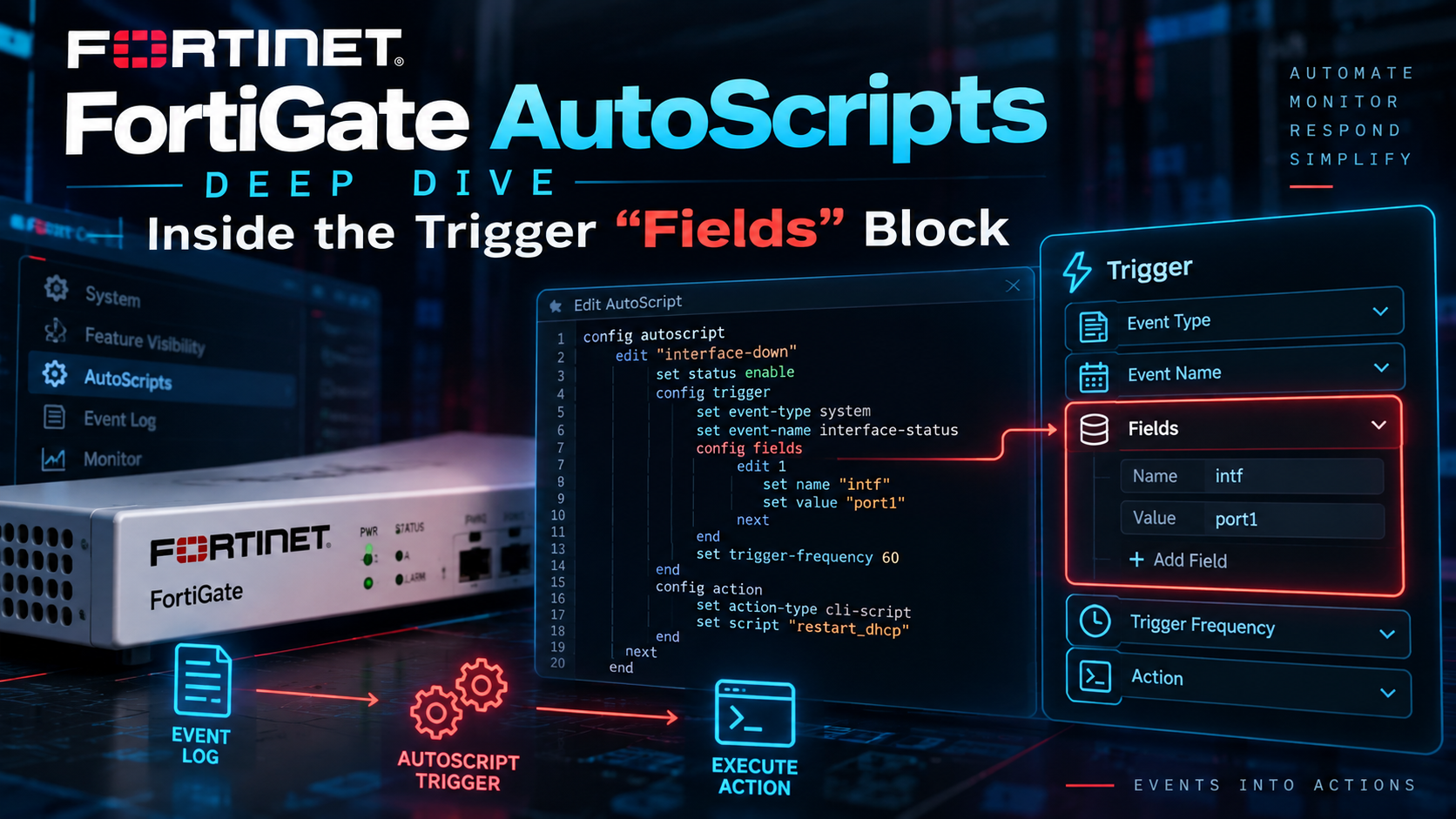
FortiGate AutoScripts Deep Dive: Inside the Trigger “Fields” Block
Practitioners call FortiOS’s onboard automation engine a lot of things. The GUI calls it Security Fabric > Automation. The CLI reference calls the underlying objects automation-trigger, automation-action, and automation-stitch. And the FortiOS shell itself has a command family called execute auto-script, which is almost certainly where “AutoScripts” comes from as practitioner shorthand. All three names describe the same engine: a trigger fires, a stitch maps that trigger to one or more actions, and the action runs.
Most walkthroughs stop at event-type and logid. That gets you “alert on this event.” It does not get you “alert on this event, but only when this admin account is the one logging in, from this one subnet.” That second level of precision lives in a sub-table most people skip past: config fields, nested inside config system automation-trigger. This post is entirely about that block: syntax, matching behavior, how to find valid field names without guessing, and two worked examples pulled apart line by line.
Where “Fields” Sits in the Automation Model
Before the sub-table, a quick recap of the three objects that make up a stitch, because the fields block only exists on one of them.
| Object | CLI table | Purpose |
|---|---|---|
| Trigger | config system automation-trigger | Defines the condition that fires (event log ID, schedule, IOC hit, FortiAnalyzer event, and so on) |
| Action | config system automation-action | Defines what runs when triggered (email, webhook, CLI script, ban IP, and others) |
| Stitch | config system automation-stitch | Binds one trigger to one or more actions, in order |
The fields sub-table lives inside the trigger object, specifically under triggers using set event-type event-log. It is how you filter on the contents of a matched log entry, not just its log ID.
GUI location: Security Fabric > Automation > Trigger tab > Create New > FortiOS Event Log > “Field filter(s)” section, with a + to add each filter row.
CLI location:
config system automation-trigger
    edit "trigger-name"
        set event-type event-log
        set logid <id1> <id2> ...
        config fields
            edit <id>
                set name "<log-field-key>"
                set value "<match-value>"
            next
        end
    next
endSyntax Breakdown
Here is the full parameter set for the fields table, straight from the CLI reference, with the noise stripped out:
| Parameter | Type | Notes |
|---|---|---|
| <id> in edit <id> | integer | Auto-numbered row identifier for this filter entry inside the table. Not a log field. Do not confuse it with name. |
| name | string | The raw log field key you’re matching against, e.g. user, srcip, msg, level, action. This is the key as it appears in the raw log line, not the friendly label shown in a GUI log viewer column. |
| value | var-string | The value to match against that field. Supports an exact string or a wildcarded substring (covered below). |
A worked skeleton, matching on two fields at once:
config system automation-trigger
    edit "event_login_logout"
        set description "trigger for login logout event"
        set event-type event-log
        set logid 32001 32003
        config fields
            edit 1
                set name "user"
                set value "csf"
            next
            edit 2
                set name "srcip"
                set value "10.6.30.254"
            next
        end
    next
endThe Rule That Trips Everyone Up: Fields Are ANDed, Not ORed
Every row you add to config fields is a separate condition, and FortiOS requires all of them to match before the trigger fires. There is no native OR primitive inside a single trigger. Fortinet’s own guidance is direct about it: if you configure multiple filter fields, the stitch is only triggered if all filters are matched.
Practical consequence: if you want the trigger to fire on level = warning OR level = critical, one trigger with two field rows will not do it (that reads as AND, and a single field can only hold one value). You need one trigger per condition set, each pointed at its own stitch (or at stitches sharing the same downstream action), or a single field row with a value that already covers the range via wildcarding if the underlying string allows it. There is no shortcut around this. Plan your trigger count around AND-only logic from the start, rather than discovering it after a stitch quietly never fires.
Finding the Right Field Names (Don’t Guess)
The name value has to match the exact key in the raw log line, not the pretty column header you see in a report table. Guessing wastes a debugging session. Two reliable ways to get it right:
1. Pull a live sample. Go to Log & Report > System Events > Logs, find an occurrence of the event you care about, and open it. The raw key-value pairs (logid, type, subtype, level, user, srcip, action, msg, and so on, depending on the event) are exactly what you reference in name. A raw system event log line looks like this:
date=2025-04-19 time=12:42:56 eventtime=1745059376589704043 tz="+0200" logid="0100044547" type="event" subtype="system" level="information" vd="root" logdesc="Object attribute configured" user="admin" ui="GUI(172.16.10.10)" action="Edit" cfgtid=125960205 cfgpath="system.interface" cfgobj="port4" cfgattr="status[up->down]" msg="Edit system.interface port4"Every one of level, user, ui, action, cfgpath, cfgobj, cfgattr, and msg is fair game as a name value for this particular log ID.
2. Use the shortcut. From that same Logs page, you can create a trigger directly off a selected log entry, and the Event field and logid are pre-populated for you. You still add the Field filter(s) manually, but you skip re-typing the log ID.
3. Check the reference doc. The FortiOS Log Message Reference documents every field for every log ID. Append the log ID to the reference URL for your version, for example docs.fortinet.com/document/fortigate/<version>/fortios-log-message-reference/<logid>, to see the full field set documented for that specific event.
Field availability is not universal. It depends on the log ID and can shift slightly between FortiOS versions. Don’t reuse a fields block wholesale across an unrelated log ID and assume the same keys exist.
Wildcard Matching for Free Text Fields
Some fields, especially msg, carry a full free-text string that varies in the details even when the underlying event is the same. FortiOS supports a wildcard (*) in the value field to match a substring, on FortiOS 6.4.3 and later, and 7.0.0 and later.
config fields
    edit 1
        set name "msg"
        set value "*Down BGP Notification*"
    next
endThe asterisk can be a prefix, a suffix, or wrap both sides of the string, depending on what part of the message is stable and what part is variable.
Worked Example 1: Precision Admin Login/Logout Alerting
The business problem: alert only when one specific service account logs in or out from one specific management IP, not every admin login on the box. Log ID 32001 covers admin login success, 32003 covers admin logout. Both fields below are ANDed, so this only fires when the csf account logs in or out AND the source is that exact IP.
config system automation-trigger
    edit "event_login_logout"
        set description "trigger for login logout event"
        set event-type event-log
        set logid 32001 32003
        config fields
            edit 1
                set name "user"
                set value "csf"
            next
            edit 2
                set name "srcip"
                set value "10.6.30.254"
            next
        end
    next
endPair it with an email action and a stitch to complete the loop:
config system automation-action
    edit "notify_csf_activity"
        set action-type email
        set email-to "soc@example.com"
        set email-subject "csf account activity from 10.6.30.254"
    next
end

config system automation-stitch
    edit "csf_login_logout_alert"
        set trigger "event_login_logout"
        config actions
            edit 1
                set action "notify_csf_activity"
                set required enable
            next
        end
    next
endWorked Example 2: BGP Neighbor-Down Detection via Wildcard
The business problem: get paged when a BGP neighbor drops, without wiring up a separate integration to catch it. Log ID 20300 covers BGP neighbor status changes, but that log ID fires on state changes generally, so a wildcard match on the msg field narrows it to the specific down transition.
config system automation-trigger
    edit "bgp_neighbor_down"
        set event-type event-log
        set logid 20300
        config fields
            edit 1
                set name "msg"
                set value "*Down BGP Notification*"
            next
        end
    next
end

config system automation-action
    edit "fortigate_email"
        set action-type email
        set email-to "noc@example.com"
        set email-subject "BGP neighbor down"
    next
end

config system automation-stitch
    edit "bgp_down_neighbor"
        set trigger "bgp_neighbor_down"
        config actions
            edit 1
                set action "fortigate_email"
                set required enable
            next
        end
    next
endQuick Reference
| Concept | Detail |
|---|---|
| CLI object | config system automation-trigger > config fields |
| GUI location | Security Fabric > Automation > Trigger > FortiOS Event Log > Field filter(s) |
| Applies to | event-type event-log |
| Row structure | edit <id> / set name / set value / next |
| Match logic across rows | AND only, all rows must match |
| Wildcard support | * substring match, 6.4.3+ and 7.0.0+ |
| Field name source | Raw log key from the actual log line, not the GUI column label |
Troubleshooting and Gotchas
A stitch never fires, and the fields look right. Confirm the field name is the literal log key, not a display label, by pulling a live log sample. Case and spelling both matter.
You need OR logic and only built one trigger. You can’t get it from a single trigger’s fields table. Split it into separate triggers, each feeding the stitch or a duplicate action.
A wildcard match isn’t catching what you expect. Confirm your FortiOS version supports it (6.4.3+/7.0.0+) and that the asterisk placement matches the variable part of the string. Pull a fresh log sample rather than assuming the message format hasn’t changed across a firmware upgrade.
You want to watch it happen live. The execute auto-script command family is the actual CLI surface behind the “AutoScripts” name, and there is a full diagnostic path behind it:
diagnose debug reset
diagnose debug application autod -1
diagnose debug enableThat enables verbose automation-daemon (autod) debug output for 30 minutes. Trigger the stitch to test it, either from the GUI (right-click the stitch > Test Automation Stitch) or from the CLI:
execute auto-script start <stitch-name>To stop everything currently running:
execute auto-script stopallAnd for a snapshot without full debug output, diagnose test application autod opens a menu:
1: toggle log dumping (streams every log the daemon evaluates to the CLI)2: show automation settings (every active trigger, stitch, and action, plus their config)3: show automation statistics (hit counts per stitch and action)4: show plugin statistics (per action-type counters)5: show running stitches
Key Takeaways
The fields block is the difference between a trigger that fires on “this event happened somewhere” and one that fires on “this event happened under these exact conditions.” It only applies to event-type event-log triggers, it only supports AND logic across rows, and it depends entirely on you knowing the real log field key rather than the GUI label. Pull a live log sample before you write the trigger, plan your trigger count around AND-only logic, and use the execute auto-script and diagnose test application autod commands to confirm the stitch is actually seeing what you think it’s seeing.
Recent posts
-

-

DNS is one of those technologies that quietly underpins... Full Story
-

BGP issues on FortiGate firewalls usually trace back to... Full Story
-

Every time your laptop talks to your router, a... Full Story
-

If you've spent any time configuring NAT on a... Full Story
-

If you have spent any time configuring firewall policies... Full Story
-

High availability on FortiGate is one of those features... Full Story
-

If you've configured SD-WAN on a FortiGate, you've almost... Full Story
-

FortiLink is the management protocol that turns a FortiSwitch... Full Story
-

FortiSwitches are pretty rock solid from Mean Time Between... Full Story
-

This is a quicky tip. Have you ever gone... Full Story
-

DNS is one of those quiet pieces of internet... Full Story
-

This article is an updated version of the previous... Full Story
-

You will add ns2 as a secondary (slave) BIND9... Full Story
-

In the process of deploying my lab, I needed... Full Story
-

RFC 8805, used to be known as Self-Correcting IP... Full Story
-

Years back, I wrote an article about certificate pinning. ... Full Story
-

FortiGates have the ability to send alerts to Microsoft... Full Story
-

In this post, I am going to walk through... Full Story
-

Troubleshooting VoIP on a FortiGate can feel like trying... Full Story
-

Prior to FortiOS 7.0, there were three commands to... Full Story
-

In this post, I am going to go over... Full Story
-

What we are going to do: We are going... Full Story
-

Choosing between FGCP (FortiGate Clustering Protocol) and FGSP (FortiGate... Full Story
-

Creating a VLAN on macOS (The "Pro" Move) A... Full Story
-

This blog post explores the logic behind how macOS... Full Story
-

Pretty Fly for a Wi-Fi Tell My Wi-Fi Love... Full Story
-

Part of my daily gig is creating BoMs (Bill-of-Materials)... Full Story
-

ICMP introduces several security risks, but careful filtering, rate... Full Story
-

The command diag debug application dhcps -1 enables full... Full Story
-

In the world of FortiOS, execute tac report is... Full Story
-

LLDP; What is it The Link Layer Discovery Protocol... Full Story
-

What it actually does When you run diagnose fdsm... Full Story
-

Monkey Bites are bite-sized, high-impact security insights designed for... Full Story
-

I have run macOS in macOS with Parallels but... Full Story
-

Don't be confused with my other FortiNAC posts where... Full Story
-

This is the third session in a multi-part article... Full Story
-

Today I was configuring key-based authentication on a FortiGate... Full Story
-

Netcat, often called the "Swiss Army knife" of networking,... Full Story
-

At its core, IEEE 802.1X is a network layer... Full Story
-

In case you did not see the previous FortiNAC... Full Story
-

This is our 5th session where we are going... Full Story
-

Now that we have Wireshark installed and somewhat configured,... Full Story
-

The Philosophy of Packet Analysis Troubleshooting isn't about looking... Full Story
-

macOS file management runs on BSD userland tools sitting... Full Story
-

Practitioners call FortiOS's onboard automation engine a lot of... Full Story
-

When something is behaving strangely on a FortiGate, whether... Full Story