
If you've spent any time configuring user authentication on... Full Story
By Manny Fernandez
September 29, 2026
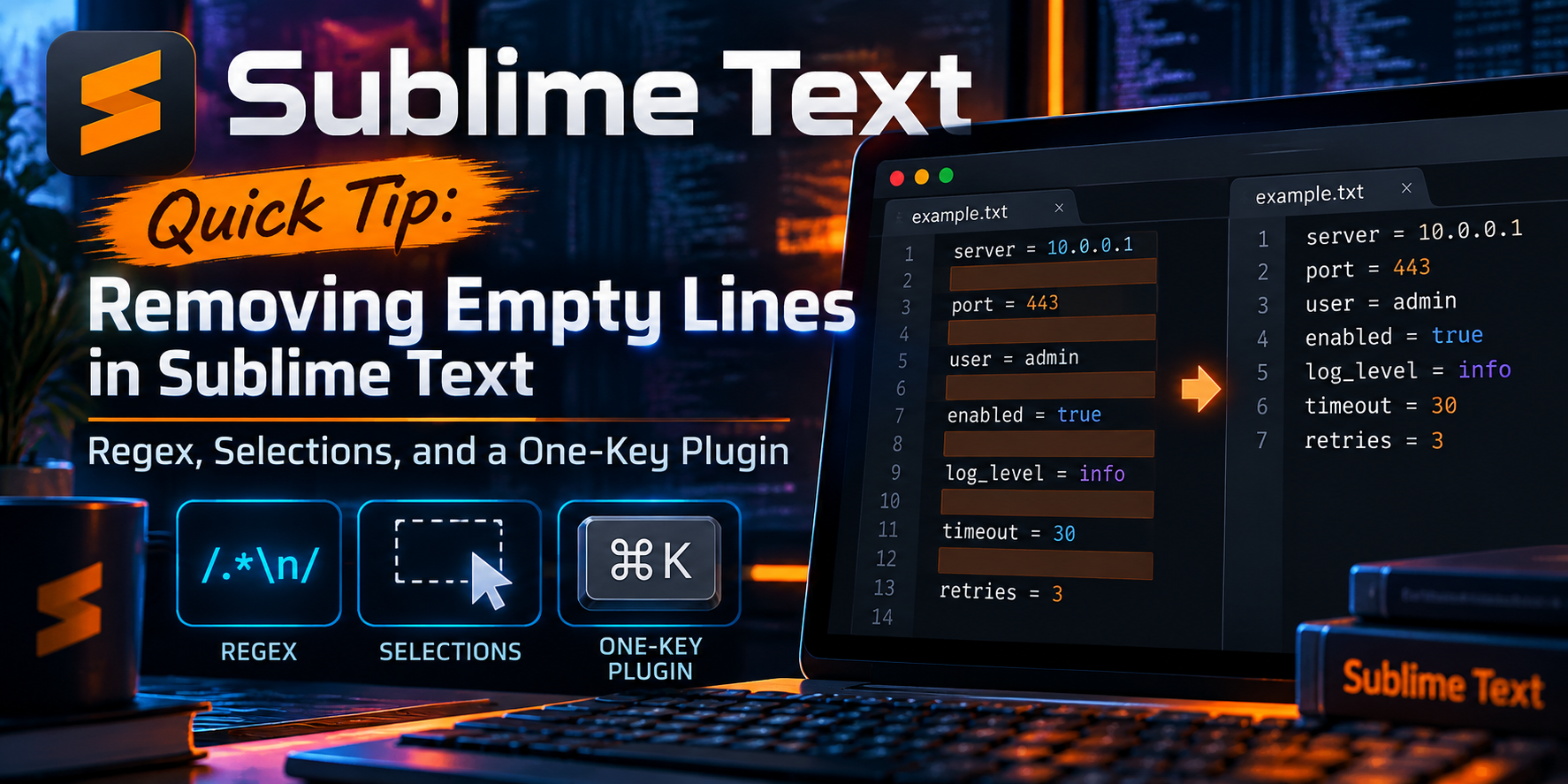
Sublime Text Quick Tip: Removing Empty Lines in Sublime Text: Regex, Selections, and a One-Key Plugin
Objective: Strip blank and whitespace-only lines out of config dumps, log exports, and pasted CLI output in Sublime Text, either across the whole file or only inside a selection, and bind the whole thing to a single key.
Target audience: Network and security engineers who live in Sublime Text and are tired of cleaning up show full-configuration output by hand.
Prerequisites and Architecture
Everything here uses built-in Sublime Text features. The plugin section uses the Python API that ships with Sublime Text 4, so there is nothing to install.
| Component | Requirement |
|---|---|
| Editor | Sublime Text 4 (Build 4xxx). Sublime Text 3 works for the regex steps. |
| Assumed knowledge | Basic regex: ^ is start of line, \n is a newline. |
| Line endings | Any. Sublime normalizes CRLF to \n in the buffer, so the same patterns work on Windows files. |
| Sample file | Any text file with blank lines. A FortiGate config backup or a pasted debug capture is ideal. |
Keyboard reference
| Action | Windows / Linux | macOS |
|---|---|---|
| Open Find and Replace | Ctrl + H | Option + Command + F |
| Toggle regular expressions | Alt + R | Option + Command + R |
| Toggle In Selection | Alt + S | Option + Command + S |
| Find All (select every match) | Alt + Enter | Option + Enter |
| Replace All | Ctrl + Alt + Enter | Click Replace All |
Step-by-Step Implementation
Step 1: Open Find and Replace in regex mode
Goal: Get the replace panel open with regular expressions turned on.
Action: Press Ctrl + H (Option + Command + F on macOS), then press Alt + R (Option + Command + R) or click the .* button on the left of the panel.
GUI verification: The .* button is highlighted. If it is not, every pattern below is treated as literal text and will match nothing.
Step 2: Remove truly empty lines
Goal: Delete lines that contain nothing at all.
Action: Put this in the Find field, leave Replace empty, and hit Replace All.
^\nThis matches a newline that sits at the very start of a line, which only happens on an empty line. Deleting it pulls the next line up.
Step 3: Remove whitespace-only lines (the one you actually want)
Goal: Also catch lines that look empty but hold spaces or tabs, which is common in pasted terminal output and indented config blocks.
Action: Use this pattern with an empty Replace field.
^\h*\n\h is horizontal whitespace: spaces, tabs, and non-breaking spaces that sneak in when you copy from a browser or a Word doc. If you prefer something more explicit, ^[ \t]*\n does the same job for plain spaces and tabs.
Why not ^\s*\n? Because \s includes the newline itself, so it can swallow a run of blank lines plus the leading indentation of the next real line. On an indented FortiOS config that silently breaks your nesting.
Step 4: Collapse runs of blank lines to a single blank line
Goal: Keep paragraph or block separation but kill the five-line gaps.
Action: Find the pattern below and replace with \n\n. In regex mode Sublime turns \n in the Replace field into a real newline.
\n(\h*\n){2,}Read it as: a line ending, followed by two or more blank (or whitespace-only) lines. That whole block becomes one line ending plus exactly one blank line.
Step 5: Limit the cleanup to a selection
Goal: Clean one section, like a single config firewall policy block, and leave the rest of the file alone.
Action: Highlight the lines first, open Find and Replace, then press Alt + S (Option + Command + S) to turn on In Selection before running Replace All with any pattern above.
GUI verification: The In Selection button (the icon with lines inside a box) is highlighted, and only the highlighted region changes.
Step 6: Turn it into a one-key command with a plugin
Goal: Stop retyping regex. One keystroke cleans the selection, or the whole file if nothing is selected.
Action: Go to Tools, Developer, New Plugin. Replace the template with the code below and save it as remove_empty_lines.py in the default location (your Packages/User folder).
import sublime
import sublime_plugin


class RemoveEmptyLinesCommand(sublime_plugin.TextCommand):
    """Delete empty and whitespace-only lines in the selection or file."""

    def run(self, edit):
        view = self.view
        scopes = [s for s in view.sel() if not s.empty()]
        if not scopes:
            scopes = [sublime.Region(0, view.size())]

        targets = [
            r for r in view.find_all(r"^\h*\n")
            if any(scope.contains(r) for scope in scopes)
        ]

        # Erase bottom-up so earlier offsets stay valid
        for region in reversed(targets):
            view.erase(edit, region)

        sublime.status_message(
            "Removed {} empty line(s)".format(len(targets))
        )
Sublime reloads plugins on save, so the command remove_empty_lines exists immediately. Now bind it. Open Preferences, Key Bindings, and add this to the right-hand (User) pane. Pick any chord that is free on your setup.
[
    { "keys": ["ctrl+alt+e"], "command": "remove_empty_lines" }
]
Optional: add it to the Command Palette. Create Packages/User/RemoveEmptyLines.sublime-commands with:
[
    { "caption": "Text: Remove Empty Lines", "command": "remove_empty_lines" }
]
GUI verification: Press your chord. The status bar at the bottom reports how many lines were removed, and a single Ctrl + Z (Command + Z) puts them all back.
Verification and Validation
Before and after any cleanup, count the blank lines so you know exactly what changed. Open Find (Ctrl + F or Command + F) with regex on and search for:
^\h*$Press Find All (Alt + Enter or Option + Enter). The status bar shows the match count as a number of selection regions. Expected success output after Step 3: Find All reports no matches, apart from a possible single empty line at the very end of the file (see the gotchas below).
For configs, also sanity-check that structure survived: search for ^\h*end$ before and after. The count should be identical.
Troubleshooting and Gotchas
Replace All says 0 matches
Nine times out of ten the regex toggle is off, or In Selection is still on from a previous search and nothing is selected. Check both buttons on the left side of the panel. Also confirm Whole Word is off, since it wraps your pattern in word boundaries and breaks it.
Blank lines at the end of the file will not go away
The patterns above need a trailing newline to match, and the last line of a file may not have one. To trim everything after the last real line down to a single newline, find the pattern below and replace with \n.
\s+\zTo make this automatic, add these to Preferences, Settings (User pane). They also stop whitespace-only lines from being created in the first place.
{
    "trim_trailing_white_space_on_save": "all",
    "ensure_newline_at_eof_on_save": true
}
Lines still look blank after the cleanup
Something invisible is on them, usually a zero-width space or a stray carriage return from a mixed-ending paste. Add "draw_white_space": ["all"] to your settings to reveal them, then widen the character class:
^[\h\r\x{200B}\x{FEFF}]*\nIf the file came from Windows tooling, also run View, Line Endings, Unix and save, so every line ends consistently before you clean it.
Quick reference: empty lines ^\n, whitespace-only lines ^\h*\n, collapse gaps \n(\h*\n){2,} to \n\n, trailing blanks \s+\z to \n. Regex toggle on, every time.
Recent posts
-

-

DNS is one of those technologies that quietly underpins... Full Story
-

BGP issues on FortiGate firewalls usually trace back to... Full Story
-

Every time your laptop talks to your router, a... Full Story
-

If you've spent any time configuring NAT on a... Full Story
-

If you have spent any time configuring firewall policies... Full Story
-

High availability on FortiGate is one of those features... Full Story
-

If you've configured SD-WAN on a FortiGate, you've almost... Full Story
-

FortiLink is the management protocol that turns a FortiSwitch... Full Story
-

FortiSwitches are pretty rock solid from Mean Time Between... Full Story
-

This is a quicky tip. Have you ever gone... Full Story
-

DNS is one of those quiet pieces of internet... Full Story
-

This article is an updated version of the previous... Full Story
-

You will add ns2 as a secondary (slave) BIND9... Full Story
-

In the process of deploying my lab, I needed... Full Story
-

RFC 8805, used to be known as Self-Correcting IP... Full Story
-

Years back, I wrote an article about certificate pinning. ... Full Story
-

FortiGates have the ability to send alerts to Microsoft... Full Story
-

In this post, I am going to walk through... Full Story
-

Troubleshooting VoIP on a FortiGate can feel like trying... Full Story
-

Prior to FortiOS 7.0, there were three commands to... Full Story
-

In this post, I am going to go over... Full Story
-

What we are going to do: We are going... Full Story
-

Choosing between FGCP (FortiGate Clustering Protocol) and FGSP (FortiGate... Full Story
-

Creating a VLAN on macOS (The "Pro" Move) A... Full Story
-

This blog post explores the logic behind how macOS... Full Story
-

Pretty Fly for a Wi-Fi Tell My Wi-Fi Love... Full Story
-

Part of my daily gig is creating BoMs (Bill-of-Materials)... Full Story
-

ICMP introduces several security risks, but careful filtering, rate... Full Story
-

The command diag debug application dhcps -1 enables full... Full Story
-

In the world of FortiOS, execute tac report is... Full Story
-

LLDP; What is it The Link Layer Discovery Protocol... Full Story
-

What it actually does When you run diagnose fdsm... Full Story
-

Monkey Bites are bite-sized, high-impact security insights designed for... Full Story
-

I have run macOS in macOS with Parallels but... Full Story
-

Don't be confused with my other FortiNAC posts where... Full Story
-

This is the third session in a multi-part article... Full Story
-

Today I was configuring key-based authentication on a FortiGate... Full Story
-

Netcat, often called the "Swiss Army knife" of networking,... Full Story
-

At its core, IEEE 802.1X is a network layer... Full Story
-

In case you did not see the previous FortiNAC... Full Story
-

This is our 5th session where we are going... Full Story
-

Now that we have Wireshark installed and somewhat configured,... Full Story
-

The Philosophy of Packet Analysis Troubleshooting isn't about looking... Full Story
-

In this guide Executive Summary Prerequisites: Which vi Do... Full Story
-

Objective: Strip blank and whitespace-only lines out of config... Full Story
-

In this guide Executive Summary Prerequisites and Architecture How... Full Story