
If you've spent any time configuring user authentication on... Full Story
By Manny Fernandez
September 29, 2026
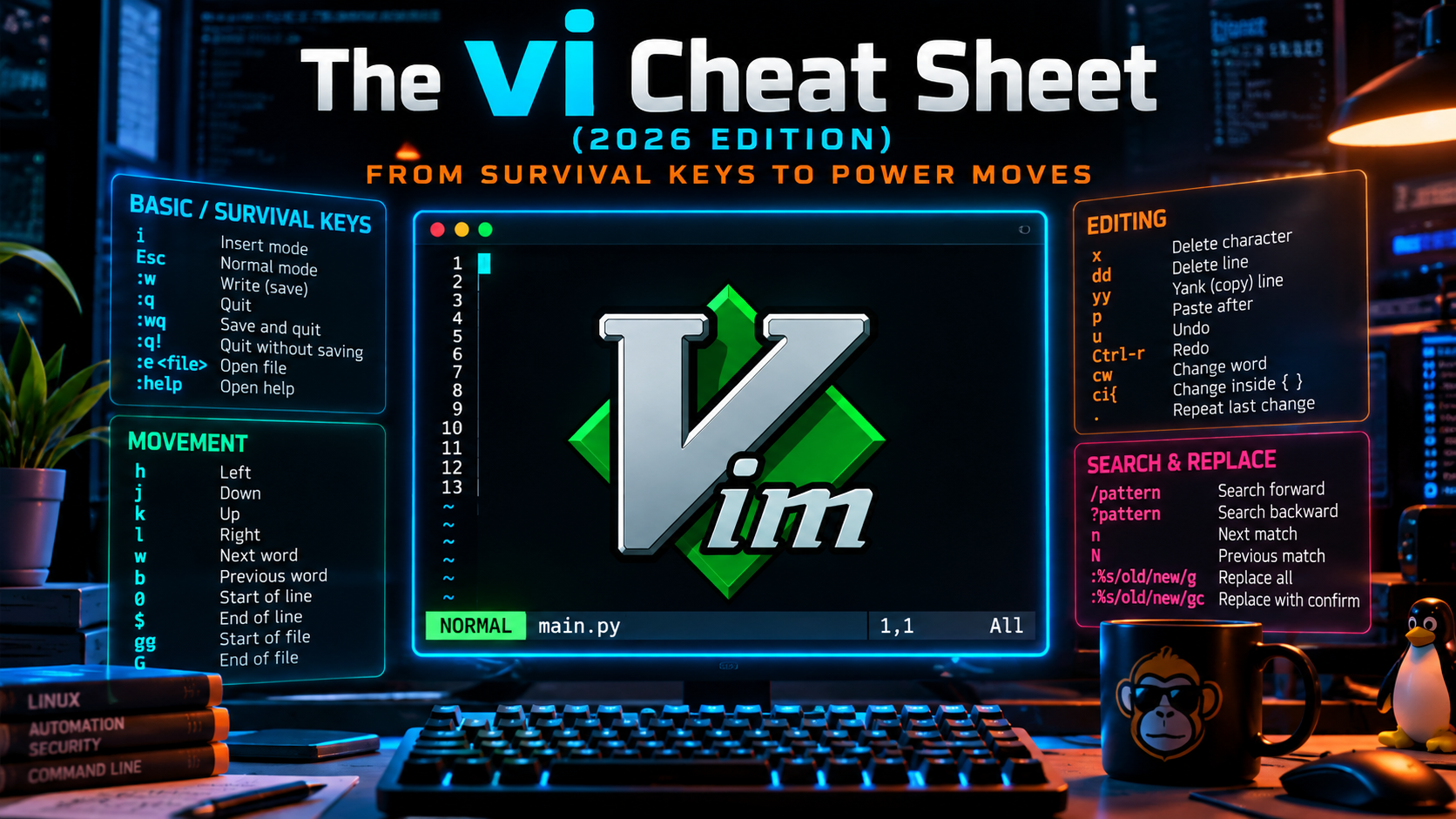
The vi Cheat Sheet (2026 Edition): From Survival Keys to Power Moves
In this guide
- Executive Summary
- Prerequisites: Which vi Do You Actually Have?
- The Mental Model: vi Modes
- Opening, Saving, and Quitting
- Entering and Working in Insert Mode
- Movement
- Scrolling and Screen Control
- Searching
- Operator Grammar: The Key to Everything
- Delete and Change
- Text Objects (vim)
- Copy, Paste, and Move Lines
- Undo and Redo
- Visual Mode (vim)
- Registers and the System Clipboard
- Search and Replace (:s)
- The Global Command (:g)
- Shell Integration and Filters
- Marks and Macros
- Buffers, Windows, Tabs, and Diff (vim)
- Settings and a Server-Friendly .vimrc
- Practitioner Scenarios
- Verification: A Five-Minute Practice Drill
- Troubleshooting and Gotchas
- Quick Reference Card
Executive Summary
Back in 2017 I posted a short VI cheat sheet with a simple premise: vi is on pretty much everything. Same reason I lived in the CLI during my Cisco days. GUIs break, GUIs are missing, but the CLI (and vi) is always there. That premise has not changed. What has changed is how much I lean on vi for real work: cleaning config exports, bulk editing address objects, diffing backups, and piping buffers through jq and sort.
This is the rebuilt version. The original scrolling, delete, undo, and copy/paste tables are all still here, corrected and expanded, plus everything I wish that first post had covered.
| Objective | Give practitioners a single vi and vim reference that runs from the survival keys you need on a locked-down appliance to the power moves (ex commands, text objects, registers, macros, filters) that make vi faster than a GUI for config work. |
| Target audience | Network and security engineers, sysadmins, and anyone who SSHs into servers, firewalls, containers, or embedded appliances where vi is the only editor on the box. |
| Scope | POSIX vi commands that work everywhere, plus vim and Neovim extensions (flagged with (vim) in the tables). |
Prerequisites: Which vi Do You Actually Have?
“vi” is a family, not a single program. Before you trust a cheat sheet, know which implementation is answering when you type vi. Anything tagged (vim) in this guide needs vim or Neovim. Everything else is POSIX vi and works on nvi and BusyBox too.
| Implementation | Where you meet it | What to expect |
|---|---|---|
| vim (full) | Most Linux desktops and servers; macOS /usr/bin/vi is vim |
Everything in this guide works |
| vim-tiny | Minimal Debian and Ubuntu installs, cloud images | Starts in vi-compatible mode; no syntax highlighting; arrow keys can misbehave in insert mode |
| nvi | FreeBSD, OpenBSD, NetBSD | Faithful to classic vi; u toggles undo; no visual mode or text objects |
| BusyBox vi | Alpine containers, routers, embedded appliances, rescue shells | Core POSIX subset only; typically no visual mode, text objects, or multi-window |
| Neovim | Installed separately as nvim; sometimes aliased to vi |
vim-compatible keys; :checkhealth for diagnostics; paste option is deprecated |
Identify what you are running:
# Version banner (vim, nvim)
vi --version | head -n 2

# Follow the symlink chain to the real binary
readlink -f "$(command -v vi)"

# Debian/Ubuntu alternatives system
ls -l /etc/alternatives/vi

# BusyBox shows its banner in --help output
vi --help 2>&1 | head -n 1

# Does this vim have system clipboard support?
vim --version | grep -o '[+-]clipboard'
Built-in trainer: if vim is installed, run
vimtutor. It is a 30 minute hands-on lesson in a scratch copy of a file and the best on-ramp there is.The Mental Model: vi Modes
Every “vi is confusing” story comes down to not knowing which mode you are in. vi is modal: the same key does different things depending on the mode. Normal mode is home base. You leave it to type text or run commands, and you always come back with Esc.
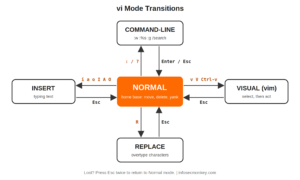
| Mode | How you get there | What it is for |
|---|---|---|
| Normal | Start-up default; Esc from anywhere |
Moving, deleting, yanking, pasting. Keys are commands, not text. |
| Insert | i a o I A O s c |
Typing text. The status line shows -- INSERT -- (vim, or :set showmode). |
| Command-line | : / ? |
ex commands (save, quit, substitute, global) and searches |
| Visual (vim) | v char, V line, Ctrl-v block |
Selecting text, then acting on the selection |
| Replace | R |
Overtyping existing characters |
Lost? Press «Esc» twice. That always lands you in Normal mode. From there
:q! Enter gets you out with no changes saved.Opening, Saving, and Quitting
| Command | Function |
|---|---|
vi file |
Open (or create on first write) a file |
vi +42 file |
Open with the cursor on line 42 (great with error messages that cite a line) |
vi + file |
Open at the last line (log files, appended configs) |
vi +/pattern file |
Open at the first match of pattern |
vi -R file or view file |
Open read-only |
vi -r / vi -r file |
List swap files / recover a file after a crash |
:w |
Write (save) |
:w newname |
Write the buffer to a different file (you stay in the original) |
:10,20w part.txt |
Write only lines 10 through 20 to a new file |
:w >> file |
Append the buffer to an existing file |
:w! |
Force the write when the readonly flag is set but permissions allow it |
:wq / :x / ZZ |
Write and quit. :x and ZZ only write if something changed (preserves mtime) |
:q |
Quit (refuses if there are unsaved changes) |
:q! / ZQ |
Quit and throw away changes |
:e! |
Revert the buffer to the last saved version |
:qa / :wqa (vim) |
Quit all / write and quit all open files |
:w !sudo tee % > /dev/null (vim) |
Save a root-owned file you opened without sudo (see Gotchas; does not work in Neovim) |
Entering and Working in Insert Mode
| Key | Function |
|---|---|
i / a |
Insert before / append after the cursor |
I / A |
Insert at first non-blank of the line / append at end of line |
o / O |
Open a new line below / above and insert |
s / S |
Substitute the character / the whole line |
C |
Change from the cursor to end of line |
R |
Replace mode: overtype characters until Esc |
gi (vim) |
Resume inserting where you last left insert mode |
Ctrl-w |
(in insert) Delete the word before the cursor |
Ctrl-u |
(in insert) Delete everything typed on this line |
Ctrl-v key |
(in insert) Insert the next key literally, for example a real Tab |
Ctrl-o cmd (vim) |
(in insert) Run one Normal-mode command, then return to insert |
Ctrl-r reg (vim) |
(in insert) Paste a register, for example Ctrl-r " |
Ctrl-n / Ctrl-p (vim) |
(in insert) Autocomplete from words in open buffers |
Movement
Every movement accepts a count: 5j moves down five lines, 3w jumps three words. Movements are also the “nouns” that operators act on (see Operator Grammar), so learning them pays off twice.
| Key | Function |
|---|---|
h j k l |
Left, down, up, right |
0 / ^ / $ |
Start of line / first non-blank / end of line |
w / b / e |
Next word / back a word / end of word |
W / B / E |
Same, but by WORD (whitespace-delimited). 10.0.0.1 is 7 words but 1 WORD |
fx / Fx |
Jump forward / back onto character x on this line |
tx / Tx |
Jump forward / back to just before character x |
; / , |
Repeat the last f/t/F/T forward / reverse |
gg / G |
First line / last line |
42G or :42 |
Go to line 42 |
H / M / L |
Top / middle / bottom of the screen |
% |
Jump to the matching ( ), [ ], or { } |
{ / } |
Previous / next paragraph (blank-line separated block) |
( / ) |
Previous / next sentence |
Ctrl-o / Ctrl-i (vim) |
Back / forward through the jump list |
Practitioner tip:
W and B are the right way to hop across IP addresses, MAC addresses, and file paths. The lowercase versions stop at every dot, colon, and slash.Scrolling and Screen Control
This was the first table in the 2017 post. It is all still valid, with a few additions.
| Key | Function |
|---|---|
Ctrl-d / Ctrl-u |
Scroll down / up half a screen |
Ctrl-f / Ctrl-b |
Page forward / backward a full screen |
Ctrl-e / Ctrl-y |
Scroll the view one line without moving the cursor |
z Enter or zt |
Reposition: current line at the top of the screen |
z. or zz |
Reposition: current line in the middle |
z- or zb |
Reposition: current line at the bottom |
Ctrl-l |
Redraw the screen (fixes garbage from a noisy serial console) |
Ctrl-g |
Show file name, modified status, current line, and position |
g Ctrl-g (vim) |
Word, line, and byte counts for the file or selection |
Searching
| Command | Function |
|---|---|
/string |
Search forward |
?string |
Search backward |
n / N |
Repeat the search in the same / opposite direction |
* / # (vim) |
Search forward / backward for the whole word under the cursor |
/\<word\> (vim) |
Match word only as a whole word |
/pattern\c (vim) |
Case-insensitive for this search only |
:set ic / :set noic |
Ignore case on / off for all searches |
:set ic scs (vim) |
Smartcase: ignore case unless the pattern has a capital |
:set hls / :noh (vim) |
Highlight all matches / clear highlight |
:set is (vim) |
Incremental search: jump to matches while typing |
/^\s*set ip (vim) |
Lines that start (after indentation) with set ip |
/\v(\d{1,3}\.){3}\d{1,3} (vim) |
Very-magic regex: any dotted-quad IPv4 address |
In a vi search,
. means “any character”. To find a literal IP like 10.1.1.1 exactly, escape the dots: /10\.1\.1\.1. Unescaped, it also matches 10a1b1c1.Operator Grammar: The Key to Everything
Most vi editing is a sentence: [count] operator [count] motion. Learn a handful of operators and every movement you know becomes something you can delete, change, copy, or indent. d3w is “delete three words”. y} is “yank to the end of the paragraph”. c$ is “change to end of line”. Doubling an operator (dd, yy, cc, >>) acts on the whole line.
| Operator | Action |
|---|---|
d |
Delete (into a register, so it doubles as cut) |
c |
Change: delete, then drop into insert mode |
y |
Yank (copy) |
> / < |
Indent / outdent |
! |
Filter through an external shell command |
= (vim) |
Auto-indent |
gU / gu / g~ (vim) |
Uppercase / lowercase / toggle case |
And the single most valuable key in vi: . (dot) repeats your last change. Make an edit once, then move and press . wherever else it is needed.
Delete and Change
| Command | Function |
|---|---|
x / X |
Delete the character under / before the cursor |
dd / 5dd |
Delete the line / five lines (into the unnamed register) |
dw / d3w or 3dw |
Delete a word / three words |
db |
Delete the previous word |
D or d$ |
Delete to end of line |
d0 / d^ |
Delete to start of line / to first non-blank |
dt; |
Delete up to (not including) the next semicolon |
d) / d} |
Delete to end of sentence / paragraph |
dG / dgg |
Delete to end of file / to start of file |
:10,20d |
Delete lines 10 through 20 (ex form, no cursor movement needed) |
cw / c3w |
Change a word / three words |
cc or S |
Change the whole line |
C or c$ |
Change to end of line |
rx |
Replace one character with x (stays in Normal mode) |
~ |
Toggle case of the character and advance |
J |
Join the next line onto this one (adds a space) |
gJ (vim) |
Join without adding a space |
xp |
Swap two characters (fixes teh typos) |
ddp |
Swap the current line with the one below |
Text Objects (vim)
Text objects let you act on a structure no matter where the cursor sits inside it. i means “inner” (contents only) and a means “a” (contents plus the delimiters or surrounding space). Combine them with any operator.
| Object | Selects |
|---|---|
iw / aw |
A word / a word plus trailing space |
iW / aW |
A WORD (IP, path, MAC) / plus space |
i" / a" |
Inside double quotes / including the quotes (also i' and i`) |
i( / a( |
Inside parentheses / including them (also ib) |
i{ / a{ |
Inside braces / including them (also iB) |
i[ / i< |
Inside brackets / angle brackets |
it / at |
Inside an XML or HTML tag pair / including the tags |
ip / ap |
A paragraph / plus the trailing blank line |
is / as |
A sentence / plus trailing space |
Real examples: on a FortiOS line like set comments "old description", put the cursor anywhere inside the quotes and type ci" to retype just the description. dap deletes an entire blank-line-separated block. yi{ yanks the body of a JSON object or code block.
Copy, Paste, and Move Lines
| Command | Function |
|---|---|
yy or Y / 5yy |
Yank the line / five lines |
yw / y$ / yG |
Yank a word / to end of line / to end of file |
p / P |
Paste after / before the cursor (below / above for whole lines) |
:10,20y |
Yank lines 10 through 20 |
:10,20t$ |
Copy lines 10 through 20 to the end of the file (also :co) |
:5t. |
Copy line 5 to below the current line |
:10,20m0 |
Move lines 10 through 20 to the top of the file |
>> / << / 5>> |
Indent / outdent the line / five lines |
gg=G (vim) |
Re-indent the entire file |
Undo and Redo
| Command | Function |
|---|---|
u |
Undo the last change |
U |
Undo all changes made to the current line |
Ctrl-r (vim) |
Redo |
. after u (nvi) |
Keep undoing (in classic vi, a second u redoes) |
:earlier 10m (vim) |
Rewind the file to how it looked 10 minutes ago |
:later 10m (vim) |
Move forward in time again |
g- / g+ (vim) |
Walk the undo tree backward / forward, including abandoned branches |
:set undofile (vim) |
Persist undo history across sessions |
Classic vi has one level of undo. On nvi and some BusyBox builds, pressing
u twice undoes the undo. If you are on a minimal system, save often with :w before big edits.Visual Mode (vim)
The 2017 copy/paste table leaned on visual mode, so here it is in full. Select, then apply an operator.
| Key | Function |
|---|---|
v |
Select characters |
V |
Select whole lines |
Ctrl-v |
Select a rectangular block (columns) |
o |
Jump to the other end of the selection to extend it |
gv |
Reselect the previous selection |
d / x |
Delete (cut) the selection |
y |
Yank (copy) the selection |
c |
Change the selection |
> / < |
Indent / outdent the selection |
U / u / ~ |
Uppercase / lowercase / toggle case |
J |
Join the selected lines |
: |
Run an ex command on the selected range (:'<,'> is filled in) |
Block insert: comment out a column of lines
Put the cursor on the first character of the first line, press Ctrl-v, move down with j to cover the lines, press I (capital i), type # , then press Esc. The text appears on every selected line. Use $A instead of I to append to the end of each line.
Ctrl-v      start block selection
jjjj        extend down four lines
I# <Esc>    insert "# " at the start of every line
Registers and the System Clipboard
Every delete and yank lands in a register. Prefix an operator with " plus a register name to choose which one. "ayy yanks the line into register a, "ap pastes it.
| Register | Contents |
|---|---|
"" |
Unnamed: the last delete or yank (what plain p pastes) |
"0 |
The last yank only. Deletes do not overwrite it |
"1 to "9 |
History of the last nine multi-line deletes |
"a to "z |
Named registers you control |
"A to "Z |
Append to the matching named register instead of replacing it |
"_ |
Black hole: delete without clobbering any register |
"+ (vim) |
System clipboard (needs +clipboard in vim --version) |
"* (vim) |
X11 primary selection (same as "+ on macOS and Windows) |
"% / "/ / ": (vim) |
Current file name / last search / last ex command |
:reg (vim) |
Show the contents of all registers |
The classic annoyance: you yank a line, delete something else, press
p, and get the deleted text. Your yank is safe in "0, so "0p pastes it. Or delete with "_d so the yank is never displaced.Search and Replace (:s)
The substitute command is where vi pulls ahead of GUI editors. Format: :[range]s/pattern/replacement/[flags].
| Command | Function |
|---|---|
:s/old/new/ |
First match on the current line |
:s/old/new/g |
Every match on the current line |
:%s/old/new/g |
Every match in the file (% means all lines) |
:%s/old/new/gc |
Confirm each one (y, n, a for all, q to quit) |
:10,20s/old/new/g |
Lines 10 through 20 only |
:.,$s/old/new/g |
Current line to end of file |
:'<,'>s/old/new/g (vim) |
Only the visual selection |
:%s#/var/log#/srv/log#g |
Any delimiter works; avoids escaping every slash |
:%s/\s\+$//e (vim) |
Strip trailing whitespace (e suppresses the no-match error) |
:%s/\r$// |
Strip Windows carriage returns (the ^M characters) |
:%s/^/# / |
Prefix every line (comment out a file) |
:%s/$/;/ |
Suffix every line |
:%s/,/\r/g (vim) |
Replace commas with newlines (\r inserts a line break) |
:%s/port\d\+/[&]/g (vim) |
& reinserts the whole match |
:%s/\(\w\+\) \(\w\+\)/\2 \1/ |
Capture groups: swap the first two words |
:%s/\<hostname\>/\U&/g (vim) |
Case modifiers \U \L \u in the replacement |
:%s/pattern//gn (vim) |
Count matches without changing anything |
Config-migration examples:
" Rename an interface everywhere in a FortiGate config export
:%s/"port1"/"wan1"/g

" Renumber a subnet (escape the dots so they are literal)
:%s/10\.10\.20\./10.10.30./g

" Turn a list of bare IPs (one per line) into FortiOS address objects
:%s#^\(\S\+\)$#edit "h-\1"\rset subnet \1/32\rnext#
After the last command, add config firewall address with ggO and end with Go, and you have a paste-ready CLI block.
The Global Command (:g)
:g/pattern/command runs an ex command on every line that matches. :v (or :g!) runs it on every line that does not. This is how you filter a 20,000 line config in one keystroke.
| Command | Function |
|---|---|
:g/pattern/d |
Delete every matching line |
:v/pattern/d |
Keep only matching lines (delete everything else) |
:g/^$/d |
Delete empty lines |
:g/^\s*$/d (vim) |
Delete blank lines, including whitespace-only lines |
:g/^\s*#/d (vim) |
Strip comment lines from a Linux config file |
:g/pattern/p |
Print matching lines (a built-in grep) |
:g/pattern/# |
Print matches with line numbers |
:g/pattern/t$ |
Copy every matching line to the end of the file |
:g/pattern/m0 |
Move every matching line to the top |
:g/^/m0 |
Reverse the order of every line in the file |
:g/pattern/s/a/b/g |
Substitute only on lines that match pattern |
:g/pattern/normal A; (vim) |
Run Normal-mode keys on each match (here, append a semicolon) |
" Drop every UUID line before diffing two FortiGate backups
:g/set uuid /d

" Pull just the interface IP lines into their own file, then restore
:v/set ip /d
:w interface-ips.txt
u
Shell Integration and Filters
vi can hand any range of lines to a Unix command and replace them with the output. That turns every CLI tool on the box into an editor feature.
| Command | Function |
|---|---|
:!cmd |
Run a shell command and show the output |
:sh |
Drop to a shell; exit returns to vi |
Ctrl-z then fg |
Suspend vi to the shell / bring it back |
:r file |
Insert the contents of another file below the cursor |
:r !cmd |
Insert the output of a command (for example :r !ip -br a) |
!!cmd |
Replace the current line with its output through cmd |
:%!sort -u |
Sort the whole file and drop duplicates |
:sort / :sort u / :sort n (vim) |
Built-in sort / unique / numeric |
:%!jq . |
Pretty-print a JSON API response |
:%!column -t |
Align whitespace-separated columns into a table |
:'<,'>!sort -V (vim) |
Version-sort the selection (handles IPs reasonably) |
:%!xxd / :%!xxd -r (vim) |
Hex view / convert back (open binaries with vim -b) |
" Sort a list of IPv4 addresses numerically, octet by octet
:%!sort -t . -k1,1n -k2,2n -k3,3n -k4,4n

" Timestamp a change log entry
:r !date
Marks and Macros
Marks
| Command | Function |
|---|---|
ma |
Set mark a at the cursor (a through z) |
'a / `a |
Jump to the line of mark a / the exact position |
'' / `` |
Jump back to where you were before the last jump |
d'a / y`a |
Delete to the line of mark a / yank to the exact mark |
:'a,'bd |
Delete everything between marks a and b |
'. (vim) |
Jump to the line of the last change |
mA (vim) |
Uppercase marks are global and work across files |
:marks (vim) |
List all marks |
Macros (vim)
| Command | Function |
|---|---|
qa |
Start recording keystrokes into register a |
q |
Stop recording |
@a |
Play macro a |
@@ |
Replay the last macro |
50@a |
Play macro a fifty times (it stops early when a motion fails) |
:%normal @a |
Run macro a on every line of the file |
Example: wrap every hostname in a list in quotes and add a trailing comma, ready to paste into a JSON array.
qa          start recording into register a
I"<Esc>     insert a quote at the line start
A",<Esc>    append a quote and comma at the line end
j           move to the next line
q           stop recording
99@a        run it down the rest of the list
Buffers, Windows, Tabs, and Diff (vim)
| Command | Function |
|---|---|
:e file |
Edit another file in the same session |
:e# or Ctrl-^ |
Toggle to the alternate (previous) file |
:ls / :b2 / :bn / :bp |
List buffers / go to buffer 2 / next / previous |
:sp file / :vsp file |
Split horizontally / vertically |
Ctrl-w w |
Cycle between windows |
Ctrl-w h/j/k/l |
Move to the window left / down / up / right |
Ctrl-w = / Ctrl-w o |
Equalize window sizes / close all but this one |
:tabnew file / gt / gT |
New tab / next tab / previous tab |
vi -o a b / vi -O a b |
Open files in horizontal / vertical splits |
vimdiff a b or vim -d a b |
Side-by-side diff with highlighting |
]c / [c |
(diff) Next / previous change |
do / dp |
(diff) Obtain the change from / put it to the other file |
:diffupdate |
(diff) Recompute the diff after edits |
Config review workflow:
vimdiff fgt-before.conf fgt-after.conf after stripping the UUID lines with :g/set uuid /d in each window gives you a clean change review in seconds.Settings and a Server-Friendly .vimrc
| Setting | Function |
|---|---|
:set nu / :set nonu |
Line numbers on / off |
:set rnu (vim) |
Relative numbers (makes counts like 7dd obvious) |
:set list |
Show tabs as ^I and line ends as $ |
:set nowrap (vim) |
Stop wrapping long lines (log files) |
:set ai |
Auto-indent new lines |
:set ts=4 sw=4 et (vim) |
Tab width, indent width, expand tabs to spaces |
:retab (vim) |
Convert existing tabs using the current settings |
:set paste / :set nopaste (vim) |
Disable auto-indent while pasting (deprecated in Neovim) |
:set ff? / :set ff=unix (vim) |
Show / set line endings (unix, dos, mac) |
:syntax on (vim) |
Syntax highlighting |
:set option? |
Show the current value of an option |
:set all |
Show every option |
A minimal, plugin-free ~/.vimrc that behaves well on servers and over SSH:
" ~/.vimrc  (create the undo dir first: mkdir -p ~/.vim/undo)
set nocompatible
syntax on
filetype plugin indent on
set number ruler showmode showcmd
set ignorecase smartcase incsearch hlsearch
set expandtab tabstop=4 shiftwidth=4 softtabstop=4
set backspace=indent,eol,start
set scrolloff=3 wildmenu
set undofile undodir=~/.vim/undo//
set mouse=
autocmd FileType yaml setlocal ts=2 sw=2 sts=2 et
For nvi and classic vi, the equivalent file is ~/.exrc, which only accepts the POSIX options (for example set ai, set ic, set showmode, set number).
Practitioner Scenarios
Edit a root-owned file the safe way
Instead of sudo vi, use sudoedit. It copies the file to a temp location, runs your editor as you (so your .vimrc loads and the editor never runs as root), and writes it back on save.
export SUDO_EDITOR=vim
sudoedit /etc/hosts
Make vi the default everywhere
# Shell (add to ~/.bashrc or ~/.zshrc); crontab -e, visudo, etc. honor these
export EDITOR=vi VISUAL=vi

# Git commit messages
git config --global core.editor vim

# Debian/Ubuntu system default
sudo update-alternatives --config editor
vi keys in your shell
Your muscle memory also works on the command line. In bash run set -o vi, in zsh run bindkey -v. Press Esc to enter Normal mode on the prompt, then use b, w, cw, / (search history), and the rest.
Paste a config block without the staircase
If pasted text indents further and further on each line, auto-indent is fighting you. Run :set paste, enter insert mode, paste, press Esc, then :set nopaste. Modern vim (8.0+) and Neovim handle this automatically in terminals that support bracketed paste.
Fix a file full of ^M characters
A script edited on Windows fails with bad interpreter: /bin/bash^M. Run :set ff=unix then :w, or strip them directly with :%s/\r$//.
Verification: A Five-Minute Practice Drill
Build a messy test file, clean it with four ex commands, and confirm the result. This exercises the global command, substitution with escaped dots, and trailing whitespace cleanup.
printf 'hostname fgt-lab\nset ip 10.10.20.1 255.255.255.0\n\n' > drill.txt
printf 'set ip 10.10.20.2 255.255.255.0   \n' >> drill.txt
vi drill.txt
Inside vi, run these in order (vim syntax; on nvi use :g/^$/d and :%s/[ ]*$//):
:g/^\s*$/d
:%s/\s\+$//e
:%s/10\.10\.20\./10.10.30./g
:wq
Verify with cat -e, which marks every line end with $ (works on both Linux and macOS):
$ cat -e drill.txt
hostname fgt-lab$
set ip 10.10.30.1 255.255.255.0$
set ip 10.10.30.2 255.255.255.0$
Success looks like: three lines, no blank line, the new 10.10.30.x subnet, and $ directly after 0 on the last line (no trailing spaces).
Troubleshooting and Gotchas
1. “I can’t get out” or the screen froze
Symptom: keys do nothing, or you see a : prompt that will not go away. Cause: usually one of three things. You are in insert mode, you accidentally pressed Q and entered Ex mode, or you pressed Ctrl-s, which sends XOFF and freezes terminal output.
Esc Esc          back to Normal mode
:q!              quit without saving
visual           (from Ex mode) return to full-screen vi
Ctrl-q           resume a terminal frozen by Ctrl-s

# Permanently disable XON/XOFF flow control (add to ~/.bashrc)
stty -ixon
2. E325: ATTENTION, found a swap file
Symptom: vi warns that .file.swp already exists. Cause: another session has the file open, or a previous session crashed or lost its SSH connection. Resolution: check for a live session before choosing Recover or Delete.
# Is someone (or you, in another tmux pane) still editing it?
ps aux | grep -E '[v]i(m)? .*file'

# List recoverable swap files, then recover
vi -r
vi -r file
:w
# Once you confirm the recovered content is correct, remove the stale swap
rm .file.swp
3. E45 readonly or E212 can’t open file for writing
E45 means the readonly flag is set but you own the file: :w! works. E212 means you lack permission, typically because you opened a system file without sudo. In vim, :w !sudo tee % > /dev/null writes it through sudo (then :e! to reload). In Neovim that trick fails because sudo cannot prompt for a password, so save to /tmp with :w /tmp/fix.conf and move it with sudo, or use sudoedit next time.
4. Arrow keys type A, B, C, D or Backspace does nothing
Cause: vim-tiny running in vi-compatible mode, or a wrong $TERM. Resolution: :set nocompatible and :set backspace=indent,eol,start for this session, put both in ~/.vimrc, or install the full vim package (sudo apt install vim). Check echo $TERM if the problem persists.
5. Mouse selection enters Visual mode and copy breaks
Cause: Debian’s defaults.vim enables mouse=a when you have no ~/.vimrc. Resolution: :set mouse= (or put it in ~/.vimrc), or hold Shift while selecting in most Linux terminals (Option in iTerm2) to bypass vim’s mouse handling.
Diagnostic commands for anything else
vim --clean file           # start with no vimrc or plugins to isolate config issues
:verbose set tabstop?      # show the value AND which file last set it
:scriptnames               # list every script vim loaded
:checkhealth               # Neovim: full environment report
Quick Reference Card
The 30 commands that cover 90 percent of daily work. Print this part.
| Task | Keys | Task | Keys |
|---|---|---|---|
| Save / quit / force quit | :w :q :q! |
Save and quit | :wq ZZ |
| Insert / append | i a |
New line below / above | o O |
| Line start / end | 0 $ |
File top / bottom | gg G |
| Go to line 42 | 42G |
Word / WORD forward | w W |
| Half page down / up | Ctrl-d Ctrl-u |
Jump to character x | fx |
| Search / next / prev | / n N |
Word under cursor | * |
| Delete line / word | dd dw |
Delete to end of line | D |
| Change word / line | cw cc |
Change in quotes | ci" |
| Yank line / paste | yy p |
Paste last yank | "0p |
| Undo / redo | u Ctrl-r |
Repeat last change | . |
| Visual line / block | V Ctrl-v |
Indent line | >> |
| Replace all | :%s/a/b/g |
Replace with confirm | :%s/a/b/gc |
| Delete matching lines | :g/pat/d |
Keep matching lines | :v/pat/d |
| Sort file | :%!sort |
Insert command output | :r !cmd |
| Record / play macro | qa … q @a |
Escape any mode | Esc Esc |
Recent posts
-

-

DNS is one of those technologies that quietly underpins... Full Story
-

BGP issues on FortiGate firewalls usually trace back to... Full Story
-

Every time your laptop talks to your router, a... Full Story
-

If you've spent any time configuring NAT on a... Full Story
-

If you have spent any time configuring firewall policies... Full Story
-

High availability on FortiGate is one of those features... Full Story
-

If you've configured SD-WAN on a FortiGate, you've almost... Full Story
-

FortiLink is the management protocol that turns a FortiSwitch... Full Story
-

FortiSwitches are pretty rock solid from Mean Time Between... Full Story
-

This is a quicky tip. Have you ever gone... Full Story
-

DNS is one of those quiet pieces of internet... Full Story
-

This article is an updated version of the previous... Full Story
-

You will add ns2 as a secondary (slave) BIND9... Full Story
-

In the process of deploying my lab, I needed... Full Story
-

RFC 8805, used to be known as Self-Correcting IP... Full Story
-

Years back, I wrote an article about certificate pinning. ... Full Story
-

FortiGates have the ability to send alerts to Microsoft... Full Story
-

In this post, I am going to walk through... Full Story
-

Troubleshooting VoIP on a FortiGate can feel like trying... Full Story
-

Prior to FortiOS 7.0, there were three commands to... Full Story
-

In this post, I am going to go over... Full Story
-

What we are going to do: We are going... Full Story
-

Choosing between FGCP (FortiGate Clustering Protocol) and FGSP (FortiGate... Full Story
-

Creating a VLAN on macOS (The "Pro" Move) A... Full Story
-

This blog post explores the logic behind how macOS... Full Story
-

Pretty Fly for a Wi-Fi Tell My Wi-Fi Love... Full Story
-

Part of my daily gig is creating BoMs (Bill-of-Materials)... Full Story
-

ICMP introduces several security risks, but careful filtering, rate... Full Story
-

The command diag debug application dhcps -1 enables full... Full Story
-

In the world of FortiOS, execute tac report is... Full Story
-

LLDP; What is it The Link Layer Discovery Protocol... Full Story
-

What it actually does When you run diagnose fdsm... Full Story
-

Monkey Bites are bite-sized, high-impact security insights designed for... Full Story
-

I have run macOS in macOS with Parallels but... Full Story
-

Don't be confused with my other FortiNAC posts where... Full Story
-

This is the third session in a multi-part article... Full Story
-

Today I was configuring key-based authentication on a FortiGate... Full Story
-

Netcat, often called the "Swiss Army knife" of networking,... Full Story
-

At its core, IEEE 802.1X is a network layer... Full Story
-

In case you did not see the previous FortiNAC... Full Story
-

This is our 5th session where we are going... Full Story
-

Now that we have Wireshark installed and somewhat configured,... Full Story
-

The Philosophy of Packet Analysis Troubleshooting isn't about looking... Full Story
-

Executive Summary Objective: Get you from zero to writing... Full Story
-

NAND cells, the flash translation layer, SLC caching, TRIM,... Full Story
-

Nmap Scripting Engine (NSE): From One-Liners to Your First... Full Story