
If you've spent any time configuring user authentication on... Full Story
By Manny Fernandez
October 20, 2019
IPv6 VPNs in Fortigate Firewalls
I have two Fortigate 140Es in my environment. SecPrimate-01 and SecPrimate-02. The SecPrimate-01 is using the Mariner color while the SecPrimate-02 is using Red. Both firewalls are connected to a switch on port2 acting as Internet and each firewall has a different network on Port3. Note: In this example, I am using Unique Local Address types.
Enabling IPv6
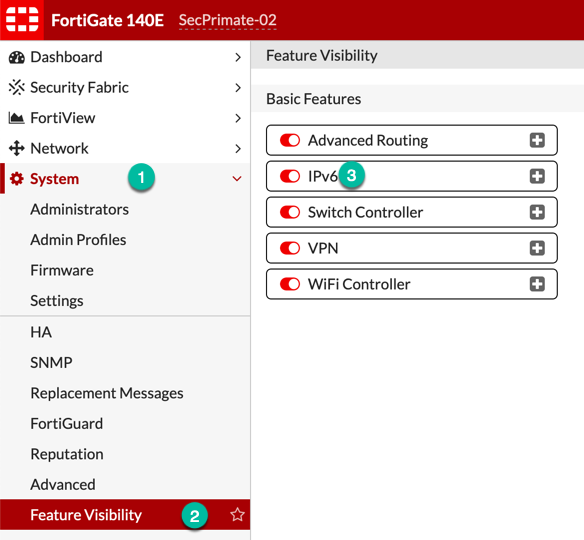
If you have not enabled IPv6 on your Fortigate, you will need to by going to System then Feature Visibility then tick the IPv6 button.
Assigning IPv6 Addresses
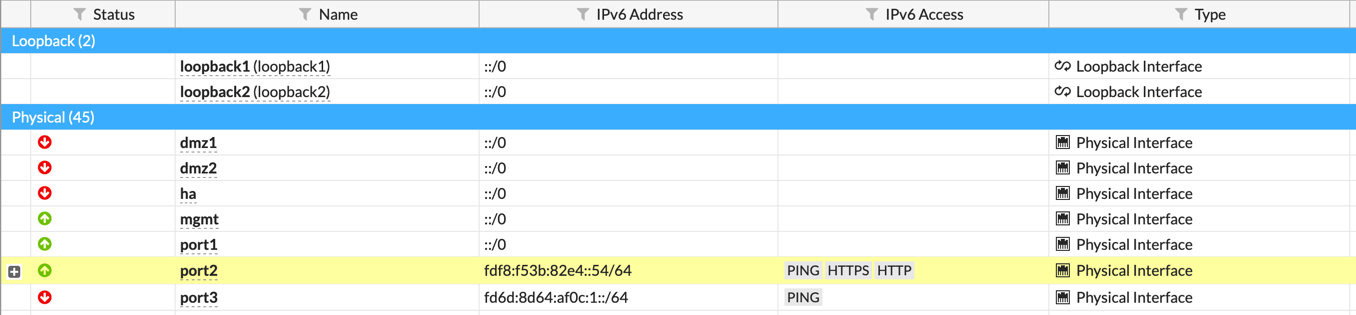
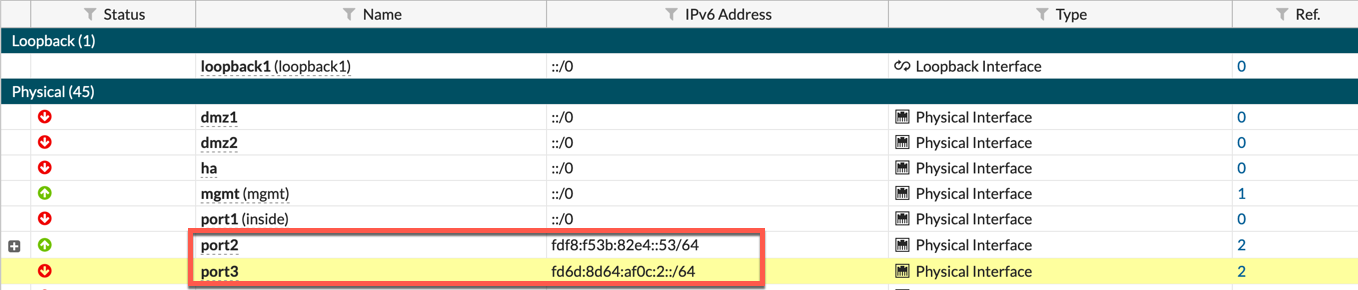
Next we will need to assign IPv6 Addresses to each Fortigate.
 edit "port2"
      set vdom "root"
      set type physical
      set snmp-index 10
      config ipv6
          set ip6-address fdf8:f53b:82e4::54/64
          set ip6-allowaccess ping https http
      end
  next
  edit "port3"
      set vdom "root"
      set type physical
      set snmp-index 11
      config ipv6
          set ip6-address fd6d:8d64:af0c:1::/64
          set ip6-allowaccess ping
      end
   next
 edit "port3"
      set vdom "root"
      set type physical
      set snmp-index 45
      config ipv6
          set ip6-address fd6d:8d64:af0c:2::/64
      end
 next
 edit "port2"
      set vdom "root"
      set type physical
      set device-identification enable
      set snmp-index 46
      config ipv6
          set ip6-address fdf8:f53b:82e4::53/64
          set ip6-allowaccess ping https http
      end
 next
Creating Address Objects
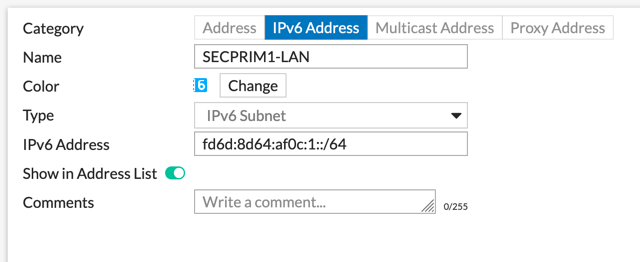
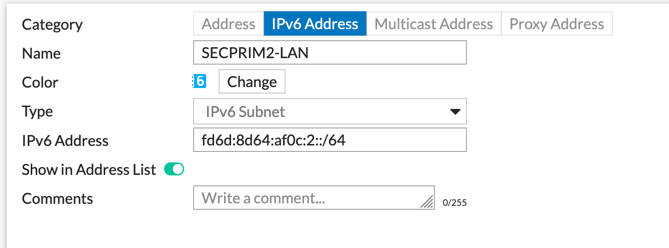
Now we will create the Address object that we will use for the Policies as well as the Phase II of the VPN. Note: You COULD use `::/0` in the Phase II but I am being deliberate in this example.
Testing Connectivity
Now lets test by performing a ping6 to the SecPrimate-02 Fortigate. Pay particular attention to the 6 after the ping. If you do not put 6 the Fortigate will assume you are trying to ping a host name in IPv4.
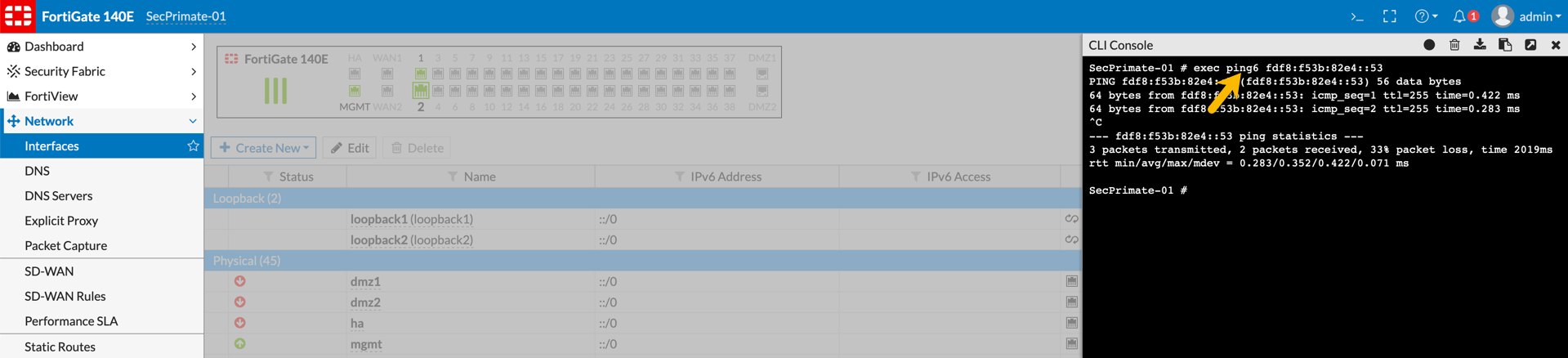
exec ping6 fdf8:f53b:82e4::53
Since we have connectivity, lets move on to configuring the VPN.
Configuring the IPv6 VPN
Lets go to VPN then IPsec Tunnels. I always choose Custom because I am a bit OCD about object naming and colors.
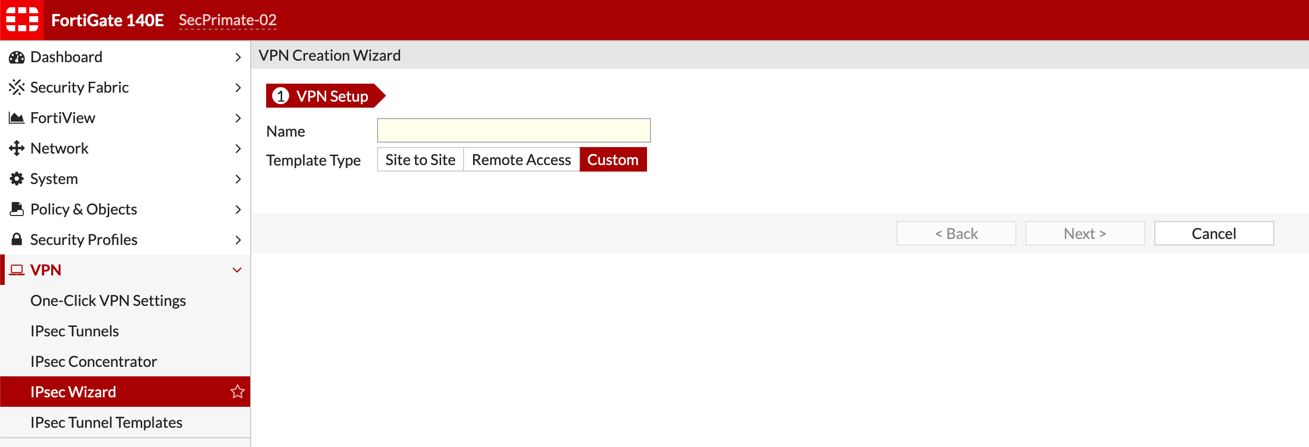
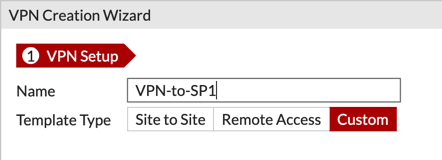
Note: That you cannot rename the VPN Tunnel, so those that know me, know I am all about the Descriptive Name.
Phase I
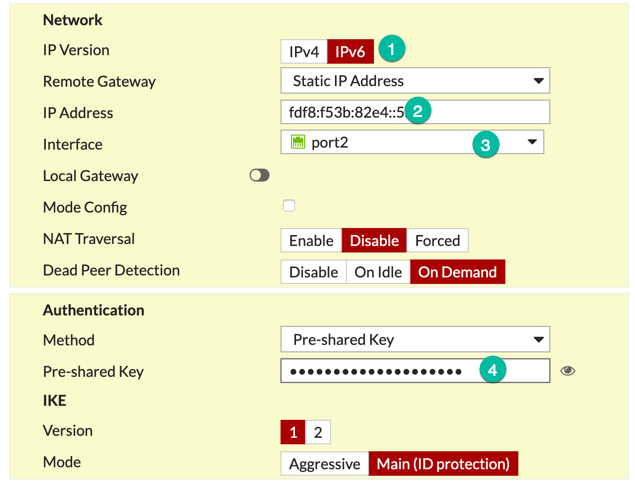
You will need to:
- Choose IPv6 as the
IP Version - Enter the remote gateway’s IPv6 Address
- Choose the Interface from where you want to connect to the remote firewall.
- Enter a Pre-Shared Key (or Signature)
Phase II
Now we will configure Phase II.
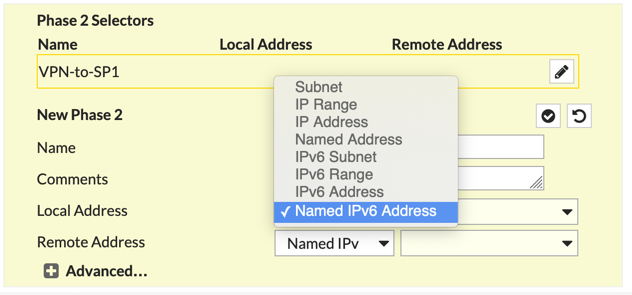
You CAN enter the IPv6 Networks manually, but we already did that in the Creating Address Object sections of this article. You can hit the drop down and choose Named IPv6 Address which will allow you to choose from the objects we created. Make sure you choose the IPv6 option or you will not see the object available.
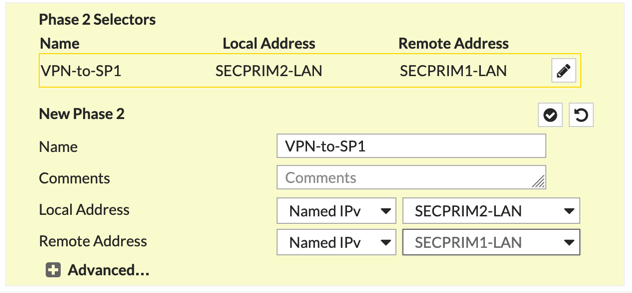
You CAN modify the encryption settings and additional features by clicking on +Advanced button. For this example, we are doing defaults.
Creating the IPv6 Policies
Now we are ready to create the policies.

Note: Under Policies and Objects you will need to choose IPv6 Policy instead of the IPv4 Policy. Here it is standard Fortigate policies. Incoming/Outgoing Interfaces, Source/Destination and Services and/or Security Profiles.
Static Routes
You will need to add static routes if you are not using a routing protocol inside the VPN.
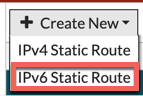
Go to Network then Static Routes then Create New. Ensure that you choose IPv6 Static Route.
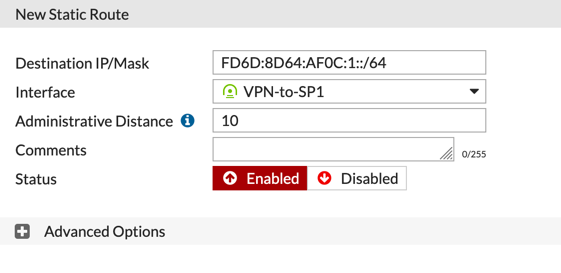
You can add a route the way you are used to doing it but obviously it would be an IPv6 address as opposed to a IPv4.
REMEMBER: Repeat these steps in on the remote Fortigate using the respective objects for Local and Remote and using the correct addresses and address objects.
Bringing Up The Tunnel
Now you can either push some traffic through the VPN or manually bring up the tunnel.
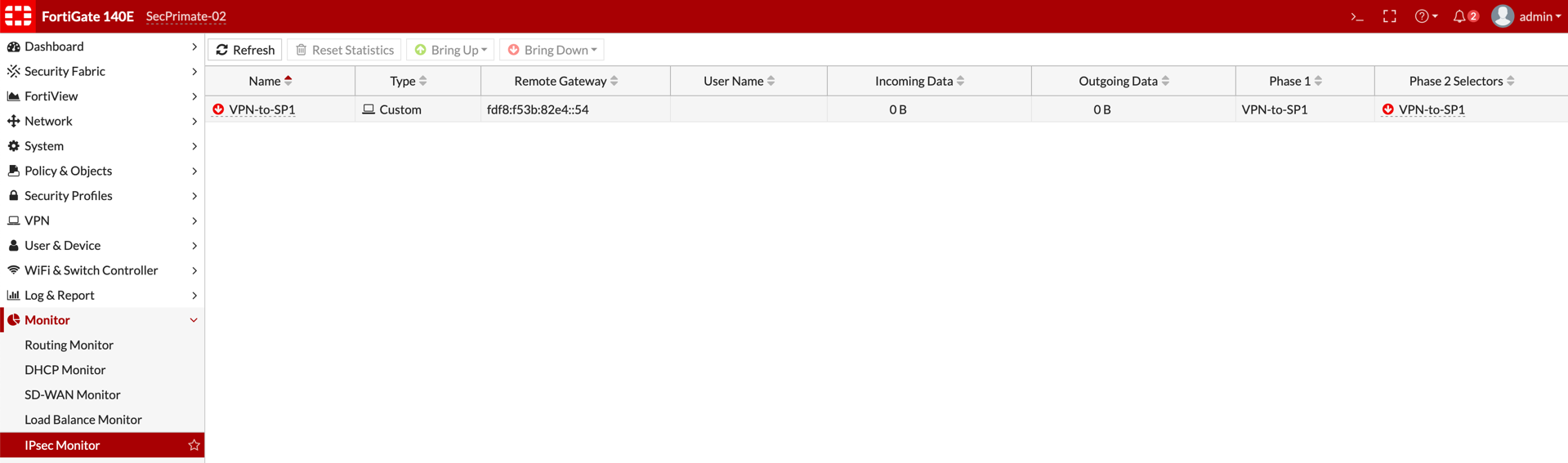
Above, you can see the Tunnel is in the Down state. Visible by the Red Arrow next to the VPN-toSP1 name. You can select the Tunnel and choose the Bring Up button on the top bar.
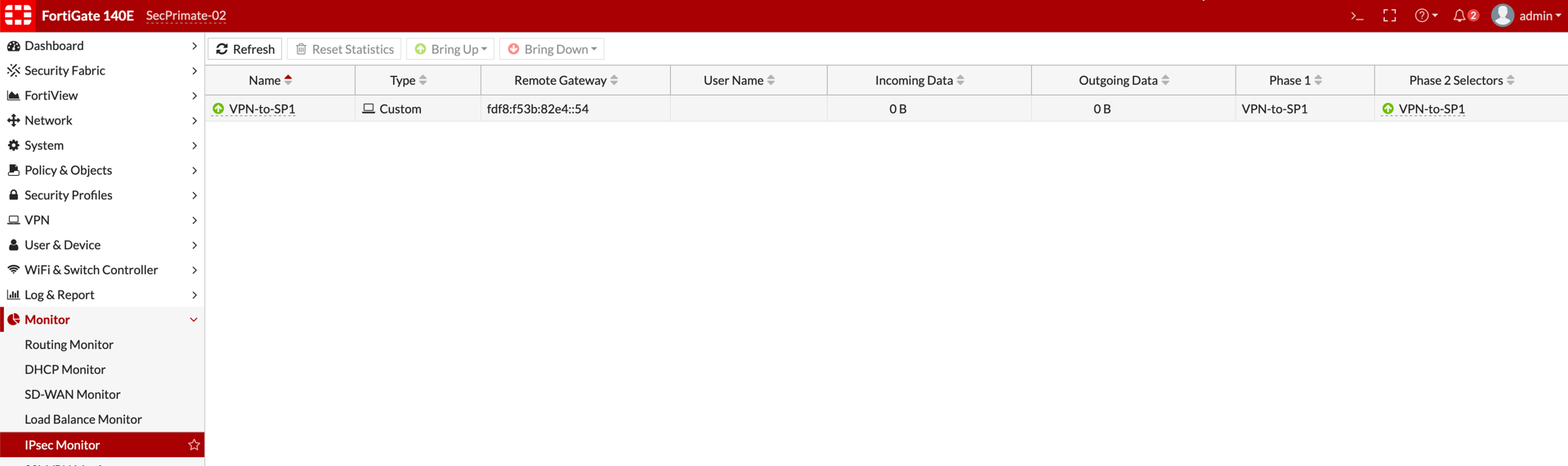
Now you see the tunnel is up by the color change on next to the VPN name.
Hope this helps. Stay Tuned for some more IPv6 Articles coming soon.
Recent posts
-

-

DNS is one of those technologies that quietly underpins... Full Story
-

BGP issues on FortiGate firewalls usually trace back to... Full Story
-

Every time your laptop talks to your router, a... Full Story
-

If you've spent any time configuring NAT on a... Full Story
-

If you have spent any time configuring firewall policies... Full Story
-

High availability on FortiGate is one of those features... Full Story
-

If you've configured SD-WAN on a FortiGate, you've almost... Full Story
-

FortiLink is the management protocol that turns a FortiSwitch... Full Story
-

FortiSwitches are pretty rock solid from Mean Time Between... Full Story
-

This is a quicky tip. Have you ever gone... Full Story
-

DNS is one of those quiet pieces of internet... Full Story
-

This article is an updated version of the previous... Full Story
-

You will add ns2 as a secondary (slave) BIND9... Full Story
-

In the process of deploying my lab, I needed... Full Story
-

RFC 8805, used to be known as Self-Correcting IP... Full Story
-

Years back, I wrote an article about certificate pinning. ... Full Story
-

FortiGates have the ability to send alerts to Microsoft... Full Story
-

In this post, I am going to walk through... Full Story
-

Troubleshooting VoIP on a FortiGate can feel like trying... Full Story
-

Prior to FortiOS 7.0, there were three commands to... Full Story
-

In this post, I am going to go over... Full Story
-

What we are going to do: We are going... Full Story
-

Choosing between FGCP (FortiGate Clustering Protocol) and FGSP (FortiGate... Full Story
-

Creating a VLAN on macOS (The "Pro" Move) A... Full Story
-

This blog post explores the logic behind how macOS... Full Story
-

Pretty Fly for a Wi-Fi Tell My Wi-Fi Love... Full Story
-

Part of my daily gig is creating BoMs (Bill-of-Materials)... Full Story
-

ICMP introduces several security risks, but careful filtering, rate... Full Story
-

The command diag debug application dhcps -1 enables full... Full Story
-

In the world of FortiOS, execute tac report is... Full Story
-

LLDP; What is it The Link Layer Discovery Protocol... Full Story
-

What it actually does When you run diagnose fdsm... Full Story
-

Monkey Bites are bite-sized, high-impact security insights designed for... Full Story
-

I have run macOS in macOS with Parallels but... Full Story
-

Don't be confused with my other FortiNAC posts where... Full Story
-

This is the third session in a multi-part article... Full Story
-

Today I was configuring key-based authentication on a FortiGate... Full Story
-

Netcat, often called the "Swiss Army knife" of networking,... Full Story
-

At its core, IEEE 802.1X is a network layer... Full Story
-

In case you did not see the previous FortiNAC... Full Story
-

This is our 5th session where we are going... Full Story
-

Now that we have Wireshark installed and somewhat configured,... Full Story
-

The Philosophy of Packet Analysis Troubleshooting isn't about looking... Full Story
-

Quick-Tip The default macOS zsh prompt prints your username,... Full Story
-

Executive summary. After Apple significantly upgraded Reminders, I finally... Full Story
-

The 20-byte tunnel nobody talks about: config system ipip-tunnel... Full Story