
If you've spent any time configuring user authentication on... Full Story
By Manny Fernandez
February 15, 2026

Adding XRDP to your Ubuntu Desktop
As you can probably see by the dates of my articles, I have been burning the candle at both ends building my lab. I have been with my company almost 10 years and a lot of the gear I had have long been end-of-lifed, so it was time to update. Although I can get to an Ubuntu Desktop via ProxMox, I wanted to connect to it via RDP instead so I can copy/paste commands directly into the terminal. I know I can SSH to the Desktop, but then there would be no content for this aticle 😀.
Lets update and upgrade
sudo apt update && apt upgrade
Ensure you have the latest and greatest running.
Installing XRDP
Now we are going to install the xrdp package.
sudo apt install xrdp -y
Ubuntu Desktop, auto-installs Wayland. Wayland is the default, modern display server protocol on recent Ubuntu versions (21.04+), offering improved security and performance over X11. The core package, wayland, and related libraries are pre-installed in Ubuntu’s GNOME-Shell. It acts as a compositor, with client applications managing their own rendering.
After installing the xrdp package, you will want to start it.
sudo systemctl start xrdp
The install will usually add the xrdp to the startup. If not, sudo systemctl starup xrdp.
Next we will add the xrdp user to the ssl-cert group
sudo adduser xrdp ssl-cert
Dealing with errors
When I attempted to connect with the Desktop, I could see the following error on the Desktop
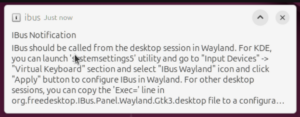
I did some searching and found a workaround. I needed to
sudo vi /etc/xrdp/startwm.sh
The startwm.sh script in xrdp is a critical configuration file, usually located in /etc/xrdp/, that launches the desktop environment (window manager) after a successful RDP login. It acts as a bridge to start sessions like GNOME, XFCE, or KDE, often defaulting to a fallback, such as xterm, if no specific session is configured.
In the startwm.sh I added two lines at the end of the file.
unset DBUS_SESSION_BUS_ADDRESS
unset XDG_RUNTIME_DIR
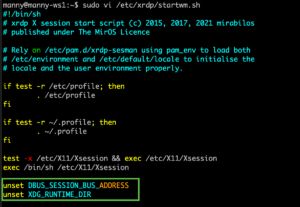
You need to restart xrdp. I still continued to have connection issues.
I disabled the Wayland in the custom.conf file to force Xorg.
sudo vi /etc/gdm3/custom.conf
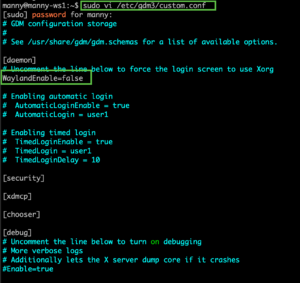
Then restarted the gdm3 sudo systemctl restart gdm3
Connecting
So after all of this, the connection worked out well.
NOTE: You need to be logged out of your session or it will not connect. If you find yourself connected and need to logit out remotely……. and you have SSH access to the Desktop…..
gnome-session-quit --logout --no-prompt
Hope this helps.
Recent posts
-

-

DNS is one of those technologies that quietly underpins... Full Story
-

BGP issues on FortiGate firewalls usually trace back to... Full Story
-

Every time your laptop talks to your router, a... Full Story
-

If you've spent any time configuring NAT on a... Full Story
-

If you have spent any time configuring firewall policies... Full Story
-

High availability on FortiGate is one of those features... Full Story
-

If you've configured SD-WAN on a FortiGate, you've almost... Full Story
-

FortiLink is the management protocol that turns a FortiSwitch... Full Story
-

FortiSwitches are pretty rock solid from Mean Time Between... Full Story
-

This is a quicky tip. Have you ever gone... Full Story
-

DNS is one of those quiet pieces of internet... Full Story
-

This article is an updated version of the previous... Full Story
-

You will add ns2 as a secondary (slave) BIND9... Full Story
-

In the process of deploying my lab, I needed... Full Story
-

RFC 8805, used to be known as Self-Correcting IP... Full Story
-

Years back, I wrote an article about certificate pinning. ... Full Story
-

FortiGates have the ability to send alerts to Microsoft... Full Story
-

In this post, I am going to walk through... Full Story
-

Troubleshooting VoIP on a FortiGate can feel like trying... Full Story
-

Prior to FortiOS 7.0, there were three commands to... Full Story
-

In this post, I am going to go over... Full Story
-

What we are going to do: We are going... Full Story
-

Choosing between FGCP (FortiGate Clustering Protocol) and FGSP (FortiGate... Full Story
-

Creating a VLAN on macOS (The "Pro" Move) A... Full Story
-

This blog post explores the logic behind how macOS... Full Story
-

Pretty Fly for a Wi-Fi Tell My Wi-Fi Love... Full Story
-

Part of my daily gig is creating BoMs (Bill-of-Materials)... Full Story
-

ICMP introduces several security risks, but careful filtering, rate... Full Story
-

The command diag debug application dhcps -1 enables full... Full Story
-

In the world of FortiOS, execute tac report is... Full Story
-

LLDP; What is it The Link Layer Discovery Protocol... Full Story
-

What it actually does When you run diagnose fdsm... Full Story
-

Monkey Bites are bite-sized, high-impact security insights designed for... Full Story
-

I have run macOS in macOS with Parallels but... Full Story
-

Don't be confused with my other FortiNAC posts where... Full Story
-

This is the third session in a multi-part article... Full Story
-

Today I was configuring key-based authentication on a FortiGate... Full Story
-

Netcat, often called the "Swiss Army knife" of networking,... Full Story
-

At its core, IEEE 802.1X is a network layer... Full Story
-

In case you did not see the previous FortiNAC... Full Story
-

This is our 5th session where we are going... Full Story
-

Now that we have Wireshark installed and somewhat configured,... Full Story
-

The Philosophy of Packet Analysis Troubleshooting isn't about looking... Full Story
-

In this guide Executive Summary Prerequisites: Which vi Do... Full Story
-

Objective: Strip blank and whitespace-only lines out of config... Full Story
-

In this guide Executive Summary Prerequisites and Architecture How... Full Story