
If you've spent any time configuring user authentication on... Full Story
By Manny Fernandez
May 15, 2026
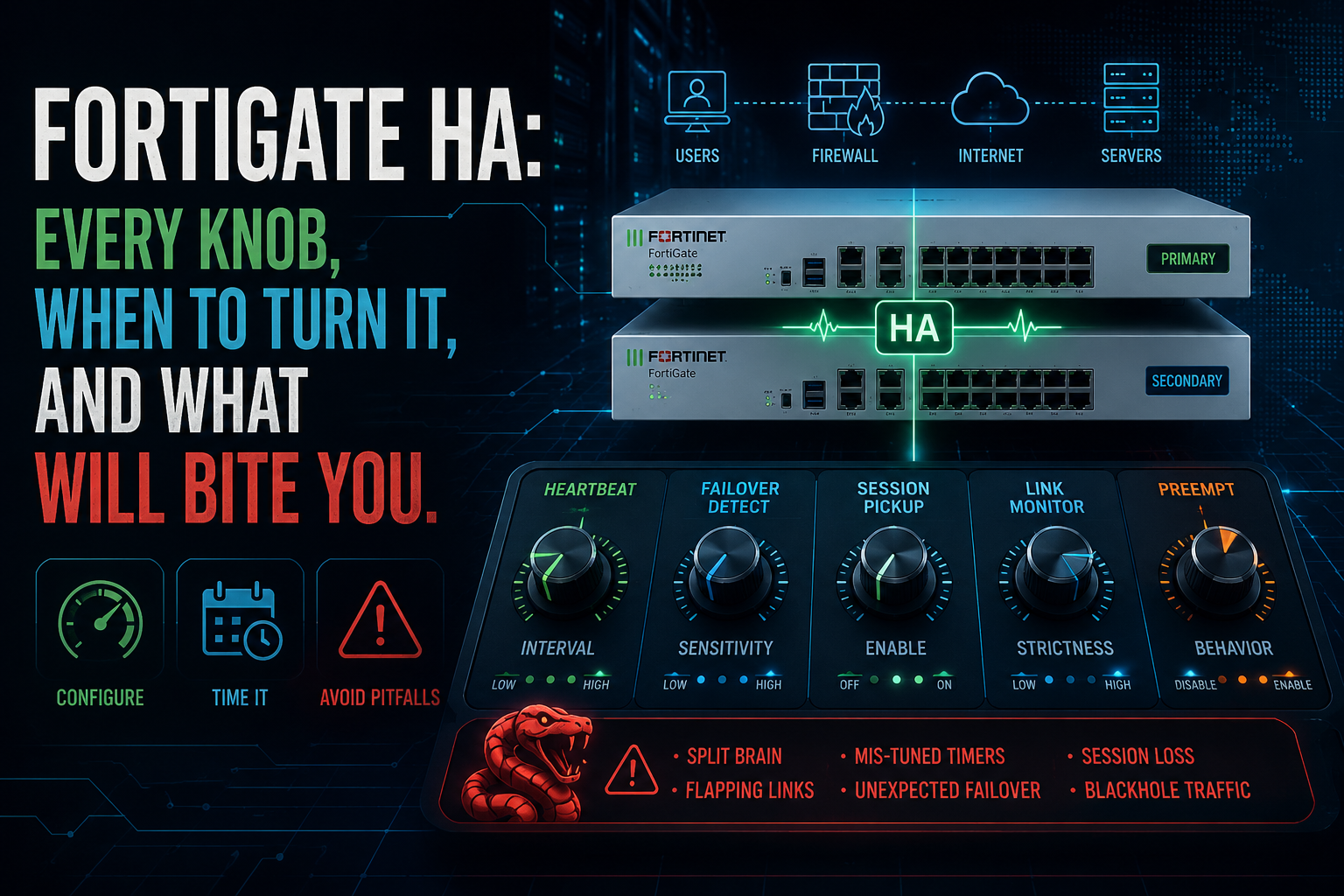
FortiGate HA: Every Knob, When to Turn It, and What Will Bite You
High availability on FortiGate is one of those features that looks deceptively simple in the GUI, pick a mode, set a priority, plug in a heartbeat cable, done. In practice it’s a layered system with a dozen interlocking options, several non-obvious defaults, and a handful of behaviors that will absolutely catch you out the first time you hit them in production. This is a walk through every meaningful HA configuration option, what it actually does, when you should change it from the default, and the gotchas that show up at 2 a.m.
The focus here is FGCP (FortiGate Clustering Protocol), the protocol used for the overwhelming majority of on-premises FortiGate HA deployments. FGSP, VRRP, and cloud auto-scaling get a mention at the end because they solve different problems and shouldn’t be confused with FGCP.
Versions referenced are FortiOS 7.4 / 7.6 – most of this applies to 7.0 and earlier too, but always confirm against the release notes for your specific build before changing anything in production.
Before you configure anything: the cluster prerequisites
A cluster will not form, or will form incorrectly and silently, if these aren’t met. None of them are negotiable.
- Same model. A 100F and a 101F are not the same model. A 60F and a 60E are not the same model. The FortiGate enforces this.
- Same firmware build. Same major, minor, and patch. ISSU (in-service software upgrades) is the exception, and it has its own rules.
- Same hardware configuration. Same number of disks, same expansion modules, same SFP loadout where it matters.
- Same operating mode. All units in NAT mode, or all in transparent mode.
- Same licensing level. If one unit has Web Filter and the other doesn’t, the cluster runs at the lower licensing level. This means you can lose features you paid for by clustering with an under-licensed unit.
- Static IPs on data interfaces during cluster formation. DHCP and PPPoE will prevent the cluster from forming. You can re-enable them after the cluster is up.
For FortiOS Carrier specifically: apply the Carrier license first, before any HA config or other licenses. Applying it resets the unit to defaults.
Mode: Active-Passive vs Active-Active
config system ha
    set mode {a-p | a-a | standalone}
end
Active-Passive (a-p) is what you want 95% of the time. One unit processes traffic; the others sit in hot standby with synchronized state. If the primary fails, a secondary takes over.
Active-Active (a-a) uses the primary to receive all traffic and then redistributes UTM/proxy-based sessions to subordinate units for inspection. It is not general-purpose load balancing in the way most people assume — the primary still terminates all sessions at the network level, and asymmetric routing is not handled. A-A made more sense in the era of slower UTM engines; on modern hardware with NP/CP offload, the gain is marginal and the operational complexity isn’t worth it for most deployments. Pick A-A only if you’ve identified a specific UTM bottleneck and confirmed A-A will actually solve it.
The load-balance schedule under A-A (set schedule round-robin | weight-round-robin | leastconnection | random | ip | ipport | hub) controls which subordinate gets a given session. Most people leave this on the default.
Group ID, group name, and password
set group-id 10
set group-name FGT-HA
set password <secret>
The group ID drives the virtual MAC addresses on the cluster’s data interfaces. Two important consequences:
- If you have more than one HA cluster on the same broadcast domain, they need different group IDs. Two clusters on group ID 0 will collide on virtual MACs and you’ll have MAC flapping that’s painful to diagnose.
- Changing the group ID changes every interface’s MAC address, which means a brief outage and ARP refresh across everything connected to the cluster. Decide once, document it, leave it alone.
The group name is cosmetic but must match across cluster members. The password must also match and authenticates heartbeat traffic — set a real one, not the default.
Device priority
set priority 200
Higher is more preferred. Default is 128. Set the unit you want as primary to a higher number (200 is conventional), and leave the secondary at the default or set it lower.
Priority alone doesn’t guarantee a unit will become the primary on every event, see the override discussion below, which is where most people get this wrong.
Override: the most misunderstood option
set override {enable | disable}
Default is disabled, and that’s almost always what you want. Here’s why this matters.
When override is disabled, primary unit selection follows this order:
- Most monitored interfaces up
- HA uptime (if the difference is > 5 minutes)
- Device priority
- Serial number (highest wins)
When override is enabled, the order changes to:
- Most monitored interfaces up
- Device priority
- HA uptime
- Serial number
The practical difference: with override disabled, once a cluster has formed and a unit has been the primary for more than 5 minutes, it will stay the primary even if a higher-priority unit comes online. The cluster is “sticky.” This is what you want, because every primary change is a brief traffic disruption and a MAC re-learning event on your switches.
With override enabled, the unit with the highest priority will always become primary, even if that means preempting a working primary when the preferred unit reboots and rejoins. Every reboot of the preferred primary causes two failovers, one when it goes down, one when it comes back up.
People enable override because it feels tidy (FGT-A should always be primary, right?). In production this generates avoidable failover events. Only enable override when you have a real reason, for example, asymmetric hardware where one unit is genuinely more capable, or strict requirements that always force traffic through a specific unit. And if you do enable it, configure the override wait time:
set override-wait-time 30
This delays the preferred unit from claiming the primary role for N seconds after it boots, giving it time to get DHCP/PPPoE leases, sync sessions, and stabilize before traffic moves to it. The default is 0, which is too aggressive.
Heartbeat interfaces
set hbdev port3 50 port4 50
The heartbeat is how cluster members detect each other and synchronize state. It uses Ethernet frames with EtherTypes 0x8890 and 0x8891, and TCP/UDP 703 for configuration sync.
The rules:
- Use at least two heartbeat interfaces. One is technically permitted but it’s a single point of failure that leads directly to split-brain.
- Direct cable connection is the gold standard for two-unit clusters. No switch in between.
- If you must use a switch (for clusters of more than two units, or for long cable runs), use a dedicated switch that carries nothing else. Heartbeat packets are not encrypted by default and contain configuration data.
- Don’t use a single switch for all heartbeat interfaces – that defeats the purpose of redundancy.
- The number after each interface is the heartbeat priority. Higher wins. Setting both to 50 is fine, the cluster uses one as active and the other as standby for heartbeat traffic.
You can enable heartbeat encryption and authentication if heartbeat traffic traverses any segment you don’t fully trust:
set ha-eth-type "8890"
set hb-interval 2
set hb-lost-threshold 6
The default heartbeat interval is 200ms (hb-interval 2, in units of 100ms) and the default lost threshold is 20, meaning a unit is declared dead after 20 missed hellos, roughly 4 seconds. For sub-second failover, drop the lost threshold to 6 (about 1.2 seconds) and consider using hb-interval-in-milliseconds for finer control.
Be careful tuning these aggressively. Setting hb-lost-threshold too low on a busy cluster with session-pickup enabled can cause false positives, a brief CPU spike or heartbeat queue delay will be misread as a dead peer, and you’ll get unnecessary failovers. Don’t go below 6 unless you’ve tested under realistic load.
Interface monitoring (port monitoring)
set monitor port1 port2 port3
This is the second-most-common failover trigger after device failure: if a monitored interface goes down on the primary, the primary loses the cluster role. The intuition is correct, if your WAN port dies, you want to fail over to the unit whose WAN port is still up.
The trap: the unit hosts the WAN cable on its own physical port. So if you monitor wan1 on the primary, and someone unplugs the secondary’s wan1 for maintenance, the secondary’s monitor reports a failure but the secondary isn’t currently passing traffic anyway. Now if the primary fails, the secondary that takes over has a monitored interface down and will immediately fail back. You can get into a flapping situation.
The safer pattern: monitor only the interfaces you genuinely cannot operate without, and ensure both units’ monitored interfaces are physically connected during normal operation. Don’t monitor SFP ports that might lose link during transceiver swaps.
For more nuanced detection, use remote link failover (link health monitor) instead of, or in addition to, raw interface monitoring. This pings a target through the interface and only declares failure if the target is unreachable, catching upstream failures that don’t take your local port down.
Session pickup
set session-pickup enable
set session-pickup-connectionless enable
set session-pickup-delay enable
Session pickup is the feature that synchronizes the session table between cluster members so that, after a failover, existing TCP connections continue rather than being torn down and re-established.
It is disabled by default. This surprises people. Without it, every TCP session resets on failover. For most environments running long-lived connections (database links, VPN tunnels, persistent application connections), you want this enabled.
The trade-offs:
- Performance cost. Every new session generates sync traffic over the heartbeat. On busy clusters, this is non-trivial.
- Connectionless sessions.
session-pickup-connectionlesssyncs UDP and ICMP. Most environments don’t need this — UDP applications generally tolerate restart, and the sync overhead is significant. Enable it only if you have stateful UDP applications that can’t tolerate re-establishment. - Session pickup delay.
session-pickup-delay enableonly syncs sessions that have been alive for more than 30 seconds. For environments with a high volume of short-lived HTTP-style sessions, this dramatically cuts sync overhead at the cost of not recovering short sessions through a failover — which the application layer almost always handles fine. Good middle ground. - What never survives failover, period. Sessions terminated on the cluster itself — management sessions (HTTPS to the GUI, SSH to the CLI, SNMP), IPsec and SSL VPN sessions terminating on the FortiGate, and explicit proxy sessions. These reset regardless of session-pickup. Plan for VPN reconnect on failover.
For very large clusters, dedicate physical interfaces to session sync separately from the heartbeat:
set session-sync-dev port9 port11
This keeps session sync traffic off the heartbeat link and prevents heartbeat delays from session sync bursts.
Virtual MAC addresses
When HA forms, the primary’s data interfaces are assigned virtual MACs derived from the group ID. On failover, the new primary inherits these MACs and sends gratuitous ARPs to update the upstream switches’ MAC tables. This is what makes failover transparent to the network without requiring IP changes.
Three things to know:
- Switch MAC age timers matter. Most modern switches handle the gratuitous ARP fine, but older or aggressive security configurations (port security, sticky MAC, MAC limits) can reject the new MAC after failover and black-hole traffic. Test failover end-to-end through your actual switch infrastructure before going live.
- Virtual MACs change when the group ID changes. As mentioned above, plan once.
- Reserved management interfaces are exempt. They keep their physical MACs.
You can also set virtual MACs manually per interface (config system interface ... set virtual-mac) if you need to match a specific MAC for licensing on an upstream service, or use auto-virtual-mac-interface to derive MACs from hardware addresses with the locally-administered bit flipped. These are edge cases.
Reserved management interface (HA-mgmt)
config system ha
    set ha-mgmt-status enable
    config ha-mgmt-interfaces
        edit 1
            set interface port8
            set gateway 10.11.101.2
        next
    end
    set ha-direct enable
end
By default, you manage the cluster by hitting the primary’s data interface IP, which always lands on whichever unit is currently primary. That’s fine for cluster-level management, but inconvenient when you need to talk to a specific unit — for example, SNMP-polling the secondary’s CPU, or checking logs on the unit that just failed over.
The reserved management interface solves this. It’s an out-of-band interface that is not synchronized between units. Each unit gets its own IP and its own default route, and the interface keeps its physical MAC rather than getting a virtual MAC. You connect directly to the unit you want.
Gotchas:
- The interface cannot be referenced anywhere else in the configuration — no policies, no zones, no routing references. If it is, the GUI silently won’t let you select it and the CLI throws an error.
- The IP and gateway are not synced. You configure the primary’s IP/gateway from the primary, then connect to the secondary (via
execute ha manage) and configure its IP/gateway separately. People forget this and wonder why the secondary’s reserved interface doesn’t work. - Use a different subnet from the cluster’s data interfaces. The reserved interface is out-of-band — putting it on the same subnet as a data interface creates routing ambiguity. If you genuinely need same-subnet management, use in-band management instead.
- Don’t manage the cluster via the reserved interface from FortiManager. Point FortiManager at one of the cluster’s regular data interface IPs — FortiManager needs to talk to “the cluster” as a single entity, not to individual members.
- FortiGuard updates won’t go out the reserved interface unless you specifically configure them to. The reserved interface is for management traffic only by default.
The ha-direct option, when enabled, allows certain cluster services (NTP, syslog, SNMP traps originating from the unit) to use the reserved management interface as their source rather than routing out a data interface. Useful when you want each unit’s logs to come from its own management IP.
VDOMs and virtual clustering
When VDOMs are enabled, you have two options for how HA load is distributed across them:
- Standard HA. One unit is primary for all VDOMs. Same as a non-VDOM cluster, just with more VDOMs.
- Virtual clustering. Different VDOMs can have different primary units, distributing processing load. You assign each VDOM to vcluster1 or vcluster2, and the cluster elects a primary per vcluster.
Virtual clustering is useful when you have a multi-tenant or multi-purpose FortiGate where some VDOMs are heavy on UTM and others are light — you can keep one unit busy on the heavy VDOMs while the other handles the light ones. The trade-off is more complex troubleshooting and the requirement that both units be capable of handling all VDOMs if one fails (you don’t get to “balance” load you can’t handle on a single unit).
Synchronization: what syncs and what doesn’t
The primary synchronizes nearly everything to subordinates over the heartbeat link, including configuration, routing tables, IPsec SAs, DHCP leases, and the MAC address table. Sync happens incrementally (on change) and is verified by checksum.
What does not sync:
- Hostname (each unit has its own)
- HA priority and override settings (these are per-unit by design)
- Reserved management interface IP, gateway, and admin access settings
- HA monitor interface configuration is per-cluster but each unit reports its own status
- Cloud-specific items on AWS/Azure/GCP/OCI VM HA — IP addresses on interfaces, since the cloud fabric assigns these. Cloud HA is its own discipline.
The cardinal rule: make all configuration changes on the primary. Never edit the secondary directly — at best, those changes get overwritten on the next sync; at worst, they create a checksum mismatch that puts the cluster into a permanent out-of-sync state.
Checksum mismatches: the most common operational problem
The single most common “the cluster says it’s out of sync” symptom is a checksum mismatch. Diagnose with:
diagnose sys ha checksum cluster
This shows the global, per-VDOM, and aggregate checksums for each unit. They should match. When they don’t:
- Run
diagnose sys ha showcsumand drill down into the mismatched section to find the specific object. - Common culprits: a stale admin dashboard layout cached on one unit, a FortiGuard signature/engine update that has applied to the primary but not yet the secondary, an interface referenced in a configuration on one unit but not the other, time skew between units.
- The “external-files” out-of-sync warnings that appear every
~5minutes during FortiGuard refresh windows are normal and resolve themselves. - For a stuck mismatch,
diagnose sys ha checksum recalculaterecomputes the checksums; sometimes that alone fixes it. If not,execute ha synchronize startforces a sync from primary to secondary. - Last resort: back up the primary’s config, restore it manually onto the secondary, reboot.
If the secondary is genuinely missing configuration from the primary and won’t sync, check that the heartbeat interface is actually passing traffic with diagnose sys ha status and diagnose debug application hatalk -1. A flapping or one-way heartbeat link causes exactly this symptom.
Upgrading firmware in HA: ISSU and the alternatives
The supported way is In-Service Software Upgrade (ISSU):
- Upload the new firmware to the primary.
- The cluster automatically upgrades subordinates first, while the primary continues to pass traffic.
- The primary fails over to an upgraded subordinate, then upgrades itself.
- Cluster returns to normal operation.
ISSU works for compatible version jumps. Not all jumps are ISSU-compatible — check the release notes for your specific upgrade path. Some major version upgrades (e.g., 6.x to 7.x, or skipping minor versions) require a non-ISSU process where the whole cluster reboots together, accepting a brief outage.
Always:
- Have console access to both units before starting.
- Take a full configuration backup of both units.
- Do it during a maintenance window, even with ISSU — failover during the upgrade will occur.
- Confirm both units register the upgrade complete before considering it done.
Gotchas worth their own section
A consolidated list of things that bite people:
Switches and gratuitous ARP. Most failover problems aren’t with the FortiGate, they’re with the upstream switch failing to learn the new MAC fast enough, or with port security rules rejecting the MAC change. Test failover through the actual network path, not just by watching cluster state on the FortiGates.
One heartbeat link. If you only have one heartbeat link, a transceiver fault or cable bump causes split-brain: both units believe they are primary, both claim the virtual MACs, traffic goes to hell. Always use two heartbeat links.
Asymmetric routing. A-A mode and certain A-P scenarios with multiple ingress paths can produce asymmetric flows that the cluster cannot stitch back together. Symptoms: TCP sessions die after a few packets, ICMP works fine. Use diagnose sys session list on both units to see where the flow is landing.
FortiGuard subscription mismatch. If one unit’s contract lapses and the other’s doesn’t, you’ve now got a cluster running at the lapsed unit’s licensing level. Renewal is per-unit.
Editing the secondary. Don’t. Use execute ha manage to get into the secondary’s CLI only for diagnostic commands. Configuration changes go on the primary.
Time skew. Both units need accurate, synchronized time. Configure NTP. Skew causes log timestamp drift and, in some cases, certificate and authentication issues that look unrelated to HA.
Forgetting that VPN sessions don’t survive failover. IPsec and SSL VPN terminate on the FortiGate itself and reset on failover regardless of session-pickup. Communicate this to anyone running long-lived tunnels, they will reconnect, but they will notice.
DHCP/PPPoE during cluster formation. Will prevent the cluster from forming with a misleading error. Static-IP the interfaces, form the cluster, then re-enable.
Override left enabled “by accident”. People enable override during initial testing and forget to disable it. Then the preferred unit reboots for routine maintenance and the cluster fails over twice. Audit override status on every cluster you inherit.
Sub-optimal failover testing. A power-off test isn’t realistic, most real failures are partial (a single interface, a degraded daemon, a memory pressure event). Test by shutting a monitored interface, by hard-killing critical processes via console, and by yanking the heartbeat to simulate split-brain. Then make sure the cluster recovers cleanly when you restore the failure condition.
A clean reference configuration
For an active-passive two-unit cluster with sane defaults, this is roughly what your primary’s HA stanza should look like:
config system ha
    set group-name FGT-HA-CLUSTER
    set mode a-p
    set group-id 10
    set password <real-password>
    set priority 200
    set hbdev port3 50 port4 50
    set session-pickup enable
    set session-pickup-delay enable
    set ha-mgmt-status enable
    config ha-mgmt-interfaces
        edit 1
            set interface port9
            set gateway 10.99.99.1
        next
    end
    set monitor port1 port2
    set override disable
end
On the secondary, the same configuration with set priority 100 (or just leave at the default 128). The reserved management interface IP gets configured separately on each unit via execute ha manage. Everything else syncs from the primary as soon as the heartbeat comes up.
Beyond FGCP: FGSP, VRRP, and cloud
A quick note for completeness, since these are sometimes confused with FGCP:
- FGSP (FortiGate Session Life Support Protocol) synchronizes session state between two independent FortiGates (or FGCP clusters) that sit behind an external load balancer. Use it when something else is making load-balancing decisions and you just need state to be consistent across the firewall nodes. The FortiGates do not share configuration or a virtual MAC, they’re independent units that happen to know about each other’s sessions.
- VRRP is the standard router-redundancy protocol. FortiGate supports it for interop with non-Fortinet devices in a redundancy group. Don’t use VRRP between two FortiGates when FGCP is available, FGCP is more capable.
- Cloud HA (AWS, Azure, GCP, OCI) uses FGCP under the hood but the IP-takeover mechanism is fundamentally different because cloud networks don’t honor gratuitous ARP. The cluster updates route tables or elastic IP associations via cloud APIs during failover. Each provider has its own deployment guide and the right answer depends heavily on the cloud platform, treat cloud HA as a separate topic.
On FortiGate HA running BGP, failover time depends on tuning both the HA layer and BGP convergence. The key settings:
HA-side tuning
Enable graceful restart so the BGP session survives the failover instead of resetting:
config router bgp
set graceful-restart enable
set graceful-restart-time 120
set graceful-stalepath-time 360
set graceful-update-delay 120
end
Configure session pickup and synchronize BGP/routing state so the new primary already has the routing information:
config system ha
set session-pickup enable
set session-pickup-connectionless enable
end
BGP neighbor timers
Lower the keepalive and holdtime to detect a dead session faster. Defaults are 60/180 seconds. Tighten them, but keep holdtime at least 3x keepalive:
config router bgp
config neighbor
edit "<neighbor-ip>"
set keep-alive-timer 5
set holdtime-timer 15
next
end
end
BFD for sub-second detection
This is the single biggest lever. BFD detects link or neighbor failure far faster than BGP timers:
config system settings
set bfd enable
set bfd-desired-min-tx 250
set bfd-required-min-rx 250
set bfd-detect-mult 3
end
Then enable BFD on the BGP neighbor:
config router bgp
config neighbor
edit "<neighbor-ip>"
set bfd enable
next
end
end
Practical considerations
Graceful restart and aggressive timers can work against each other. Graceful restart relies on keeping the session up across the failover, while aggressive holdtimers will tear the session down faster. For HA failover specifically, graceful restart plus session-pickup usually gives the cleanest result because the peer keeps forwarding during the switchover. Aggressive BFD/timers are more valuable for upstream link or peer failures where you actually want fast reconvergence rather than session preservation.
Also confirm the upstream peer supports graceful restart and BFD, since both are negotiated and only help if both sides agree. Verify with get router info bgp neighbors <ip> and diagnose ip bfd session after configuring.
Closing thought
A FortiGate HA cluster that’s been built right and tested honestly will fail over in under a second, and most users won’t notice. A cluster that’s been built quickly with defaults and never tested will fail over the day you find out about the second heartbeat link you never plugged in. The settings above are the difference between those two outcomes, and most of them don’t cost anything except a few extra minutes of thinking up front.
The best time to test failover is during the build. The second-best time is during a maintenance window before go-live. After that, every test is a production test.
Recent posts
-

-

DNS is one of those technologies that quietly underpins... Full Story
-

BGP issues on FortiGate firewalls usually trace back to... Full Story
-

Every time your laptop talks to your router, a... Full Story
-

If you've spent any time configuring NAT on a... Full Story
-

If you have spent any time configuring firewall policies... Full Story
-

High availability on FortiGate is one of those features... Full Story
-

If you've configured SD-WAN on a FortiGate, you've almost... Full Story
-

FortiLink is the management protocol that turns a FortiSwitch... Full Story
-

FortiSwitches are pretty rock solid from Mean Time Between... Full Story
-

This is a quicky tip. Have you ever gone... Full Story
-

DNS is one of those quiet pieces of internet... Full Story
-

This article is an updated version of the previous... Full Story
-

You will add ns2 as a secondary (slave) BIND9... Full Story
-

In the process of deploying my lab, I needed... Full Story
-

RFC 8805, used to be known as Self-Correcting IP... Full Story
-

Years back, I wrote an article about certificate pinning. ... Full Story
-

FortiGates have the ability to send alerts to Microsoft... Full Story
-

In this post, I am going to walk through... Full Story
-

Troubleshooting VoIP on a FortiGate can feel like trying... Full Story
-

Prior to FortiOS 7.0, there were three commands to... Full Story
-

In this post, I am going to go over... Full Story
-

What we are going to do: We are going... Full Story
-

Choosing between FGCP (FortiGate Clustering Protocol) and FGSP (FortiGate... Full Story
-

Creating a VLAN on macOS (The "Pro" Move) A... Full Story
-

This blog post explores the logic behind how macOS... Full Story
-

Pretty Fly for a Wi-Fi Tell My Wi-Fi Love... Full Story
-

Part of my daily gig is creating BoMs (Bill-of-Materials)... Full Story
-

ICMP introduces several security risks, but careful filtering, rate... Full Story
-

The command diag debug application dhcps -1 enables full... Full Story
-

In the world of FortiOS, execute tac report is... Full Story
-

LLDP; What is it The Link Layer Discovery Protocol... Full Story
-

What it actually does When you run diagnose fdsm... Full Story
-

Monkey Bites are bite-sized, high-impact security insights designed for... Full Story
-

I have run macOS in macOS with Parallels but... Full Story
-

Don't be confused with my other FortiNAC posts where... Full Story
-

This is the third session in a multi-part article... Full Story
-

Today I was configuring key-based authentication on a FortiGate... Full Story
-

Netcat, often called the "Swiss Army knife" of networking,... Full Story
-

At its core, IEEE 802.1X is a network layer... Full Story
-

In case you did not see the previous FortiNAC... Full Story
-

This is our 5th session where we are going... Full Story
-

Now that we have Wireshark installed and somewhat configured,... Full Story
-

The Philosophy of Packet Analysis Troubleshooting isn't about looking... Full Story
-

Executive Summary Objective: Give you a working command of... Full Story
-

You have configured it a dozen times. Server IP,... Full Story
-

Executive Summary Objective: Walk through every message a FortiGate... Full Story