
If you've spent any time configuring user authentication on... Full Story
By Manny Fernandez
May 15, 2026
Getting the Most Out of FortiGate Protocol Options: When and How to Use Them
If you have spent any time configuring firewall policies on a FortiGate, you have probably seen the Protocol Options field sitting quietly next to your security profiles. Many administrators leave it on the default setting and move on. That is a missed opportunity. Protocol Options profiles control how the FortiGate identifies, parses, and prepares application layer traffic for inspection, and getting them right can mean the difference between security profiles that actually work and ones that silently let traffic slip past.
This post walks through what Protocol Options profiles do, when you should reach for a custom one, and how to configure them without breaking your existing policies.
What Protocol Options Profiles Actually Do
A Protocol Options profile tells the FortiGate three core things for each supported application protocol. First, it specifies which TCP ports the firewall should treat as carrying that protocol. Second, it controls whether the firewall should inspect only those mapped ports or scan all ports for that protocol. Third, it sets behavior for edge cases like oversized files, fragmented email, compressed archives, and HTTP chunked transfer encoding.
The protocols you can tune typically include HTTP, FTP, IMAP, POP3, SMTP, MAPI, NNTP, CIFS, DNS, and SSH (for SFTP and SCP). Each one has its own default port and its own set of behavioral toggles.
Protocol Options profiles are not security profiles themselves. They are the plumbing that sits underneath antivirus, web filtering, application control, IPS, DLP, and email filtering. If the Protocol Options profile does not recognize traffic on a given port as HTTP, then your antivirus profile is not going to scan it as HTTP either, no matter how aggressive the antivirus settings are.
When You Should Use a Custom Protocol Options Profile
The default profile works for many environments, but here are the situations where building a custom one pays off.
Applications running on non-standard ports. This is the classic case. If your internal web application runs on TCP 8081, or your SMTP relay listens on 2525, the default profile is mapping HTTP to 80 and SMTP to 25 and will not apply protocol aware inspection to your real traffic. You either need to add those ports to the protocol mapping or enable Inspect All Ports for the relevant protocols.
Large file transfers causing user complaints. When proxy based antivirus is in play, the FortiGate buffers the entire file before scanning. On big downloads such as ISO images, video files, or software bundles, users may see their browser stall and assume the download failed. The Comfort Clients option drips a small amount of data to the client during the scan so the connection feels alive. The default oversized threshold is 10 MB, and anything above that bypasses antivirus scanning entirely. If you are routinely seeing legitimate files cancelled or, worse, malware sneaking through in larger payloads, this is where you raise or lower that threshold based on your hardware and your appetite for risk.
Email environments with specific scanning needs. SMTP, POP3, IMAP, and MAPI all have the Allow Fragmented Messages option. RFC 2046 allows email clients to break a single message into multiple parts that get reassembled at the destination. Almost no modern mail client does this except for some older Outlook configurations, but if malware is split across fragments, an antivirus engine may not see enough of the payload at once to flag it. Disabling fragmented message support closes that gap. The Append Signature option on SMTP lets you stamp a standardized footer onto outbound messages, which can be useful for compliance disclaimers.
Flow based inspection on SSL traffic. If you are running flow based UTM and doing deep SSL inspection, the IPS engine cannot tell which application is wrapped inside a given TLS session based on port alone. In that scenario you generally need Inspect All Ports turned on for the protocols you care about, or your SSL inspection will not behave the way you expect.
Performance tuning on busy gateways. Each protocol you enable for inspection consumes resources. If you know your environment never uses NNTP or MAPI, disabling those protocols inside the profile trims unnecessary work. You can also tune TCP window sizing, compression nesting limits, and BZip2 scanning behavior to balance throughput against thoroughness.
Compliance and logging requirements. Enabling oversized file logging gives you visibility into how often files are sliding past antivirus because they exceeded the buffer threshold. You cannot fix what you cannot see, so this is a low cost change that helps you size your thresholds intelligently over time.
How to Configure a Protocol Options Profile
Using the GUI
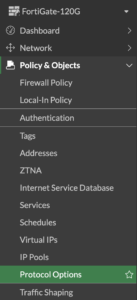
Navigate to Policy & Objects > Protocol Options. From here you can edit the default profile or create a new one. Best practice is to leave the default alone and build named profiles for specific use cases such as “web servers DMZ” or “internal user browsing.”
Inside the profile you will see a section for each supported protocol. For each one you can:
- Toggle the protocol on or off.
- Set the
TCPport or ports the FortiGate should treat as carrying that protocol. - Enable Inspect All Ports if traffic for this protocol might appear on arbitrary ports.
- Set the oversize limit (in
MB) for files that will be passed without antivirus scanning. - Enable or disable Comfort Clients for protocols that support it, primarily
HTTPandFTP. - Configure protocol specific behaviors such as Chunked Bypass for
HTTPor Allow Fragmented Messages for email protocols.
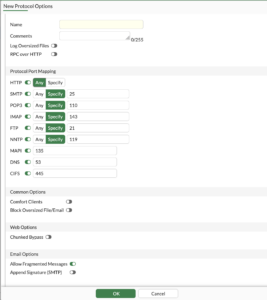
Common Options at the top of the profile govern oversized file logging and the shared oversize threshold.
Once the profile is saved, attach it to a firewall policy by editing the policy and selecting your new profile from the Protocol Options dropdown in the security profiles section. Each policy uses exactly one Protocol Options profile, but the same profile can be reused across many policies.
Using the CLI
Here is a minimal example of a custom profile that maps HTTP to port 8081 in addition to 80, raises the oversize limit to 25 MB, and enables client comforting:
config firewall profile-protocol-options
    edit "web-app-custom"
        set comment "For internal web app on 8081"
        config http
            set ports 80 8081
            set status enable
            set options clientcomfort
            set comfort-interval 10
            set comfort-amount 1
            set oversize-limit 25
        end
        set oversize-log enable
    next
end
To apply it to a policy:
config firewall policy
    edit <policy-id>
        set profile-protocol-options "web-app-custom"
    next
end
Choosing Flow Based or Proxy Based
When you create the profile, you select a feature set of either flow or proxy. This choice has to match the inspection mode used by the security profiles you intend to apply alongside it. Proxy based profiles enable richer features like client comforting and more granular scanning, but they consume more resources and add latency. Flow based profiles are lighter and faster but offer fewer knobs. If your policies mix inspection modes, you will need separate Protocol Options profiles for each.
A Few Gotchas Worth Knowing
Protocol Options is not the same as the SSL/SSH Inspection profile, even though they often work together. Protocol Options decides what gets parsed as HTTP. SSL inspection decides whether the FortiGate can see inside TLS in the first place. If your inspection results look wrong, check both.
Inspect All Ports is powerful but expensive. It tells the FortiGate to look at every port for signs of a given protocol, which catches evasion attempts and applications running on odd ports, but it also increases CPU load. Use it where you need it rather than enabling it globally.
The oversize threshold has model specific maximums. Smaller FortiGates cap out lower than enterprise units. Check your platform documentation before assuming you can buffer 200 MB files for scanning.
Changes to a Protocol Options profile take effect on new sessions. Existing connections continue under the old behavior until they close and reestablish.
Wrapping Up
Protocol Options profiles are one of those features that quietly determine whether the rest of your security stack actually does its job. Spending an hour reviewing the profiles attached to your most important policies often reveals at least one mismatch between what your environment actually does and what the firewall assumes it does. The default profile is a fine starting point, but a few targeted customizations around non-standard ports, oversize handling, and protocol scope will tighten your inspection coverage and keep your users happy.
Next time you build a firewall policy, give the Protocol Options dropdown the attention it deserves.
Recent posts
-

-

DNS is one of those technologies that quietly underpins... Full Story
-

BGP issues on FortiGate firewalls usually trace back to... Full Story
-

Every time your laptop talks to your router, a... Full Story
-

If you've spent any time configuring NAT on a... Full Story
-

If you have spent any time configuring firewall policies... Full Story
-

High availability on FortiGate is one of those features... Full Story
-

If you've configured SD-WAN on a FortiGate, you've almost... Full Story
-

FortiLink is the management protocol that turns a FortiSwitch... Full Story
-

FortiSwitches are pretty rock solid from Mean Time Between... Full Story
-

This is a quicky tip. Have you ever gone... Full Story
-

DNS is one of those quiet pieces of internet... Full Story
-

This article is an updated version of the previous... Full Story
-

You will add ns2 as a secondary (slave) BIND9... Full Story
-

In the process of deploying my lab, I needed... Full Story
-

RFC 8805, used to be known as Self-Correcting IP... Full Story
-

Years back, I wrote an article about certificate pinning. ... Full Story
-

FortiGates have the ability to send alerts to Microsoft... Full Story
-

In this post, I am going to walk through... Full Story
-

Troubleshooting VoIP on a FortiGate can feel like trying... Full Story
-

Prior to FortiOS 7.0, there were three commands to... Full Story
-

In this post, I am going to go over... Full Story
-

What we are going to do: We are going... Full Story
-

Choosing between FGCP (FortiGate Clustering Protocol) and FGSP (FortiGate... Full Story
-

Creating a VLAN on macOS (The "Pro" Move) A... Full Story
-

This blog post explores the logic behind how macOS... Full Story
-

Pretty Fly for a Wi-Fi Tell My Wi-Fi Love... Full Story
-

Part of my daily gig is creating BoMs (Bill-of-Materials)... Full Story
-

ICMP introduces several security risks, but careful filtering, rate... Full Story
-

The command diag debug application dhcps -1 enables full... Full Story
-

In the world of FortiOS, execute tac report is... Full Story
-

LLDP; What is it The Link Layer Discovery Protocol... Full Story
-

What it actually does When you run diagnose fdsm... Full Story
-

Monkey Bites are bite-sized, high-impact security insights designed for... Full Story
-

I have run macOS in macOS with Parallels but... Full Story
-

Don't be confused with my other FortiNAC posts where... Full Story
-

This is the third session in a multi-part article... Full Story
-

Today I was configuring key-based authentication on a FortiGate... Full Story
-

Netcat, often called the "Swiss Army knife" of networking,... Full Story
-

At its core, IEEE 802.1X is a network layer... Full Story
-

In case you did not see the previous FortiNAC... Full Story
-

This is our 5th session where we are going... Full Story
-

Now that we have Wireshark installed and somewhat configured,... Full Story
-

The Philosophy of Packet Analysis Troubleshooting isn't about looking... Full Story
-

Executive Summary Objective: Get you from zero to writing... Full Story
-

NAND cells, the flash translation layer, SLC caching, TRIM,... Full Story
-

Nmap Scripting Engine (NSE): From One-Liners to Your First... Full Story