
If you've spent any time configuring user authentication on... Full Story
By Manny Fernandez
June 1, 2026
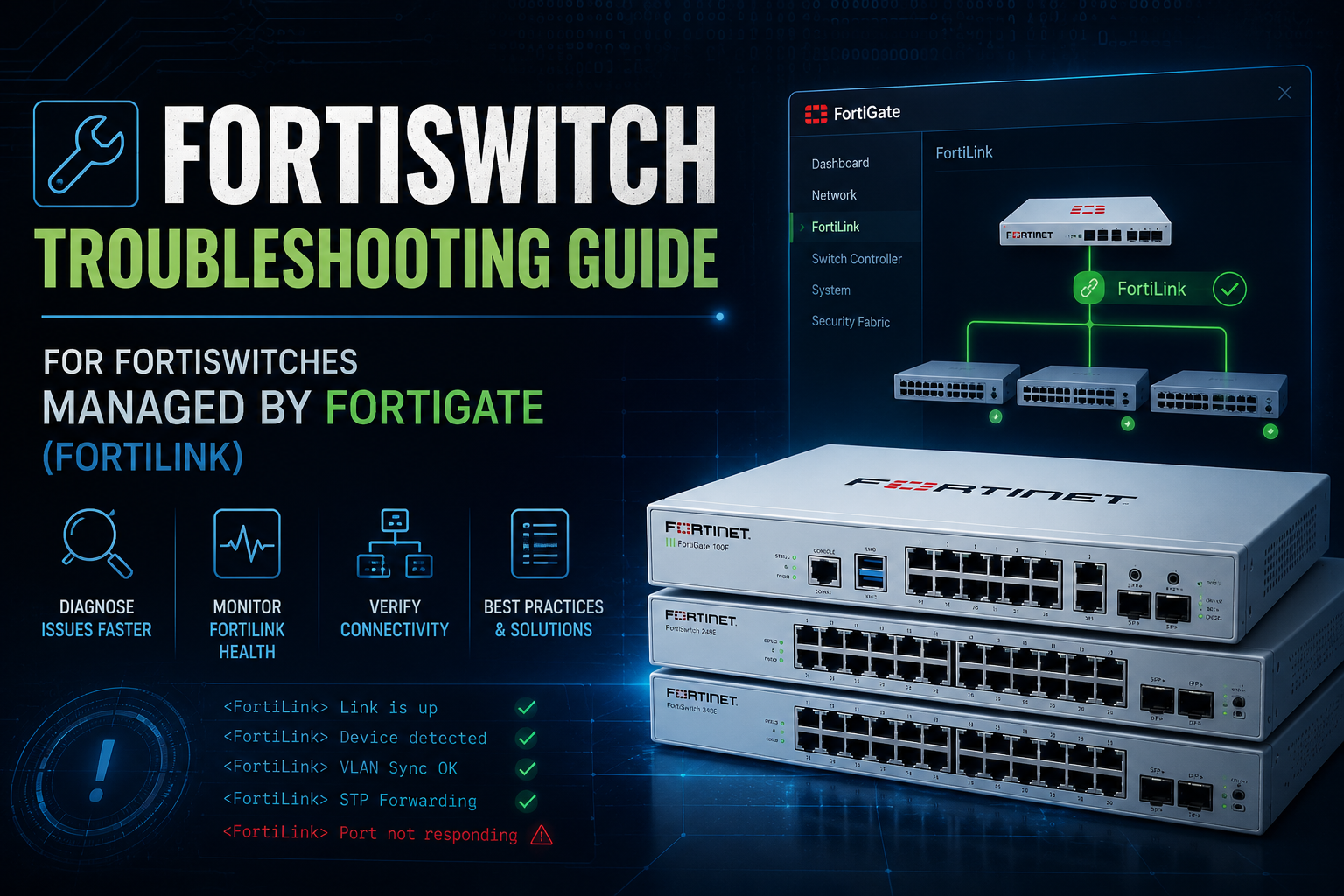
FortiSwitch Troubleshooting Guide For FortiSwitches Managed by FortiGate (FortiLink)
1. Introduction and Architecture
1.1 What is FortiLink
FortiLink is the proprietary management protocol used by FortiGate firewalls to discover, provision, and manage FortiSwitch devices. The FortiGate becomes the single control plane for one or more FortiSwitches, pushing configuration, policy, VLANs, and firmware while collecting status, port statistics, and security telemetry from the switch.
Once a FortiSwitch is authorized over FortiLink, its local administrative interface is heavily restricted. Most configuration must be performed from the managing FortiGate. Attempting to make changes directly on the switch can lead to configuration loss when the FortiGate next pushes its template.
1.2 FortiLink Topologies
– Single FortiGate to single FortiSwitch over a dedicated FortiLink interface.
– Single FortiGate to multiple FortiSwitches in a tiered (root and access) topology.
– FortiGate HA cluster managing FortiSwitches with MCLAG (multi-chassis LAG) between two stacked FortiSwitch root devices for redundancy.
– Auto-discovery via DHCP option 138 when switches are not directly connected to the FortiGate.
1.3 Key Communication Channels
| Channel | Purpose | Protocol / Port |
| FortiLink discovery | Initial switch discovery and authorization | Layer 2 broadcast, CAPWAP |
| CAPWAP control | Management, configuration push, status | UDP 5246 |
| CAPWAP data | Optional traffic tunneling | UDP 5247 |
| FortiLink keepalive | Switch liveness, fail detection | LLDP and CAPWAP heartbeats |
| NTP | Time sync (required for certificates) | UDP 123 |
| DNS | Name resolution for FortiGuard, NTP | UDP 53 |
1.4 Before You Begin
– Confirm FortiOS and FortiSwitchOS versions are compatible. Refer to the Fortinet compatibility matrix at docs.fortinet.com.
– Have console (serial) access to both the FortiGate and FortiSwitch where possible. Many issues require out-of-band recovery.
– Document your current FortiLink interface, native VLAN, and management VLAN before making changes.
Note: Throughout this guide, replace placeholders such as <switch-serial>, <port-id>, and <vlan-id> with your environment-specific values.
2. FortiSwitch Discovery and Authorization Issues
2.1 Symptom: FortiSwitch Does Not Appear in FortiGate
This is the most common starting point. The switch has been cabled and powered on, but the FortiGate shows no devices on the Managed FortiSwitches page.
2.1.1 GUI Verification on the FortiGate
1. Navigate to WiFi & Switch Controller > Managed FortiSwitches.
2. Confirm whether the switch is listed in the Discovered (gray) state or absent entirely.
3. Check the FortiLink interface under Network > Interfaces. The interface should be of type Hardware Switch or Aggregate, with role set to LAN or Undefined, and Dedicated to FortiSwitch enabled.
4. Verify DHCP is enabled on the FortiLink interface (FortiSwitches need an IP in the FortiLink subnet).
2.1.2 CLI Verification on the FortiGate
Confirm the FortiLink interface is configured correctly:
config system interface
edit "fortilink"
show
end
# Look for: set fortilink enable
# and: set ip <fortilink-subnet>
Check if the switch is being discovered at the controller level:
diagnose switch-controller switch-info list
diagnose switch-controller switch-info trunk
execute switch-controller get-conn-status
Inspect the FortiLink CAPWAP daemon:
diagnose debug application cu_acd -1
diagnose debug enable
# (wait 30 to 60 seconds for switch traffic)
diagnose debug disable
diagnose debug reset
2.1.3 Common Root Causes and Fixes
| Cause | Resolution |
| FortiLink not enabled on the interface | Set ‘set fortilink enable’ under config system interface for the FortiLink port. |
| No DHCP on FortiLink interface | Configure DHCP server under ‘config system dhcp server’ bound to the FortiLink interface. |
| Cabled to wrong port on switch | Connect to the designated FortiLink uplink (typically the last two ports or any port flagged as auto-discovery). |
| Switch is set to standalone mode | Reset the switch to factory defaults so it returns to FortiLink auto-discovery mode. |
| Spanning Tree blocking | Confirm STP is not blocking the FortiLink port on intermediate switches. Use ‘set edge-port enabled’ if appropriate. |
| Switch running incompatible firmware | Upgrade or downgrade FortiSwitchOS to a version compatible with the FortiGate per the compatibility matrix. |
2.2 Symptom: Switch is Discovered but Not Authorized
The switch shows in the Managed FortiSwitches list with a gray or warning icon and a status of Unauthorized.
2.2.1 GUI Authorization Steps
1. Go to WiFi & Switch Controller > Managed FortiSwitches.
2. Locate the unauthorized switch (it will be listed with serial number but no green status).
3. Right-click the switch entry and select Authorize, or click the Authorize button at the top.
4. Wait two to five minutes for the FortiGate to push the initial template and firmware (if a forced upgrade is configured).
2.2.2 CLI Authorization
# List all known switches and their authorization state
execute switch-controller get-conn-status# Authorize by serial number
config switch-controller managed-switch
edit "<switch-serial>"
set fsw-wan1-admin enable
next
end
Note: On FortiOS 7.0 and later, authorization is also exposed through execute switch-controller switch-action authorize <serial>. Check execute switch-controller ? on your version for the exact command.
2.3 Symptom: Switch Stuck in Authorizing or Discovered State
The switch is recognized but never transitions to Online. Common causes are firmware mismatch, certificate issues, or DTLS failures.
– Check the FortiGate event log under Log & Report > Events > System Events for messages referencing the switch serial number.
– From the FortiGate CLI, run:
diagnose switch-controller switch-info status <switch-serial>
execute switch-controller get-conn-status <switch-serial>
– If the switch shows certificate verification errors, time skew is usually the cause. Verify both devices have correct NTP sync:
# On the FortiGate
diagnose sys ntp status# On the FortiSwitch (console)
diagnose sys ntp status
Warning: If a switch was previously managed by another FortiGate, residual configuration or certificates can prevent authorization. Factory reset the switch from its console before re-authorizing.
3. FortiLink Connection Health
3.1 Verifying FortiLink Status
3.1.1 GUI
1. WiFi & Switch Controller > FortiLink Interface (or Managed FortiSwitches).
2. Confirm each switch shows a green Connected icon.
3. Click the switch name to open the dashboard. Confirm uptime, last contact time, and CPU/memory values are sensible.
4. Under the Topology view, verify the link between the FortiGate and the switch is solid and labeled with the expected port.
3.1.2 CLI
# Status summary
diagnose switch-controller switch-info list# Detailed view per switch
diagnose switch-controller switch-info status <switch-serial># Discovery / CAPWAP session info
diagnose switch-controller switch-info trunk# Show the FortiSwitch CAPWAP session
diagnose switch-controller switch-info session-count
3.2 Symptom: Switch Flapping or Repeatedly Going Offline
3.2.1 Investigation Steps
– Inspect the FortiGate event log for repeated CAPWAP join and leave messages.
– Check FortiLink interface error counters:
diagnose hardware deviceinfo nic <fortilink-interface>
fnsysctl ifconfig <fortilink-interface>
– Look for CRC errors, late collisions, or input drops. These suggest a bad cable, SFP, or duplex mismatch.
– From the switch console (if reachable):
diagnose switch physical-ports list
diagnose switch physical-ports summary
show switch interface | grep -i error
3.2.2 Common Causes
| Cause | Resolution |
| Faulty SFP or fiber | Swap SFPs and patch cords. Check ‘diagnose switch interface transceiver detail <port>’ for DDM/DOM values. |
| Speed/duplex mismatch | Set both ends to auto-negotiate, or hard-code matching speed/duplex. |
| Power instability or PoE budget | Verify input power and check that the switch is not in a PoE overload state. |
| MTU mismatch on FortiLink | Ensure MTU is consistent (default 1500). Jumbo frames must be enabled symmetrically. |
| STP topology change | Check for STP TCN storms with diagnose switch stp instance show <id>. |
3.3 Resyncing a Switch
If a switch is online but appears to have stale or incorrect configuration:
3.3.1 GUI
1. Open WiFi & Switch Controller > Managed FortiSwitches.
2. Right-click the switch and select Restart (full reboot) or Reset Configuration.
3.3.2 CLI
# Soft restart of FortiLink session (FortiGate side)
execute switch-controller switch-action restart <switch-serial># Force a configuration push from the FortiGate
diagnose switch-controller trigger-restart <switch-serial># Reset switch configuration to FortiGate-pushed defaults
execute switch-controller factory-reset <switch-serial>
Warning: A factory reset of a managed switch will erase all local configuration and trigger re-authorization. Schedule a maintenance window.
4. Port and Interface Troubleshooting
4.1 Port is Down or Will Not Link
4.1.1 GUI Investigation
1. Navigate to WiFi & Switch Controller > FortiSwitch Ports.
2. Locate the affected port. Confirm administrative state (enabled) and the link/PoE indicators.
3. Hover the port icon for status detail (speed, duplex, native VLAN, errors).
4. If the port is administratively down, click the port and toggle Enable.
4.1.2 CLI Investigation
# From the FortiGate, view port status across managed switches
diagnose switch-controller switch-info port-stats <switch-serial># Detailed view for a single port
diagnose switch-controller switch-info port-properties <switch-serial> <port-id># Toggle port admin state from the FortiGate
config switch-controller managed-switch
edit "<switch-serial>"
config ports
edit "<port-id>"
set status up
next
end
next
end
From the switch console directly (for diagnostics, not configuration):
diagnose switch physical-ports summary
diagnose switch physical-ports list <port-id>
show switch interface <port-id>
4.2 Port Up but No Traffic Passing
– Verify the port is in the correct VLAN. Check native VLAN and allowed VLANs (see Section 5).
– Confirm spanning tree is not blocking the port:
diagnose switch stp instance show 0
diagnose switch stp port show <port-id>
– Check for security feature blocks: port security, sticky MAC, 802.1X failed authentication.
– Inspect the MAC table to see whether endpoints are learned:
diagnose switch mac-address list
diagnose switch mac-address list interface <port-id>
4.3 Excessive Errors or CRC Counters
CRC errors, alignment errors, or runts almost always indicate physical-layer problems: bad cable, damaged connector, dirty fiber, or failing SFP.
# From the switch console
diagnose switch physical-ports list <port-id># Look at lines: Rx CRC, Rx Align, Rx Runt, Rx Giant, Tx Late Coll
# Optical transceiver diagnostics (DDM/DOM)
diagnose switch interface transceiver detail <port-id>
– DDM values to inspect: TX Power, RX Power, Temperature, Voltage, Tx Bias. Values flagged as warning or alarm typically point to a failing transceiver or improper fiber type.
– Clear counters and observe accumulation rate:
execute switch-controller switch-action clear-port-stats <switch-serial> <port-id>
4.4 Loop Detection Triggered
FortiSwitches use loop guard to disable ports where a Layer 2 loop is detected. The port LED typically blinks amber and the GUI shows a Loop Detected state.
4.4.1 Identifying and Recovering the Port
# Identify loop-disabled ports
diagnose switch-controller switch-info loop-guard <switch-serial># Clear the loop-guard state on the port
execute switch-controller switch-action loop-guard-reset <switch-serial> <port-id>
– Inspect the cabling on the affected port. Remove any unmanaged switch or duplicate uplink.
– If the device beyond the port is legitimately a small switch, ensure STP (RSTP/MSTP) is running on it, or disable loop guard on that specific port and enable edge-port appropriately.
5. VLAN and Trunk Issues
5.1 Endpoint in Wrong VLAN
5.1.1 GUI Steps
1. Open WiFi & Switch Controller > FortiSwitch Ports.
2. Click the affected port. The Edit FortiSwitch Port panel opens.
3. Confirm Native VLAN matches the intended untagged VLAN for the endpoint.
4. Confirm Allowed VLANs lists every VLAN that must traverse the port (used for trunks to APs, IP phones, or other switches).
5. Click OK and wait for the configuration to push (10 to 30 seconds).
5.1.2 CLI Steps
config switch-controller managed-switch
edit "<switch-serial>"
config ports
edit "port5"
set vlan "vlan-employee"
set allowed-vlans "vlan-voice" "vlan-employee"
set untagged-vlans "vlan-employee"
next
end
next
end
5.2 VLAN Not Defined on FortiGate
All VLANs used on managed switches must be defined as interfaces on the FortiGate, attached to the FortiLink interface.
5.2.1 GUI
1. Network > Interfaces > Create New > Interface.
2. Set Type to VLAN, Interface to your FortiLink interface, VLAN ID to the desired tag.
3. Configure IP/Netmask if the FortiGate should be the gateway for that VLAN.
4. Set Role to LAN and configure DHCP server if applicable.
5.2.2 CLI
config system interface
edit "vlan-employee"
set vdom "root"
set ip 10.10.20.1 255.255.255.0
set allowaccess ping
set role lan
set interface "fortilink"
set vlanid 20
next
end
5.3 Verifying VLAN Propagation to the Switch
# From the FortiGate
diagnose switch-controller switch-info vlan <switch-serial># From the switch (console)
diagnose switch vlan list
diagnose switch vlan assignment list
show switch vlan
Note: If a VLAN is defined on the FortiGate but does not appear on the switch, force a configuration push with `execute switch-controller switch-action restart <switch-serial>`.
5.4 Voice VLAN and LLDP-MED
IP phones generally rely on LLDP-MED to learn their voice VLAN. If phones boot into the data VLAN, LLDP-MED is not advertising correctly.
5.4.1 Verify LLDP Profile on the Port
config switch-controller managed-switch
edit "<switch-serial>"
config ports
edit "port10"
set lldp-profile "default-auto-isl"
next
end
next
end
5.4.2 Check LLDP Neighbors
diagnose switch-controller switch-info lldp neighbors-summary <switch-serial>
diagnose switch-controller switch-info lldp neighbors-detail <switch-serial>
6. Power over Ethernet (PoE) Issues
6.1 Device Not Receiving Power
6.1.1 GUI Checks
1. WiFi & Switch Controller > FortiSwitch Ports.
2. Confirm the PoE icon next to the port is illuminated and not red or grayed out.
3. Click the port. Verify PoE is enabled. On models that support it, confirm PoE mode (802.3af, 802.3at, 802.3bt) is appropriate for the device.
6.1.2 CLI Verification
# PoE status across all ports
diagnose switch-controller switch-info poe-status <switch-serial># Per-port PoE detail
diagnose switch-controller switch-info poe <switch-serial> <port-id># Enable PoE on a port
config switch-controller managed-switch
edit "<switch-serial>"
config ports
edit "port5"
set poe-status enable
set poe-port-priority high-priority
next
end
next
end
6.2 Resetting PoE on a Port
Cycling PoE often resolves stuck devices (such as APs that fail to boot).
6.2.1 GUI
1. WiFi & Switch Controller > FortiSwitch Ports.
2. Right-click the port and select PoE Reset.
6.2.2 CLI
execute switch-controller poe-reset <switch-serial> <port-id>
6.3 PoE Budget Exceeded
If the total power draw exceeds the switch budget, lower-priority ports will be denied power. Symptoms include random AP reboots or new devices failing to power on.
# View total power budget and current draw
diagnose switch-controller switch-info poe-summary <switch-serial>– Set PoE port priorities so essential devices (APs, uplinked phones) get power first.
– Set explicit max power per port for devices known to overshoot their class:
config switch-controller managed-switch
edit "<switch-serial>"
config ports
edit "port8"
set max-poe-power 15.4
next
end
next
end
Warning: Some FortiSwitch models have a lower PoE budget on a second power supply. Verify both PSUs are installed and operational for full PoE+ or PoE++ capacity.
7. Stacking and Tiered Topology
7.1 Inter-Switch Link (ISL) Discovery
When two or more FortiSwitches are connected to each other (in a ring, star, or chain), the FortiGate should automatically build a topology using auto-ISL detection.
# View the FortiLink trunk and detected ISLs
diagnose switch-controller switch-info trunk
diagnose switch-controller switch-info isl <switch-serial># Topology view (FortiOS 7.0+)
diagnose switch-controller switch-info topology
7.2 Symptom: Inter-Switch Link Not Forming
– Ensure both endpoints of the ISL are on ports that allow auto-ISL (default LLDP profile is default-auto-isl).
– Confirm both switches are authorized on the same FortiGate.
– Inspect LLDP neighbors. The auto-ISL relies on Fortinet TLVs:
diagnose switch-controller switch-info lldp neighbors-summary <switch-serial>
– If you have manually pinned ports to a non-default LLDP profile, revert to default-auto-isl on intended ISL ports.
7.3 MCLAG Issues
MCLAG provides active/active redundancy between two peer FortiSwitches. Issues usually fall into two buckets: ICL (inter-chassis link) problems or peer mismatch.
# Check MCLAG state
diagnose switch-controller switch-info mclag-icl <switch-serial>
diagnose switch-controller switch-info mclag-status <switch-serial>
– Both peers must run the same FortiSwitchOS version.
– ICL must be configured as a LAG between the two peers using designated MCLAG-ICL ports.
– LAGs facing downstream devices must have matching members on both peers and identical names.
8. Firmware Management and Upgrade Issues
8.1 Checking Versions
8.1.1 GUI
1. WiFi & Switch Controller > Managed FortiSwitches.
2. The FortiSwitchOS column displays each switch version.
3. Click a switch, then the Firmware tile to see available upgrades from FortiGuard.
8.1.2 CLI
# List all switches with versions
diagnose switch-controller switch-info list# Detail
diagnose switch-controller switch-info status <switch-serial>
8.2 Upgrading a Managed FortiSwitch
8.2.1 GUI Upgrade
1. WiFi & Switch Controller > Managed FortiSwitches.
2. Right-click the switch and select Upgrade. Choose Upload Firmware File or select a FortiGuard-published image.
3. Confirm. The FortiGate will push the image and the switch will reboot.
8.2.2 CLI Upgrade from a Local Image
# Upload image to FortiGate via TFTP or USB first, then:
execute switch-controller switch-software upload tftp <image-file> <tftp-server-ip>
execute switch-controller switch-software stage <switch-serial> <image-file>
execute switch-controller switch-software upgrade <switch-serial> <image-file>
8.2.3 Bulk Upgrade
execute switch-controller switch-software upgrade-all <image-file>
Warning: A FortiSwitch reboot during upgrade interrupts traffic on that switch. Schedule a maintenance window, especially for switches without MCLAG redundancy.
8.3 Symptom: Upgrade Fails or Hangs
– Confirm the FortiGate has the correct image on disk:
execute switch-controller switch-software list-available
execute switch-controller switch-software list-installed
– Verify there is sufficient free space on the switch (rare, but possible on older models).
– Watch the upgrade in real time:
diagnose debug application cu_acd -1
diagnose debug enable
# Wait for upgrade progress messages
diagnose debug disable
– If the switch is stuck after a failed upgrade, console into it and use BIOS/U-Boot recovery via TFTP.
8.4 Console Recovery via TFTP (Bricked Switch)
If a switch is unrecoverable from the FortiGate, you can perform a TFTP image install from the boot loader.
1. Console into the switch (9600, 8, N, 1).
2. Reboot the switch. Press any key during the boot countdown to enter the boot menu.
3. Select the option to format the boot device (if needed), then to install image from TFTP.
4. Provide the local IP, gateway, TFTP server IP, and image filename. Wait for the install and reboot.
Note: The exact menu options vary by model and FortiSwitchOS release. Always cross-reference the Fortinet KB for your model before destructive boot operations.
9. Spanning Tree (STP / RSTP / MSTP) Issues
9.1 Verifying STP State
# From the switch console
diagnose switch stp instance show 0
diagnose switch stp port show <port-id>
diagnose switch stp bpdu-stats <port-id># From the FortiGate (FortiOS 7.0+)
diagnose switch-controller switch-info stp <switch-serial>
9.2 Common STP Symptoms
| Symptom | Likely Cause | Action |
| Port stuck in Blocking | Lower-priority bridge or duplicate uplink | Inspect topology. Adjust bridge priority if intentional. |
| TCN storms | A device repeatedly leaves/joins (laptop sleep, AP reboot) | Enable edge-port on access ports facing endpoints. |
| Sudden network outage | BPDU received on edge port | Enable BPDU guard. Investigate device on offending port. |
| Slow link up | Long STP convergence on edge port | Set ‘set edge-port enabled’ on the port. |
9.3 Configuring Edge Port and BPDU Guard
config switch-controller managed-switch
edit "<switch-serial>"
config ports
edit "port5"
set edge-port enabled
set stp-bpdu-guard enabled
set stp-bpdu-guard-timeout 5
next
end
next
end
9.4 Root Bridge Verification
In a FortiLink-managed environment, the FortiGate (or root FortiSwitch) should be the STP root. If a downstream device unexpectedly becomes root, traffic flows can become suboptimal.
diagnose switch stp instance show 0
# Look at: Root ID, Bridge ID, Designated Root# Force root on the intended switch by lowering its priority
config switch-controller managed-switch
edit "<root-switch-serial>"
config 802-1X-settings
end
set switch-stp-settings
set forward-time 15
set hello-time 2
set max-age 20
set priority 0
end
next
end
10. 802.1X and Network Access Control
10.1 Verifying 802.1X Sessions
# From the FortiGate
diagnose switch-controller switch-info 802.1x <switch-serial>
diagnose switch-controller switch-info 802.1x-status <switch-serial># From the switch console
diagnose switch 802-1x status
diagnose switch 802-1x status <port-id>
diagnose switch 802-1x diagnose mac <mac-address>
10.2 Common 802.1X Failures
– RADIUS server unreachable: verify the FortiGate can reach the RADIUS server (test with diagnose test authserver radius <server> <auth-type> <user> <password>).
– Wrong shared secret: confirm secrets match exactly on both the FortiGate and the RADIUS server.
– Supplicant misconfiguration: confirm the client is configured for the correct EAP method (PEAP, EAP-TLS, etc.).
– MAB (MAC Authentication Bypass) not configured for non-802.1X devices: enable MAB fallback in the security policy on the port.
10.3 Applying a Security Policy
# Reference the security policy on the port
config switch-controller managed-switch
edit "<switch-serial>"
config ports
edit "port5"
set port-security-policy "corp-dot1x"
next
end
next
end
11. Performance and Throughput Troubleshooting
11.1 Slow Throughput Between Endpoints
– Confirm both endpoints are negotiating the expected speed (look for 100Mbps when 1Gbps was expected; this indicates cable problem).
– Check for input/output drops on the switch port:
diagnose switch physical-ports list <port-id>
# Look at: Tx Drop, Rx Drop counters
– Verify QoS is not policing traffic unexpectedly:
diagnose switch-controller switch-info qos <switch-serial>
11.2 Broadcast or Multicast Storms
# Storm control configuration
config switch-controller storm-control-policy
edit "sc-default"
set storm-control-mode override
set rate 500
set unknown-unicast enable
set unknown-multicast enable
set broadcast enable
next
end# Apply to ports
config switch-controller managed-switch
edit "<switch-serial>"
config ports
edit "port5"
set storm-control-policy "sc-default"
next
end
next
end
11.3 CPU and Memory on the Switch
# From the switch console
get system performance status
diagnose sys top# From the FortiGate
diagnose switch-controller switch-info status <switch-serial>
Note: Sustained CPU > 80% on a FortiSwitch usually points to broadcast storms, STP loops, or excessive control-plane traffic (large MAC table churn, 802.1X re-auth floods).
12. Logging and Advanced Debug
12.1 Where to Look for Logs
– FortiGate GUI: Log & Report > Events > System Events (filter on subtype switch-controller).
– FortiGate CLI:
execute log filter category event
execute log filter field subtype switch-controller
execute log display
– FortiSwitch console: real-time events appear directly; use show log eventlog on the switch.
12.2 Enabling Verbose Debug on the FortiGate
# Turn on the FortiLink CAPWAP daemon trace
diagnose debug application cu_acd -1# Switch controller trace
diagnose debug application fsc -1# Enable timestamps and start the debug
diagnose debug console timestamp enable
diagnose debug enable# When finished
diagnose debug disable
diagnose debug reset
Warning: Verbose debug commands generate large amounts of output and can affect FortiGate performance. Use only when needed and disable promptly.
12.3 Packet Capture on FortiLink
# Capture FortiLink traffic on the FortiGate
diagnose sniffer packet <fortilink-interface> "udp port 5246 or udp port 5247" 4 0 l# Capture all CAPWAP traffic with verbose decode
diagnose sniffer packet any "udp port 5246" 6 0 a
The output can be redirected to a file via the CLI client (PuTTY logging, SecureCRT log) and converted into a PCAP using the `fgt2eth.pl` Perl utility from Fortinet for analysis in Wireshark.
12.4 Collecting Diagnostic Bundle for Fortinet TAC
# On the FortiGate
execute log backup all <ftp/tftp-server>
diagnose debug config-error-log read# On the FortiSwitch (console)
execute log filter category 0
execute log display
diagnose hardware sysinfo all
diagnose switch ports-summary
diagnose switch mac-address list
diagnose switch vlan list
Combine the outputs along with a clear timeline of the issue when opening a TAC case.
13. Quick Reference Cheat Sheet
13.1 Most Frequently Used Commands
| Task | Command |
| List managed switches | diagnose switch-controller switch-info list |
| Switch status detail | diagnose switch-controller switch-info status <serial> |
| Port stats | diagnose switch-controller switch-info port-stats <serial> |
| LLDP neighbors | diagnose switch-controller switch-info lldp neighbors-detail <serial> |
| PoE status | diagnose switch-controller switch-info poe-status <serial> |
| VLAN list on switch | diagnose switch-controller switch-info vlan <serial> |
| Restart switch | execute switch-controller switch-action restart <serial> |
| Factory reset switch | execute switch-controller factory-reset <serial> |
| Reset PoE on port | execute switch-controller poe-reset <serial> <port> |
| Authorize switch | execute switch-controller switch-action authorize <serial> |
| Upgrade switch firmware | execute switch-controller switch-software upgrade <serial> <image> |
| Clear port stats | execute switch-controller switch-action clear-port-stats <serial> <port> |
| FortiLink connection status | execute switch-controller get-conn-status |
| Loop guard reset | execute switch-controller switch-action loop-guard-reset <serial> <port> |
13.2 Most Frequently Used GUI Paths
| Task | GUI Path |
| Manage switches | WiFi & Switch Controller > Managed FortiSwitches |
| Configure ports | WiFi & Switch Controller > FortiSwitch Ports |
| FortiSwitch VLAN settings | WiFi & Switch Controller > FortiSwitch VLANs |
| Security policies (NAC) | WiFi & Switch Controller > FortiSwitch Security Policies |
| LLDP profiles | WiFi & Switch Controller > FortiSwitch LLDP Profiles |
| Topology view | WiFi & Switch Controller > Topology |
| FortiLink interface | Network > Interfaces (look for type ‘FortiLink’) |
| Event logs | Log & Report > Events > System Events |
13.3 Diagnostic Decision Tree
Use the following flow when triaging an issue:
1. Is the switch listed in Managed FortiSwitches? If no, go to Section 2.
2. Is the switch Online? If no, go to Section 3.
3. Is a specific port misbehaving? If yes, go to Section 4 (port), Section 5 (VLAN), or Section 6 (PoE).
4. Is the issue affecting Layer 2 forwarding broadly? Go to Section 9 (STP) or Section 11 (performance).
5. Is the issue related to authentication? Go to Section 10.
6. If none of the above and the issue is intermittent, enable verbose debug per Section 12 and capture data for TAC.
Recent posts
-

-

DNS is one of those technologies that quietly underpins... Full Story
-

BGP issues on FortiGate firewalls usually trace back to... Full Story
-

Every time your laptop talks to your router, a... Full Story
-

If you've spent any time configuring NAT on a... Full Story
-

If you have spent any time configuring firewall policies... Full Story
-

High availability on FortiGate is one of those features... Full Story
-

If you've configured SD-WAN on a FortiGate, you've almost... Full Story
-

FortiLink is the management protocol that turns a FortiSwitch... Full Story
-

FortiSwitches are pretty rock solid from Mean Time Between... Full Story
-

This is a quicky tip. Have you ever gone... Full Story
-

DNS is one of those quiet pieces of internet... Full Story
-

This article is an updated version of the previous... Full Story
-

You will add ns2 as a secondary (slave) BIND9... Full Story
-

In the process of deploying my lab, I needed... Full Story
-

RFC 8805, used to be known as Self-Correcting IP... Full Story
-

Years back, I wrote an article about certificate pinning. ... Full Story
-

FortiGates have the ability to send alerts to Microsoft... Full Story
-

In this post, I am going to walk through... Full Story
-

Troubleshooting VoIP on a FortiGate can feel like trying... Full Story
-

Prior to FortiOS 7.0, there were three commands to... Full Story
-

In this post, I am going to go over... Full Story
-

What we are going to do: We are going... Full Story
-

Choosing between FGCP (FortiGate Clustering Protocol) and FGSP (FortiGate... Full Story
-

Creating a VLAN on macOS (The "Pro" Move) A... Full Story
-

This blog post explores the logic behind how macOS... Full Story
-

Pretty Fly for a Wi-Fi Tell My Wi-Fi Love... Full Story
-

Part of my daily gig is creating BoMs (Bill-of-Materials)... Full Story
-

ICMP introduces several security risks, but careful filtering, rate... Full Story
-

The command diag debug application dhcps -1 enables full... Full Story
-

In the world of FortiOS, execute tac report is... Full Story
-

LLDP; What is it The Link Layer Discovery Protocol... Full Story
-

What it actually does When you run diagnose fdsm... Full Story
-

Monkey Bites are bite-sized, high-impact security insights designed for... Full Story
-

I have run macOS in macOS with Parallels but... Full Story
-

Don't be confused with my other FortiNAC posts where... Full Story
-

This is the third session in a multi-part article... Full Story
-

Today I was configuring key-based authentication on a FortiGate... Full Story
-

Netcat, often called the "Swiss Army knife" of networking,... Full Story
-

At its core, IEEE 802.1X is a network layer... Full Story
-

In case you did not see the previous FortiNAC... Full Story
-

This is our 5th session where we are going... Full Story
-

Now that we have Wireshark installed and somewhat configured,... Full Story
-

The Philosophy of Packet Analysis Troubleshooting isn't about looking... Full Story
-

The short version Single-click the Format Painter and it... Full Story
-

Quick-Tip The default macOS zsh prompt prints your username,... Full Story
-

Executive summary. After Apple significantly upgraded Reminders, I finally... Full Story