
If you've spent any time configuring user authentication on... Full Story
By Manny Fernandez
June 7, 2026

Disabling Auto Upgrade on FortiGate Firewalls
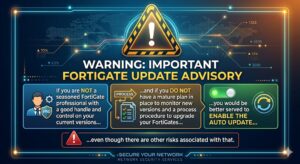
Let me start by saying, if you do not have a mature patching mechanism where you are subscribed to the emails from Fortinet when new releases are available, and you do not have someone reviewing the release notes to validate “Known Issues” which are bugs introduced with this new version you are going to install, you should keep the auto-upgrade enabled. Yes there are some drawbacks but if you are not going to do it, might as well be patched so holes get filled for you.
On FortiOS 7.6 (including version 7.6.7), automatic firmware upgrades can be triggered by two separate mechanisms: the local FortiGuard engine and the FortiGate Cloud central management tunnel (which enforces a latest-patch policy on free/unlicensed accounts).
To ensure your firewall does not auto-upgrade, you should disable both.
Step 1: Disable Local FortiGuard Auto-Upgrades (CLI)
This stops the local FortiGuard engine and local Fabric upgrade schedules.
Open your CLI and run the following commands:
To Check if your device has the auto-firmware upgrade enabled type this command
show full-configuration | grep auto-firmware-upgrade
set auto-firmware-upgrade enable
unset auto-firmware-upgrade-day
set auto-firmware-upgrade-delay 3
set auto-firmware-upgrade-start-hour 2
set auto-firmware-upgrade-end-hour 4
config system fortiguard
set auto-firmware-upgrade disable
end
config system federated-upgrade
set status disabled
end
Step 2: Disable FortiGate Cloud Managed Auto-Upgrades
If your FortiGate is connected to FortiGate Cloud and you do not have a paid FortiGate Cloud management license, Fortinet enforces an automatic “latest-patch” upgrade by default.
You have two choices to stop this:
Option A: Disconnect from FortiGate Cloud entirely (Recommended if you don’t use it)
If you only use local management, removing the cloud management tunnel completely blocks Fortinet from pushing automated upgrades.
config system central-management
set type none
end
(Note: If you have a local FortiManager, leaving this as none is fine, as FortiManager will handle its own orchestration and automatically blocks unauthorized auto-upgrades).
Option B: Set a Custom Firmware Profile (Requires Paid Subscription)
If you actively use and pay for FortiGate Cloud premium features, you do not need to disconnect. Instead, log into your FortiGate Cloud Portal, navigate to Management > Firmware Profile, and change your update policy to Disabled.
Step 3: Verify the Status
To ensure that all auto-upgrades are completely disabled, run the following diagnostic command in your CLI:
diagnose test application forticldd 13
Look for the line stating Automatic image upgrade: disabled to confirm your changes have successfully taken effect.
Current Image Reached End of Life: no
Is current firmware a special build: Yes
Support Contract Status: Active
Scheduled push image upgrade: no
Scheduled Config Restore: no
Scheduled Script Restore: no
Automatic image upgrade: Disabled.
New image information may be fetched.
No new image installation will be scheduled.
Next new image info fetch scheduled at (local time) Mon Jun 8 03:24:52 2026
Last new image info fetch executed at (local time) Sun Jun 7 03:06:12 2026
Federated Upgrades
The command config system federated-upgrade controls how firmware upgrades are handled across a Security Fabric (a group of Fortinet devices working together, like multiple FortiGates, FortiSwitches, and FortiAPs).
When you run set status disabled, it specifically prevents the FortiGate from participating in or executing automated, coordinated Fabric-wide firmware upgrades.
Here is exactly what disabling it does for you:
1. It Blocks “Cascading” Upgrades
By default, the Security Fabric allows a central root FortiGate to orchestrate upgrades down the line to downstream firewalls, switches, or access points so they all update in a specific, safe order. Disabling this status ensures this FortiGate will ignore any automated upgrade commands sent from a central Fabric root device.
2. It Prevents Scheduled Fabric Upgrades
If a Fabric-wide upgrade schedule was configured on a root device (e.g., “Upgrade all downstream devices to the latest patch next Sunday at 2 AM”), setting this to disabled ensures your specific FortiGate will skip that schedule entirely.
Why it matters alongside the FortiGuard command
While config system fortiguard -> set auto-firmware-upgrade disable stops the FortiGate from reaching out to Fortinet’s servers to pull down a patch on its own, config system federated-upgrade -> set status disabled stops other devices on your local network from pushing an upgrade down to it.
Disabling both gives you total control over exactly when that specific firewall changes its firmware.
From the GUI
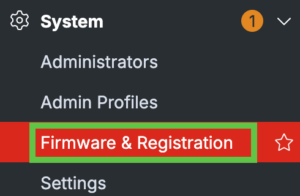
From the GUI, you can go to System -> Firmware & Registration
Then on the right-hand side, you will see Automatic patches: status and next to it the gear. Click the gear and choose Automatic patch upgrade setting
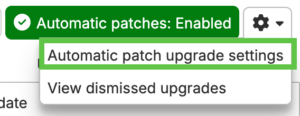
Once inside, you can toggle it enabled or disabled.

Recent posts
-

-

DNS is one of those technologies that quietly underpins... Full Story
-

BGP issues on FortiGate firewalls usually trace back to... Full Story
-

Every time your laptop talks to your router, a... Full Story
-

If you've spent any time configuring NAT on a... Full Story
-

If you have spent any time configuring firewall policies... Full Story
-

High availability on FortiGate is one of those features... Full Story
-

If you've configured SD-WAN on a FortiGate, you've almost... Full Story
-

FortiLink is the management protocol that turns a FortiSwitch... Full Story
-

FortiSwitches are pretty rock solid from Mean Time Between... Full Story
-

This is a quicky tip. Have you ever gone... Full Story
-

DNS is one of those quiet pieces of internet... Full Story
-

This article is an updated version of the previous... Full Story
-

You will add ns2 as a secondary (slave) BIND9... Full Story
-

In the process of deploying my lab, I needed... Full Story
-

RFC 8805, used to be known as Self-Correcting IP... Full Story
-

Years back, I wrote an article about certificate pinning. ... Full Story
-

FortiGates have the ability to send alerts to Microsoft... Full Story
-

In this post, I am going to walk through... Full Story
-

Troubleshooting VoIP on a FortiGate can feel like trying... Full Story
-

Prior to FortiOS 7.0, there were three commands to... Full Story
-

In this post, I am going to go over... Full Story
-

What we are going to do: We are going... Full Story
-

Choosing between FGCP (FortiGate Clustering Protocol) and FGSP (FortiGate... Full Story
-

Creating a VLAN on macOS (The "Pro" Move) A... Full Story
-

This blog post explores the logic behind how macOS... Full Story
-

Pretty Fly for a Wi-Fi Tell My Wi-Fi Love... Full Story
-

Part of my daily gig is creating BoMs (Bill-of-Materials)... Full Story
-

ICMP introduces several security risks, but careful filtering, rate... Full Story
-

The command diag debug application dhcps -1 enables full... Full Story
-

In the world of FortiOS, execute tac report is... Full Story
-

LLDP; What is it The Link Layer Discovery Protocol... Full Story
-

What it actually does When you run diagnose fdsm... Full Story
-

Monkey Bites are bite-sized, high-impact security insights designed for... Full Story
-

I have run macOS in macOS with Parallels but... Full Story
-

Don't be confused with my other FortiNAC posts where... Full Story
-

This is the third session in a multi-part article... Full Story
-

Today I was configuring key-based authentication on a FortiGate... Full Story
-

Netcat, often called the "Swiss Army knife" of networking,... Full Story
-

At its core, IEEE 802.1X is a network layer... Full Story
-

In case you did not see the previous FortiNAC... Full Story
-

This is our 5th session where we are going... Full Story
-

Now that we have Wireshark installed and somewhat configured,... Full Story
-

The Philosophy of Packet Analysis Troubleshooting isn't about looking... Full Story
-

In this guide Executive Summary Prerequisites: Which vi Do... Full Story
-

Objective: Strip blank and whitespace-only lines out of config... Full Story
-

In this guide Executive Summary Prerequisites and Architecture How... Full Story