
If you've spent any time configuring user authentication on... Full Story
By Manny Fernandez
June 23, 2026
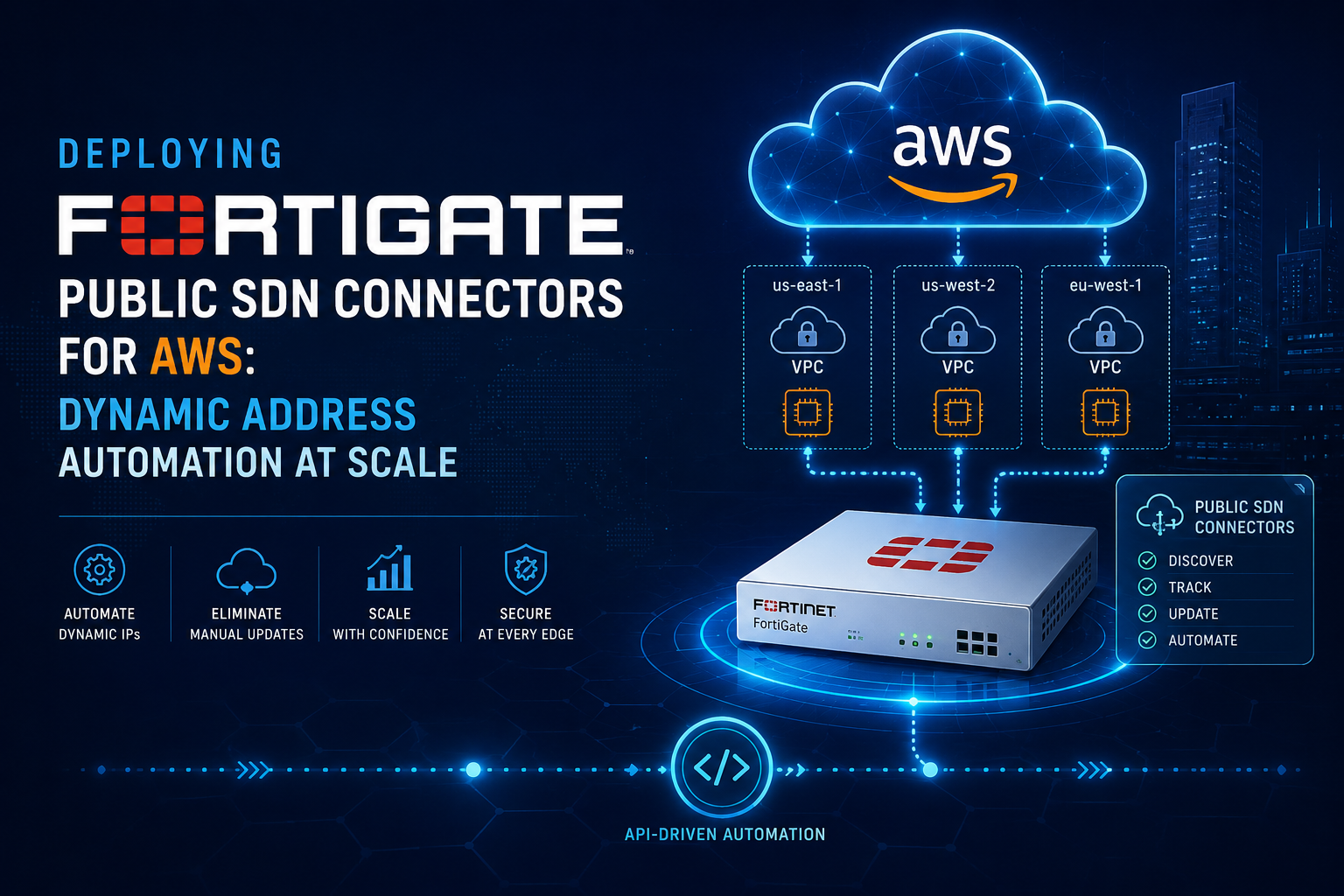
Deploying FortiGate Public SDN Connectors for AWS: Dynamic Address Automation at Scale
1. Executive Summary
Objective: This guide walks through configuring a FortiGate Public SDN (Software-Defined Networking) Connector for Amazon Web Services so that dynamic AWS resource attributes (instance tags, security groups, VPC IDs, subnets) are automatically resolved into FortiGate Dynamic Address objects. The result is firewall policy that follows your cloud workloads as they scale, migrate, or change IP, with zero manual address-object maintenance.
Why it matters: In elastic cloud environments, instance IPs are ephemeral. Static address objects become stale within minutes and create both security gaps and operational toil. The AWS SDN Connector bridges that gap by polling the AWS API on a fixed interval and keeping FortiOS address objects synchronized with the live state of your VPC.
Target Audience: Network Security Engineers, Cloud Security Architects, and DevSecOps practitioners responsible for FortiGate-VM deployments inside AWS, or on-premises FortiGates that enforce policy against AWS-hosted workloads.
2. Prerequisites & Architecture
Assumed Knowledge
You should be comfortable with FortiGate firewall policy and address objects, the FortiOS CLI and GUI, and core AWS IAM concepts (users, roles, policies). Familiarity with VPC networking (subnets, security groups, EC2 tagging) is assumed. This guide does not cover deploying the FortiGate-VM itself from the AWS Marketplace.
Environment & Lab Requirements
| Requirement | Detail |
| FortiOS version | 7.2.x or later recommended (7.4.x for full feature parity). SDN connector basics work back to 6.4. |
| FortiGate platform | FortiGate-VM in AWS, or a hardware/VM FortiGate with outbound HTTPS reachability to AWS API endpoints |
| AWS account | Active account with IAM permissions to create users, roles, and policies |
| Connectivity | FortiGate must reach ec2.<region>.amazonaws.com over TCP 443 |
| DNS | A working DNS server configured on the FortiGate (the connector resolves AWS API FQDNs) |
| Time sync | NTP configured. AWS Signature V4 request signing fails if clock skew exceeds 15 minutes |
| Licensing | No additional license SKU is required. SDN Connector is a base FortiOS feature |
Component Table
| Component | Role | Example Value |
| FortiGate-VM | Policy enforcement, SDN connector host | mgmt: 10.0.1.10 / fgt-aws-01 |
| AWS Region | Target region the connector polls | us-east-1 |
| AWS VPC | Logical network being synchronized | vpc-0ab12cd34ef56789a |
| IAM User or Role | Credential the connector authenticates with | svc-fortigate-sdn |
| Dynamic Address Object | FortiOS object populated by the connector | aws-web-tier |
| EC2 Instance Tag | The AWS attribute used as the match filter | Tier = web |
High-Level Flow
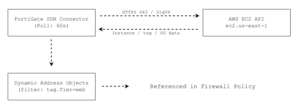
3. Step-by-Step Implementation Workflow
Phase 1: Create the AWS IAM Credential
The Goal: Give the FortiGate a least-privilege identity that can read (but not modify) EC2 resource metadata.
The Action: You will create an IAM policy granting read-only EC2 describe permissions, then attach it to either an IAM user (for FortiGates outside AWS, or when using static keys) or an IAM role (preferred for FortiGate-VMs running inside AWS).
The Code/Config (IAM Policy JSON):
{
  "Version": "2012-10-17",
  "Statement": [
    {
      "Sid": "FortiGateSDNRead",
      "Effect": "Allow",
      "Action": [
          "ec2:DescribeInstances",
          "ec2:DescribeNetworkInterfaces",
          "ec2:DescribeSecurityGroups",
          "ec2:DescribeSubnets",
          "ec2:DescribeVpcs",
          "ec2:DescribeTags",
          "ec2:DescribeRouteTables"
        ],
        "Resource": "*"
       }
    ]
}
The AWS managed policy AmazonEC2ReadOnlyAccess also works, but the scoped policy above follows least-privilege and is the recommended production approach.
Decision point: Role vs. Access Key
– FortiGate-VM inside AWS (preferred): Attach the policy to an IAM role, then attach that role to the FortiGate EC2 instance via an instance profile. No static keys are stored on the device. This is the most secure pattern.
– FortiGate outside AWS, or no instance profile: Create an IAM user, attach the policy, and generate an Access Key ID / Secret Access Key pair.
GUI Verification (AWS Console): Navigate to IAM > Policies to confirm the policy exists, then IAM > Roles (or Users) to confirm the attachment. For the instance-profile method, check EC2 > Instances > [your FortiGate] > Security > IAM Role.
Phase 2: Configure the SDN Connector (Access-Key Method)
The Goal: Register AWS as an SDN connector on the FortiGate and validate that it can authenticate and poll.
The Action: Define the connector in the CLI with the region, access credentials, and update interval.
The Code/CLI:
config system sdn-connector
edit "aws-prod"
set type aws
set use-metadata-iam disable
set region "<your_aws_region>"
set access-key "<your_access_key_id>"
set secret-key "<your_secret_access_key>"
set update-interval 60
set status enable
next
end
| Field | Purpose |
| type aws | Selects the AWS connector driver |
| use-metadata-iam disable | Tells FortiOS to use the supplied static keys rather than instance-profile metadata |
| region | AWS region the connector polls, e.g. us-east-1 |
| update-interval | Polling frequency in seconds. 60 is a sensible default; lower values increase API call volume |
GUI Verification: Navigate to Security Fabric > External Connectors, click Create New, and select AWS under the Public SDN category. Populate Region, Access Key ID, and Secret Access Key, then save.
Phase 3: Configure the SDN Connector (IAM Role / Metadata Method)
The Goal: Achieve keyless authentication when the FortiGate-VM runs inside AWS, eliminating stored secrets.
The Action: Enable instance-metadata IAM so the connector pulls temporary credentials from the attached instance profile.
The Code/CLI:
config system sdn-connector
edit "aws-prod"
set type aws
set use-metadata-iam enable
set region "<your_aws_region>"
set update-interval 60
set status enable
next
end
With use-metadata-iam enable, the access-key and secret-key fields are not used. FortiOS retrieves rotating credentials from the EC2 Instance Metadata Service (IMDS) tied to the IAM role from Phase 1.
If your FortiGate-VM is configured for IMDSv2 (token-required), ensure FortiOS 7.0.2 or later, which supports the IMDSv2 token handshake. Older builds only support IMDSv1.
GUI Verification: In Security Fabric > External Connectors, the AWS connector edit panel exposes a Use AWS IAM role toggle. Enabling it hides the key fields.
Phase 4: Create a Dynamic Address Object Bound to AWS Filters
The Goal: Translate live AWS metadata into a FortiOS address object that auto-populates with matching instance IPs.
The Action: Create a dynamic subtype address object, bind it to the connector, and define an SDN filter. The most common and durable filter is an EC2 instance tag.
The Code/CLI:
config firewall address
edit "aws-web-tier"
set type dynamic
set sdn "aws-prod"
set filter "Tag.Tier=web"
next
end
Common filter expressions:
| Filter | Matches |
| Tag.Tier=web | Instances tagged Tier:web |
| SecurityGroupId=sg-0abc123 | Members of a specific security group |
| VpcId=vpc-0ab12cd34ef56789a | All instances in a VPC |
| SubnetId=subnet-0123456789 | All instances in a subnet |
| InstanceId=i-0123456789abcdef0 | A single specific instance |
You can also build compound filters in the GUI; the GUI exposes selectable keys and operators, while the CLI takes the raw filter string.
GUI Verification: Navigate to Policy & Objects > Addresses, click Create New > Address, set Type to Dynamic, choose SDN Connector as the sub-type, select your AWS connector, and pick the filter key/value from the dropdowns. After saving, the object’s detail view shows the resolved member IPs.
Phase 5: Reference the Dynamic Object in Firewall Policy
The Goal: Use the auto-populated object in an actual policy so enforcement tracks the cloud workload.
The Action: Reference the dynamic address as source or destination in a firewall policy exactly as you would a static object.
The Code/CLI:
config firewall policy
edit 0
set name "allow-to-web-tier"
set srcintf "port1"
set dstintf "port2"
set srcaddr "all"
set dstaddr "aws-web-tier"
set action accept
set schedule "always"
set service "HTTPS"
set logtraffic all
next
end
As EC2 instances tagged Tier:web are launched or terminated, their IPs are added to or removed from aws-web-tier automatically on the next poll, and this policy follows suit with no manual edits.
GUI Verification: Navigate to Policy & Objects > Firewall Policy and confirm the dynamic object appears in the destination column. Hovering the object reveals its current resolved IP membership.
4. Verification & Validation
Confirm the Connector Authenticated
diagnose sys sdn-connector status
Success looks like: the AWS connector listed with a status of connected (or up) and a recent last update timestamp. A status of disconnected or a stale timestamp indicates an authentication or reachability problem.
Confirm the Connector Pulled Resource Data
diagnose test application awsd 1
This dumps the AWS daemon’s internal state, including the regions polled, the resources retrieved, and the last poll result. You should see EC2 instances and their tags enumerated.
Confirm Dynamic Objects Resolved to Real IPs
diagnose firewall address dynamic list
or, for a specific object:
diagnose firewall address dynamic <object_name>
Success looks like: the object aws-web-tier lists one or more resolved IPv4 addresses that correspond to your tagged EC2 instances. An empty member list means the filter matched nothing (see Troubleshooting).
Launch a fresh EC2 instance tagged Tier:web, wait one polling interval (default 60 seconds), and re-run the dynamic address list. The new instance IP should appear. Generate traffic and confirm the policy logs a match under Log & Report > Forward Traffic.
5. Troubleshooting & “Gotchas”
Gotcha 1: Connector Shows “Disconnected” or Authentication Fails
Symptoms: diagnose sys sdn-connector status reports disconnected; logs show SigV4 signature or 403 errors.
Diagnose:
diagnose debug application awsd -1
diagnose debug enable
Watch the live debug for the specific API rejection. Common root causes:
– Clock skew: AWS Signature V4 rejects requests when device time drifts beyond roughly 15 minutes. Confirm NTP with diagnose sys ntp status and execute date.
– Wrong region: The region value must exactly match where your resources live. A connector pointed at us-west-2 will authenticate but return zero us-east-1 instances.
– Insufficient IAM permissions: A 403 on a specific Describe* call means the IAM policy is missing that action. Re-check the policy JSON from Phase 1.
Resolution: Correct time sync, region, or IAM scope. Disable debug afterward with diagnose debug disable.
Gotcha 2: Dynamic Object Resolves to Zero IPs
Symptoms: Connector is connected, but diagnose firewall address dynamic list shows an empty member set.
Diagnose: This is almost always a filter mismatch, not a connector fault. Verify the actual tag on the instance in AWS Console >EC2 > Instances > Tags.
Resolution:
– Tag keys and values are case-sensitive. Tag.Tier=Web will not match an instance tagged Tier:web.
– Confirm the instance is in a running state; stopped instances may not report private IPs.
– Confirm the instance lives in the region the connector polls.
– For security-group filters, use the group ID (sg-...), not the group name.
Gotcha 3: IMDSv2 Credentials Not Retrieved (Role Method)
Symptoms: use-metadata-iam enable is set, but the connector cannot authenticate and debug shows it failing to fetch instance credentials.
Diagnose: Check the FortiOS build (get system status) and the instance metadata configuration in EC2 > Instances > [FortiGate] > Modify instance metadata options.
Resolution:
– Ensure FortiOS is 7.0.2 or later for IMDSv2 token support. Earlier builds only speak IMDSv1.
– Confirm the IAM role is actually attached to the FortiGate instance (an empty instance-profile is a frequent oversight).
– If you must support an older FortiOS build, set the instance metadata option to allow IMDSv1 (token optional) as a temporary measure, though IMDSv2 is the more secure target state.
Bonus Gotcha: API Throttling at Scale
In very large VPCs or with aggressive update-interval values, AWS may throttle the Describe* calls, producing intermittent stale data. If you see periodic gaps, raise the update-interval (e.g., from 30 to 120 seconds) to reduce API pressure, and consider scoping connectors per-region rather than polling everything at once.
Recent posts
-

-

DNS is one of those technologies that quietly underpins... Full Story
-

BGP issues on FortiGate firewalls usually trace back to... Full Story
-

Every time your laptop talks to your router, a... Full Story
-

If you've spent any time configuring NAT on a... Full Story
-

If you have spent any time configuring firewall policies... Full Story
-

High availability on FortiGate is one of those features... Full Story
-

If you've configured SD-WAN on a FortiGate, you've almost... Full Story
-

FortiLink is the management protocol that turns a FortiSwitch... Full Story
-

FortiSwitches are pretty rock solid from Mean Time Between... Full Story
-

This is a quicky tip. Have you ever gone... Full Story
-

DNS is one of those quiet pieces of internet... Full Story
-

This article is an updated version of the previous... Full Story
-

You will add ns2 as a secondary (slave) BIND9... Full Story
-

In the process of deploying my lab, I needed... Full Story
-

RFC 8805, used to be known as Self-Correcting IP... Full Story
-

Years back, I wrote an article about certificate pinning. ... Full Story
-

FortiGates have the ability to send alerts to Microsoft... Full Story
-

In this post, I am going to walk through... Full Story
-

Troubleshooting VoIP on a FortiGate can feel like trying... Full Story
-

Prior to FortiOS 7.0, there were three commands to... Full Story
-

In this post, I am going to go over... Full Story
-

What we are going to do: We are going... Full Story
-

Choosing between FGCP (FortiGate Clustering Protocol) and FGSP (FortiGate... Full Story
-

Creating a VLAN on macOS (The "Pro" Move) A... Full Story
-

This blog post explores the logic behind how macOS... Full Story
-

Pretty Fly for a Wi-Fi Tell My Wi-Fi Love... Full Story
-

Part of my daily gig is creating BoMs (Bill-of-Materials)... Full Story
-

ICMP introduces several security risks, but careful filtering, rate... Full Story
-

The command diag debug application dhcps -1 enables full... Full Story
-

In the world of FortiOS, execute tac report is... Full Story
-

LLDP; What is it The Link Layer Discovery Protocol... Full Story
-

What it actually does When you run diagnose fdsm... Full Story
-

Monkey Bites are bite-sized, high-impact security insights designed for... Full Story
-

I have run macOS in macOS with Parallels but... Full Story
-

Don't be confused with my other FortiNAC posts where... Full Story
-

This is the third session in a multi-part article... Full Story
-

Today I was configuring key-based authentication on a FortiGate... Full Story
-

Netcat, often called the "Swiss Army knife" of networking,... Full Story
-

At its core, IEEE 802.1X is a network layer... Full Story
-

In case you did not see the previous FortiNAC... Full Story
-

This is our 5th session where we are going... Full Story
-

Now that we have Wireshark installed and somewhat configured,... Full Story
-

The Philosophy of Packet Analysis Troubleshooting isn't about looking... Full Story
-

InfoSecMonkey Threat Response October 24, 2026 | No fluff.... Full Story
-

InfoSecMonkey Threat Response October 24, 2026 | No fluff.... Full Story
-

Plus what you actually get with FortiCare Essential, Premium... Full Story