
If you've spent any time configuring user authentication on... Full Story
By Manny Fernandez
June 24, 2026
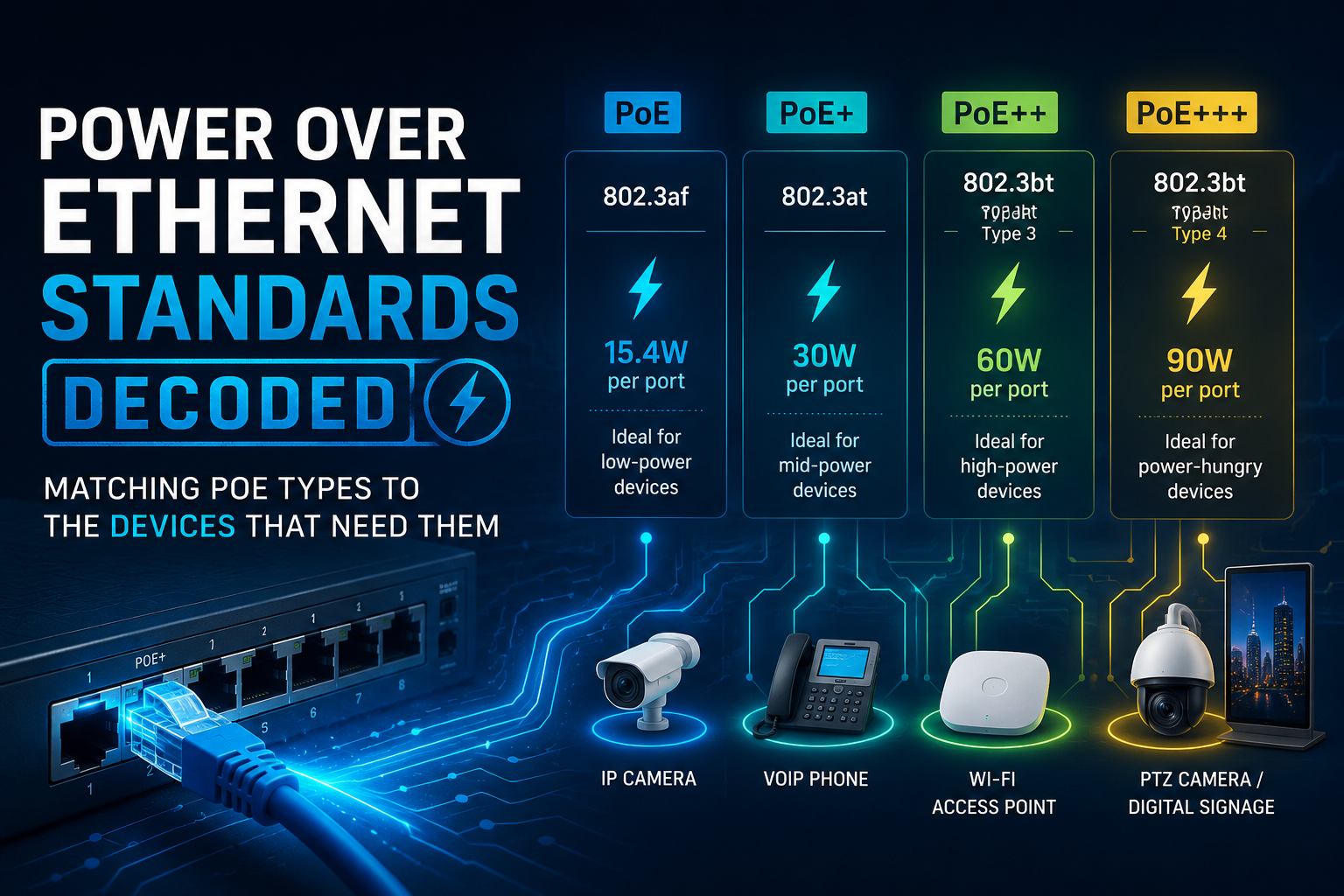
Power over Ethernet Standards Decoded: Matching PoE Types to the Devices That Need Them
1. Title and Executive Summary
Title: Power over Ethernet Standards Decoded: Matching PoE Types to the Devices That Need Them
Objective: This guide breaks down the four IEEE PoE delivery types (Type 1 through Type 4) across the 802.3af, 802.3at, and 802.3bt standards, explains the gap between source power and device power, and maps each power tier to the real devices that draw it. It matters because a PoE budget mismatch is one of the most common and most avoidable causes of access points rebooting, cameras browning out, and switches silently shedding load.
Target Audience: Network engineers, infrastructure architects, security and physical-access integrators, and IT administrators who design, deploy, or troubleshoot PoE-powered endpoints. Familiarity with structured cabling and managed switch CLIs is assumed.
2. Prerequisites and Architecture
Assumed Knowledge: Basic Ethernet cabling (Cat5e/Cat6 pinouts, the four twisted pairs), the difference between a switch and an endpoint, and how to reach a managed switch CLI over SSH or console. No prior PoE-specific knowledge is required.
Environment / Lab Requirements:
– One PoE-capable managed switch (any vendor). FortiSwitch examples below assume a FortiSwitch managed by a FortiGate over FortiLink, FortiOS 7.2.4 or later with FortiSwitchOS 7.2.3 or later for the full per-port mode and priority feature set.
– A mix of powered devices spanning at least two power tiers (for example a basic AP plus a PTZ camera) to observe negotiation and budgeting behavior.
– Cat5e or better cabling. Type 3 and Type 4 require all four pairs to be terminated and continuous end to end.
– A multimeter or PoE tester is helpful but not required for the CLI-driven verification in this guide.
Core Terminology:
– PSE (Power Sourcing Equipment): the device that injects power, typically a PoE switch or a midspan injector.
– PD (Powered Device): the device that draws power, such as an IP camera, access point, or VoIP phone.
– Power budget: the total wattage a PSE can distribute across all of its PoE ports simultaneously, which is almost always less than the sum of every port running at maximum.
– Classification: the negotiation handshake during which the PD signals how much power it needs and the PSE allocates accordingly.
The Standards at a Glance:
| Common Name | IEEE Std | Type | Pairs | Max @ PSE | Max @ PD | Voltage (PD) | Classes |
| PoE | 802.3af | Type 1 | 2-pair | 15.4 W | 12.95 W | 37 to 57 V | 0 to 3 |
| PoE+ | 802.3at | Type 2 | 2-pair | 30 W | 25.5 W | 42.5 to 57 V | 4 |
| PoE++ / UPoE | 802.3bt | Type 3 | 4-pair | 60 W | 51 W | 50 to 57 V | 5, 6 |
| PoE++ / Hi-PoE | 802.3bt | Type 4 | 4-pair | 90 to 100 W | 71.3 W | 41.1 to 57 V | 7, 8 |
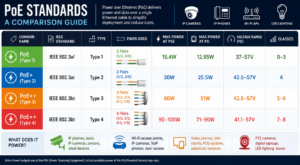
The single most important takeaway in this table is the gap between the PSE column and the PD column. Resistive loss in the copper means a meaningful fraction of injected power is dissipated as heat across the cable run. Always design to the **PD** number, because that is what your device actually receives. Longer runs and thinner-gauge cable widen that gap further.
3. Step-by-Step Implementation Workflow
Phase 1: Inventory the Devices and Their Real Draw
The Goal: Build a per-port power requirement list before touching any switch, so the budget math is grounded in actual device draw rather than nameplate maximums.
The Action: For every PD that will attach to the switch, record the manufacturer-stated maximum draw (not the class ceiling) and the device category. Use the mapping below as a starting reference, then confirm against each device’s datasheet.
| Power Tier | Typical Devices | Why This Tier |
| Type 1
up to ~13 W @ PD |
VoIP phones, basic/fixed IP cameras, entry and mid-range Wi-Fi APs, simple door card readers, basic IoT sensors | Low, steady draw with no motors or heaters |
| Type 2
up to ~25 W @ PD |
PTZ cameras, higher-end Wi-Fi 5/6 APs, video phones, alarm panels | Motors, multi-radio APs, or heaters push past 15 W |
| Type 3
up to ~51 W @ PD |
Wi-Fi 6/6E and tri-radio APs, 4K PTZ cameras with IR and heaters, video conferencing units, compact PoE switches, advanced IoT gateways | Sustained higher draw that two pairs cannot safely carry |
| Type 4
up to ~71 W @ PD |
Digital signage and PoE displays, high-power Wi-Fi 6E/7 APs, large PTZ assemblies, PoE laptops and thin clients, PoE LED lighting arrays | Power levels that historically required a dedicated outlet |
The Detail: Pay attention to peak versus steady-state. A PTZ camera idles low but spikes when the motor drives and the heater engages in cold weather. Budget for the worst case, not the brochure idle figure.
Phase 2: Confirm the PSE Can Actually Source the Required Tier
The Goal: Verify that the switch model, its power supply, and the total budget can serve the planned load with headroom.
The Action: Pull the switch’s PoE inventory and compare the unit power budget against the sum of your PD-side requirements from Phase 1. Reserve a guard band; do not plan to run a switch at 100 percent of budget.
The Code / CLI (FortiSwitch via managed FortiGate):
# View the unit-wide PoE budget, guard band, and current consumption
get switch poe inline
# Example output fields to read:
# Unit Power Budget: the total wattage available across all PoE ports
# Unit Guard Band: reserved headroom the switch will not allocate
# Unit Power Consumption: what is currently drawn
The Detail: The guard band is the switch’s own safety reserve. If your summed PD requirement plus the guard band exceeds the unit budget, the switch will refuse to power lower-priority ports once it runs out, regardless of how many physical ports are free. This is by design and is covered in Phase 4 priority configuration.
Phase 3: Set Per-Port Mode and Priority
The Goal: Constrain each port to the correct standard where appropriate, and rank ports so that critical devices are powered first under contention.
The Action: On FortiOS 7.2.4 / FortiSwitchOS 7.2.3 or later, set the per-port mode (802.3af or 802.3at) and a priority of critical, high, medium, or low. Under budget pressure, power is allocated to critical ports first, then high, then medium, then low.
The Code / CLI (per-port settings from the managing FortiGate):
config switch-controller managed-switch
edit <FortiSwitch_serial_number>
config ports
edit <port_name>
set poe-status enable
set poe-mode IEEE802dot3at# or IEEE802dot3af to cap a port
set poe-port-priority critical-priority
next
end
next
end
Note: medium-priority is only available on a specific subset of FortiSwitch models (the 224/248/424/M426/448/524/548 PoE/FPOE family). On other models, use critical, high, or low.
The Detail on pre-standard detection: Some older or non-IEEE-compliant PDs do not classify cleanly and will not power up unless the switch is told to detect them. Starting in FortiOS 6.4.5 the factory default is disabled, which is the safe default. Only enable it if you have a known pre-standard device that refuses to power on, and enable it on the specific port rather than globally.
# Enable pre-standard detection on a single port only when required
config switch-controller managed-switch
edit <FortiSwitch_serial_number>
config ports
edit <port_name>
set poe-pre-standard-detection enable
next
end
next
end
GUI Verification: Navigate to WiFi & Switch Controller > FortiSwitch Ports. The faceplate view shows active ports in green, and the PoE Status panel renders a blue bar for power currently consumed and a green bar for power reserved and still available. Per-port PoE settings are reachable by selecting a port and opening its PoE options.
Phase 4: Validate Cabling for 4-Pair Tiers
The Goal: Ensure that any Type 3 or Type 4 port has all four pairs continuous and correctly terminated, since these tiers physically cannot deliver their rated power on two pairs.
The Action: For every high-power run, confirm the cable is Cat5e or better and that all eight conductors are terminated at both ends. A run that works fine for data and for Type 1/Type 2 power can still fail Type 3/Type 4 because the spare pairs were never properly punched down.
The Detail: Distance compounds the loss. The 100-meter channel limit is a data spec, not a power-delivery comfort zone. On long runs near the limit, expect the PD-side wattage to sit at the bottom of the range, and avoid placing a Type 4 device at the far end of a marginal run.
4. Verification and Validation
The Goal: Confirm that each PD negotiated the expected class, is drawing within budget, and that the switch is not shedding load.
Verification Commands (FortiSwitch):
# Full inline PoE table: per-port status, max power, live consumption, priority, class
get switch poe inline
# Per-port detail including negotiated class and any fault flags
diagnose switch poe status <port>
What success looks like:
– Each PoE port shows a Status of Enabled and a State that is delivering power rather than Fault or Searching.
– The negotiated Class matches what you expected from Phase 1 (for example, a Wi-Fi 6 AP negotiating Class 4 or higher, a basic camera negotiating Class 2 or 3).
– Per-port Power-consumption sits at or below the device datasheet maximum, with the Unit Power Consumption comfortably under the unit budget minus guard band.
– No ports are in a starved or denied state. If a low-priority port shows no power while higher-priority ports are healthy, you are over budget and the priority logic is doing exactly its job.
A quick sanity cross-check: the device itself should report full functionality. An AP that powered up but negotiated a tier below its requirement will often disable radios or USB ports and log a reduced-power condition. Always confirm at the endpoint, not only at the switch.
5. Troubleshooting and Gotchas
Gotcha 1: The device powers on but underperforms (silent power downgrade).
An AP or camera that boots but disables radios, drops to lower frame rates, or shuts off its heater is almost always being served a lower tier than it needs. This happens when the port is capped to 802.3af, the cable only carries two pairs, or the unit budget is exhausted and the PD was granted a reduced allocation.
Diagnose:
get switch poe inline
diagnose switch poe status <port>
Check the negotiated class and consumed wattage against the datasheet.
Resolution: Raise the port mode to 802.3at (or confirm the model supports Type 3/4), verify all four pairs on high-power runs, and free up budget by lowering or removing lower-priority loads.
Gotcha 2: PSE-to-PSE port connection causes faults across ports.
Connecting two power-sourcing ports to each other (for example, patching one PoE switch port into another, or a miscabled injector) makes both sides attempt to source power simultaneously and can throw `Power Fault` errors across the unit.
Diagnose:
get switch poe inline
Look for repeated Power Fault: Error Type 4 entries across many or all ports, which is a strong signal of a PSE-to-PSE condition or a PoE module fault.
Resolution: Identify and remove the PSE-to-PSE link. If a specific port must remain connected to another PSE, disable PoE on that one
config switch-controller managed-switch
edit <FortiSwitch_serial_number>
config ports
edit <port_name>
set poe-status disable
next
end
next
end
Gotcha 3: Budget exhaustion silently drops low-priority devices.
With a fully populated PoE switch, the sum of every port at maximum often exceeds the unit budget. The switch honors the guard band and priority order, so the lowest-priority ports simply never receive power, which looks like a “dead port” to anyone who does not know the budget is full.
Diagnose: Compare Unit Power Budget minus Unit Guard Band against Unit Power Consumption and the sum of configured port maximums.
Resolution: Re-rank critical devices using set poe-port-priority, move some load to a second PoE switch or midspan injector, or select a switch SKU with a larger internal power supply. A common field fix is offloading a few high-draw PDs onto dedicated injectors to relieve the shared budget.
Gotcha 4 (bonus): PoE will not enable while NAC mode is active on the port.
On FortiGate-managed switches, attempting to set PoE status from the switch controller can fail when the port is in NAC (Network Access Control) mode, because NAC governs the port state.
Resolution: Resolve the port out of NAC onboarding or adjust the NAC configuration before the PoE status change will take effect.
A useful hard reset: When a port is stuck in a fault state after cabling or device changes, reset PoE on that port rather than bouncing the whole switch:
execute switch-controller poe-reset <fortiswitch-id> <port
If the entire PoE module is misbehaving (every port faulting), the documented last resort is a maintenance-window cold start: unplug all cables, gracefully shut down the switch, wait 15 to 30 minutes, then power on with only console and the PSU connected before reintroducing loads.
Although I cover FortiSwitch commands here, whatever platform you use (enterprise level or non-consumer) should have similar troubleshooting settings and commands.
Recent posts
-

-

DNS is one of those technologies that quietly underpins... Full Story
-

BGP issues on FortiGate firewalls usually trace back to... Full Story
-

Every time your laptop talks to your router, a... Full Story
-

If you've spent any time configuring NAT on a... Full Story
-

If you have spent any time configuring firewall policies... Full Story
-

High availability on FortiGate is one of those features... Full Story
-

If you've configured SD-WAN on a FortiGate, you've almost... Full Story
-

FortiLink is the management protocol that turns a FortiSwitch... Full Story
-

FortiSwitches are pretty rock solid from Mean Time Between... Full Story
-

This is a quicky tip. Have you ever gone... Full Story
-

DNS is one of those quiet pieces of internet... Full Story
-

This article is an updated version of the previous... Full Story
-

You will add ns2 as a secondary (slave) BIND9... Full Story
-

In the process of deploying my lab, I needed... Full Story
-

RFC 8805, used to be known as Self-Correcting IP... Full Story
-

Years back, I wrote an article about certificate pinning. ... Full Story
-

FortiGates have the ability to send alerts to Microsoft... Full Story
-

In this post, I am going to walk through... Full Story
-

Troubleshooting VoIP on a FortiGate can feel like trying... Full Story
-

Prior to FortiOS 7.0, there were three commands to... Full Story
-

In this post, I am going to go over... Full Story
-

What we are going to do: We are going... Full Story
-

Choosing between FGCP (FortiGate Clustering Protocol) and FGSP (FortiGate... Full Story
-

Creating a VLAN on macOS (The "Pro" Move) A... Full Story
-

This blog post explores the logic behind how macOS... Full Story
-

Pretty Fly for a Wi-Fi Tell My Wi-Fi Love... Full Story
-

Part of my daily gig is creating BoMs (Bill-of-Materials)... Full Story
-

ICMP introduces several security risks, but careful filtering, rate... Full Story
-

The command diag debug application dhcps -1 enables full... Full Story
-

In the world of FortiOS, execute tac report is... Full Story
-

LLDP; What is it The Link Layer Discovery Protocol... Full Story
-

What it actually does When you run diagnose fdsm... Full Story
-

Monkey Bites are bite-sized, high-impact security insights designed for... Full Story
-

I have run macOS in macOS with Parallels but... Full Story
-

Don't be confused with my other FortiNAC posts where... Full Story
-

This is the third session in a multi-part article... Full Story
-

Today I was configuring key-based authentication on a FortiGate... Full Story
-

Netcat, often called the "Swiss Army knife" of networking,... Full Story
-

At its core, IEEE 802.1X is a network layer... Full Story
-

In case you did not see the previous FortiNAC... Full Story
-

This is our 5th session where we are going... Full Story
-

Now that we have Wireshark installed and somewhat configured,... Full Story
-

The Philosophy of Packet Analysis Troubleshooting isn't about looking... Full Story
-

InfoSecMonkey Threat Response October 24, 2026 | No fluff.... Full Story
-

InfoSecMonkey Threat Response October 24, 2026 | No fluff.... Full Story
-

Plus what you actually get with FortiCare Essential, Premium... Full Story