
If you've spent any time configuring user authentication on... Full Story
By Manny Fernandez
September 14, 2026
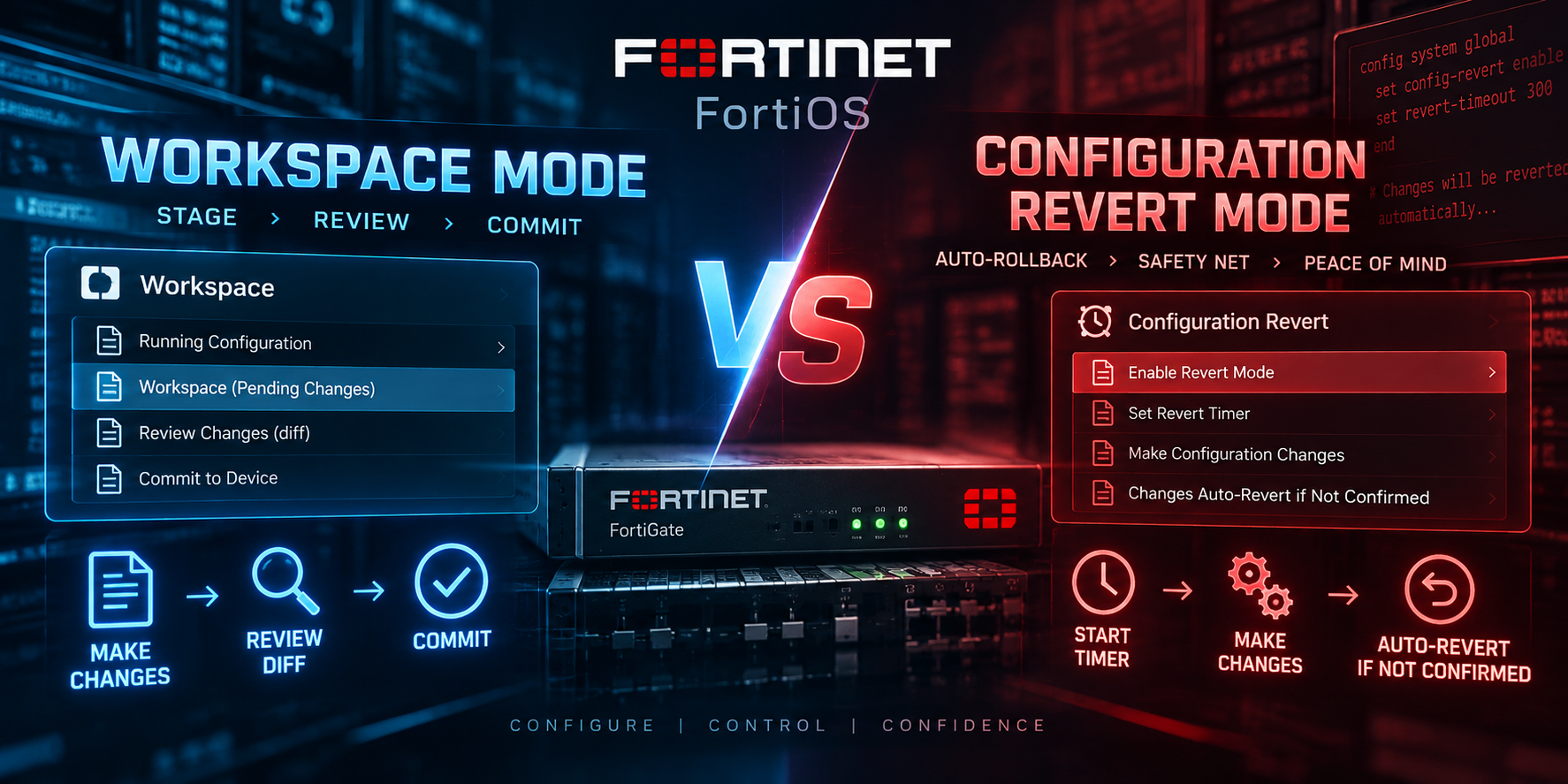
Workspace Mode vs. Configuration Revert Mode in FortiOS
FortiOS applies a CLI change the moment you type end or next, and by default it also writes that change straight to the startup config. That’s fine for adding an address object. It’s a problem the moment your change involves the path you’re connected through: a new default gateway, a re-addressed management interface, a tightened allowaccess list, or an HA heartbeat change. Get one field wrong and the box that just executed your command is also the box you can no longer reach.
Fortinet built two genuinely different mechanisms to cover this, and then used the word “workspace” for both of them at different points in the documentation. That overlap is the single most common source of confusion when people talk about this topic, so before touching CLI syntax, here’s the one table that matters:
| Workspace Mode (CLI transactions) | Configuration Save/Revert Mode | |
| Introduced | FortiOS 6.2 | Long-standing CLI feature; GUI exposure added in 7.0.2 |
| What it defers | Whether the change takes effect in the running config and kernel at all | Whether an already-applied change is written to flash (startup config) |
| Enabled with | execute config-transaction start |
set cfg-save revert |
| Scope | Per CLI session, locks only the objects you touch | Global, device-wide, affects every admin |
| Undo trigger | You run abort, or you go idle past the timeout |
You fail to run execute cfg save before the timeout |
| Undo action | Pending changes are simply discarded; nothing ever went live | Full reboot, reloads the last saved startup config |
Keep that distinction in your head through the rest of this: one defers application, the other defers persistence. They solve adjacent but different problems, and the best practice at the end of this post is to use both at once for genuinely risky changes.
Part 1: Workspace Mode (CLI Transactions)
Workspace Mode is FortiOS’s transaction model. You open a transaction, make a batch of changes across one or more config blocks, and none of it takes effect (not in the running config, not in the kernel, not in the routing table) until you explicitly commit. If you get partway through and don’t like where it’s going, you abort and the device is exactly as it was.
Starting, reviewing, and closing a transaction
Start a transaction:
FortiGate # execute config-transaction start
config transaction (id=7) started
You can also pass an idle timeout in minutes (the default is 5, which is short for a real maintenance window):
FortiGate # execute config-transaction start 15
config transaction (id=7) started
Make your changes normally, inside whatever config blocks you need:
FortiGate (interface) # edit "port1"
FortiGate (port1) # set ip 172.20.10.2 255.255.255.0
FortiGate (port1) # end
FortiGate (root) # config router static
FortiGate (static) # edit 1
FortiGate (1) # set gateway 172.20.10.1
FortiGate (1) # end
Before committing, review exactly what’s staged:
FortiGate # diagnose sys config-transaction show txn-cli-commands
  config system interface
      edit "port1"
          set ip 172.20.10.2 255.255.255.0
      end
  config router static
      edit 1
          set gateway 172.20.10.1
      end
Nothing above is live yet. get router info routing-table details still shows the old gateway. That’s the entire point: you can change a WAN IP and its default gateway together and neither one goes into effect until the atomic commit, so there is no window where the box is reachable via the old IP but routed via the new gateway (or vice versa).
Commit when ready:
FortiGate # execute config-transaction commit
config transaction (id=7) committed
Or throw it all away:
FortiGate # execute config-transaction abort
config transaction (id=7) aborted
Other useful diagnostics while a transaction is open:
diagnose sys config-transaction status              # is a transaction running in this session?
diagnose sys config-transaction show txn-meta        # txn_next_id and count of active transactions device-wide
diagnose sys config-transaction show txn-info        # txn_id, remaining seconds, user, source
Object locking is real, and it spans CLI and GUI
The moment you touch an object inside a transaction, it’s locked. A second admin (even the same username, in a second SSH session) who tries to edit that object, or an object that references it, gets:
Can not config the object since either the object or the referenced objects are
being configured by other transactions.
Command fail. Return code 14
This lock isn’t CLI-only. An object locked by a CLI transaction is also greyed out or blocked in the GUI until the transaction commits, aborts, or times out. Multiple transactions can run at once, by the same or different admins, as long as they’re touching disjoint parts of the config tree.
Idle timeout behavior
If nobody types anything for the configured idle window, FortiOS warns you at 30, 20, and 10 seconds, then discards everything and closes the transaction:
config transaction id=7 will expire in 30 seconds
config transaction id=7 will expire in 20 seconds
config transaction id=7 will expire in 10 seconds
config transaction id=7 has expired
If your SSH or console session drops entirely while a transaction is open, that’s it. There’s no reattaching to it the way you’d reattach a tmux session. The transaction runs its idle clock down and discards the changes; you start over.
Downsides of Workspace Mode
- No live preview of state before commit. Interface status, routing tables, and
getoutput all reflect the old config until you commit. If you’re used to seeing changes take effect the instant you hitend, this is disorienting the first few times, especially for someone else who SSHs in mid-transaction and can’t figure out why their change didn’t stick. - Disconnect means total loss, with no resume. A dropped VPN, a laptop sleeping, a flaky jump host, any of these end the transaction on its idle timer with everything discarded. There’s no session you can come back to.
- The default 5-minute timeout is short, and the warning is easy to miss. If that SSH window is in the background while you’re troubleshooting something else, you can lose 20 minutes of careful, staged work to a countdown you never saw.
- Commit is a point of no return. Workspace Mode protects you before commit. If the batch you commit turns out to be wrong once it’s actually live, the transaction model does nothing for you after that point. That’s a different failure mode than Configuration Revert Mode is built for, and conflating the two leads people to believe Workspace Mode is a general safety net when it’s specifically a pre-commit one.
- The lock error is anonymous. “Being configured by other transactions” doesn’t tell the second admin who holds the lock, when it started, or how long until it expires. On a team, that ambiguity slows down exactly the kind of coordination this feature is supposed to enable.
- It’s opt-in with zero enforcement. Nothing nudges an admin toward
execute config-transaction startbefore a risky multi-step change. It depends entirely on the person at the keyboard remembering it exists.
Part 2: Configuration Save / Revert Mode (cfg-save)
This is the older, and in some ways blunter, mechanism. Instead of deferring whether a change takes effect, it defers whether an already-applied change survives a reboot, and adds an automatic rollback if you never confirm it.
The three cfg-save states
FortiGate (global) # set cfg-save ?
automatic    Automatically save config.
manual       Manually save config.
revert       Manually save config and revert the config when timeout.
- automatic (default): every change is written to memory and flash the moment you leave the config block. This is what everyone experiences by default.
- manual: changes take effect immediately but stay in memory only. They survive until reboot, but a reboot without an explicit save loses them. You persist with
execute cfg save. - revert: same as manual, plus a countdown. If you don’t run
execute cfg savebeforecfg-revert-timeoutexpires, the FortiGate reboots and reloads the last saved startup config.
Enabling revert mode for a maintenance window
config system global
    set cfg-save revert
    set cfg-revert-timeout 600
end
cfg-revert-timeout is in seconds; 600 (10 minutes) is the commonly used default. Make your change, confirm you still have access, then:
execute cfg save
If you don’t, the box reboots on its own once the timer runs out and comes back up on the previous configuration. This is FortiOS’s answer to Cisco’s reload in or Juniper’s commit confirmed, though the mechanics are closer to Cisco’s than Juniper’s: it’s a full reboot and reload, not a live, graceful config-only rollback.
Always flip it back when you’re done:
config system global
    set cfg-save automatic
end
The GUI side, and a version-specific naming trap
Starting in FortiOS 7.0.2, this setting got a GUI front end under System > Settings, called Configuration save mode, with two options in the dropdown. When set to the non-default option, unsaved changes are held in memory, a banner appears warning about unsaved changes, and a Revert upon timeout toggle exposes the same countdown behavior as cfg-revert-timeout, with a pop-up that lets you postpone by a minute, revert immediately, or save.
Here’s the part that actually matters for anyone reading Fortinet’s own documentation across versions: the label on that non-default option changed.
| FortiOS version | GUI label for the non-default save mode |
| 7.0.x, 7.2.x, 7.4.x | Workspace |
| 7.6.0 and later | Manual (moved to System > Settings > Preference) |
So in FortiOS 7.4, the GUI itself calls this “Workspace” mode, using the exact same word Fortinet’s Administration Guide uses for the completely unrelated CLI transaction feature from Part 1. As of 7.6, Fortinet renamed the GUI label to “Manual,” which not coincidentally is also the underlying CLI keyword (cfg-save manual) that’s been there the whole time. If you’re running 7.4.x and pairing this post with a Fortinet KB article written against 7.6+, don’t assume “Workspace” and “Manual” are describing different features; on the GUI side, they’re the same option with two different names across versions.
Downsides of Configuration Revert Mode
- The rollback is a full reboot, not a graceful revert. Every active session drops. In an HA pair, an unplanned reboot on the wrong node at the wrong moment can trigger a failover you didn’t intend.
- Countdown visibility depends heavily on how you’re connected. The second-by-second warning banner is a console-only artifact. Over SSH or the GUI, your visibility is limited to the 7.0.2+ banner and pop-up; on anything earlier, or if you’re not watching the screen, the first sign of trouble is the box rebooting under you.
- It’s global, not scoped to your change.
cfg-saveis a device-wide setting. If a second admin makes an unrelated change while your revert timer is running and doesn’t save it either, both sets of changes ride the same save/revert state; your good change and their change get saved or reverted together, not independently. - It’s easy to leave armed. Forget to flip
cfg-saveback toautomaticand you’ve left a live landmine for whoever touches the box next: their perfectly good change will silently revert on a timer they never set and may not know exists. - It protects persistence, not correctness. The change is live and doing whatever it does the instant you type
end, for the entire revert window. If the mistake is something that breaks traffic without breaking your own management access, the timeout won’t save you from the outage; it only guarantees the config eventually reverts.
Using Both Together
For a genuinely risky change, batching with Workspace Mode and backstopping with Configuration Revert Mode solve two different halves of the same problem, and combining them is the actual best practice:
! Outer safety net: if what we commit turns out to be wrong once live, auto-revert in 10 minutes
config system global
    set cfg-save revert
    set cfg-revert-timeout 600
end

! Inner safety net: batch and atomically apply the risky part
execute config-transaction start 15
config system interface
    edit "wan1"
        set ip 203.0.113.45 255.255.255.248
    end
config router static
    edit 1
        set gateway 203.0.113.41
    end
end
diagnose sys config-transaction show txn-cli-commands
execute config-transaction commit

! Confirm access is still good, then persist; otherwise let the revert timer do its job
execute cfg save

! Always disarm the outer net once you've confirmed
config system global
    set cfg-save automatic
end
Workspace Mode gets you an atomic, reviewable commit with zero risk of a half-applied state. Revert Mode gets you an automatic undo if that commit turns out to be wrong once it’s actually carrying traffic. Neither one is a substitute for the other, and used alone, each has a gap the other one covers.
The Short Version
- Workspace Mode (
execute config-transaction start/commit/abort) batches CLI changes so nothing applies until you say so, with real object locking across CLI and GUI. It has no effect on whether changes are saved to flash, and it does nothing for you once you’ve committed. - Configuration Revert Mode (
cfg-save revert+cfg-revert-timeout) applies changes immediately but automatically reboots back to the last saved config if you don’t confirm in time. It has no effect on whether a change even makes sense; it just guarantees a bad one doesn’t outlive a timer. - The GUI’s “Workspace” label for the second feature is version-specific. It’s “Workspace” through 7.4.x and “Manual” from 7.6.0 on, describing the exact same cfg-save mechanic the whole time. Don’t let the shared name convince you they’re the same feature as Part 1’s transactions.
Recent posts
-

-

DNS is one of those technologies that quietly underpins... Full Story
-

BGP issues on FortiGate firewalls usually trace back to... Full Story
-

Every time your laptop talks to your router, a... Full Story
-

If you've spent any time configuring NAT on a... Full Story
-

If you have spent any time configuring firewall policies... Full Story
-

High availability on FortiGate is one of those features... Full Story
-

If you've configured SD-WAN on a FortiGate, you've almost... Full Story
-

FortiLink is the management protocol that turns a FortiSwitch... Full Story
-

FortiSwitches are pretty rock solid from Mean Time Between... Full Story
-

This is a quicky tip. Have you ever gone... Full Story
-

DNS is one of those quiet pieces of internet... Full Story
-

This article is an updated version of the previous... Full Story
-

You will add ns2 as a secondary (slave) BIND9... Full Story
-

In the process of deploying my lab, I needed... Full Story
-

RFC 8805, used to be known as Self-Correcting IP... Full Story
-

Years back, I wrote an article about certificate pinning. ... Full Story
-

FortiGates have the ability to send alerts to Microsoft... Full Story
-

In this post, I am going to walk through... Full Story
-

Troubleshooting VoIP on a FortiGate can feel like trying... Full Story
-

Prior to FortiOS 7.0, there were three commands to... Full Story
-

In this post, I am going to go over... Full Story
-

What we are going to do: We are going... Full Story
-

Choosing between FGCP (FortiGate Clustering Protocol) and FGSP (FortiGate... Full Story
-

Creating a VLAN on macOS (The "Pro" Move) A... Full Story
-

This blog post explores the logic behind how macOS... Full Story
-

Pretty Fly for a Wi-Fi Tell My Wi-Fi Love... Full Story
-

Part of my daily gig is creating BoMs (Bill-of-Materials)... Full Story
-

ICMP introduces several security risks, but careful filtering, rate... Full Story
-

The command diag debug application dhcps -1 enables full... Full Story
-

In the world of FortiOS, execute tac report is... Full Story
-

LLDP; What is it The Link Layer Discovery Protocol... Full Story
-

What it actually does When you run diagnose fdsm... Full Story
-

Monkey Bites are bite-sized, high-impact security insights designed for... Full Story
-

I have run macOS in macOS with Parallels but... Full Story
-

Don't be confused with my other FortiNAC posts where... Full Story
-

This is the third session in a multi-part article... Full Story
-

Today I was configuring key-based authentication on a FortiGate... Full Story
-

Netcat, often called the "Swiss Army knife" of networking,... Full Story
-

At its core, IEEE 802.1X is a network layer... Full Story
-

In case you did not see the previous FortiNAC... Full Story
-

This is our 5th session where we are going... Full Story
-

Now that we have Wireshark installed and somewhat configured,... Full Story
-

The Philosophy of Packet Analysis Troubleshooting isn't about looking... Full Story
-

FortiOS applies a CLI change the moment you type... Full Story
-

macOS file management runs on BSD userland tools sitting... Full Story
-

Practitioners call FortiOS's onboard automation engine a lot of... Full Story