
If you've spent any time configuring user authentication on... Full Story
By Manny Fernandez
October 7, 2026
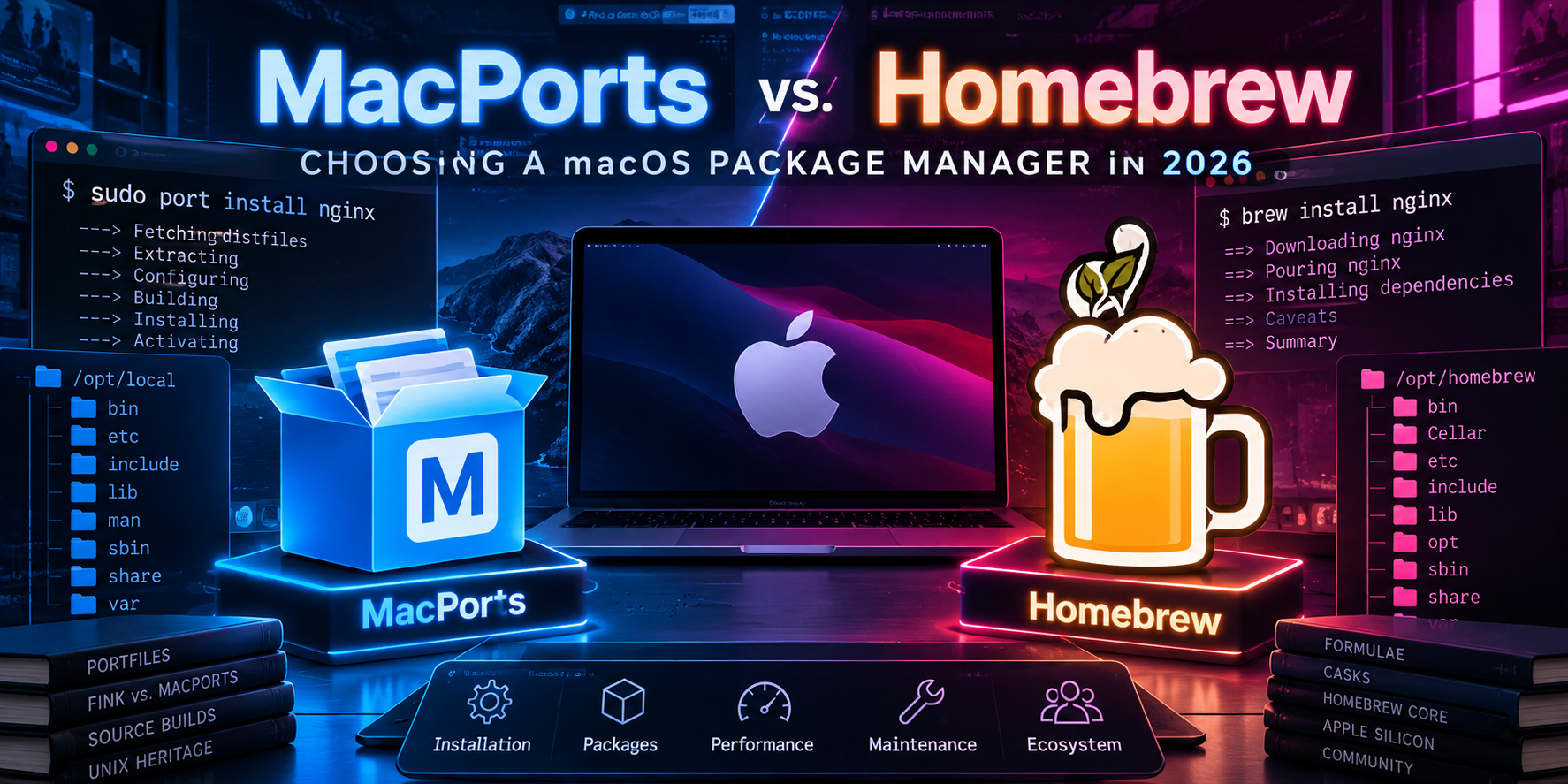
MacPorts vs. Homebrew: Choosing a macOS Package Manager in 2026
Two philosophies, one Terminal. What actually differs, what changed this year, and which one belongs on your Mac.
Objective: Explain the architectural, security, and operational differences between MacPorts and Homebrew so you can pick the right one (or migrate) with confidence.
Target audience: Network and security engineers, sysadmins, and developers who live in the macOS Terminal and install CLI tooling like nmap, hping3, iperf3, Wireshark, and scripting runtimes.
Versions covered: Homebrew 7.0.0 (September 2026) and the MacPorts 2.12.x release line.
Contents
- Executive Summary
- Prerequisites and Assumed Knowledge
- Origins and Design Philosophy
- Architecture at a Glance
- Filesystem Layout
- Privilege and Security Model
- Binary Packages vs. Source Builds
- Variants, Options, and Versions
- Platform Support and the Intel Question
- Day-to-Day Command Translation
- Step-by-Step: Installing Each One
- Running Both on One Mac
- Migrating Between Them
- Verification and Validation
- Troubleshooting and Gotchas
- Decision Matrix
- Final Word
Executive Summary
MacPorts and Homebrew solve the same problem: getting open source software onto macOS without hand-compiling everything. They get there in very different ways. MacPorts is a self-contained, root-owned ports tree that brings its own copy of nearly every dependency and gives you fine-grained build variants. Homebrew is a user-owned, binary-first manager that leans on prebuilt bottles, handles GUI apps through casks, and runs on Linux too.
For most engineers on Apple Silicon, Homebrew remains the path of least resistance. The big 2026 plot twist is Intel: Homebrew 7.0.0 moved Intel Macs to Tier 3 (no new bottles) and will stop running on Intel entirely in September 2027, and the Homebrew team itself now points Intel users to MacPorts. If you manage older Intel hardware or older macOS releases, MacPorts is no longer the niche option. It is the recommended one.
TL;DR: Apple Silicon on a current macOS release: use Homebrew. Intel Mac, older macOS, or you want isolated, variant-controlled builds: use MacPorts. Running both on one machine: avoid it unless you control PATH carefully.
Prerequisites and Assumed Knowledge
- Comfortable with the macOS Terminal (zsh is the default shell since Catalina).
- Xcode Command Line Tools installed. Both managers need them for source builds, and MacPorts needs them for nearly every install.
- Admin rights on the Mac. MacPorts installs require
sudo; Homebrew needs admin only for the initial prefix setup. - Know which silicon you are on. Run
uname -m:arm64is Apple Silicon,x86_64is Intel (or a Rosetta shell).
# Confirm architecture, macOS version, and CLT status
uname -m
sw_vers
xcode-select -p || xcode-select --install
Origins and Design Philosophy
MacPorts: the BSD ports heritage
MacPorts started in 2002 as DarwinPorts, a project born inside Apple’s OpenDarwin effort and modeled on the FreeBSD ports collection. It was renamed MacPorts in 2006. The base tool and every package definition (a Portfile) are written in Tcl.
The guiding principle is isolation. MacPorts deliberately avoids linking against most system libraries and instead builds its own OpenSSL, zlib, Python, and so on inside /opt/local. That costs disk space and install time, but it means an Apple OS update is far less likely to break your toolchain, and the behavior of a port is consistent across macOS versions going back many years.
Homebrew: the pragmatic newcomer
Homebrew arrived in 2009 (created by Max Howell), written in Ruby, with package definitions called formulae. Its original pitch was speed and simplicity: install into a user-writable prefix, never require sudo, and reuse what macOS already ships where practical.
Over time Homebrew shifted to a binary-first model. Almost every install today pours a prebuilt bottle rather than compiling. It also absorbed GUI app installs via casks, expanded to Linux, and in 2026 added substantial security machinery (tap trust, sandboxed installs, and a built-in vulnerability scanner).
Architecture at a Glance
| Attribute | Homebrew | MacPorts |
|---|---|---|
| Implementation language | Ruby | Tcl |
| Package definition | Formula (CLI), Cask (GUI app) | Portfile |
| Default prefix | /opt/homebrew (Apple Silicon), /usr/local (Intel) |
/opt/local on every architecture |
| Ownership | Owned by your user account | Owned by root; builds drop to the macports user |
| Needs sudo for installs | No (refuses to run as root) | Yes |
| Binary packages | Bottles for Tier 1 platforms | Binary archives built per macOS version |
| Build customization | Minimal; core formulae dropped build options | Rich variants (+universal, feature toggles) |
| Dependency strategy | Own deps plus some macOS system libraries | Nearly everything self-contained |
| GUI applications | First-class via casks | Limited; some ports install .app bundles |
| Linux support | Yes (x86_64 and ARM64) | No, macOS only |
| Oldest macOS supported | macOS 11 Big Sur (as of 7.0.0) | Mac OS X 10.5 Leopard |
| Usage analytics | On by default; brew analytics off |
Opt-in only (the mpstats port) |
Filesystem Layout
Knowing where each tool puts things makes troubleshooting much faster, especially when a binary is being shadowed on your PATH.
Homebrew layout
Each formula version lives in its own directory under the Cellar, and Homebrew symlinks the active version into bin, lib, and friends. Casks live in the Caskroom, with the actual app moved into /Applications.
brew --prefix            # /opt/homebrew on Apple Silicon
brew --cellar            # where versioned kegs live
ls -l $(brew --prefix)/bin | head
ls $(brew --prefix)/Caskroom
MacPorts layout
Everything lives under /opt/local. The ports tree, registry, and build area sit under /opt/local/var/macports, and the main configuration file is /opt/local/etc/macports/macports.conf.
ls /opt/local/bin | head
ls /opt/local/var/macports
cat /opt/local/etc/macports/macports.conf | grep -v '^#' | grep .
Why the prefix matters: Because MacPorts uses /opt/local on both Intel and Apple Silicon, scripts and shebangs are portable across your fleet. Homebrew’s prefix differs by architecture, so hard-coded paths like /usr/local/bin/nmap silently break when a script moves from an Intel Mac to an M-series Mac. Use $(brew --prefix) in scripts.
Privilege and Security Model
This is where the two differ most, and where 2026 brought the biggest changes.
MacPorts
- Installs run through
sudo, and the resulting tree is root-owned. A compromised user account cannot quietly replace/opt/local/bin/sshwithout escalating first. - Builds drop privileges to the dedicated
macportsuser and run inside a macOS sandbox, limiting what a malicious build script can touch. - Releases are signed with a published PGP key, and the ports tree is a curated, centrally reviewed collection. There is no equivalent of arbitrary third-party taps being added casually.
Homebrew
- Runs entirely as your user and refuses to run as root. That is convenient, but anything running as you can modify the Homebrew prefix.
- Tap trust (6.0.0): third-party taps must be explicitly trusted before their Ruby code is evaluated, which closes a long-standing supply chain gap.
- Sandboxed operations (7.0.0): formula and cask setup is increasingly delivered as signed declarative data, and sandboxed builds block reads of your home directory by default.
- **
brew vulns** (built in as of 7.0.0): checks installed formulae against OSV.dev and Homebrew’s own advisory database, which tracks backported fixes so you are not chasing false positives. - Casks that fail Gatekeeper checks were scheduled for disablement in September 2026, and the
--no-quarantineescape hatch has been deprecated.
# Homebrew: scan installed formulae for known CVEs
brew vulns
brew vulns --severity=high --fix-available
Practitioner take: On a shared or managed workstation, MacPorts’ root-owned tree is the stronger default posture. On a single-user developer laptop, Homebrew’s 2026 security work (tap trust, sandboxing, and vuln scanning) has closed most of the gap, and brew vulns is a genuinely useful audit tool MacPorts does not have a built-in equivalent for.
Binary Packages vs. Source Builds
Both tools prefer binaries, but the fallback rules differ.
Homebrew pours bottles for its Tier 1 platforms: currently Apple Silicon on macOS Sequoia 15, Tahoe 26, and Golden Gate 27. Fall outside that list (Intel, Sonoma 14, or a non-default prefix) and you increasingly compile from source, which is slow and can fail on older toolchains.
MacPorts publishes binary archives built for each supported macOS release on its build infrastructure. You get a source build when a port’s license forbids binary redistribution, or when you request a non-default variant. Source builds are a normal, supported path in MacPorts rather than a degraded mode.
# Homebrew: see what would be poured vs. built
brew install --dry-run wget

# MacPorts: show what an install would do without doing it
port -y install wget
Variants, Options, and Versions
MacPorts variants
Variants are MacPorts’ signature feature. A single port can be built with or without optional components, and the choice is recorded so upgrades preserve it. The +universal variant, for example, builds fat binaries for both architectures.
port variants <portname>
sudo port install <portname> +<variant> -<other_variant>
port installed <portname>     # shows active variants
MacPorts also keeps older versions installed but inactive after an upgrade, so rolling back is a one-liner. The port select mechanism switches the default for tools with multiple parallel versions, such as Python or GCC.
port installed nmap                    # active and inactive versions
sudo port activate nmap @<version>     # roll back
port select --list python3
sudo port select --set python3 python313
Homebrew’s approach
Homebrew core formulae no longer expose build-time options, which keeps bottles simple and reproducible. Instead you get versioned formulae (such as python@3.12), pinning to block upgrades, and the brew version-install command added in 5.1.0 for installing specific versions.
brew install python@3.12
brew pin nmap          # hold at current version
brew list --versions nmap
brew unpin nmap
Platform Support and the Intel Question
Apple dropped Intel support in macOS 27 Golden Gate, and Homebrew’s support tiers followed. As of Homebrew 7.0.0:
| Platform | Homebrew 7.0.0 status | MacPorts status |
|---|---|---|
| Apple Silicon, macOS 15, 26, 27 | Tier 1, full bottle coverage | Supported, binary archives |
| Apple Silicon, macOS 14 Sonoma | Tier 3, no new bottles | Supported, binary archives |
| Apple Silicon, macOS 11 Big Sur | Stops running September 2027 | Supported |
| Intel, macOS 11 or later | Tier 3 now; stops running September 2027 | Supported, binary archives |
| Intel, macOS 10.15 and older | No longer runs | Supported back to 10.5 Leopard |
Homebrew’s release notes are candid about this: they recommend MacPorts for Intel Macs, citing better binary package coverage. MacPorts 2.12.x ships installers for every macOS release from Leopard through Tahoe, with universal arm64/x86_64 installers for macOS 11 and later. If you are keeping Intel lab boxes, jump hosts, or a legacy MacBook Pro alive as a pentest or console machine, plan your move to MacPorts now rather than in August 2027.
Day-to-Day Command Translation
The concepts map cleanly. The biggest muscle-memory change is remembering sudo for MacPorts write operations.
| Task | Homebrew | MacPorts |
|---|---|---|
| Refresh package metadata | brew update |
sudo port selfupdate |
| Search | brew search nmap |
port search nmap |
| Package details | brew info nmap |
port info nmap |
| Install | brew install nmap |
sudo port install nmap |
| List outdated | brew outdated |
port outdated |
| Upgrade everything | brew upgrade |
sudo port upgrade outdated |
| Uninstall | brew uninstall nmap |
sudo port uninstall nmap |
| Remove orphaned deps | brew autoremove |
sudo port uninstall leaves |
| Clean caches and old versions | brew cleanup |
sudo port reclaim |
| Direct dependencies | brew deps nmap |
port deps nmap |
| What depends on X | brew uses --installed openssl@3 |
port dependents openssl |
| Files a package installed | brew list nmap |
port contents nmap |
| Which package owns a file | (no direct equivalent) | port provides /opt/local/bin/nmap |
| Explicitly installed packages | brew leaves |
port echo requested |
| Start a background service | brew services start redis |
sudo port load redis |
| Health check | brew doctor |
port diagnose |
| Export installed set | brew bundle dump |
port snapshot --export <file> |
Step-by-Step: Installing Each One
Step 1: Install the Command Line Tools
Goal: Provide compilers, headers, and git for both managers. Action: Run the installer and accept the dialog.
xcode-select --install
xcode-select -p     # expect /Library/Developer/CommandLineTools
Step 2a: Install Homebrew
Goal: Get a working brew on PATH. Action: Run the official install script (or, on Apple Silicon with macOS 15 or later, use the signed .pkg from the Homebrew GitHub releases page), then load the shell environment.
/bin/bash -c "$(curl -fsSL \
  https://raw.githubusercontent.com/Homebrew/install/HEAD/install.sh)"

# Apple Silicon: add brew to your login shell
echo 'eval "$(/opt/homebrew/bin/brew shellenv)"' >> ~/.zprofile
eval "$(/opt/homebrew/bin/brew shellenv)"
Verification: brew doctor should return “Your system is ready to brew.”
Step 2b: Install MacPorts
Goal: Get a working port on PATH. Action: Download the .pkg installer that matches your exact macOS release from the MacPorts install page, run it, then open a new Terminal. The installer adds /opt/local/bin and /opt/local/sbin to your shell profile. If it did not, add them yourself.
# Only needed if the installer did not update your profile
echo 'export PATH="/opt/local/bin:/opt/local/sbin:$PATH"' >> ~/.zprofile
source ~/.zprofile

sudo port selfupdate
port version
Verification: port version prints the base version (2.12.x at the time of writing), and sudo port selfupdate completes without errors.
Running Both on One Mac
It is possible, and on Apple Silicon the prefixes do not collide (/opt/homebrew vs. /opt/local). The problems are subtler: whichever bin directory comes first on PATH wins, and a source build in one manager can accidentally pick up headers or pkg-config files from the other.
- Decide which manager is primary and put its
binfirst on PATH. Be explicit in~/.zprofile. - Use
which -a <tool>whenever behavior looks wrong. It lists every match on PATH in order. - Do not run a Homebrew source build with
/opt/local/binon PATH, and vice versa. Open a clean shell with only one prefix when compiling. - Treat side-by-side as a migration state, not a permanent design.
which -a python3 openssl nmap
echo $PATH | tr ':' '\n'
Migrating Between Them
Homebrew to MacPorts (the Intel path)
Goal: Recreate your toolset in MacPorts and retire Homebrew cleanly.
# 1. Capture what you explicitly installed
brew leaves > ~/brew-formulae.txt
brew list --cask > ~/brew-casks.txt

# 2. Install MacPorts (Step 2b), then install equivalents
port search --name --exact nmap
sudo port install nmap iperf3 wget

# 3. Remove Homebrew with the official uninstaller
/bin/bash -c "$(curl -fsSL \
  https://raw.githubusercontent.com/Homebrew/install/HEAD/uninstall.sh)"
Port names do not always match formula names (for example, Python packages use a py313- style prefix in MacPorts). Search each one rather than scripting a blind rename. Casks have no direct equivalent: reinstall GUI apps from the vendor or the App Store.
MacPorts to Homebrew (the Apple Silicon path)
# 1. Capture requested ports and export a snapshot
port echo requested > ~/macports-requested.txt
sudo port snapshot --export ~/macports-snapshot.json

# 2. Install Homebrew (Step 2a) and reinstall tools
brew install nmap iperf3 wget

# 3. Uninstall every port, then remove MacPorts itself
sudo port -fp uninstall installed
sudo dscl . -delete /Users/macports
sudo dscl . -delete /Groups/macports
sudo rm -rf /opt/local /Applications/MacPorts \
  /Library/LaunchDaemons/org.macports.* \
  /Library/Tcl/macports1.0 ~/.macports
Double-check before rm -rf: Review the removal list against the current MacPorts uninstall guide before running it, and make sure nothing you care about lives under /opt/local (some people park configs or data there).
Verification and Validation
After installing or migrating, confirm the right binary resolves and the manager is healthy.
# Which manager owns the tool you are running?
which -a nmap

# Homebrew health
brew doctor
brew config | grep -E 'HOMEBREW_VERSION|HOMEBREW_PREFIX|macOS'

# MacPorts health
port version
port diagnose
port installed requested
Expected success output: which -a lists your preferred prefix first, brew doctor reports the system is ready to brew, and port diagnose finishes without warnings (or only warnings you understand and accept).
Troubleshooting and Gotchas
1. “port: command not found” or “brew: command not found”
Cause: The prefix bin directory is not on PATH for your login shell, usually because the profile change went into ~/.bash_profile while you run zsh, or you have not opened a new Terminal.
echo $SHELL
grep -nE 'opt/local|brew shellenv' ~/.zprofile ~/.zshrc 2>/dev/null
ls /opt/local/bin/port /opt/homebrew/bin/brew 2>/dev/null
Resolution: Add the PATH line from Step 2a or 2b to ~/.zprofile and start a new login shell.
2. Everything breaks after a major macOS upgrade
Cause: The Command Line Tools were removed or are stale, and (for MacPorts) installed ports were built against the previous OS release.
# Both: refresh the CLT
sudo rm -rf /Library/Developer/CommandLineTools
xcode-select --install

# MacPorts: install the base package for the new OS first, then
sudo port migrate

# Homebrew: update and let doctor flag stale pieces
brew update && brew upgrade && brew doctor
Resolution: For MacPorts, always install the new base package matching the new macOS before running port migrate. For Homebrew, confirm your macOS release is still Tier 1 with brew config; if it dropped to Tier 3, expect source builds.
3. Homebrew refuses a third-party tap after upgrading to 6.0 or 7.0
Cause: Tap trust. Untrusted third-party taps are no longer auto-tapped or evaluated.
brew tap-info --installed --json=v1 | grep -E '"name"|"trusted"'
brew trust --help
Resolution: Review the tap’s repository, then trust it explicitly using the commands documented in brew trust --help and the Homebrew Tap-Trust documentation. Do not trust a tap just to make an error go away.
Decision Matrix
| If you… | Choose | Why |
|---|---|---|
| Run Apple Silicon on macOS 15 or later | Homebrew | Tier 1 bottles, casks, fastest installs |
| Run an Intel Mac | MacPorts | Homebrew is Tier 3 now and stops running in September 2027 |
| Run macOS 14 or older | MacPorts | Binary archives for older releases, back to 10.5 |
| Need GUI apps managed alongside CLI tools | Homebrew | Casks have no real MacPorts equivalent |
| Share a Brewfile across a dev team or CI | Homebrew | brew bundle is mature and widely used |
| Need build-time feature toggles | MacPorts | Variants are first-class and persist across upgrades |
| Want a root-owned, multi-user install | MacPorts | Tree is owned by root, builds are privilege-dropped |
| Also manage Linux hosts | Homebrew | Same tool and Brewfile on macOS and Linux |
Final Word
There is no universally correct answer, but there is a correct answer for your hardware and threat model. Homebrew wins on convenience, GUI app management, and ecosystem momentum on Apple Silicon. MacPorts wins on isolation, build control, privilege separation, and, as of this year, on being the tool that will still run on your Intel Macs after September 2027. Pick one per machine, keep PATH honest, and audit what you install.
Recent posts
-

-

DNS is one of those technologies that quietly underpins... Full Story
-

BGP issues on FortiGate firewalls usually trace back to... Full Story
-

Every time your laptop talks to your router, a... Full Story
-

If you've spent any time configuring NAT on a... Full Story
-

If you have spent any time configuring firewall policies... Full Story
-

High availability on FortiGate is one of those features... Full Story
-

If you've configured SD-WAN on a FortiGate, you've almost... Full Story
-

FortiLink is the management protocol that turns a FortiSwitch... Full Story
-

FortiSwitches are pretty rock solid from Mean Time Between... Full Story
-

This is a quicky tip. Have you ever gone... Full Story
-

DNS is one of those quiet pieces of internet... Full Story
-

This article is an updated version of the previous... Full Story
-

You will add ns2 as a secondary (slave) BIND9... Full Story
-

In the process of deploying my lab, I needed... Full Story
-

RFC 8805, used to be known as Self-Correcting IP... Full Story
-

Years back, I wrote an article about certificate pinning. ... Full Story
-

FortiGates have the ability to send alerts to Microsoft... Full Story
-

In this post, I am going to walk through... Full Story
-

Troubleshooting VoIP on a FortiGate can feel like trying... Full Story
-

Prior to FortiOS 7.0, there were three commands to... Full Story
-

In this post, I am going to go over... Full Story
-

What we are going to do: We are going... Full Story
-

Choosing between FGCP (FortiGate Clustering Protocol) and FGSP (FortiGate... Full Story
-

Creating a VLAN on macOS (The "Pro" Move) A... Full Story
-

This blog post explores the logic behind how macOS... Full Story
-

Pretty Fly for a Wi-Fi Tell My Wi-Fi Love... Full Story
-

Part of my daily gig is creating BoMs (Bill-of-Materials)... Full Story
-

ICMP introduces several security risks, but careful filtering, rate... Full Story
-

The command diag debug application dhcps -1 enables full... Full Story
-

In the world of FortiOS, execute tac report is... Full Story
-

LLDP; What is it The Link Layer Discovery Protocol... Full Story
-

What it actually does When you run diagnose fdsm... Full Story
-

Monkey Bites are bite-sized, high-impact security insights designed for... Full Story
-

I have run macOS in macOS with Parallels but... Full Story
-

Don't be confused with my other FortiNAC posts where... Full Story
-

This is the third session in a multi-part article... Full Story
-

Today I was configuring key-based authentication on a FortiGate... Full Story
-

Netcat, often called the "Swiss Army knife" of networking,... Full Story
-

At its core, IEEE 802.1X is a network layer... Full Story
-

In case you did not see the previous FortiNAC... Full Story
-

This is our 5th session where we are going... Full Story
-

Now that we have Wireshark installed and somewhat configured,... Full Story
-

The Philosophy of Packet Analysis Troubleshooting isn't about looking... Full Story
-

Executive Summary Objective: Understand every path that activates a... Full Story
-

Objective: Understand Bidirectional Forwarding Detection on FortiOS, decide where... Full Story
-

Field Detail Objective Explain exactly what DHCP snooping inspects,... Full Story