
If you've spent any time configuring user authentication on... Full Story
By Manny Fernandez
October 19, 2026
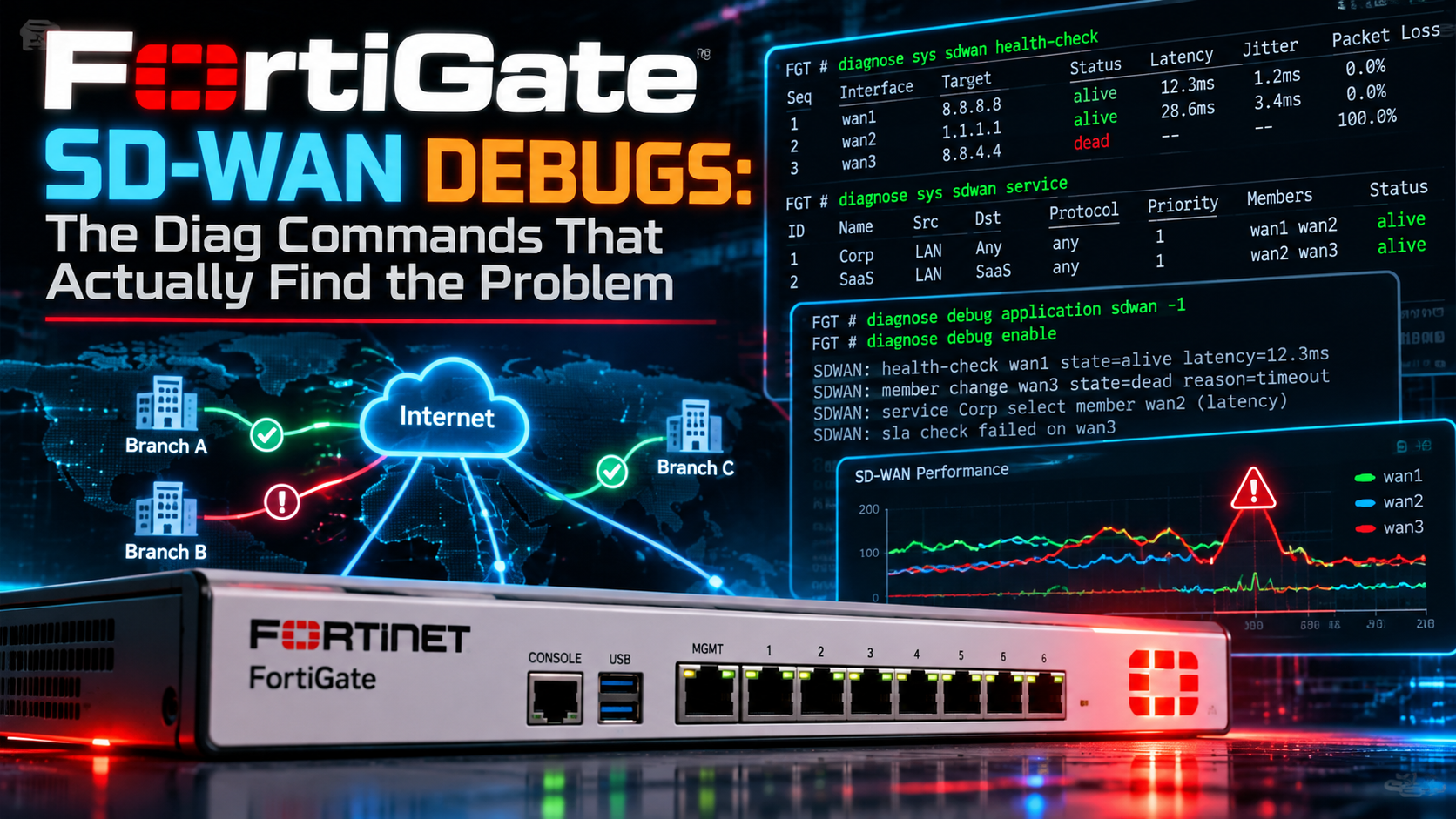
FortiGate SD-WAN Debugs: The Diag Commands That Actually Find the Problem
Executive Summary
Objective: Give you a repeatable, layer-by-layer workflow for troubleshooting FortiGate SD-WAN from the CLI. Each command answers one question, and the order matters: members, then health checks, then rules, then the policy routes the kernel actually uses, then live traffic.
Target audience: Network and security engineers who run FortiGate SD-WAN in production and need to answer “why did traffic take that link?” in minutes, not hours.
The short version: SD-WAN steering is a chain. A health check (run by the lnkmtd daemon) measures each member. Those measurements set an SLA pass/fail bitmap. SD-WAN rules read that bitmap and pick members. The result is installed as policy routes. If traffic is on the wrong link, one of those four links in the chain is lying to you or is not what you think it is. The commands below walk the chain in order.
Prerequisites and Architecture
Assumed knowledge
- You can configure SD-WAN zones, members, performance SLAs, and rules.
- You are comfortable with
diagnose debughygiene (enable, disable, reset). - You have CLI access with a profile that permits
diagnosecommands (super_admin or equivalent).
Lab environment
All examples use this lab. Public and transit addressing is drawn from 198.18.0.0/15 and internal LANs from 10.0.0.0/16.
| Component | Value | Notes |
|---|---|---|
| Platform | FortiGate, FortiOS 7.4 / 7.6 | On 6.4 and earlier the command tree is diagnose sys virtual-wan-link |
| Member 1 | wan1, 198.18.1.2/30, gateway 198.18.1.1 | SD-WAN member sequence 1 |
| Member 2 | wan2, 198.19.1.2/30, gateway 198.19.1.1 | SD-WAN member sequence 2 |
| LAN | 10.0.1.0/24 on port3 | Source of test traffic |
| Health check | Internet_SLA, ping to 198.18.100.10 | SLA target 1: latency 150 ms, jitter 30 ms, loss 1% |
| SD-WAN rule | ID 1, Critical-Apps, mode sla (Lowest Cost SLA) | Source 10.0.1.0/24, members wan1 then wan2 |
Note: Sample outputs in this post are representative and trimmed to fit. Field order and extra fields vary by FortiOS build and platform, so match on the field names, not on exact spacing.
Debug hygiene, before you start
Set this up once per session so debug output is timestamped and you always know how to stop it.
diagnose debug reset
diagnose debug console timestamp enable
diagnose debug duration 10
diagnose debug duration 10 auto-stops debugging after 10 minutes, which is cheap insurance on a busy box. To stop manually at any time:
diagnose debug disable
diagnose debug reset
Step-by-Step Workflow
Step 1: Confirm the members
Goal: Prove the interfaces you think are SD-WAN members really are, with the gateway and priority you expect.
Action: List the members.
diagnose sys sdwan member
Member(1): interface: wan1, flags=0x0 , gateway: 198.18.1.1,
  priority: 1 1024, weight: 0
Member(2): interface: wan2, flags=0x0 , gateway: 198.19.1.1,
  priority: 1 1024, weight: 0
| Field | What it tells you |
|---|---|
| Member(n) | The member sequence number. Every other SD-WAN command refers to members by this number, so memorize the mapping. |
| gateway | Next hop SD-WAN uses for this member. 0.0.0.0 on a DHCP or PPPoE member usually means the lease or session is not up. On IPsec overlay members a zero gateway is normal. |
| priority | The member priority values used for route preference when no rule matches (implicit rule). |
| weight | Load-balancing weight used by the implicit rule and by load-balance mode rules. |
GUI verification: Network > SD-WAN > SD-WAN Zones. Each member should show a green up arrow and the expected gateway.
Step 2: Read the health checks
Goal: See what SD-WAN believes about each link right now: alive or dead, the measured latency, jitter, and loss, and whether each SLA target is being met.
Action: Dump every health check, or name one to cut the noise.
diagnose sys sdwan health-check status
diagnose sys sdwan health-check status Internet_SLA
Health Check(Internet_SLA):
Seq(1 wan1): state(alive), packet-loss(0.000%) latency(12.345),
  jitter(0.512), mos(4.398), bandwidth-up(999994),
  bandwidth-dw(999987), bandwidth-bi(1999981) sla_map=0x1
Seq(2 wan2): state(alive), packet-loss(3.000%) latency(48.910),
  jitter(6.221), mos(4.251), bandwidth-up(499990),
  bandwidth-dw(499985), bandwidth-bi(999975) sla_map=0x0
| Field | What it tells you |
|---|---|
| state | alive or dead. Dead means the probe failed failtime consecutive times. A dead member is removed from rule selection. |
| packet-loss, latency, jitter | Rolling measurements from the probes. Latency and jitter are in milliseconds. |
| mos | Mean Opinion Score, calculated from latency, jitter, and loss using the codec set on the health check. |
| bandwidth-up / dw / bi | Available bandwidth in kbps, derived from the interface estimated bandwidth minus current usage. |
| sla_map | Bitmask of SLA targets currently met. Bit 0 is SLA target 1, bit 1 is target 2, and so on. 0x1 means target 1 passes. 0x0 means every target fails. 0x3 means targets 1 and 2 both pass. |
In the sample, wan2 is alive but its 3% loss breaks the 1% target, so sla_map=0x0. That single field explains most “why is it not using wan2” tickets: the link is up, it is just out of SLA.
GUI verification: Network > SD-WAN > Performance SLAs. Out-of-SLA values are shown in red.
Step 3: Look back in time with the SLA logs
Goal: Catch intermittent problems. The status command is a snapshot, and a link that flaps every few minutes will look healthy when you happen to check.
Action: Pull the per-member SLA history (roughly the last 10 minutes) and the interface usage history.
diagnose sys sdwan sla-log Internet_SLA 2
diagnose sys sdwan intf-sla-log wan2
Timestamp: Sun Oct 11 15:57:02 2026, vdom root, health-check
  Internet_SLA, interface: wan2, status: up, latency: 48.910,
  jitter: 6.221, packet loss: 3.000%.
Timestamp: Sun Oct 11 15:57:03 2026, vdom root, health-check
  Internet_SLA, interface: wan2, status: up, latency: 212.447,
  jitter: 41.902, packet loss: 8.000%.
sla-log takes the health check name and the member sequence number. intf-sla-log takes the interface name and shows used inbound, outbound, and bidirectional bandwidth plus tx and rx bytes over the same window. Line the two up: if latency spikes track bandwidth spikes, you have congestion, not a carrier fault.
GUI verification: Network > SD-WAN > Performance SLAs, select the SLA, and use the latency, jitter, and packet loss graphs.
Step 4: Check which member each rule selected
Goal: See the rule engine’s decision: which members a rule considers, their state from the rule’s point of view, and the order of preference.
Action: List IPv4 rules, IPv6 rules, or a single rule by ID.
diagnose sys sdwan service4
diagnose sys sdwan service6
diagnose sys sdwan service4 1
Note: On older 7.x builds the command is
diagnose sys sdwan service for IPv4. If service4 is rejected, drop the 4.Service(1): Address Mode(IPV4) flags=0x4200 use-shortcut-sla
Tie break: cfg
Gen(3), TOS(0x0/0x0), Protocol(0): src(1->65535):dst(1->65535),
Mode(sla), sla-compare-order
Members(2):
1: Seq_num(1 wan1 virtual-wan-link), alive, sla(0x1), gid(0),
cfg_order(0), local cost(0), selected
2: Seq_num(2 wan2 virtual-wan-link), alive, sla(0x0), gid(0),
cfg_order(1), local cost(0), selected
Src address(1):
10.0.1.0-10.0.1.255
Dst address(1):
0.0.0.0-255.255.255.255
| Field | What it tells you |
|---|---|
| Service(n) | The SD-WAN rule ID. This is the number you will see again in the policy route and in the session table. |
| Mode | The strategy: manual, priority (Best Quality), sla (Lowest Cost SLA), or load-balance. |
| Gen(n) | Generation counter. It increments every time the member order is recalculated. A fast-climbing Gen means the rule is flapping. |
| Members list order | Order of preference right now. The first listed member is where new sessions go. |
| alive / dead | Health state as seen by this rule. If the rule has no health check attached, members are always treated as alive. |
| sla(0x..) | The same bitmap as sla_map from Step 2, masked to the SLA targets this rule references. |
| selected | The member is eligible and installed for this rule. A member missing this flag is not a candidate. |
Read the sample: wan1 passes the SLA (0x1) and is listed first, so it carries the traffic. wan2 is alive but out of SLA (0x0), so it sorts to the bottom and only takes traffic if wan1 also falls out.
GUI verification: Network > SD-WAN > SD-WAN Rules. The currently preferred member carries a check mark in the rule’s member column.
Step 5: Verify the policy routes the kernel is using
Goal: Confirm the rule decision made it into the forwarding plane. SD-WAN rules are implemented as policy routes, and this is the table the packet actually hits.
Action: List the policy route table.
diagnose firewall proute list
diagnose firewall proute6 list
list route policy info(vf=root):

id=2131230721(0x7f080001) vwl_service=1(Critical-Apps)
  vwl_mbr_seq=1 2 dscp_tag=0xfc 0xfc flags=0x0 tos=0x00
  tos_mask=0x00 protocol=0 sport=0-65535 iif=0(any)
  dport=1-65535 path(2) oif=3(wan1) oif=4(wan2)
source(1): 10.0.1.0-10.0.1.255
destination(1): 0.0.0.0-255.255.255.255
hit_count=1482 last_used=2026-10-11 15:58:02
| Field | What it tells you |
|---|---|
| id | IDs in the 0x7f08xxxx range are SD-WAN rules. Small IDs (1, 2, 3) are regular policy routes from config router policy, and those are evaluated before SD-WAN rules. |
| vwl_service | The SD-WAN rule ID and name. Ties back to Step 4. |
| vwl_mbr_seq | Member sequence numbers in current preference order. |
| oif | Outgoing interfaces in order. The first oif is where new sessions go. |
| path(n) | How many members are currently usable for this rule. path(0) means no usable member, and traffic falls through to the next rule or the routing table. |
| hit_count / last_used | Proof that traffic is matching this rule. A zero hit count on a rule you expect to be busy means something above it is matching first. |
To ask the FortiGate directly which policy route a given flow would match, without generating traffic:
diagnose ip proute match 198.18.200.50 10.0.1.25 port3 6 443
The arguments are destination IP, source IP, incoming interface, protocol number, and destination port.
GUI verification: Dashboard > Network > Static & Dynamic Routing, then switch the view to Policy. SD-WAN rules appear alongside manual policy routes.
Step 6: Inspect the link monitor
Goal: Look underneath SD-WAN at the probe engine. SD-WAN health checks and classic config system link-monitor objects are both run by the same daemon, lnkmtd.
Action: Show link monitor status and the per-interface view.
diagnose sys link-monitor status
diagnose sys link-monitor interface wan1
Link Monitor: wan1-mon, Status: alive, Server num(1),
  HA state: local(alive), shared(alive)
Flags=0x1 init, Create time: Sun Oct 11 09:02:11 2026
Source interface: wan1 (3)
Gateway: 198.18.1.1
Interval: 500 ms
  Peer: 198.18.100.10(198.18.100.10)
        Source IP(198.18.1.2)
        Route: 198.18.1.2->198.18.100.10/32, gwy(198.18.1.1)
        protocol: ping, state: alive
                Latency(Min/Max/Avg): 11.902/14.118/12.345 ms
                Jitter(Min/Max/Avg): 0.021/1.204/0.512
                Packet lost: 0.000%
                Fail Times(0/5)
                Packet sent: 7209, received: 7209
| Field | What it tells you |
|---|---|
| Source IP / Route | The exact source address and next hop the probe uses. Wrong source IP is the most common reason a probe dies while a manual ping works. |
| Fail Times(x/y) | Consecutive failures versus the failtime threshold. Watching x climb toward y tells you a failover is seconds away. |
| Packet sent / received | Raw probe counters. A growing gap is real loss on the probe path. |
| HA state | On a cluster, whether the state is local to this unit or shared. |
Note:
diagnose sys link-monitor status lists objects from config system link-monitor. If you only use SD-WAN performance SLAs, it can come back empty, and that is expected. The per-interface view and the debug in Step 7 still cover SD-WAN probes.GUI verification: There is no dedicated GUI page for classic link monitors. Use Network > SD-WAN > Performance SLAs for SD-WAN probes.
Step 7: Watch the probes in real time
Goal: See every probe sent and every reply received. This is the command that separates “the server is not answering” from “we never sent it” from “it answered and we rejected the reply”.
Action: Enable link-monitor debug.
diagnose debug reset
diagnose debug console timestamp enable
diagnose debug application link-monitor -1
diagnose debug enable
lnkmtd::ping_send_msg(432): ---> ping 198.18.100.10 seq_no=667,
  icmp id=267, send 20 bytes
lnkmtd::ping_do_addr_up(136): --->
  Internet_SLA-1-VIRTUAL_WAN_LINK-1->198.18.100.10, rcvd
lnkmtd::monitor_peer_recv(2128): --->
  Internet_SLA-1-VIRTUAL_WAN_LINK-1 send time ... revd time ...
lnkmtd::monitor_proto_peer_send_request(625): --->
  Internet_SLA-2-VIRTUAL_WAN_LINK-2(198.18.100.10:ping)
  send probe packet, fail count(4)
lnkmtd::monitor_ppeer_fail(1803): --->
  Internet_SLA-2-VIRTUAL_WAN_LINK-2(198.18.100.10 ping) is dead.
| Pattern in the output | Meaning |
|---|---|
send followed by rcvd |
Healthy probe. The difference between send time and revd time is the latency sample. |
send probe packet, fail count(n) with n climbing |
Probes are leaving and nothing is coming back. Sniff the member interface to see whether the request leaves and whether a reply arrives. |
is dead |
The fail count reached failtime. The member has just been pulled from rule selection. |
HTTP probe: recv failed or a match failure |
The server answered but the response did not satisfy http-match, or the connection was reset. Fix the match string or the probe URL. |
| No lines at all for a member | The probe is not being scheduled. Check that the member is in the health check’s member list and the interface is up. |
The probe name is built as health-check name, member sequence, zone, member sequence. Internet_SLA-2-VIRTUAL_WAN_LINK-2 is the Internet_SLA probe on member 2. On a box with many health checks the output is busy, so capture it to a log file and search by that string.
Stop it when you are done:
diagnose debug disable
diagnose debug reset
Pair the debug with a sniffer on the member to confirm what is on the wire:
diagnose sniffer packet wan2 'host 198.18.100.10 and icmp' 4 0 l
Step 8: Query the lnkmtd daemon directly
Goal: Pull internal state straight from the link monitor daemon when the higher-level commands disagree with each other.
Action: Print the daemon’s test menu first, then run the levels it lists.
diagnose test application lnkmtd
diagnose test application lnkmtd 1
diagnose test application lnkmtd 2
diagnose test application lnkmtd 3
The daemon name is lnkmtd with a lowercase L (link monitor daemon), not a capital I. It is an easy one to mistype from a screenshot.
Note:
diagnose test application levels are internal and not formally documented, and the menu changes between FortiOS builds. Always run the command with no level first. The FortiGate prints the list of valid levels and a one-line description of each for the build you are on. Use that menu, not a blog post (including this one), as the source of truth for what 1, 2, and 3 dump on your firmware.Used this way, the test levels are a read-only look at the daemon’s own view of monitors, peers, and interface state, which is exactly what TAC will ask you for when a health check state does not match what the probes show.
Step 9: Prove it with a real session
Goal: Close the loop. Everything so far is what SD-WAN intends to do. This step confirms what a real packet did.
Action: Find the session and read its SD-WAN tags.
diagnose sys session filter clear
diagnose sys session filter src 10.0.1.25
diagnose sys session filter dport 443
diagnose sys session list
In the session output, look for these two fields:
sdwan_mbr_seq=1 sdwan_service_id=1
sdwan_service_id is the rule that matched (Step 4) and sdwan_mbr_seq is the member it left on (Step 1). A sdwan_service_id=0 means no explicit rule matched and the implicit rule handled it.
If no session exists yet, or you want to see the routing decision being made, use flow debug:
diagnose debug reset
diagnose debug flow filter addr 10.0.1.25
diagnose debug flow filter port 443
diagnose debug flow show function-name enable
diagnose debug flow trace start 10
diagnose debug enable
vd-root:0 received a packet(proto=6, 10.0.1.25:51514->
  198.18.200.50:443) from port3.
Match policy routing id=2131230721: to 198.18.1.1 via ifindex-3
find a route: flag=00000000 gw-198.18.1.1 via wan1
Allowed by Policy-12: SNAT
The Match policy routing id= value is the same ID from diagnose firewall proute list in Step 5. If that line is missing, the packet did not match any SD-WAN rule and was forwarded by the routing table alone.
GUI verification: Log & Report > Forward Traffic. Add the columns SD-WAN Rule Name and SD-WAN Quality. The quality column records why the member was chosen.
Verification and Validation
A healthy SD-WAN deployment gives consistent answers at every layer. Run these five commands in order and compare against the expected result.
| Check | Command | Success looks like |
|---|---|---|
| Members | diagnose sys sdwan member |
Every member listed with a non-zero gateway (except IPsec overlays) |
| Health | diagnose sys sdwan health-check status |
state(alive) on all members, sla_map non-zero where you expect SLA to pass |
| Rules | diagnose sys sdwan service4 |
Expected member listed first, all intended members flagged selected |
| Policy routes | diagnose firewall proute list |
First oif matches the rule’s first member, hit_count increasing |
| Live traffic | diagnose sys session list |
sdwan_service_id and sdwan_mbr_seq match the rule and member you intended |
Failover test
Do not shut the interface. An admin-down port tests link state, not SD-WAN. Instead break the probe path so the health check has to do the work, for example with a temporary upstream ACL for the probe target or by pointing the health check at an unreachable address on one member during a window. Then watch:
diagnose sys sdwan health-check status Internet_SLA
diagnose sys sdwan service4 1
diagnose firewall proute list
Expected sequence: fail count climbs in the link-monitor debug, the member goes dead, Gen increments on the rule, the member order flips, and the first oif in the policy route changes. New sessions follow immediately. Existing sessions follow once they are re-evaluated.
Troubleshooting and Gotchas
Gotcha 1: Health check is dead, but a manual ping works
Symptom: state(dead) and 100% loss on a member, yet execute ping to the same server succeeds.
Why: execute ping follows the routing table and picks its own source. The health check probe is pinned to the member interface and its source IP. Common causes are a probe server that is only reachable through the other link, a missing or wrong source on the health check for overlay members, an upstream device filtering the probe, or an HTTP probe whose http-match string does not appear in the response.
Diagnose:
execute ping-options interface wan2
execute ping-options source 198.19.1.2
execute ping 198.18.100.10
diagnose sniffer packet wan2 'host 198.18.100.10' 4 0 l
diagnose debug application link-monitor -1
diagnose debug enable
Resolve: Make the manual ping match the probe (same interface, same source). If that fails too, fix reachability. If it works, fix the health check: set the correct source, choose a probe server reachable on every member, or correct http-match. Use two probe servers so one unresponsive target does not take a link out.
Gotcha 2: The rule is right, but traffic takes a different link
Symptom: service4 shows the right member first, but the session leaves on another interface, or sdwan_service_id=0.
Why: Four usual suspects. One, a regular policy route (small ID in proute list) sits above the SD-WAN rules and matches first. Two, the preferred member has no route to the destination in the routing table. By default an SD-WAN rule only uses a member that has a valid route to the destination. Three, the session was established before the change and has not been re-evaluated. Four, the firewall policy does not allow the traffic out the SD-WAN zone, so it matched a policy tied to a different interface.
Diagnose:
diagnose firewall proute list
diagnose ip proute match 198.18.200.50 10.0.1.25 port3 6 443
get router info routing-table details 198.18.200.50
diagnose sys session filter src 10.0.1.25
diagnose sys session list
Resolve: Remove or reorder the conflicting policy route. Make sure every member has a route for the destination (a default route on the SD-WAN zone covers internet rules, and overlay rules need the BGP or static routes present on each tunnel). For a stuck session, clear just that flow with a filtered diagnose sys session clear. Always set the filter first, because an unfiltered clear drops every session on the box.
Gotcha 3: Links flap in and out of SLA
Symptom: Gen on the rule climbs steadily, users report brief stalls, and logs show repeated SLA status changes.
Why: Thresholds are set tighter than the circuit can hold, or the probe interval and fail and recovery counters are too aggressive. Every flip reorders members, and sessions that get re-evaluated can move links mid-conversation.
Diagnose:
diagnose sys sdwan sla-log Internet_SLA 2
diagnose sys sdwan intf-sla-log wan2
diagnose sys sdwan service4 1
Resolve: Set SLA thresholds from measured baselines in sla-log, not from a wish list. Raise recoverytime so a link must stay healthy longer before it is trusted again. On Best Quality rules, use link-cost-threshold so a marginally better link does not trigger a switch. Example damping:
config system sdwan
    config health-check
        edit "Internet_SLA"
            set interval 500
            set failtime 5
            set recoverytime 10
        next
    end
end
Quick Reference
| Question | Command |
|---|---|
| Which interfaces are members? | diagnose sys sdwan member |
| Is each link alive and in SLA? | diagnose sys sdwan health-check status [name] |
| What did the SLA look like over the last 10 minutes? | diagnose sys sdwan sla-log <health-check> <member-seq> |
| How busy has the member been? | diagnose sys sdwan intf-sla-log <interface> |
| Which member did the IPv4 rule pick? | diagnose sys sdwan service4 [rule-id] |
| Which member did the IPv6 rule pick? | diagnose sys sdwan service6 [rule-id] |
| What policy routes are installed? | diagnose firewall proute list |
| Which policy route would this flow match? | diagnose ip proute match <dst> <src> <iif> <proto> <dport> |
| What are the classic link monitors doing? | diagnose sys link-monitor status |
| What does the monitor see on one interface? | diagnose sys link-monitor interface <interface> |
| What probes are being sent and received? | diagnose debug application link-monitor -1 |
| What does the daemon itself report? | diagnose test application lnkmtd then the listed levels |
| Which rule and member did a session use? | diagnose sys session list (sdwan_service_id, sdwan_mbr_seq) |
Work top to bottom and stop at the first layer that gives the wrong answer. That layer is your problem, and everything below it is just a symptom.
Recent posts
-

-

DNS is one of those technologies that quietly underpins... Full Story
-

BGP issues on FortiGate firewalls usually trace back to... Full Story
-

Every time your laptop talks to your router, a... Full Story
-

If you've spent any time configuring NAT on a... Full Story
-

If you have spent any time configuring firewall policies... Full Story
-

High availability on FortiGate is one of those features... Full Story
-

If you've configured SD-WAN on a FortiGate, you've almost... Full Story
-

FortiLink is the management protocol that turns a FortiSwitch... Full Story
-

FortiSwitches are pretty rock solid from Mean Time Between... Full Story
-

This is a quicky tip. Have you ever gone... Full Story
-

DNS is one of those quiet pieces of internet... Full Story
-

This article is an updated version of the previous... Full Story
-

You will add ns2 as a secondary (slave) BIND9... Full Story
-

In the process of deploying my lab, I needed... Full Story
-

RFC 8805, used to be known as Self-Correcting IP... Full Story
-

Years back, I wrote an article about certificate pinning. ... Full Story
-

FortiGates have the ability to send alerts to Microsoft... Full Story
-

In this post, I am going to walk through... Full Story
-

Troubleshooting VoIP on a FortiGate can feel like trying... Full Story
-

Prior to FortiOS 7.0, there were three commands to... Full Story
-

In this post, I am going to go over... Full Story
-

What we are going to do: We are going... Full Story
-

Choosing between FGCP (FortiGate Clustering Protocol) and FGSP (FortiGate... Full Story
-

Creating a VLAN on macOS (The "Pro" Move) A... Full Story
-

This blog post explores the logic behind how macOS... Full Story
-

Pretty Fly for a Wi-Fi Tell My Wi-Fi Love... Full Story
-

Part of my daily gig is creating BoMs (Bill-of-Materials)... Full Story
-

ICMP introduces several security risks, but careful filtering, rate... Full Story
-

The command diag debug application dhcps -1 enables full... Full Story
-

In the world of FortiOS, execute tac report is... Full Story
-

LLDP; What is it The Link Layer Discovery Protocol... Full Story
-

What it actually does When you run diagnose fdsm... Full Story
-

Monkey Bites are bite-sized, high-impact security insights designed for... Full Story
-

I have run macOS in macOS with Parallels but... Full Story
-

Don't be confused with my other FortiNAC posts where... Full Story
-

This is the third session in a multi-part article... Full Story
-

Today I was configuring key-based authentication on a FortiGate... Full Story
-

Netcat, often called the "Swiss Army knife" of networking,... Full Story
-

At its core, IEEE 802.1X is a network layer... Full Story
-

In case you did not see the previous FortiNAC... Full Story
-

This is our 5th session where we are going... Full Story
-

Now that we have Wireshark installed and somewhat configured,... Full Story
-

The Philosophy of Packet Analysis Troubleshooting isn't about looking... Full Story
-

Executive Summary Objective: Get you from zero to writing... Full Story
-

NAND cells, the flash translation layer, SLC caching, TRIM,... Full Story
-

Nmap Scripting Engine (NSE): From One-Liners to Your First... Full Story