
If you've spent any time configuring user authentication on... Full Story
By Manny Fernandez
October 19, 2026
How SSDs Work, How They Perform, and Why SSD Secure Erase Overwrites Are Obsolete
NAND cells, the flash translation layer, SLC caching, TRIM, and the right way to sanitize a solid state drive in 2026
Executive Summary
Most people treat an SSD like a faster hard drive, and that assumption is exactly why so much SSD secure erase advice is wrong. An SSD is not a faster hard drive. Under the SATA or NVMe interface sits a small computer running firmware that hides a medium with some strange rules: you can write a page but only erase a whole block, every erase wears the cells out a little, and the logical address your OS writes to almost never maps to the same physical location twice.
Those rules explain everything interesting about solid state drives: why spec sheet speeds collapse on long copies, why a nearly full drive slows down, why you should never defrag one, and why the 7-pass and 35-pass wipes inherited from the hard drive era are the wrong tool. A secure erase done the old way, by overwriting the drive from the host, is not necessary and is not even reliable. The controller can cryptographically erase the whole drive in seconds, and that is what NIST now points you toward.
Objective: Understand SSD internals well enough to read a spec sheet critically, inspect and benchmark a drive from the CLI, confirm TRIM, and sanitize a drive correctly without multi-pass overwrites.
Target audience: Security engineers, sysadmins, IT asset managers, and anyone who has ever been asked to “wipe that laptop before it goes back.”
Prerequisites and Architecture
Assumed knowledge
- Comfortable on a Linux shell with
sudo. - Basic storage vocabulary: block device, partition, file system, LBA (logical block address).
- Optional: macOS or Windows equivalents are called out where they exist.
Lab requirements
- A Linux host (Ubuntu 24.04 LTS used here) with a SATA or NVMe SSD.
- Packages:
nvme-cli,smartmontools,fio,hdparm(SATA only). - A spare drive you are allowed to destroy for the sanitize steps. Every sanitize command in this post erases the entire device.
sudo apt update && sudo apt install -y nvme-cli smartmontools fio hdparmWhat is inside an SSD
| Component | What it does | Why you care |
|---|---|---|
| NAND flash dies | Store data as trapped charge in cells, stacked in 3D layers | Cell type (TLC, QLC) sets endurance and sustained speed |
| Page | Smallest unit you can program (write), typically 16 KB | Writes happen here |
| Erase block | Smallest unit you can erase, hundreds of pages | Erase is block-wide, which forces garbage collection |
| Controller | Multi-core processor running the drive firmware | Runs ECC, wear leveling, encryption, and sanitize |
| FTL (flash translation layer) | Maps logical LBAs to physical pages | The reason host overwrites miss old data |
| DRAM cache or HMB | Holds the FTL mapping table | DRAM-less drives borrow host RAM (Host Memory Buffer) |
| SLC cache | Part of the NAND run at 1 bit per cell as a fast write buffer | Source of the spec-sheet speed and the cliff after it |
| Over-provisioning | Spare NAND hidden from the OS | Room for GC and wear leveling; also invisible to host wipes |
| Media encryption key | AES key most modern controllers use on every write | Destroying it is the crypto erase |
How SSDs Actually Work
Cells: storing bits as charge
A NAND cell holds electrons in a charge trap layer. The amount of charge shifts the cell’s threshold voltage, and the controller reads data by asking which voltage window the cell falls into. Store more bits per cell and you need more windows squeezed into the same voltage range, which makes each read and write slower and each cell more fragile.
| Type | Bits per cell | Voltage states | Typical endurance (P/E cycles) | Where you see it |
|---|---|---|---|---|
| SLC | 1 | 2 | Roughly 50,000 to 100,000 | Cache regions, industrial and enterprise niches |
| MLC | 2 | 4 | Roughly 3,000 to 10,000 | Older prosumer and enterprise drives |
| TLC | 3 | 8 | Roughly 1,000 to 3,000 | Mainstream consumer and enterprise today |
| QLC | 4 | 16 | Roughly 300 to 1,500 | Budget and high-capacity drives |
| PLC | 5 | 32 | Lower still | Announced and prototyped, not mainstream |
Endurance figures are ballpark ranges, not guarantees. Modern LDPC error correction, better cell designs, and smart firmware push real-world endurance well past what the raw cell numbers suggest, which is why a modern 2 TB TLC drive is often rated for over 1,000 TB written.
Density now comes mostly from stacking. 3D NAND builds cells vertically, and most NAND shipping today sits in the 200 to 300 layer range, with SK hynix producing 321-layer QLC and Samsung targeting its 400-plus layer generation for mass production. More layers means more capacity per die without shrinking cells further.
The rule that changes everything: program pages, erase blocks
NAND cannot overwrite in place. A page has to be erased before it can be programmed again, but erase only works on a whole block of hundreds of pages. If the drive had to read, erase, and rewrite an entire block every time you changed 4 KB, it would be unusably slow and would burn through its endurance in weeks.
So the controller cheats, and the cheat is the flash translation layer.
The flash translation layer (FTL)
When the OS writes to LBA 7, the FTL writes the data to a fresh, already-erased page somewhere else, updates its map so LBA 7 now points there, and marks the old page stale. The old data is still physically sitting in the NAND. It just is not reachable through the LBA interface anymore.
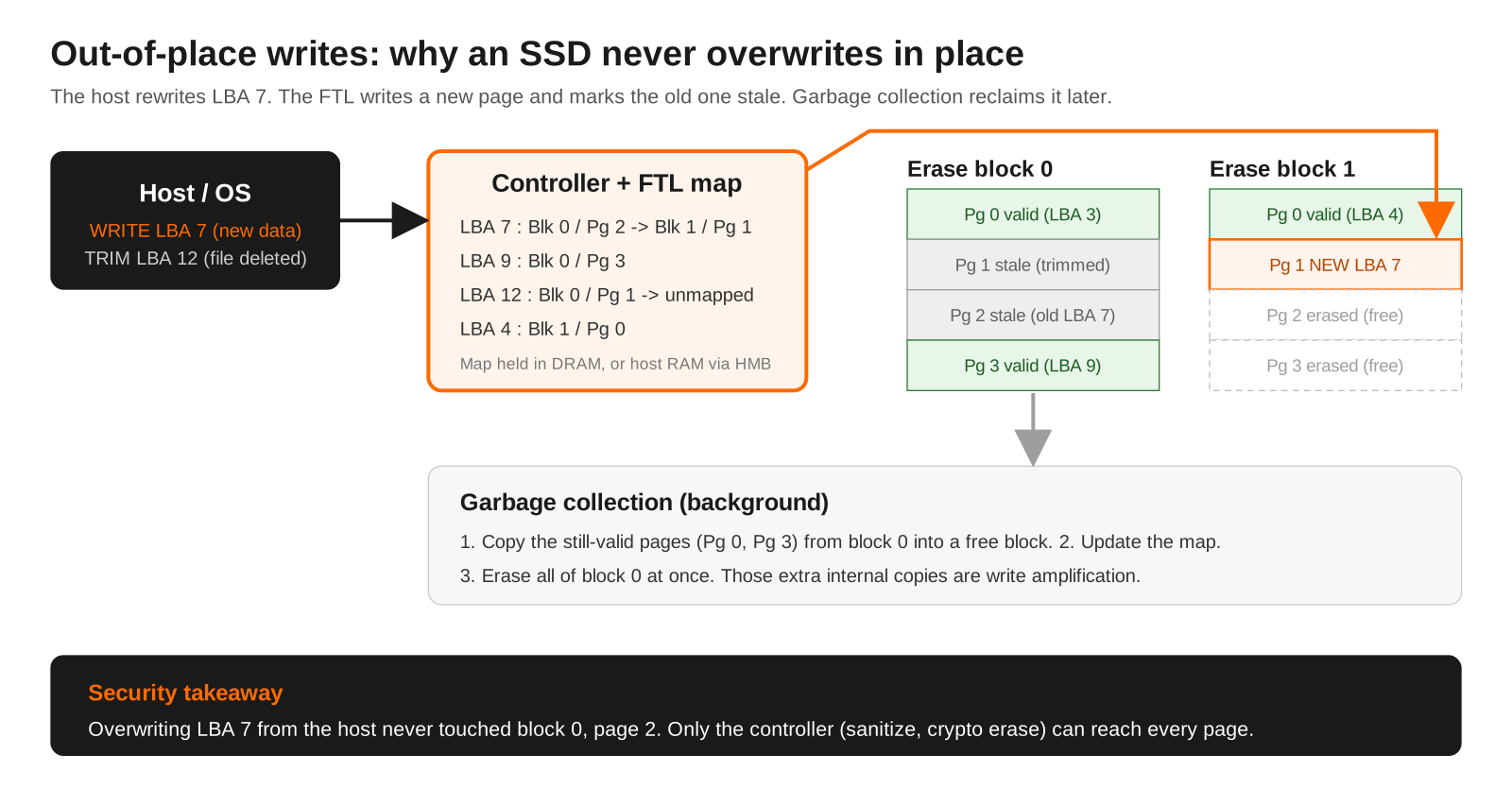
Four mechanisms keep this sustainable:
- Garbage collection (GC): in the background, the controller picks blocks full of stale pages, copies the remaining valid pages elsewhere, then erases the whole block so it can be reused.
- Write amplification: those internal copies mean the NAND absorbs more writes than the host sent. A write amplification factor of 3 means 1 GB from the host cost 3 GB of NAND wear.
- Wear leveling: the FTL spreads writes across all blocks, including moving cold data that never changes, so no block wears out early.
- Over-provisioning: spare blocks hidden from the OS give GC room to work. Leaving 10 to 20 percent of a consumer drive unpartitioned or free has the same effect.
TRIM: telling the drive what you deleted
When you delete a file, the file system only updates its own metadata. Without help, the SSD has no idea those LBAs are garbage and keeps faithfully copying them around during GC. TRIM (ATA), Deallocate (NVMe), and UNMAP (SCSI) fix that: the OS tells the drive “these LBAs are free,” the FTL drops them from the map, and the underlying pages become stale and get erased during the next GC pass.
Two side effects matter for security. First, on most modern drives a read of a trimmed LBA returns zeros immediately, even before the physical erase happens. Second, once GC erases those blocks, the data is gone from the NAND itself. That is why file carving tools that work beautifully on hard drives usually come back empty on an internal SSD with TRIM enabled.
Encryption is already on, whether you set a password or not
Most modern SSD controllers encrypt every write with an internal AES-256 media encryption key, even when you never enable a password or Opal. It costs nothing in performance because it runs in hardware, and it scrambles data patterns, which also helps the NAND. Without a password the key is unlocked automatically at power-on, so it does not protect a stolen drive. What it does give you is a kill switch: throw away that key and every page in the NAND, including stale pages and over-provisioned blocks, becomes noise. That is a cryptographic erase.
How SSDs Perform
The interface sets the ceiling
| Interface | Practical sequential read ceiling | Notes |
|---|---|---|
| SATA III (6 Gb/s) | About 550 to 600 MB/s | Bus-limited; every SATA SSD looks the same on sequential tests |
| PCIe 3.0 x4 NVMe | About 3,500 MB/s | Still plenty for most office and lab boxes |
| PCIe 4.0 x4 NVMe | About 7,000 to 7,450 MB/s | Current sweet spot for price and heat |
| PCIe 5.0 x4 NVMe | Up to about 14,900 MB/s | Flagships in 2026: WD_BLACK SN8100, Samsung 9100 PRO, Kingston Fury Renegade G5 |
| PCIe 6.0 NVMe (enterprise) | Up to about 28,000 MB/s | Micron 9650 for AI servers; not a consumer product |
Those headline numbers are real, but they measure the least interesting thing a drive does. In practice a PCIe 4.0 flagship and a 14,900 MB/s Gen5 drive load games in roughly the same time, because the bottleneck is asset decompression and CPU work, not raw sequential throughput.
The numbers that actually predict how a system feels
- 4K random read at queue depth 1: the OS, apps, and databases mostly issue small, dependent reads one at a time. Latency here (tens of microseconds on good NVMe drives) is what makes a system feel snappy.
- Sustained write after the cache fills: what you get on a 200 GB VM image copy, not a 10 GB benchmark.
- Steady-state performance: after the drive has been filled and churned, GC is always running. Enterprise drives are specified here; consumer drives usually are not.
- Thermals: Gen5 controllers run hot. Without a heatsink or airflow they throttle, and a throttled Gen5 drive can fall below a cool Gen4 one.
SLC caching and the write cliff
TLC and QLC NAND are slow to program, so consumer drives run a slice of free NAND in SLC mode as a write buffer. Writes land there at full speed, then the controller folds them into TLC or QLC later when idle. The cache is large on an empty drive and shrinks as the drive fills, because dynamic SLC cache is carved out of free space.
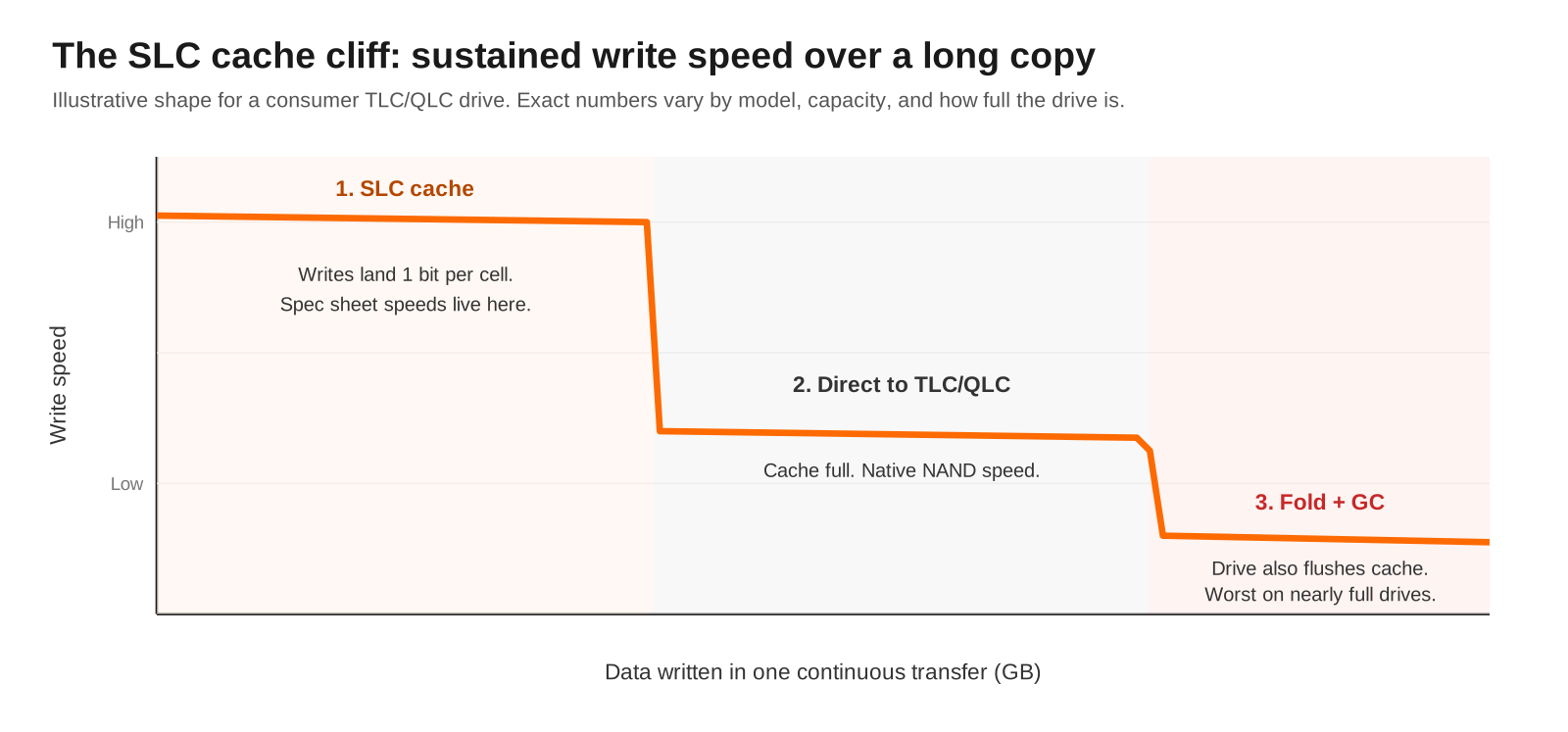
That is why a QLC drive can benchmark at thousands of MB/s and then crawl to hard drive speeds halfway through a large copy, and why the same drive feels slower at 90 percent full than at 30 percent full.
DRAM, DRAM-less, and HMB
The FTL map is roughly 1 byte per 1 KB of capacity, so about 1 GB of DRAM per TB. Drives with onboard DRAM keep the whole map close. DRAM-less NVMe drives use Host Memory Buffer to borrow a slice of system RAM over PCIe, which works well for client workloads. DRAM-less SATA drives have no HMB option and suffer most under random writes.
Endurance and retention
Two spec sheet numbers describe wear: TBW (terabytes written over warranty) and DWPD (drive writes per day). A typical user writes well under 50 GB a day, so a 600 TBW drive would take decades to exhaust. SMART reports wear directly as Percentage Used on NVMe.
Retention is the lesser-known one. Flash leaks charge slowly, faster when hot and faster as cells wear. The JEDEC endurance standard (JESD218) expects a client SSD at the end of its rated endurance to hold data for one year unpowered at 30 C, and an enterprise drive for three months at 40 C. A healthy, lightly used drive retains data far longer, but an SSD in a drawer is not an archive. Use it, power it, or back it up elsewhere.
SSD myths, quickly
Defragmenting helps: no, it only adds writes. Windows “Optimize” on an SSD sends a re-TRIM, which is fine. SSDs fail without warning more than HDDs: they do wear predictably, and many drop to read-only when spare blocks run out, which is a gift for recovery. You must disable the page file and logging to save the drive: not on any modern TLC drive. Gen5 makes your PC faster: only for workloads that move huge files.
Step-by-Step: Inspect, Benchmark, and Sanitize an SSD
Steps 1 to 4 are read-only and safe on a production machine. Step 5 only reads capabilities. Step 6 destroys all data on the target device. Replace placeholders like <nvme-ctrl> (for example /dev/nvme0), <nvme-ns> (for example /dev/nvme0n1), and <sata-dev> (for example /dev/sdb).
Step 1: Identify the drive and its interface
Goal: Know exactly which device you are working on, its model, and its link speed before touching anything.
Action: List block devices, then query the NVMe or SATA identity.
lsblk -d -o NAME,MODEL,SIZE,ROTA,TRAN
sudo nvme list
sudo smartctl -i <nvme-ns>
# Negotiated PCIe link (look for LnkSta Speed and Width)
sudo lspci -vv | grep -A40 -i "non-volatile" | grep -E "LnkCap|LnkSta"
Verification: ROTA is 0 for an SSD. TRAN shows nvme or sata. LnkSta should match LnkCap; a Gen4 drive reporting 8GT/s is running at Gen3 speed because of the slot or BIOS setting.
Step 2: Read health and wear
Goal: See how much life the drive has used and whether it is logging media errors.
Action: Pull the SMART / health log.
sudo nvme smart-log <nvme-ns>
sudo smartctl -a <nvme-ns>
# SATA equivalent
sudo smartctl -a <sata-dev>
Verification: On NVMe check percentage_used (wear, 0 to 100 plus), available_spare against available_spare_threshold, media_errors (should be 0), and data_units_written (each unit is 512,000 bytes). On SATA look for Wear_Leveling_Count, Reallocated_Sector_Ct, or the vendor equivalent.
Step 3: Confirm TRIM is working
Goal: Make sure the drive is being told about deleted data, for both performance and security.
Action: Check discard support, run a manual trim, and confirm the weekly timer.
lsblk --discard
sudo fstrim -av
systemctl status fstrim.timer
# macOS: look for "TRIM Support: Yes"
system_profiler SPNVMeDataType | grep -i trim
# Windows (admin PowerShell): 0 means TRIM is enabled
fsutil behavior query DisableDeleteNotify
Verification: Non-zero DISC-GRAN and DISC-MAX in lsblk --discard, and fstrim reports bytes trimmed per mount. If the drive sits behind a USB bridge or a LUKS volume without discard allowed, these show zero; see the gotchas.
Step 4: Benchmark the numbers that matter
Goal: Measure QD1 random latency and sustained throughput yourself instead of trusting the box.
Action: Run fio against a test file on the SSD’s file system, never against the raw device of a drive with data on it.
cd /mnt/<ssd-mount>
# 4K random read, queue depth 1: the "does it feel fast" number
fio --name=qd1-rand --filename=fio.test --size=4G --direct=1 \
    --rw=randread --bs=4k --iodepth=1 --runtime=30 --time_based
# 1M sequential read, queue depth 32: the spec sheet number
fio --name=seq-read --filename=fio.test --size=4G --direct=1 \
    --rw=read --bs=1M --iodepth=32 --ioengine=libaio --runtime=30 --time_based
rm -f fio.test
Verification: For QD1 random read, look at clat average in microseconds and IOPS. Good NVMe drives land roughly in the 50 to 100 us range at QD1; SATA is noticeably higher. To find your SLC cache cliff, run a sequential write with --size larger than the cache (for example 100G) and watch bandwidth drop partway through.
Step 5: Check what sanitize methods the drive supports
Goal: Know which erase commands the controller implements before you need them.
Action: Read the NVMe Sanitize Capabilities (SANICAP) and Format attributes, or the ATA security block on SATA.
sudo nvme id-ctrl <nvme-ctrl> -H | grep -iA6 -E "sanicap|fna"
sudo nvme id-ns <nvme-ns> -H | grep -i "lba format"
# SATA: look at the Security section
sudo hdparm -I <sata-dev> | sed -n '/Security:/,/^$/p'
Verification: In SANICAP, Crypto Erase Sanitize Operation Supported and Block Erase Sanitize Operation Supported tell you which sanitize actions exist. In FNA, Crypto Erase Supported as part of Secure Erase means nvme format --ses=2 is a real crypto erase. On SATA you want supported, not enabled, not locked, and critically not frozen.
Step 6: Sanitize the drive (destructive)
Goal: Make every byte on the NAND unrecoverable, including stale pages and over-provisioned space, in seconds.
Action: Prefer NVMe Sanitize with crypto erase. Fall back to Format with crypto erase, then the ATA enhanced security erase on SATA. Triple-check the device name first.
# NVMe Sanitize: crypto erase (sanact 4). Runs in the controller, survives reset.
sudo nvme sanitize <nvme-ctrl> --sanact=4
# Optional: follow with a block erase (sanact 2) if supported
sudo nvme sanitize <nvme-ctrl> --sanact=2
# Watch progress until it reports completed
sudo nvme sanitize-log <nvme-ctrl>
# NVMe fallback: Format with Secure Erase Setting 2 = cryptographic erase
sudo nvme format <nvme-ns> --ses=2
# --ses=1 is a user data erase (controller-level, not crypto)# SATA: ATA Security Erase (the only "secure erase" worth the name)
sudo hdparm --user-master u --security-set-pass Temp1234 <sata-dev>
sudo hdparm --user-master u --security-erase-enhanced Temp1234 <sata-dev>
sudo hdparm -I <sata-dev> | grep -i "not enabled" GUI verification: On Windows, vendor tools (Samsung Magician, WD Dashboard, Crucial Storage Executive, Kingston SSD Manager) expose the same Sanitize or Secure Erase commands with a progress bar. On a Mac with Apple silicon or a T2 chip, Erase All Content and Settings destroys the volume keys, which is a crypto erase of the internal SSD.
Why Multi-Pass SSD Secure Erase Is Not Necessary
The 3-pass DoD 5220.22-M wipe and the 35-pass Gutmann method were designed for magnetic platters, where the fear was faint residual magnetism at the edges of tracks. None of that physics applies to flash, and the method itself breaks against the FTL.
1. Host overwrites cannot reach all the data
When a tool like shred or DBAN writes zeros to LBA 7, the FTL sends those zeros to a new page. The old page, the over-provisioned blocks, and any blocks retired for wear are untouched. The landmark study here is Wei, Grupp, Spada, and Swanson at USENIX FAST 2011: they pulled raw NAND off the drives after sanitizing and found that every single-file overwrite method failed, leaving between 4 and 75 percent of the file content on the chips, and that full-drive overwrites gave inconsistent results: some drives were clean after one or two passes, one still held data after 20 passes, and several took 58 to 140 hours to finish just two passes.
2. Every pass costs endurance and time
A 4 TB drive overwritten 7 times is 28 TB of writes, plus write amplification, spent on a method that still misses data. Crypto erase costs zero NAND writes and finishes in seconds.
3. The drive already holds the key
Because the controller encrypts everything, throwing away the media encryption key turns every cell, reachable or not, into ciphertext with no key. That is why crypto erase covers exactly the places host overwrites miss.
4. TRIM handles day-to-day deletion
For normal file deletion on an internal drive with TRIM, the blocks get erased by GC and trimmed LBAs read back as zeros. Running a file shredder on an SSD just adds writes to new locations while the original pages wait for GC anyway.
5. The standards moved on
NIST SP 800-88 Revision 2, final on September 26, 2025, superseded the 2014 Rev. 1. It shifted from per-device technique tables to running an enterprise sanitization program, replaced most technique detail with references to IEEE 2883 and NSA specifications, and kept cryptographic erase as a named method because it applies across encrypted media. It still uses the Clear, Purge, and Destroy categories. Crypto erase and block erase via sanitize commands sit in Purge.
The honest caveats
- Firmware has bugs. In 2018, Carlo Meijer and Bernard van Gastel at Radboud University showed several self-encrypting SSDs whose hardware encryption could be bypassed. Treat drive encryption as the erase mechanism, not your only confidentiality control. Run OS full-disk encryption (BitLocker in software mode, FileVault, LUKS) on top, so a crypto erase is backed by keys you control.
- Not every drive implements Sanitize. Cheap and older drives may lack it or implement it badly. That is why NIST Rev. 2 pushes verification and vendor trust into the program.
- External and USB drives often lack TRIM passthrough and sanitize passthrough. Deleted data on a USB flash drive can be very recoverable.
- Dead drives cannot run a sanitize. If the controller will not respond, physical destruction of the NAND packages is the only Purge-grade answer.
Bottom line
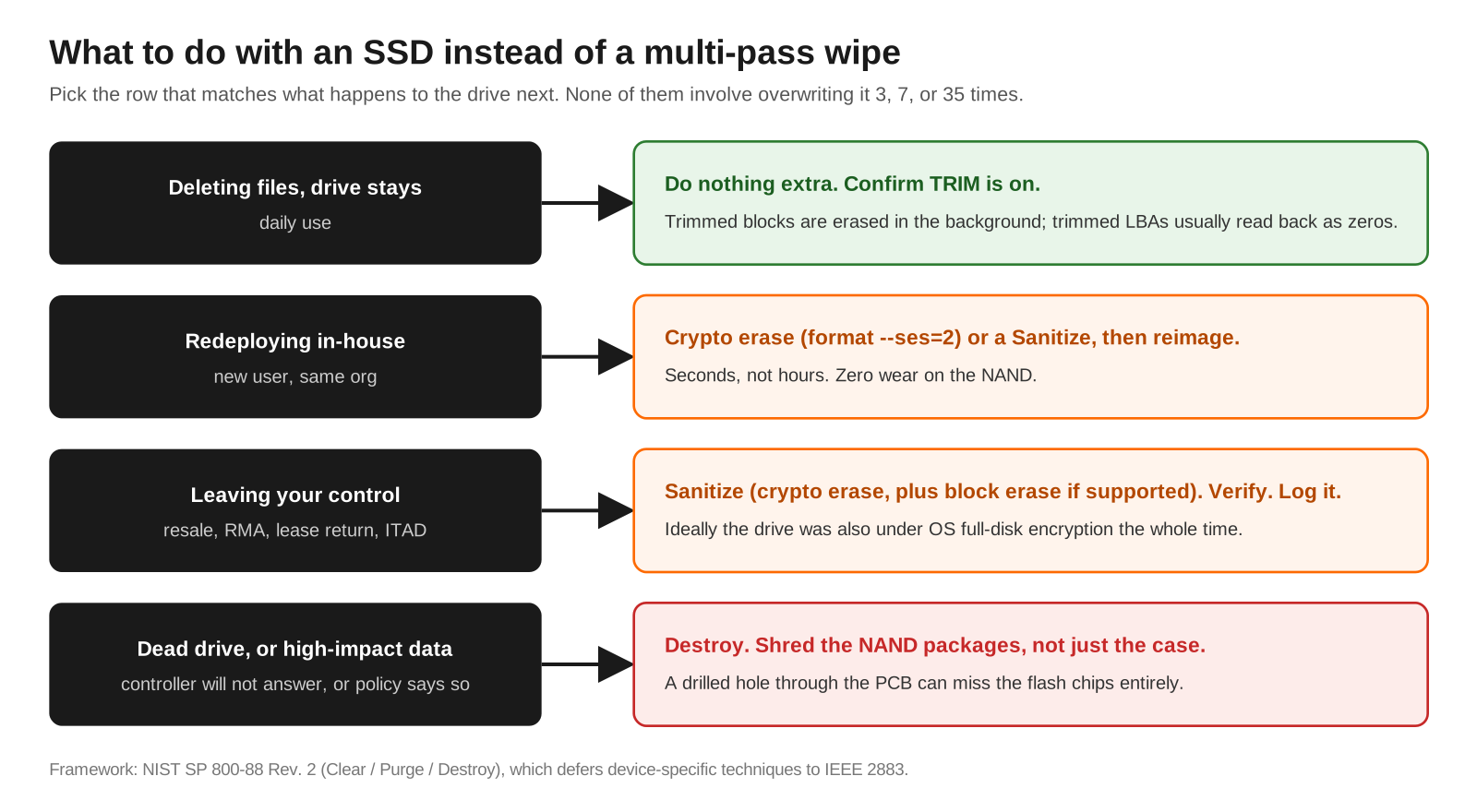
You do not need to secure erase an SSD the old way. For deletion, rely on TRIM. For reuse or disposal, use the drive’s own crypto erase or Sanitize command, verify it, and ideally have had OS full-disk encryption on the whole time. For dead drives or the highest-impact data, shred it.
Verification and Validation
After a sanitize, prove it worked rather than assuming.
# 1. Sanitize log should show the last operation completed successfully
sudo nvme sanitize-log <nvme-ctrl>
# 2. Partition table and file systems are gone
lsblk <nvme-ns>
sudo wipefs <nvme-ns>
# 3. Spot check raw content at the start, middle, and end of the device
sudo dd if=<nvme-ns> bs=1M count=64 status=none | hexdump -C | head
SIZE=$(sudo blockdev --getsize64 <nvme-ns>)
sudo dd if=<nvme-ns> bs=1M count=64 skip=$((SIZE/2/1048576)) status=none \
  | hexdump -C | head
Expected success output:
Sanitize Progress                      (SPROG) :  65535
Sanitize Status                        (SSTAT) :  0x101
  [2:0]  Most Recent Sanitize Command Completed Successfully.

nvme0n1 259:0    0 1.8T  0 disk

00000000  00 00 00 00 00 00 00 00  00 00 00 00 00 00 00 00  |................|
*
04000000
All zeros (or uniform random bytes, depending on the drive) with no partition signatures is a pass. wipefs should print nothing. Record the model, serial, method, date, operator, and result: NIST Rev. 2 treats that record as part of the sanitization program, and auditors will ask for it.
Troubleshooting and Gotchas
Gotcha 1: SATA drive reports “frozen”
Many BIOSes send a SECURITY FREEZE LOCK at boot, so hdparm --security-erase fails with an I/O error.
sudo hdparm -I <sata-dev> | grep -i frozen
# Fix: suspend and resume, which often clears the freeze
sudo systemctl suspend
# After wake, re-check: you want "not frozen"
If suspend does not work, hot-plug the SATA data cable after boot on a desktop with AHCI hot-plug enabled, or use the vendor’s bootable tool.
Gotcha 2: Sanitize not supported, or the command is rejected
nvme sanitize returns an Invalid Field or Invalid Opcode error, or SANICAP shows no supported actions.
sudo nvme id-ctrl <nvme-ctrl> -H | grep -iA6 sanicap
sudo nvme id-ctrl <nvme-ctrl> -H | grep -iA4 fna
Fall back to nvme format --ses=2 if FNA lists crypto erase, otherwise --ses=1. If neither exists, use the vendor tool. If you cannot verify a controller-level erase, the drive goes to destruction, not resale.
Gotcha 3: TRIM shows zero, or the drive is slow and hot
lsblk --discard shows 0B for DISC-GRAN, or write speed collapses during big copies.
lsblk --discard
cat /etc/crypttab           # LUKS needs "discard" to pass TRIM through
sudo smartctl -a <nvme-ns> | grep -iE "temperature|warning|critical"
df -h /mnt/<ssd-mount>
Causes in order of likelihood: a USB bridge that does not pass UNMAP (connect it internally, or check sg_vpd -p lbpv), LUKS without discard (weigh that against the minor information leak of exposing free space), a drive over 85 to 90 percent full (shrunken SLC cache and constant GC), or thermal throttling (add the heatsink the drive shipped with).
Further reading
NIST SP 800-88 Rev. 2, Guidelines for Media Sanitization (csrc.nist.gov). Wei et al., Reliably Erasing Data From Flash-Based Solid State Drives, USENIX FAST 2011. Meijer and van Gastel, Self-encrypting deception, IEEE S&P 2019. NVM Express Base Specification, Sanitize and Format NVM commands.
Recent posts
-

-

DNS is one of those technologies that quietly underpins... Full Story
-

BGP issues on FortiGate firewalls usually trace back to... Full Story
-

Every time your laptop talks to your router, a... Full Story
-

If you've spent any time configuring NAT on a... Full Story
-

If you have spent any time configuring firewall policies... Full Story
-

High availability on FortiGate is one of those features... Full Story
-

If you've configured SD-WAN on a FortiGate, you've almost... Full Story
-

FortiLink is the management protocol that turns a FortiSwitch... Full Story
-

FortiSwitches are pretty rock solid from Mean Time Between... Full Story
-

This is a quicky tip. Have you ever gone... Full Story
-

DNS is one of those quiet pieces of internet... Full Story
-

This article is an updated version of the previous... Full Story
-

You will add ns2 as a secondary (slave) BIND9... Full Story
-

In the process of deploying my lab, I needed... Full Story
-

RFC 8805, used to be known as Self-Correcting IP... Full Story
-

Years back, I wrote an article about certificate pinning. ... Full Story
-

FortiGates have the ability to send alerts to Microsoft... Full Story
-

In this post, I am going to walk through... Full Story
-

Troubleshooting VoIP on a FortiGate can feel like trying... Full Story
-

Prior to FortiOS 7.0, there were three commands to... Full Story
-

In this post, I am going to go over... Full Story
-

What we are going to do: We are going... Full Story
-

Choosing between FGCP (FortiGate Clustering Protocol) and FGSP (FortiGate... Full Story
-

Creating a VLAN on macOS (The "Pro" Move) A... Full Story
-

This blog post explores the logic behind how macOS... Full Story
-

Pretty Fly for a Wi-Fi Tell My Wi-Fi Love... Full Story
-

Part of my daily gig is creating BoMs (Bill-of-Materials)... Full Story
-

ICMP introduces several security risks, but careful filtering, rate... Full Story
-

The command diag debug application dhcps -1 enables full... Full Story
-

In the world of FortiOS, execute tac report is... Full Story
-

LLDP; What is it The Link Layer Discovery Protocol... Full Story
-

What it actually does When you run diagnose fdsm... Full Story
-

Monkey Bites are bite-sized, high-impact security insights designed for... Full Story
-

I have run macOS in macOS with Parallels but... Full Story
-

Don't be confused with my other FortiNAC posts where... Full Story
-

This is the third session in a multi-part article... Full Story
-

Today I was configuring key-based authentication on a FortiGate... Full Story
-

Netcat, often called the "Swiss Army knife" of networking,... Full Story
-

At its core, IEEE 802.1X is a network layer... Full Story
-

In case you did not see the previous FortiNAC... Full Story
-

This is our 5th session where we are going... Full Story
-

Now that we have Wireshark installed and somewhat configured,... Full Story
-

The Philosophy of Packet Analysis Troubleshooting isn't about looking... Full Story
-

NAND cells, the flash translation layer, SLC caching, TRIM,... Full Story
-

Nmap Scripting Engine (NSE): From One-Liners to Your First... Full Story
-

Stand up TRex on Ubuntu, wire it through a... Full Story