
If you've spent any time configuring user authentication on... Full Story
By Manny Fernandez
October 27, 2026
arp-scan: Find Every Host on Your LAN in Seconds
A practitioner guide to arp-scan network discovery on Linux and macOS
No fluff. Just the config that works.
Executive Summary
arp-scan network discovery is the fastest honest answer to the question “what is actually plugged into this segment?” Instead of asking hosts to answer a ping, arp-scan sends an ARP request for every address in the range and records who replies. Every IPv4 host has to answer ARP to talk on the wire, so hosts that drop ICMP, run a local firewall, or sit in stealth mode still show up, complete with MAC address and vendor.
Objective: install arp-scan, run a full sweep of a local subnet, then put it to work: VLAN-tagged scans, scanning from an interface with no IP, CSV output for inventory, duplicate IP detection, and a scripted health check you can drop into cron.
Target audience: network and security engineers, SOC analysts, and homelab builders who need a quick, reliable Layer 2 inventory before reaching for Nmap.
Prerequisites and Architecture
Assumed knowledge
- Basic Linux or macOS shell use, including sudo.
- How ARP maps an IPv4 address to a MAC address on a broadcast domain.
- Subnet notation (CIDR) and how 802.1Q VLAN tagging works.
Lab requirements
- A Linux host (Ubuntu 24.04, Debian, Kali, RHEL family) or a Mac with Homebrew.
- A wired interface on the target segment. Wi-Fi works, but some access points rate limit broadcasts.
- Written authorization to scan the segment. arp-scan is quiet compared to a port scan, but it is still a scan.
| Component | Lab value | Role |
|---|---|---|
| Scanner host | 10.0.10.50 on eth0 (en0 on macOS) | Runs arp-scan |
| User LAN | 10.0.10.0/24 | Primary scan target |
| Default gateway (FortiGate) | 10.0.10.1 | Answers ARP for its own address and any VIPs or IP pools |
| Voice VLAN | VLAN 20, 10.0.20.0/24 | Reached with an 802.1Q tagged scan |
| Upstream transit | 198.18.0.0/15 | Out of scope: ARP never crosses a router |
Why arp-scan Network Discovery Beats a Ping Sweep
ARP is a Layer 2 protocol. A host can block ICMP echo with a host firewall and still has to reply to ARP, or nobody on the segment could deliver frames to it. That is why arp-scan routinely finds hosts that a ping sweep misses. The flip side is the hard limit: ARP is not routed, so arp-scan only sees the broadcast domain your interface sits in (or the VLANs you can tag into).
Figure 1: arp-scan sends one broadcast ARP request per target and records each unicast reply
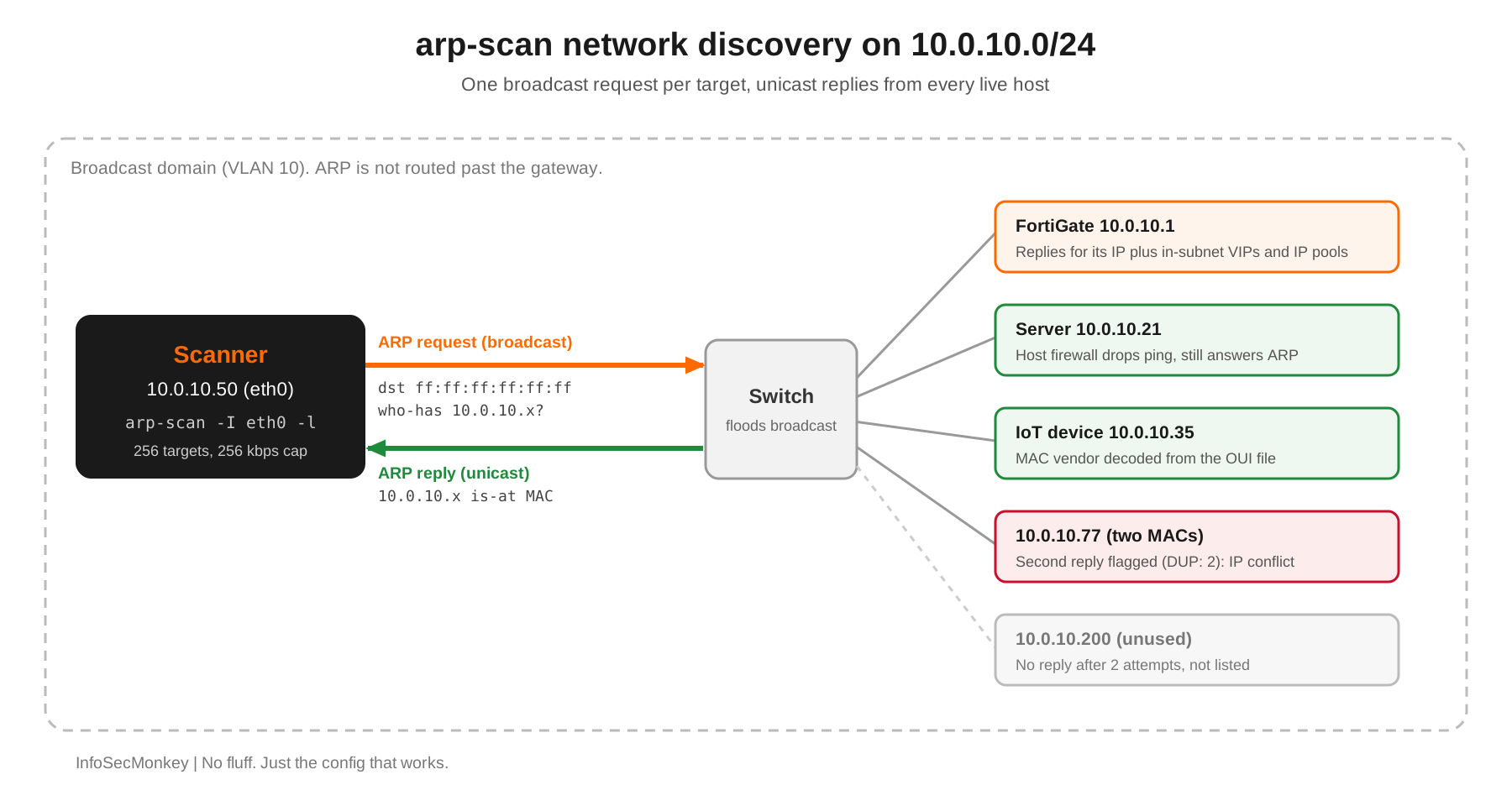
By default arp-scan sends one request per target, retries once (two attempts total), waits 500 ms for the first reply, and caps outbound traffic at 256,000 bits per second. On a /24 that adds up to a scan of roughly one to two seconds.
Step-by-Step Implementation
Step 1: Install arp-scan
Goal: get a current build (1.10.0 is the current release in Debian, Arch and Homebrew).
Action: install from your package manager. Build from GitHub only if you need features newer than your distro package.
# Debian, Ubuntu, Kali
sudo apt update
sudo apt install -y arp-scan

# Fedora, RHEL family (EPEL on RHEL)
sudo dnf install -y arp-scan

# macOS with Homebrew
brew install arp-scan

# Confirm the version and libpcap build
arp-scan --version
To build the latest source instead:
sudo apt install -y build-essential autoconf automake libpcap-dev libcap-dev
git clone https://github.com/royhills/arp-scan.git
cd arp-scan
autoreconf --install
./configure
make
sudo make install
Verification: arp-scan --version prints the version, the license, the libpcap version, and whether POSIX.1e capability support was compiled in.
Step 2: Sort out privileges
Goal: let arp-scan open a raw socket without running everything as root.
Action: arp-scan needs raw packet access. Pick one of these:
# Simplest: run it with sudo
sudo arp-scan --localnet

# Linux: grant only CAP_NET_RAW to the binary, then run as a normal user
sudo setcap cap_net_raw+p "$(command -v arp-scan)"
getcap "$(command -v arp-scan)"

# macOS: arp-scan needs read/write on /dev/bpf*, so use sudo
sudo arp-scan -I en0 --localnet
Gotcha: arp-scan is capabilities aware: with CAP_NET_RAW it enables that one capability only for the packet functions and never runs with full root. That is the cleanest option on a shared jump box.
Verification: getcap should print cap_net_raw=p for the binary.
Step 3: Run your first local sweep
Goal: discover every live host on the subnet attached to your interface.
Action: --localnet (or -l) builds the target list from the interface address and mask. Always pin the interface with -I; otherwise arp-scan picks the lowest numbered interface that is up, which on a laptop with Docker or a VPN is often the wrong one.
# Find the interface name first
ip -br addr          # Linux
ifconfig | grep -B1 "inet "   # macOS

sudo arp-scan -I eth0 --localnet
Expected output (lab addressing):
Interface: eth0, type: EN10MB, MAC: 52:54:00:3a:1c:50, IPv4: 10.0.10.50
Starting arp-scan 1.10.0 with 256 hosts (https://github.com/royhills/arp-scan)
10.0.10.1     04:d5:90:6e:2b:11   Fortinet, Inc.
10.0.10.10    00:0c:29:90:07:e9   VMware, Inc.
10.0.10.21    a4:1f:72:7f:25:bb   Dell Inc.
10.0.10.35    dc:a6:32:4f:88:02   Raspberry Pi Trading Ltd
10.0.10.60    10:60:4b:73:43:de   Hewlett Packard

5 packets received by filter, 0 packets dropped by kernel
Ending arp-scan 1.10.0: 256 hosts scanned in 1.871 seconds (136.83 hosts/sec). 5 responded
Verification: the footer line shows hosts scanned, elapsed time and the number that responded. Your own gateway should always be in the list.
Step 4: Choose targets precisely
Goal: scan exactly what you mean to, not the whole interface subnet.
Action: arp-scan accepts single IPs, CIDR (network and broadcast included), dash ranges, network:mask, or a file.
sudo arp-scan -I eth0 10.0.10.1
sudo arp-scan -I eth0 10.0.10.0/25
sudo arp-scan -I eth0 10.0.10.100-10.0.10.150
sudo arp-scan -I eth0 10.0.10.0:255.255.255.0

# One target or pattern per line; use - to read stdin
sudo arp-scan -I eth0 --file targets.txt
Verification: the “Starting arp-scan … with N hosts” line confirms how many targets were generated before any packet leaves.
Step 5: Scan a tagged VLAN or an interface with no IP
Goal: inventory a VLAN you can reach on a trunk, or a segment where your interface has no IPv4 address.
Action: --vlan (-Q) adds an 802.1Q tag to outgoing requests. --arpspa (-s) sets the sender IP inside the ARP payload, which lets you scan from an unnumbered interface. Use an unused address in the target subnet, because some operating systems only answer requests whose source sits inside their own network.
# Trunk port: scan voice VLAN 20 without creating a subinterface
sudo arp-scan -I eth0 --vlan=20 --arpspa=10.0.20.250 10.0.20.0/24

# Unnumbered interface on a span or test port
sudo arp-scan -I eth1 --arpspa=10.0.10.250 10.0.10.0/24
Gotcha: Never set –arpspa to an address that is already in use. Some hosts log an address conflict when they see an ARP request that claims their own IP, and you will get a call from the desktop team.
Verification: replies arriving on a tagged scan display the VLAN ID if you add ${vlan} to a custom --format string (Step 6).
Step 6: Format output for inventory and scripts
Goal: produce clean output you can diff, import into a spreadsheet, or feed to another tool.
Action: --plain (-x) drops the header and footer, --format (-F) builds each line from fields, --rtt (-D) adds round trip time, and --resolve (-d) adds reverse DNS names.
# CSV inventory with vendor
sudo arp-scan -I eth0 --plain \
  --format='${ip},${mac},"${vendor}"' 10.0.10.0/24 > lan-inventory.csv

# Aligned table with hostname and round trip time
sudo arp-scan -I eth0 --resolve --rtt \
  --format='${ip;-15} ${mac} ${rtt;8} ${name}' 10.0.10.0/24

# Fast and lean: IP and MAC only, no vendor files loaded
sudo arp-scan -I eth0 --quiet --plain 10.0.10.0/24| Field | What it shows |
|---|---|
${ip} |
Responding IPv4 address |
${mac} |
MAC from the ARP payload |
${hdrmac} |
Ethernet source MAC, only when it differs from the ARP payload |
${vendor} |
OUI vendor lookup (not available with –quiet) |
${name} |
Hostname, requires –resolve |
${rtt} |
Round trip time in ms, requires –rtt |
${vlan} |
802.1Q VLAN ID, if the reply was tagged |
${dup} |
Packet number for duplicate replies |
Single quote the format string so the shell leaves ${...} alone. A negative width such as ${ip;-15} left aligns the column.
Step 7: Tune speed and accuracy
Goal: balance scan time against missed hosts on larger or busier networks.
Action: per the man page, a single pass takes roughly hosts multiplied by packet interval, plus the timeout. Small ranges are dominated by the timeout; big ranges by the packet rate.
# Faster /16 sweep: 1 Mbit/s, single attempt (accept some misses)
sudo arp-scan -I eth0 --bandwidth=1M --retry=1 10.0.0.0/16

# Lossy Wi-Fi or a sleepy IoT segment: more attempts, longer timeout
sudo arp-scan -I wlan0 --retry=4 --timeout=1000 --backoff=2 10.0.10.0/24

# Randomize target order to look less like a sequential sweep
sudo arp-scan -I eth0 --random 10.0.10.0/24| Option | Default | Effect |
|---|---|---|
| –retry / -r | 2 | Total attempts per host |
| –timeout / -t | 500 ms | Initial wait per host |
| –backoff / -b | 1.5 | Timeout multiplier on each pass |
| –bandwidth / -B | 256000 bps | Outbound rate cap (K and M suffixes accepted) |
| –interval / -i | Derived from bandwidth | Minimum gap between packets (use instead of bandwidth) |
Gotcha: Do not crank –bandwidth on a production user VLAN. Every request is a broadcast that every host on the segment must process, and switch broadcast storm control can start dropping your frames, which shows up as missed hosts.
Step 8: Spot duplicate IPs and proxy ARP
Goal: use the scan to catch addressing problems, not just list hosts.
Action: when more than one reply comes back for an address, arp-scan flags it with (DUP: n). Two different MACs on the same IP is a real conflict or a spoofing attempt. The same MAC answering for many IPs usually means proxy ARP.
sudo arp-scan -I eth0 10.0.10.0/24

10.0.10.77    00:0c:29:66:9e:c2   VMware, Inc.
10.0.10.77    a4:1f:72:11:02:9d   Dell Inc. (DUP: 2)
On a FortiGate segment, expect the firewall MAC to answer for its interface IP and for any VIP or IP pool address that falls inside the connected subnet, because FortiOS replies to ARP for those by default (arp-reply enable on the VIP or pool). That is normal. A MAC you cannot account for answering for your gateway address is not.
Verification: pipe the plain output through a quick check to list every IP seen more than once:
sudo arp-scan -I eth0 --plain --format='${ip}' 10.0.10.0/24 | sort | uniq -dStep 9: Script it as a health check
Goal: alert when expected hosts drop off a segment, without parsing output.
Action: --limit (-M) makes arp-scan exit as soon as N hosts reply, and exit with status 1 if fewer than N responded. Pair it with --pcapsavefile (-W) when you want the raw replies for Wireshark.
#!/usr/bin/env bash
# lan-check.sh: expect at least 5 hosts on the user LAN
if ! arp-scan -I eth0 --quiet --plain --limit=5 10.0.10.0/24 > /dev/null; then
  logger -t lan-check "Fewer than 5 hosts answered ARP on 10.0.10.0/24"
fi

# Keep a capture of the replies for later analysis
sudo arp-scan -I eth0 --pcapsavefile=lan-arp.pcap 10.0.10.0/24
Verification: run the script with a limit higher than your host count and confirm the logger line appears in journalctl -t lan-check.
Verification and Validation
Confirm the tool, the privileges and the results line up with reality:
# 1. Binary and capability check
arp-scan --version
getcap "$(command -v arp-scan)"

# 2. Gateway must answer
sudo arp-scan -I eth0 10.0.10.1

# 3. Compare against the kernel ARP cache
ip neigh show dev eth0        # Linux
arp -an -i en0                # macOS
Expected success: the gateway replies with its MAC and vendor, the footer reads 1 responded, and every MAC in your neighbor table appears in a full --localnet sweep. The sweep will usually show more hosts than the ARP cache, because the cache only holds hosts you have recently talked to.
Troubleshooting and Gotchas
Zero hosts respond, or only your own gateway
Almost always the wrong interface or the wrong broadcast domain. arp-scan defaults to the lowest numbered interface that is up, which may be a Docker bridge, a VPN tunnel or a loopback-style virtual adapter.
sudo arp-scan -v -I eth0 --localnet    # -v shows what is being sent
ip -br link                            # confirm the interface is UP
sudo tcpdump -ni eth0 arp              # watch requests and replies live
Fix: pin -I, confirm the interface is in the VLAN you think it is, and remember a router boundary stops ARP cold. Behind a VPN you cannot ARP scan the far side.
Permission errors or “pcap_open_live” failures
arp-scan could not open the raw socket. On Linux the capability may have been wiped by a package upgrade; on macOS the user lacks access to /dev/bpf.
getcap "$(command -v arp-scan)"                       # empty means no capability
sudo setcap cap_net_raw+p "$(command -v arp-scan)"   # Linux fix
sudo arp-scan -I en0 --localnet                       # macOS fix
Vendor shows “(Unknown)” for new devices
The OUI database ships with the package and goes stale. Newer devices, and phones using randomized private MAC addresses, will not match. Randomized MACs have the locally administered bit set (second hex digit of 2, 6, A or E), so no vendor file will ever resolve them.
# Refresh the IEEE OUI file in place (Linux package install)
cd /usr/share/arp-scan
sudo get-oui -v

# Or add your own mappings for lab gear
echo -e "52:54:00\tQEMU virtual NIC" | sudo tee -a /etc/arp-scan/mac-vendor.txt
Gotcha: On macOS, the Homebrew get-oui script is Perl and needs the LWP::UserAgent and Text::CSV modules. If it fails with “Can’t locate LWP/UserAgent.pm”, install them with cpan, or download a fresh ieee-oui.txt into your working directory: arp-scan checks the current directory first.
Sources
Recent posts
-

-

DNS is one of those technologies that quietly underpins... Full Story
-

BGP issues on FortiGate firewalls usually trace back to... Full Story
-

Every time your laptop talks to your router, a... Full Story
-

If you've spent any time configuring NAT on a... Full Story
-

If you have spent any time configuring firewall policies... Full Story
-

High availability on FortiGate is one of those features... Full Story
-

If you've configured SD-WAN on a FortiGate, you've almost... Full Story
-

FortiLink is the management protocol that turns a FortiSwitch... Full Story
-

FortiSwitches are pretty rock solid from Mean Time Between... Full Story
-

This is a quicky tip. Have you ever gone... Full Story
-

DNS is one of those quiet pieces of internet... Full Story
-

This article is an updated version of the previous... Full Story
-

You will add ns2 as a secondary (slave) BIND9... Full Story
-

In the process of deploying my lab, I needed... Full Story
-

RFC 8805, used to be known as Self-Correcting IP... Full Story
-

Years back, I wrote an article about certificate pinning. ... Full Story
-

FortiGates have the ability to send alerts to Microsoft... Full Story
-

In this post, I am going to walk through... Full Story
-

Troubleshooting VoIP on a FortiGate can feel like trying... Full Story
-

Prior to FortiOS 7.0, there were three commands to... Full Story
-

In this post, I am going to go over... Full Story
-

What we are going to do: We are going... Full Story
-

Choosing between FGCP (FortiGate Clustering Protocol) and FGSP (FortiGate... Full Story
-

Creating a VLAN on macOS (The "Pro" Move) A... Full Story
-

This blog post explores the logic behind how macOS... Full Story
-

Pretty Fly for a Wi-Fi Tell My Wi-Fi Love... Full Story
-

Part of my daily gig is creating BoMs (Bill-of-Materials)... Full Story
-

ICMP introduces several security risks, but careful filtering, rate... Full Story
-

The command diag debug application dhcps -1 enables full... Full Story
-

In the world of FortiOS, execute tac report is... Full Story
-

LLDP; What is it The Link Layer Discovery Protocol... Full Story
-

What it actually does When you run diagnose fdsm... Full Story
-

Monkey Bites are bite-sized, high-impact security insights designed for... Full Story
-

I have run macOS in macOS with Parallels but... Full Story
-

Don't be confused with my other FortiNAC posts where... Full Story
-

This is the third session in a multi-part article... Full Story
-

Today I was configuring key-based authentication on a FortiGate... Full Story
-

Netcat, often called the "Swiss Army knife" of networking,... Full Story
-

At its core, IEEE 802.1X is a network layer... Full Story
-

In case you did not see the previous FortiNAC... Full Story
-

This is our 5th session where we are going... Full Story
-

Now that we have Wireshark installed and somewhat configured,... Full Story
-

The Philosophy of Packet Analysis Troubleshooting isn't about looking... Full Story
-

No fluff. Just the config that works. The /31... Full Story
-

A practitioner guide to arp-scan network discovery on Linux... Full Story
-

CVE-2026-0322 PAN-OS Management Interface RCE: Patch, Lock Down, Hunt... Full Story